Google Sheets Intermediate Tutorials
How to Import Excel into Google Sheets (3 Suitable Ways)
Learn how to import Excel files into Google Sheets using the built-in import feature, direct file opening, or simple copy-paste methods.
Read article


Nowshin Afroj Anha is a professional B2B and B2C blog writer with experience in ecommerce, SEO, and content strategy. She has two years of experience using Excel and Google Sheets for basic data handling, organization, and workflow support. She is interested in strengthening her spreadsheet skills and contributing to the spreadsheet community by applying her technical and analytical experience to structured data tasks.
Articles by Anha Nowshin are developed under the guidance of ExcelInsider’s core training program and are technically reviewed by Nehad Ulfat, lead spreadsheet consultant, to ensure accuracy and user-centric value.
Learn how to import Excel files into Google Sheets using the built-in import feature, direct file opening, or simple copy-paste methods.
Learn how to create a drop-down list in Google Sheets from another sheet using direct range references, named ranges, and dependent lists.
Learn how to edit a drop-down list in Google Sheets—add or remove items, change styles, show help text, and allow multiple selections easily.
Learn how to apply conditional formatting with multiple conditions in Google Sheets using AND, OR, exact match, ranges, and text-based rules.

Learn how to extract text between two characters in Google Sheets using formulas to pull text from parentheses, brackets, hyphens, or braces.
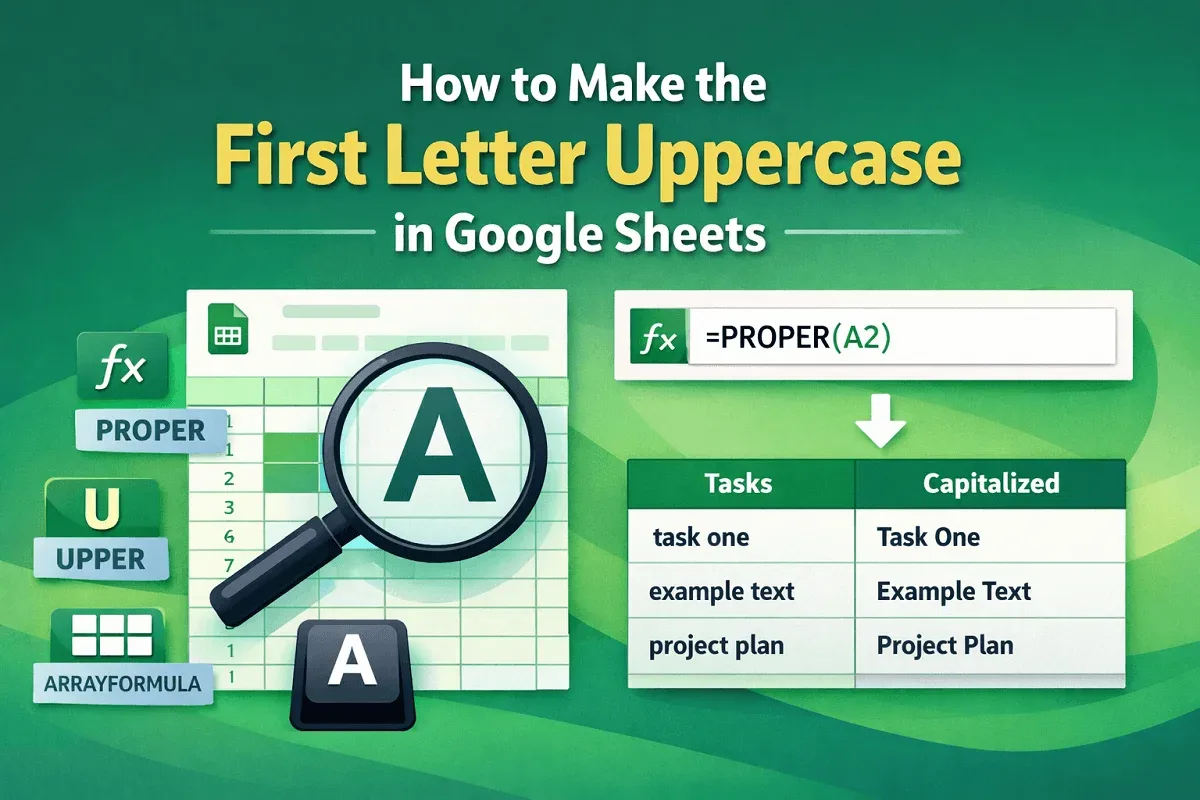
Learn how to make the first letter uppercase in Google Sheets using the PROPER function, UPPER function, or ARRAYFORMULA for bulk changes.

Learn how to share only one tab in Google Sheets by hiding other tabs, using Protect Sheet, creating a new file, or publishing to the web.
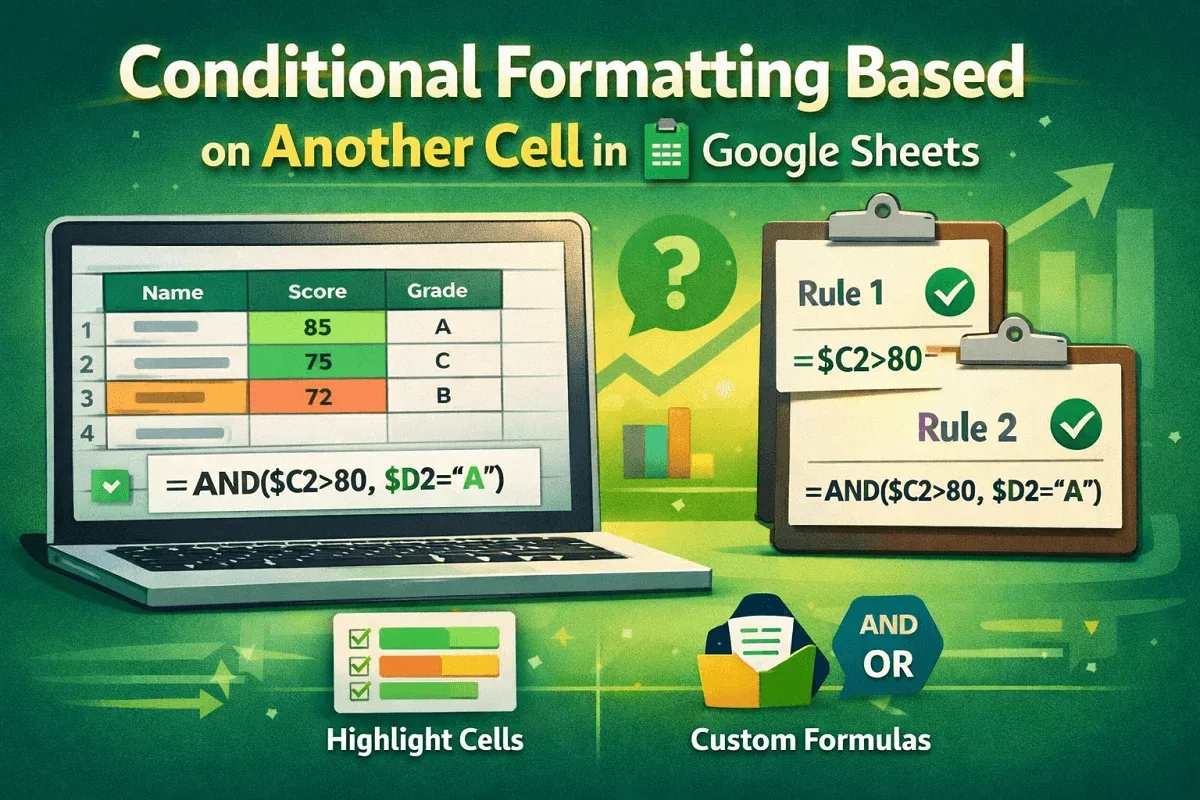
Learn how to apply conditional formatting in Google Sheets based on another cell’s value using single or multiple formatting rules.
Learn how to remove formulas but keep values in Google Sheets using the Paste Values feature or the values-only option from the toolbar.
Learn how to autofill in Google Sheets without dragging using keyboard shortcuts, the suggested autofill box, or the Fill Down feature.
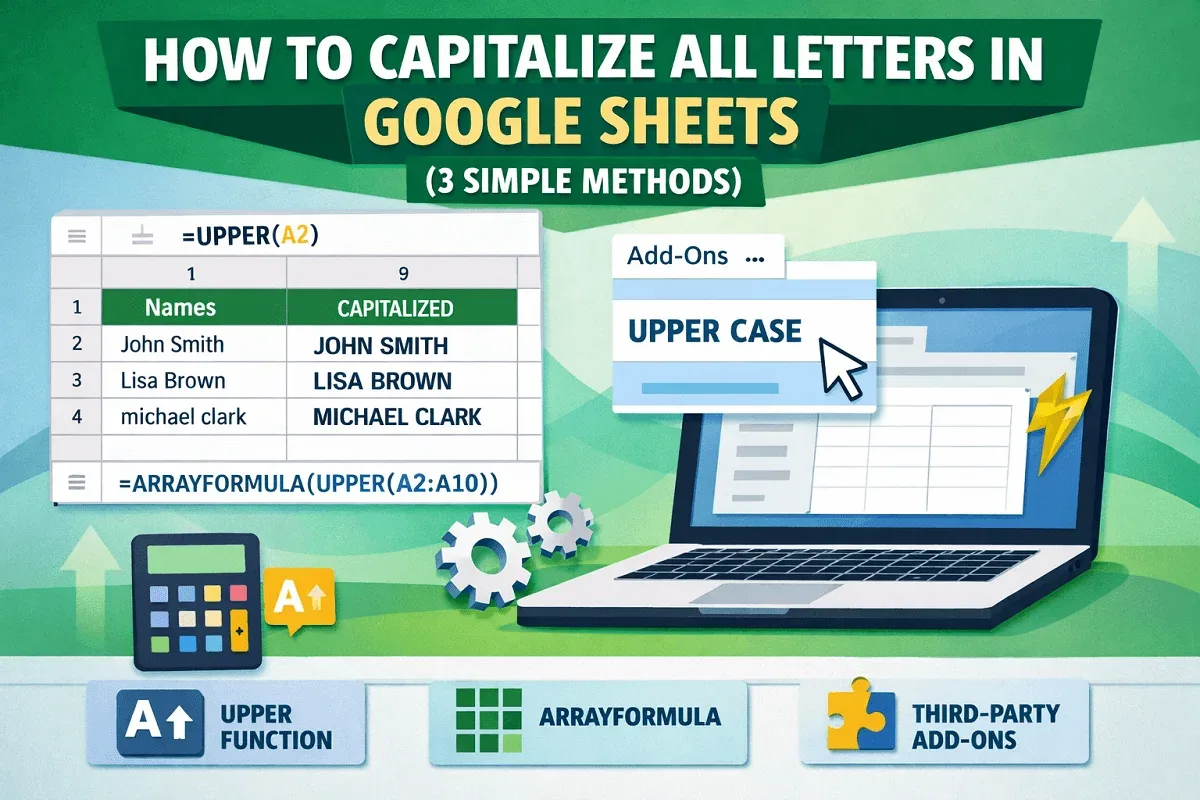
Learn how to capitalize all letters in Google Sheets using the UPPER function, ArrayFormula for bulk edits or third-party add-ons.