Google Sheets Intermediate Tutorials
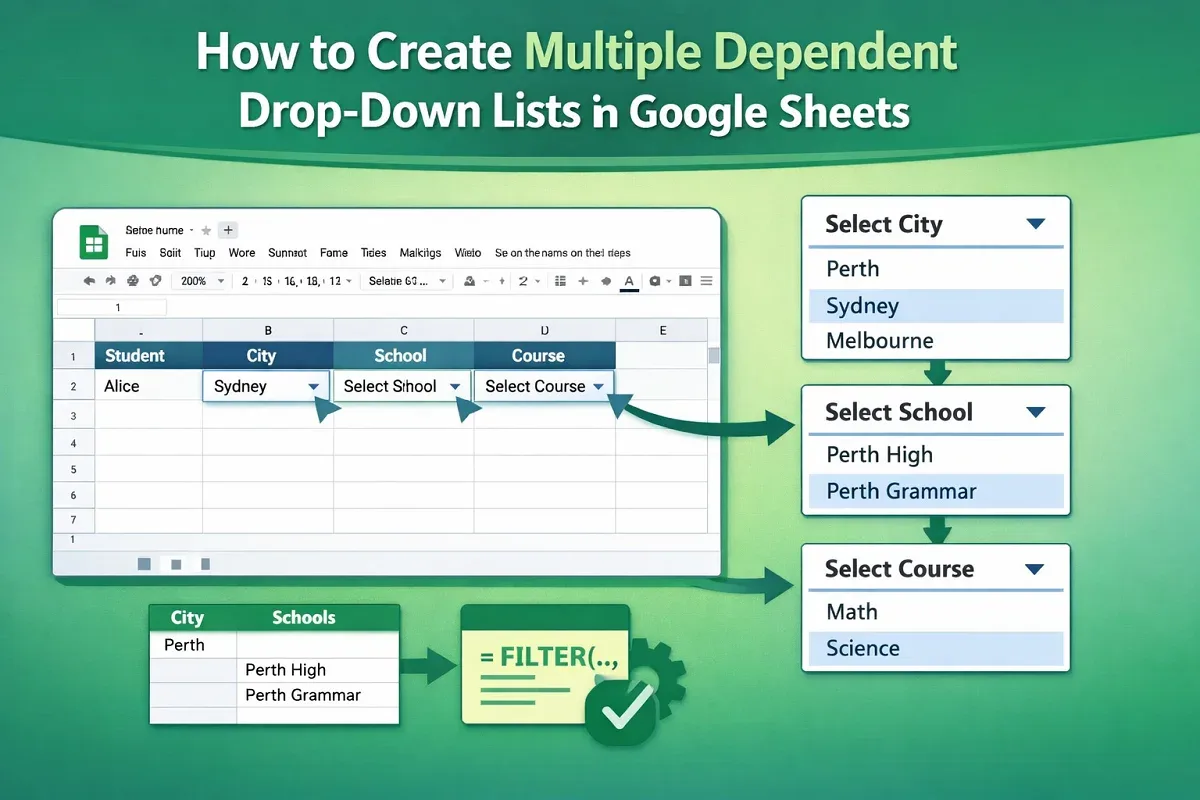
How to Create Multiple Dependent Drop Down List in Google Sheets
Learn how to create multiple dependent drop-down lists in Google Sheets using named ranges, backend sheets, and data validation steps.
Read article


Ashfaqur Rumon is an SEO expert and digital marketing strategist with over 5 years of experience in content planning, social media, and online campaigns. As Head of Digital Marketing at WebTech, he drives growth through data-driven SEO and content strategies. A graduate of BUET in Civil Engineering, Rumon blends technical expertise with creative problem-solving to deliver impactful digital solutions.
Articles by Ashfqur Rumon are developed under the guidance of ExcelInsider’s core training program and are technically reviewed by Nehad Ulfat, lead spreadsheet consultant, to ensure accuracy and user-centric value.
Learn how to create multiple dependent drop-down lists in Google Sheets using named ranges, backend sheets, and data validation steps.

Learn how to use custom data validation formulas in Google Sheets to enforce number ranges, prevent duplicates, and apply regex-based rules.
Learn how to split a cell horizontally in Google Sheets using “Split Text to Columns,” SPLIT, REGEXEXTRACT, line breaks, and ARRAYFORMULA.
Learn how to change number formats in Google Sheets, including text conversion, time, duration, decimals, and custom formatting examples.

Learn how to merge cells in Google Sheets without losing data using CONCATENATE, JOIN, TEXTJOIN, ampersand (&), CHAR(10), and Apps Script.