

Concatenating text and formula in Google Sheets means joining words, numbers, or cell values together into one line of text using a formula. It can be useful when you want to create summaries or custom messages based on your data. If you're working with customer names, order details, or totals, combining them into a single sentence makes the information easier to read.
In this article, we’ll show you how to concatenate text and formula in Google Sheets using simple steps that help you save time and make your spreadsheet more useful.
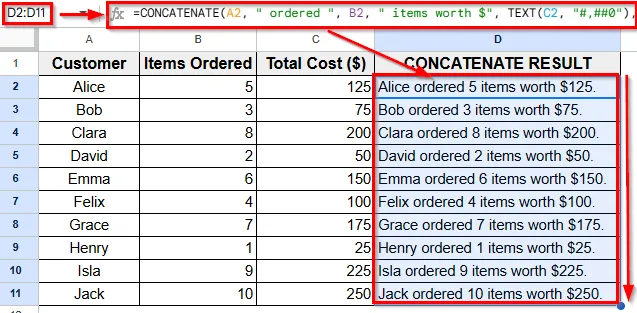
➤ Open your spreadsheet and go to Column D.
➤ Click on cell D2 and enter this formula
=CONCATENATE(A2, " ordered ", B2, " items worth $", TEXT(C2, "#,##0"), ".")
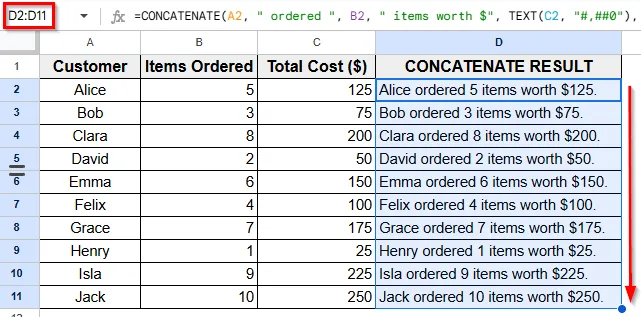
➤ Press Enter. Now, you’ll see the result as Alice ordered 5 items worth $125.
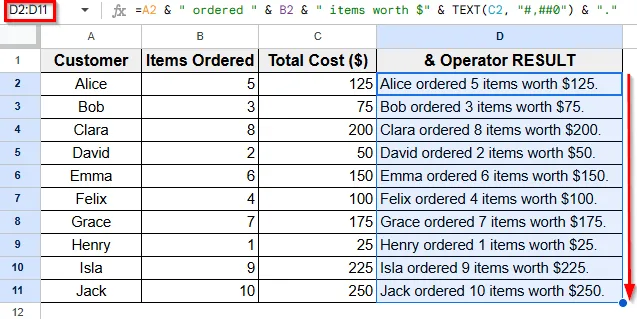
➤ Drag the formula down to apply it to other rows.
Using Ampersand (&) Operator to Concatenate Text and Formula
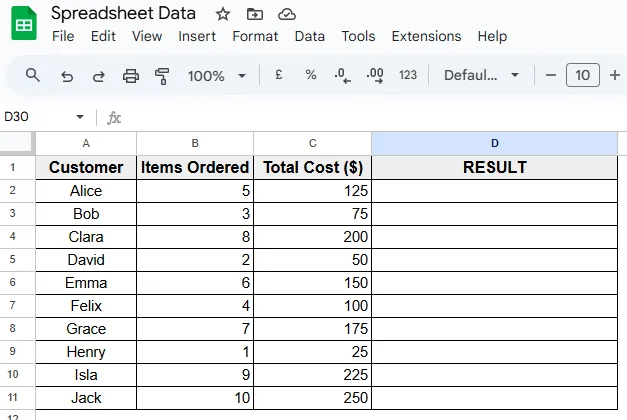
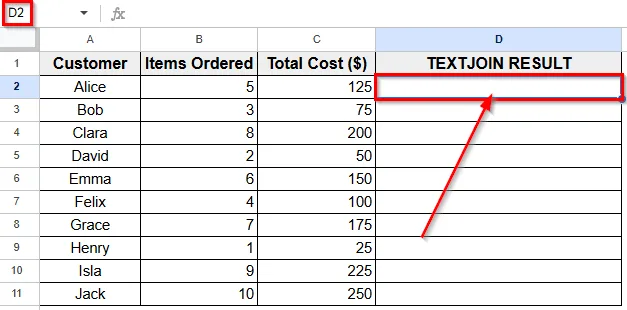
In the following dataset, there are three columns labeled Customer, Items Ordered, and Total Cost. Column A contains customer names, Column B lists the number of items each person ordered, and Column C shows the total cost of the items. Column D is currently empty and will be used to display the combined summary using a formula.
We’ll use this dataset to apply and practice the methods for concatenating text and formula in Google Sheets.
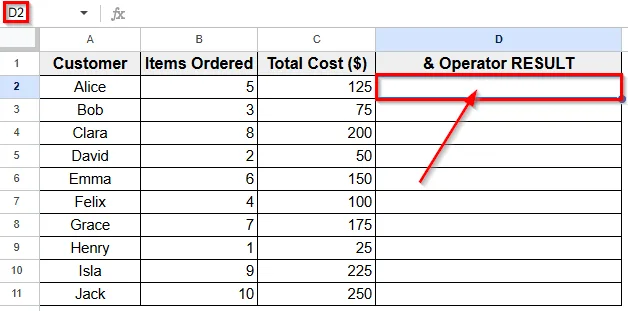
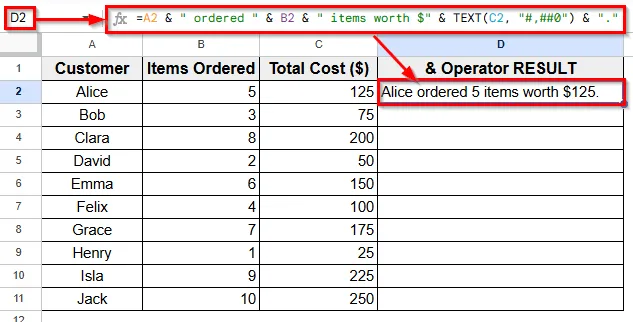
The simplest way to combine text with cell values in Google Sheets is by using the & operator. Using this method you join words, spaces, and values into a single sentence inside one cell.
Here’s step-by-step guide to apply this method:
=A2 & " ordered " & B2 & " items worth $" & TEXT(C2, "#,##0") & "."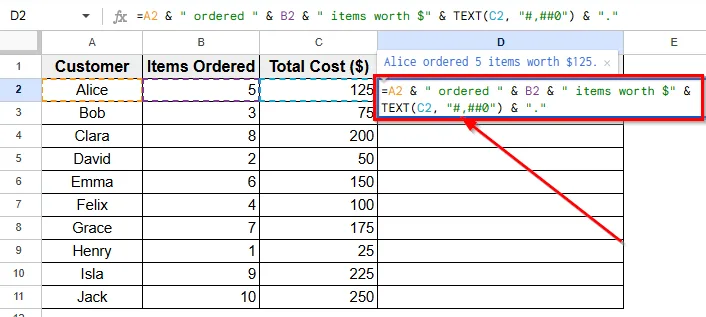
Using the TEXTJOIN Function
Another way to combine text and values in Google Sheets is by using the TEXTJOIN function. This function joins multiple pieces of text or cell values into one string, with a delimiter you choose, such as a space or comma.
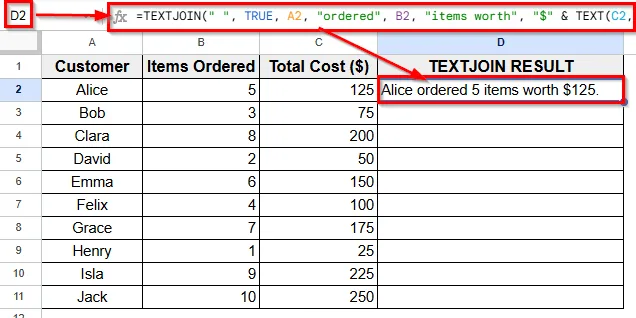
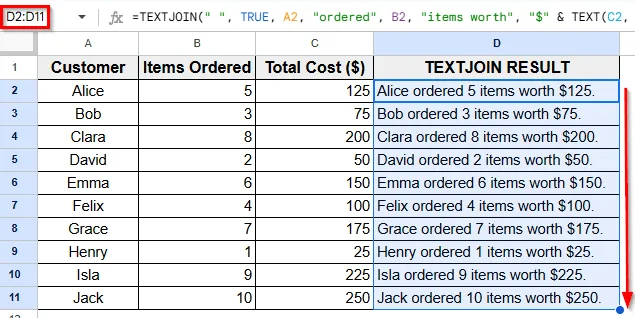
Here’s a simple step-by-step guide how to use this method:
=TEXTJOIN(" ", TRUE, A2, "ordered", B2, "items worth", "$" & TEXT(C2, "#,##0") & ".")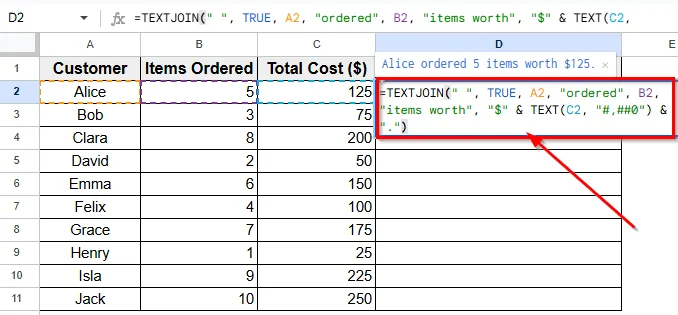
Using the CONCATENATE Function
You can also use the CONCATENATE function to join text and cell values in Google Sheets. This function takes multiple arguments and combines them into one continuous string.
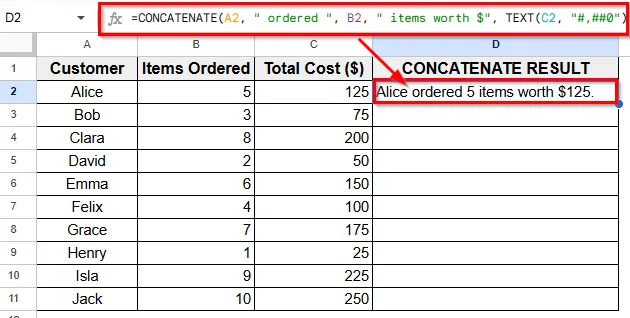
Here’s how to apply the CONCATENATE function:
=CONCATENATE(A2, " ordered ", B2, " items worth $", TEXT(C2, "#,##0"), ".")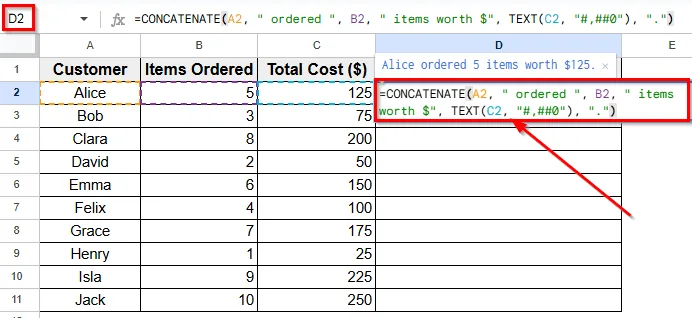
Practice Resources
Get our practice workbook or necessary files that we have worked with to prepare this article.
Concatenate Text and Formula in Google Sheets [Make a Copy]
Frequently Asked Questions
How to combine a formula and text in Google Sheets?
You can use the CONCATENATE function to join text and formulas in one cell. Here’s how to do that:
=CONCATENATE(A2, " bought ", B2, " items for $", TEXT(C2, "#,##0"))
➤ Press Enter to see the combined sentence.
Why should I use the TEXT function when concatenating?
The TEXT function helps format numbers so they look neat when combined with text. It adds commas, decimal points, or currency symbols to numbers. Also, it makes the final sentence easier to read. Without TEXT function, numbers might show too many decimals or appear unformatted.
Wrapping Up
Combining text and formulas in Google Sheets helps you create clear and dynamic summaries without typing everything manually. When you work with data like names, numbers, or dates, joining them into one sentence makes your spreadsheet easier to understand.
Using simple formulas like the Ampersand (&) operator, CONCATENATE, or TEXTJOIN, along with the TEXT function for formatting, saves time and reduces errors. Try these methods to make your spreadsheets more manageable and organized.