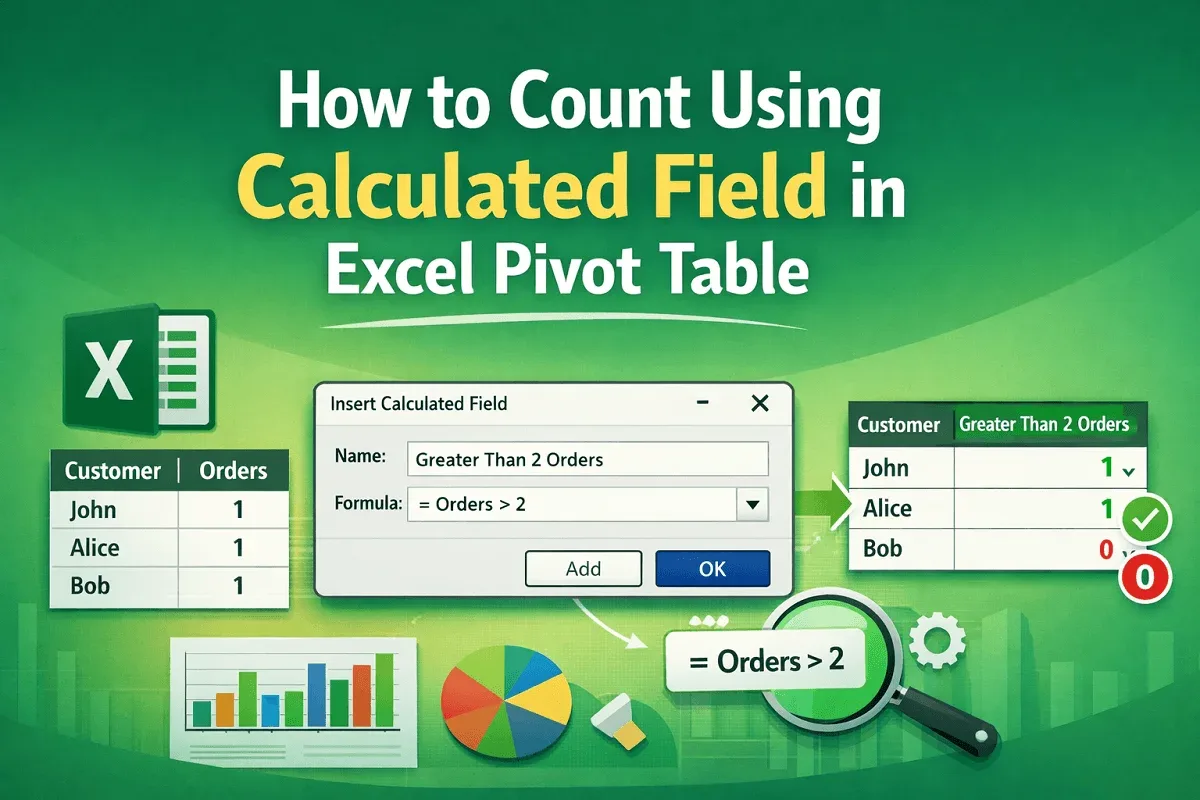
Excel Pivot Table
How to Count Using Calculated Field in Excel Pivot Table
Count values using a calculated field in an Excel Pivot Table by creating helper columns, fixing count errors, and setting fields correctly.
Read article

11 articles tagged with “Calculated Field in Excel Pivot Table”
Count values using a calculated field in an Excel Pivot Table by creating helper columns, fixing count errors, and setting fields correctly.
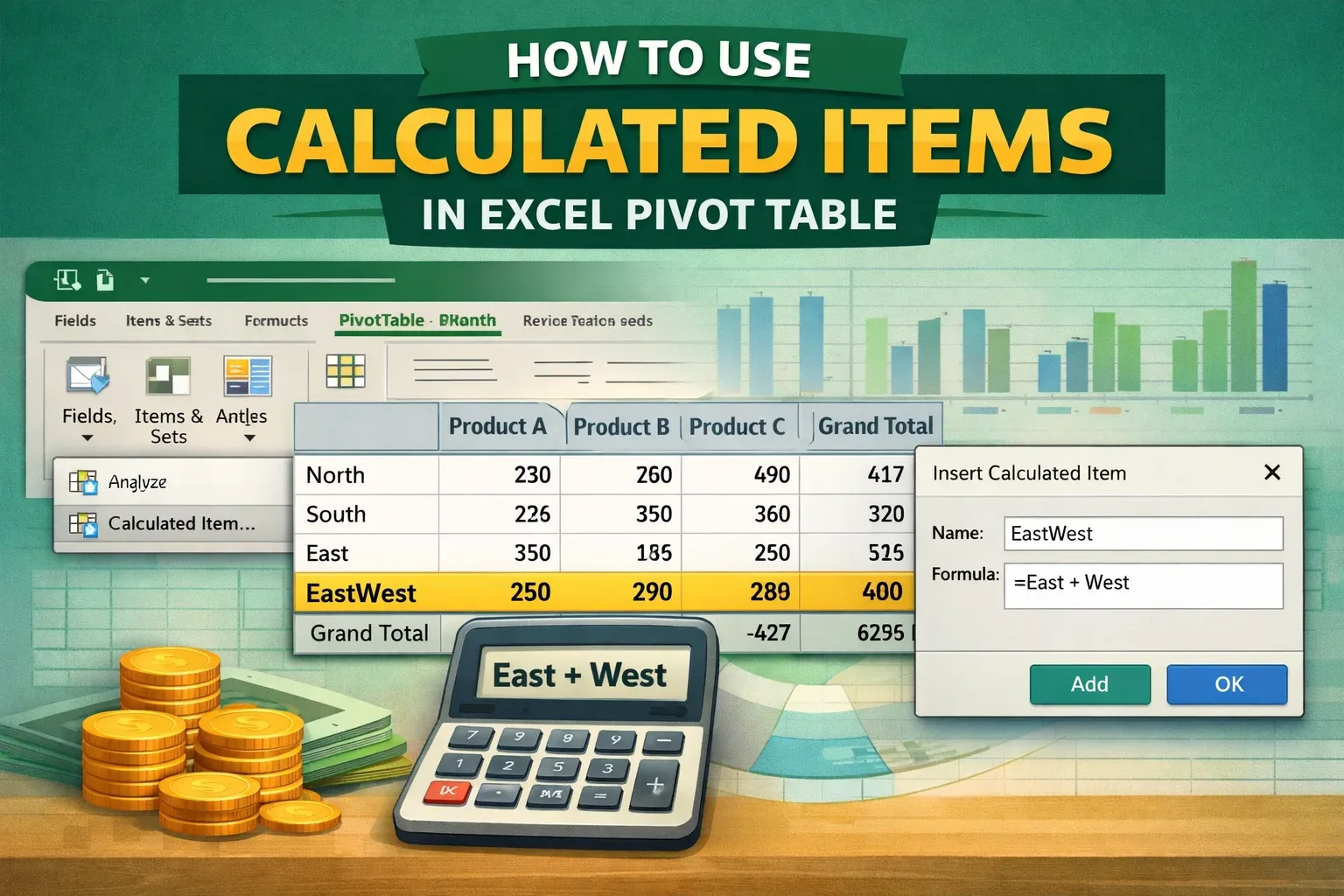
Learn how to add and use calculated items in Excel PivotTables with step-by-step instructions for accurate data analysis.
Learn how to enable a greyed-out calculated field in Excel Pivot Tables with easy steps to isolate and fix the issue quickly.
Learn how to create a calculated field in an Excel Pivot Table using column values with clear, step-by-step instructions.
Learn how to rank data in a Pivot Table using sorting, calculated fields, and RANK functions with dynamic source table updates.
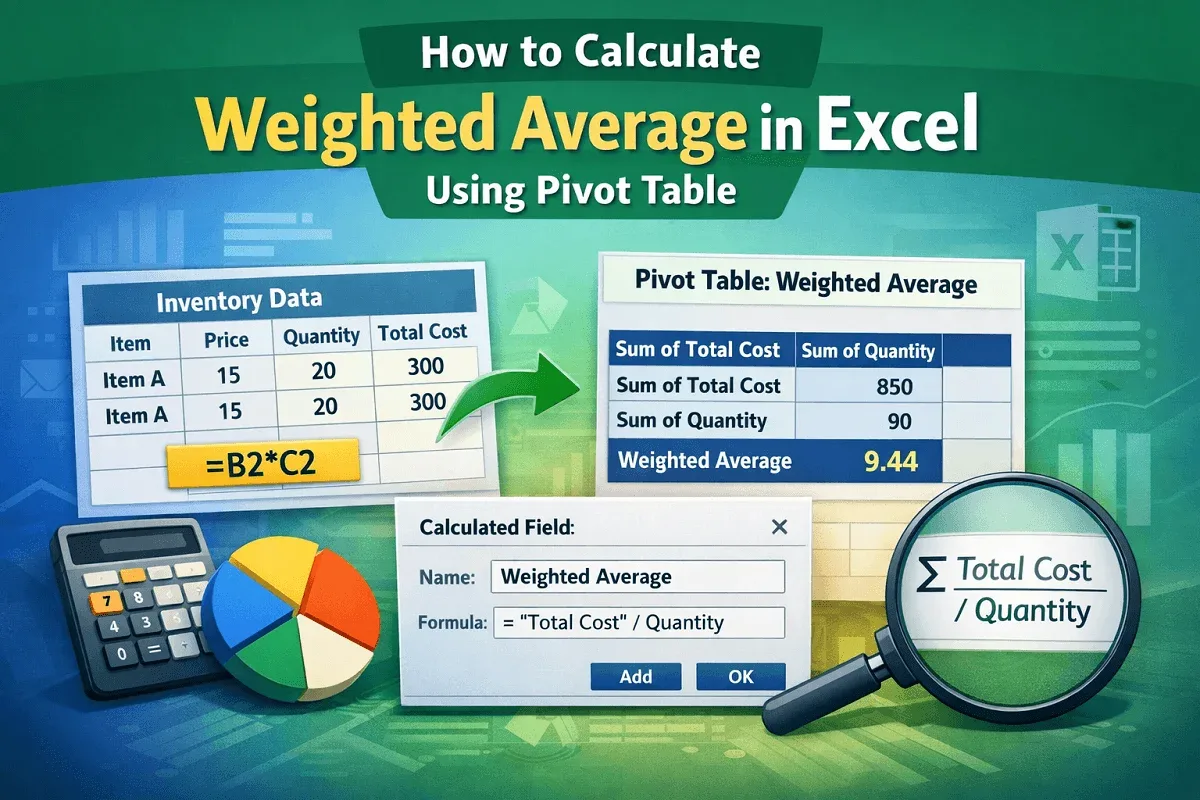
Learn how to calculate weighted average in Excel using a Pivot Table with helper columns and calculated fields in a few simple steps.
Learn how to create a Pivot Table calculated field in Excel that divides sum by count using a helper column and a custom formula step-by-step.

Learn how to use an IF statement in a Pivot Table’s calculated field in Excel, including applying conditions to text fields effectively.
Learn how to delete a calculated field in Excel PivotTables manually or by using VBA for quick and efficient cleanup of your data.
Learn how to edit calculated fields in Excel PivotTables by adding new fields and modifying existing formulas step by step.
Learn how to show actual values instead of sums in Excel PivotTables by creating measures and organizing fields for accurate data display.