Google Sheets Intermediate Tutorials
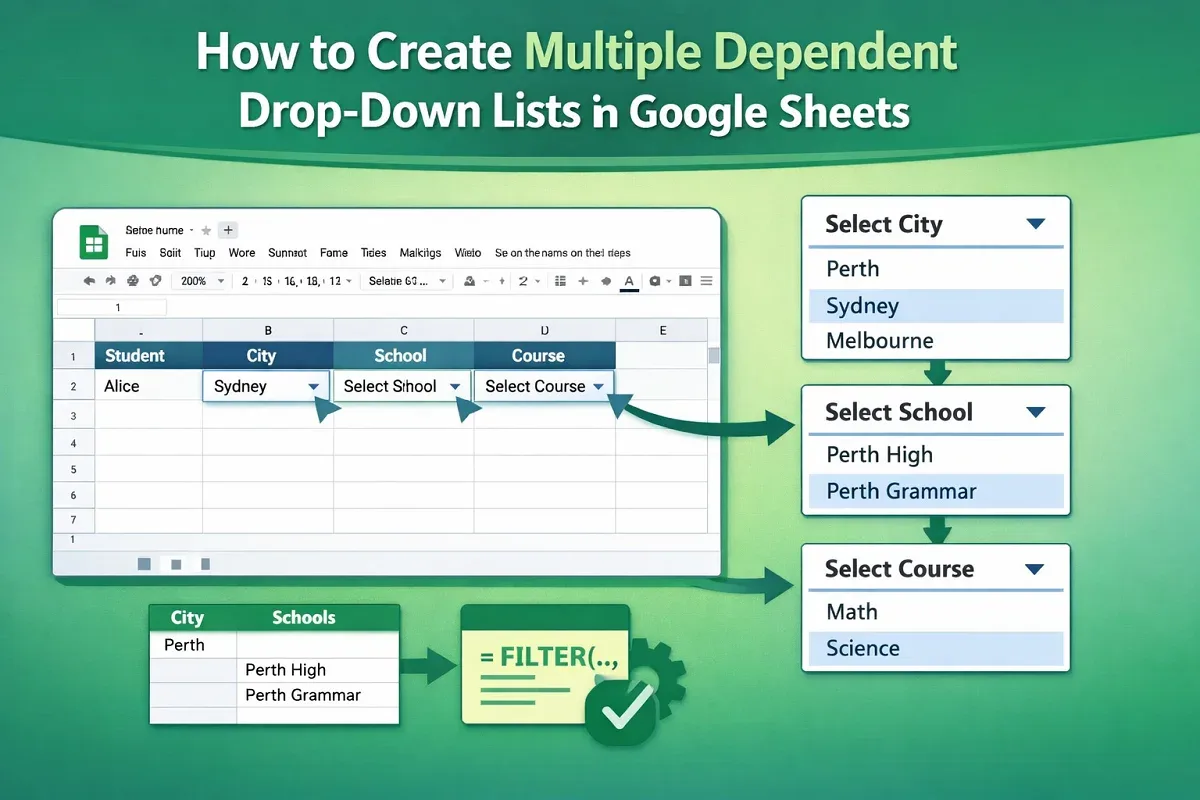
How to Create Multiple Dependent Drop Down List in Google Sheets
Learn how to create multiple dependent drop-down lists in Google Sheets using named ranges, backend sheets, and data validation steps.
Read article

6 articles tagged with “Drop Down List in Google Sheets”
Learn how to create multiple dependent drop-down lists in Google Sheets using named ranges, backend sheets, and data validation steps.
Learn how to create a drop-down list in Google Sheets from another sheet using direct range references, named ranges, and dependent lists.
Learn how to edit a drop-down list in Google Sheets—add or remove items, change styles, show help text, and allow multiple selections easily.
Learn how to create a drop-down list in Google Sheets using manual entry, cell ranges, and named ranges for better data control.
Learn to update cell values based on drop-down selection in Google Sheets using IF, VLOOKUP, SWITCH, INDEX-MATCH, Apps Script, and more!
Learn how to create a dependent drop-down list in Google Sheets using Named Ranges, INDIRECT, FILTER function, or Google Apps Script.