

Excel’s Macro Recorder and Visual Basic for Applications (VBA) can automate repetitive reporting tasks, turning hours of manual work into a simple click. Macros allow you to record complex sequences of actions and execute them instantly with a single click. By recording sequences of formatting and charting steps, you can instantly apply them to new datasets. In this article, we will provide a complete guide on how to automate reports using macros in Excel.
➤ Record separate macros for distinct tasks like header formatting, conditional formatting, and creating chart.
➤ Use the Macros dialog box to quickly run all recorded macros on a new sheet of raw data to perfectly automate reports using macros.
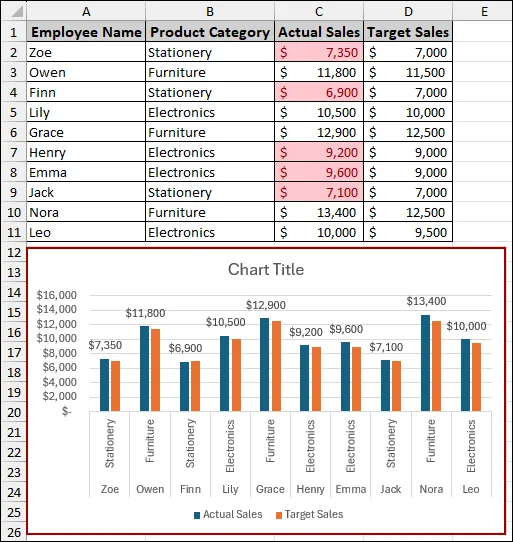
Steps to Automate Reports Using Macros in Excel
Here, we will cover all the steps to automate reports using macros in Excel. We have broken down the process into the following steps: preparing the data, recording the three essential macros, and then executing them to create the automated report.
Step 1: Creating Raw Dataset
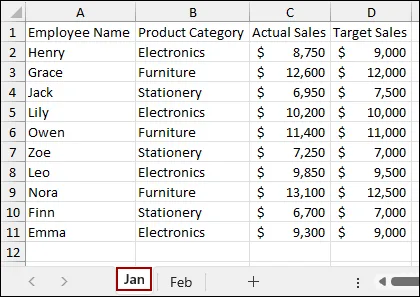
First, we will create the dataset. Suppose we have the following data in a sheet named Jan: Employee Name, Product Category, Actual Sales, and Target Sales for January.
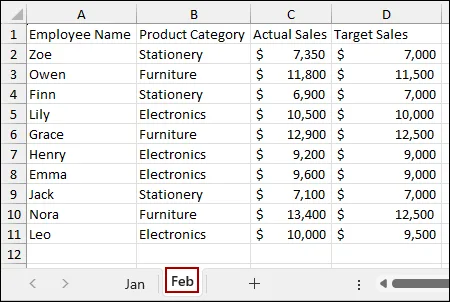
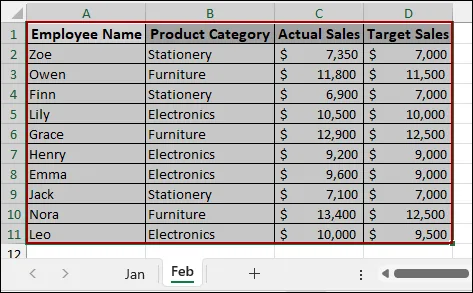
In another sheet named Feb, we have the same column but different data for February.
Step 2: Recording the Header Formatting Macro
In the Jan sheet, we will start recording a macro to automate the common formatting steps for the report header.
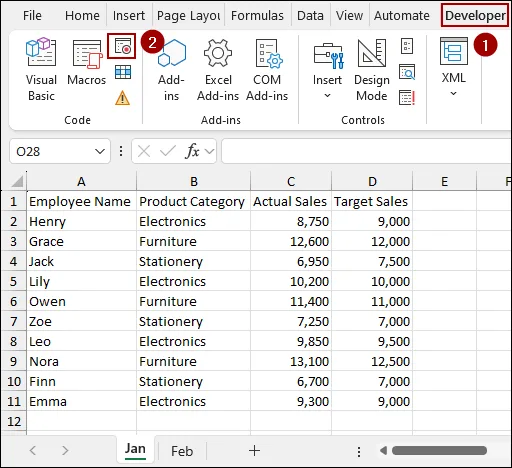
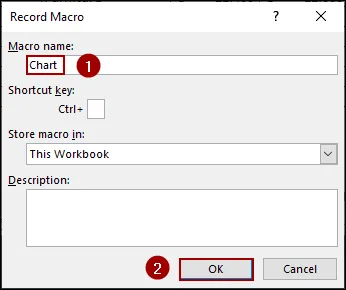
Remember that macro names cannot contain spaces.
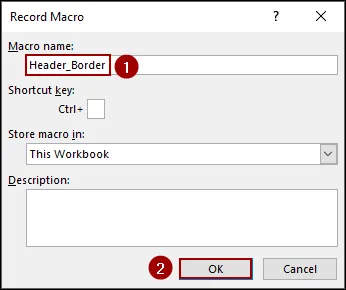
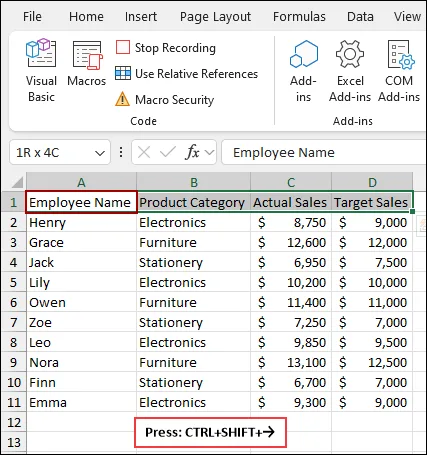
Every action we perform will be recorded in the macro.
Let’s start with the header formatting.
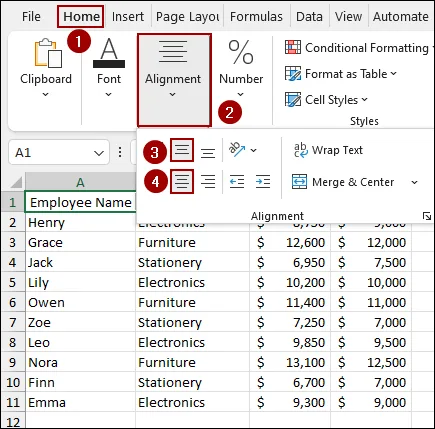
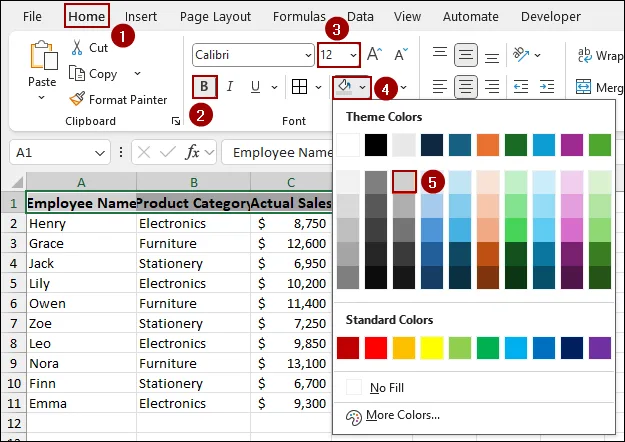
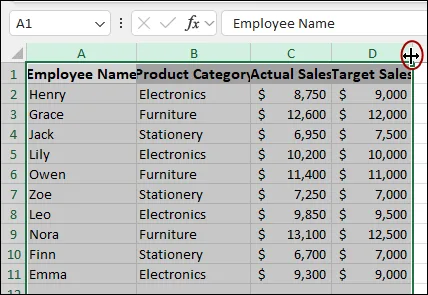
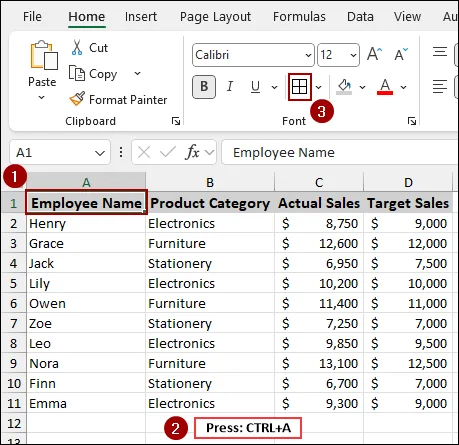
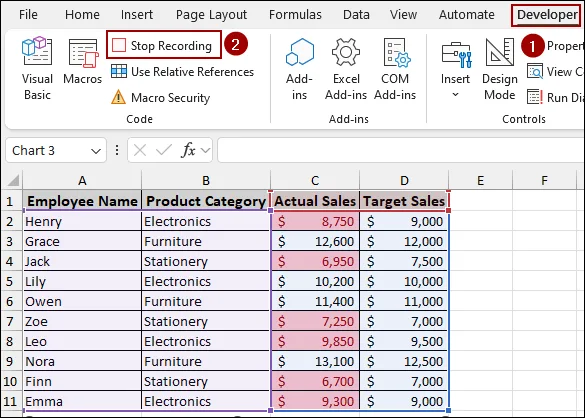
Once all the formatting steps are complete, we must stop the recording.
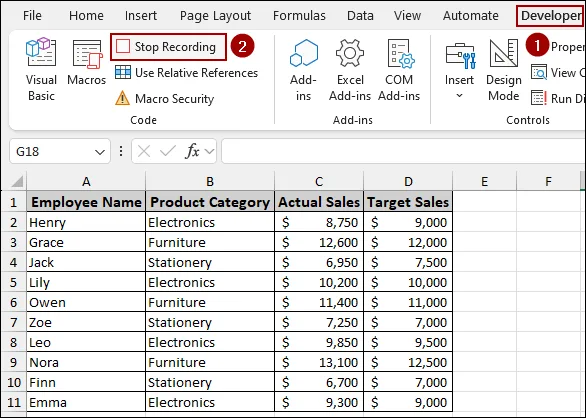
Before moving on, it's a good practice to check whether the macro recorded properly or not.
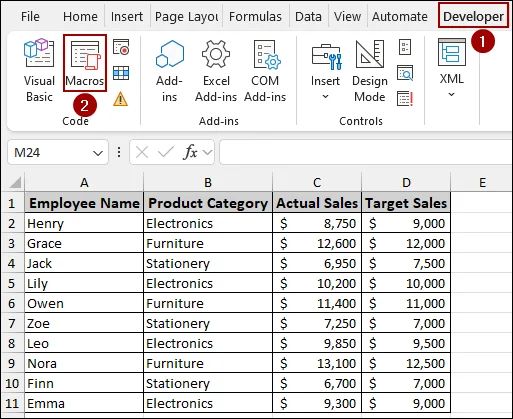
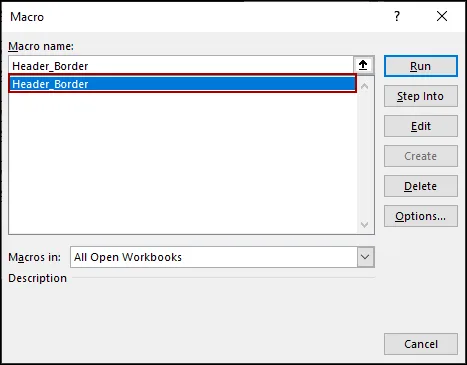
In the Macro dialog box, we will see the macro with the name Header_Border is recorded.
Step 3: Recording the Conditional Formatting Macro
In this step, we will record the second macro to automatically apply conditional formatting.
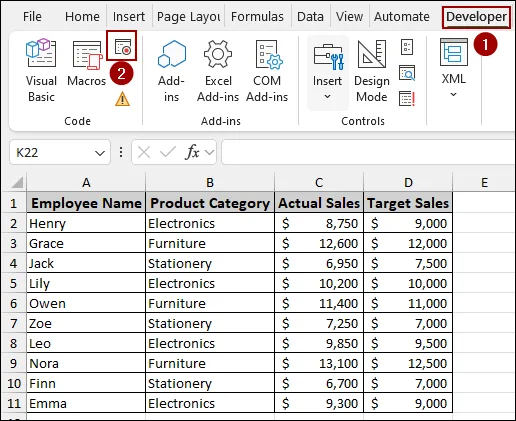
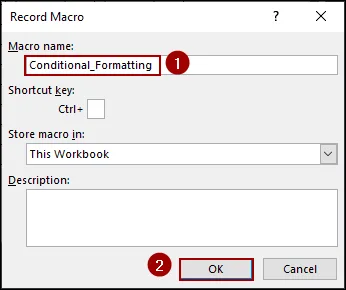
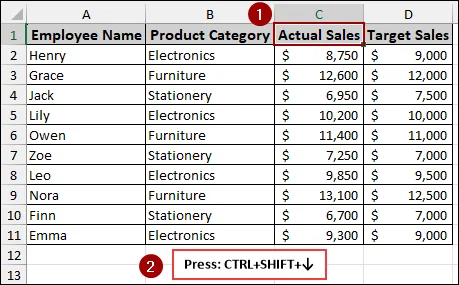
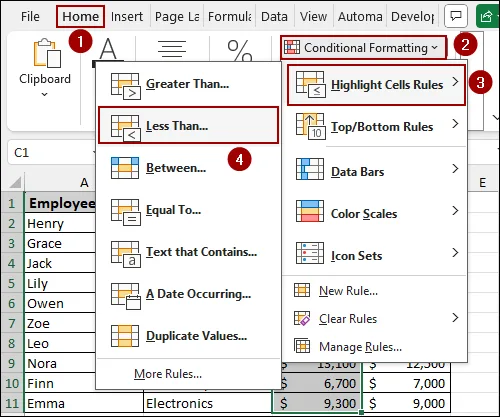
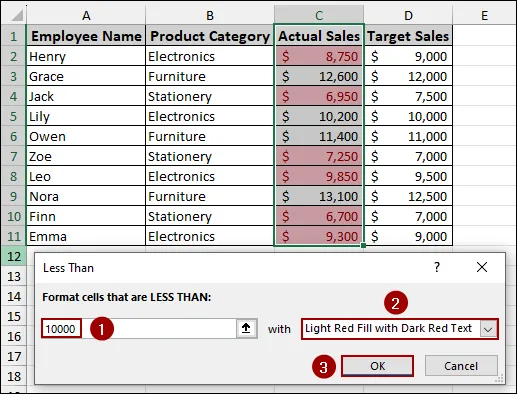
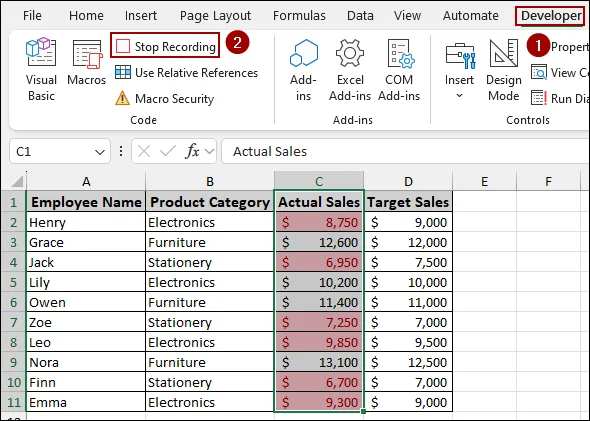
Once the conditional formatting is applied, stop the recording to save the steps.
Step 4: Recording the Chart Generation Macro
To complete the report automation, we will create a third macro to instantly generate a sales chart from the data.
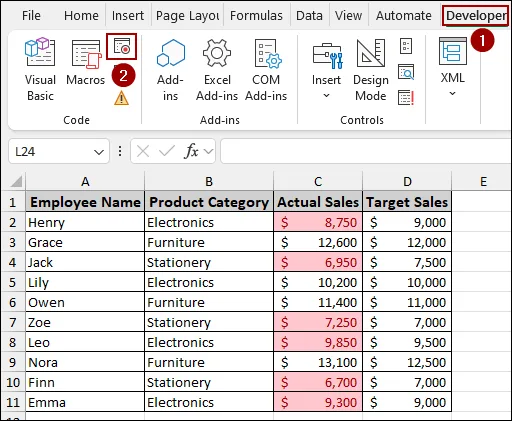
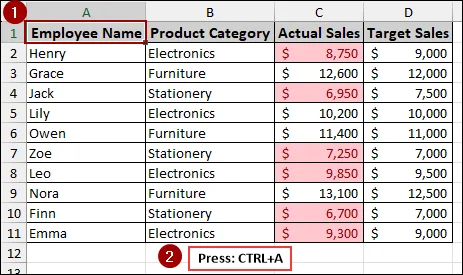
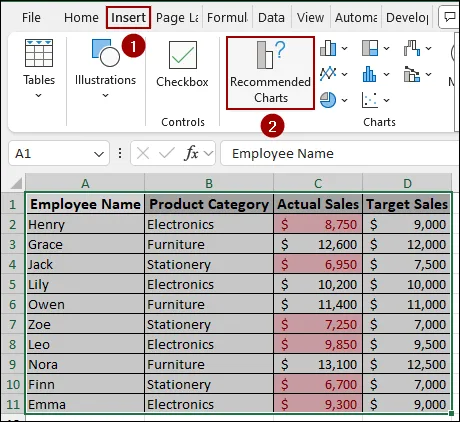
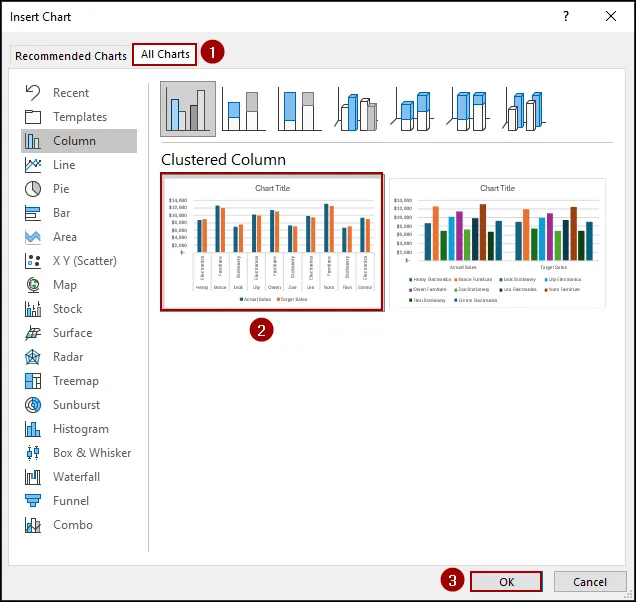
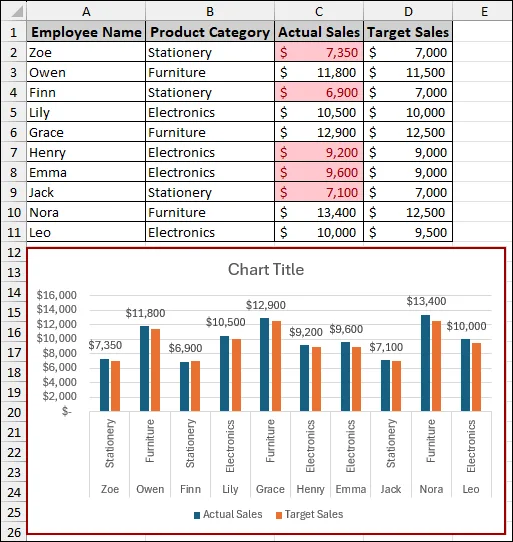
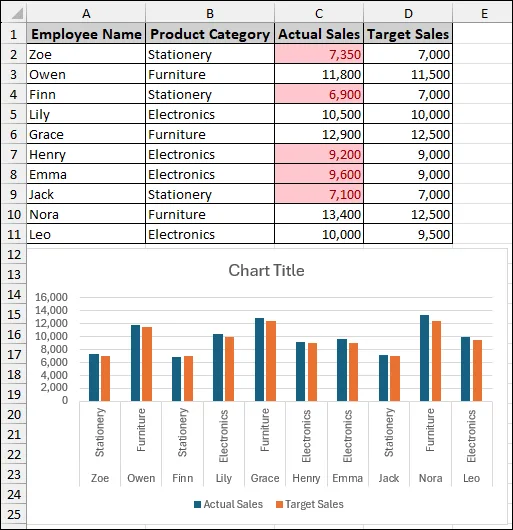
The new chart will appear, visualizing the Actual Sales versus Target Sales for all employees.
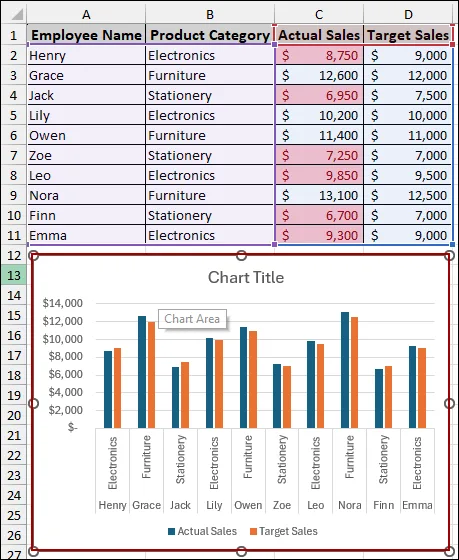
Now that the chart is created and formatted, you can stop the recording.
Step 5: Running Macros to Create Report in a New Sheet
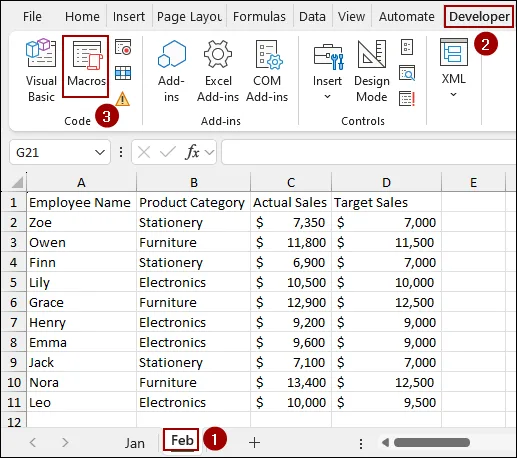
We now have three powerful macros to automate our report generation. Let's test them on the raw data for the next month, February.
The February data is unformatted.
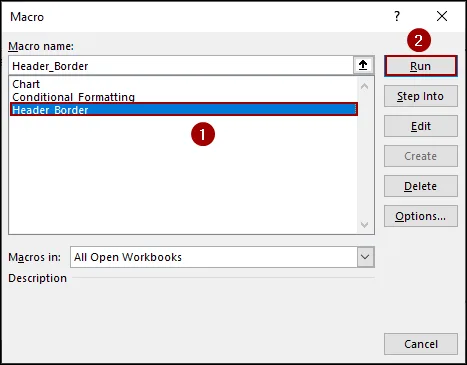
The macro will run and format the header, and apply borders to the data.
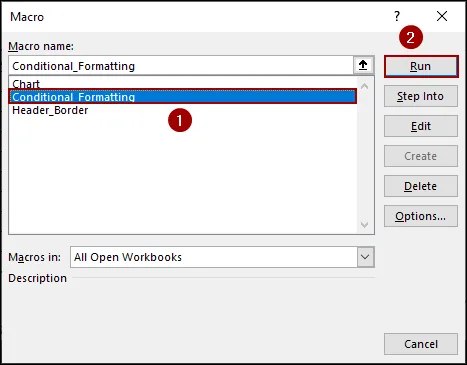
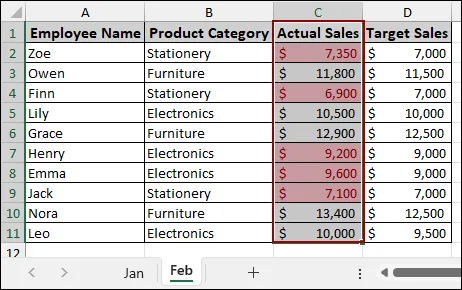
The macro will instantly apply the formatting and color highlighting to the February data.
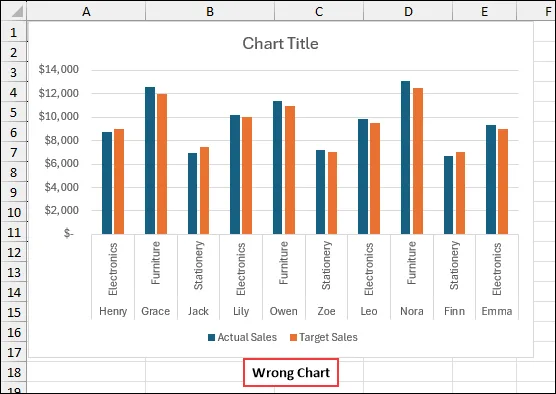
When you try to run the third macro on the new data, you may encounter an issue where the chart is either blank or shows incorrect data because the recorded macro used static cell references.
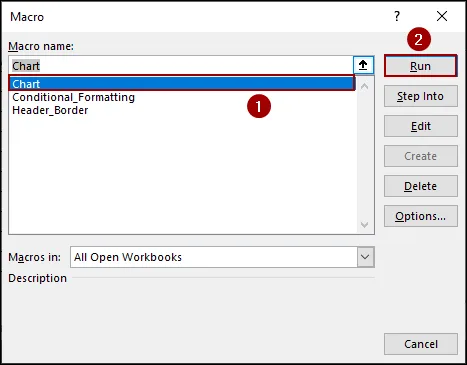
As a result, you will get an error or the chart showing the data from the Jan sheet.
Step 6: Fixing a Common Chart Macro Error
To fix this, we need to modify the VBA code to use a range that automatically adapts to the number of rows in the new dataset.
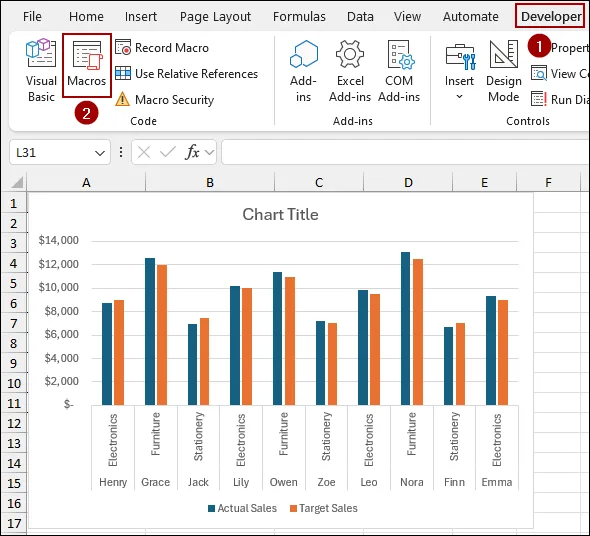
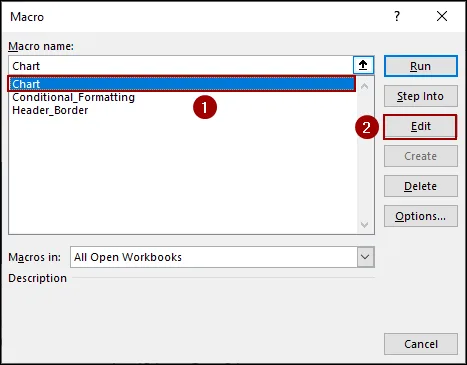
The Microsoft Visual Basic for Applications window will open, showing the recorded code for the chart macro.
=ActiveSheet.Range("A1:D11")
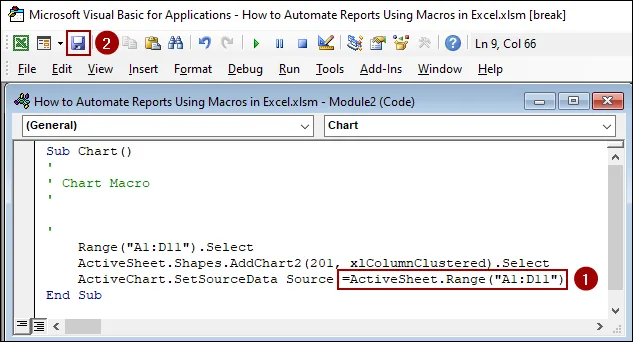
After fixing the issue, let's run the chart macro again.
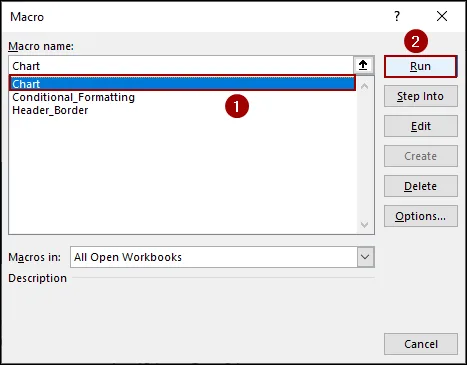
The final result is a complete, well-formatted, conditionally highlighted report with a correct chart.
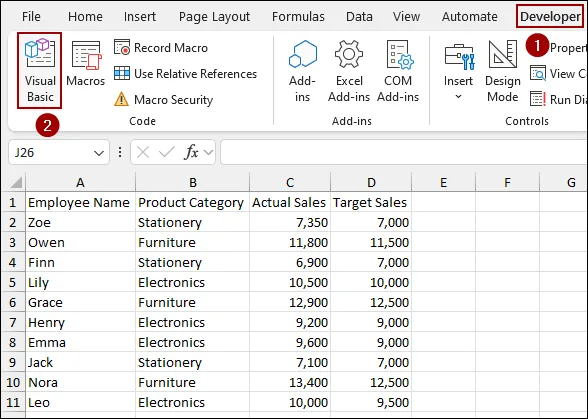
Instead of running each macro individually, you can use a simple VBA code to execute all three with a single click.
Sub Run_All_Report_Macros()
Call Header_Border
Call Conditional_Formatting
Call Chart
End Sub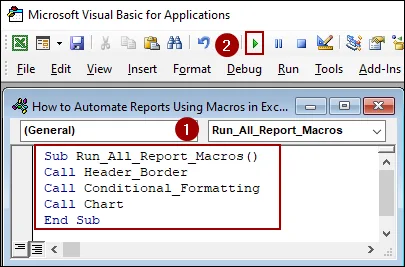
As a result, with just a single click the code will format the header, apply conditional formatting, and create the chart, fully automating the report.
Downloadable Resources
Get our practice workbook or necessary files that we have worked with to prepare this article.
Automate Reports Using Excel Macros.xlsx
Practice Workbook · Excel (.xlsx)
Frequently Asked Questions
Can I automate reports from multiple sheets or files?
Absolutely. VBA can loop through multiple sheets or workbooks, consolidate the data, and generate a combined report automatically.
Why is my macro not running in another computer?
Macros may be blocked due to security settings. Go to File > Options > Trust Center > Trust Center Settings > Macro Settings, and enable macros to allow them to run.
Yes. You can insert a Form Control Button from the Developer tab or assign a keyboard shortcut while recording your macro for quick access.
Concluding Words
Above, we have covered all the steps to automate report in Excel. By recording the macro in small parts and applying those you can reduce the time spent on report generation. Remember that the key to macro use is consistency in your raw data structure and checking the code for fixed ranges. If you encountered any issues, especially with the chart, revisit the VBA editing steps to ensure your code is dynamic. If you have any questions, please don't hesitate to share them in the comments section below.