

Creating a professional and dynamic report card in Excel is essential for managing student performance data. A well-designed report card displays a student's information, marks, grades, and overall percentage using powerful lookup functions. This not only saves time but also minimizes data entry errors. In this article, we will guide you through a step-by-step process of creating a professional report card from scratch.
➤ Prepare a dataset with all students and mark information.
➤ Design the report card structure using shapes and formatting.
➤ Use the Data Validation feature to create a dynamic drop-down list for selecting a Student ID.
➤ Apply VLOOKUP and MATCH formulas to get student details and subject marks automatically.
➤ Calculate the overall grade and percentage using SUM and nested IF functions to make the report card in Excel.
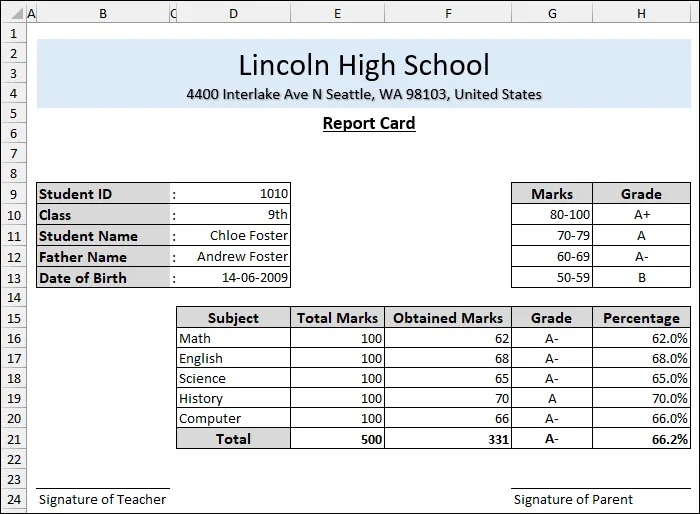
Steps to Make a Report Card in Excel
Here, we will use a step-by-step process to make a report card in Excel. We have broken down the process into four simple steps: preparing the dataset, designing the report card layout, implementing dynamic data retrieval, and calculating final results.
Step 1: Preparing the Dataset
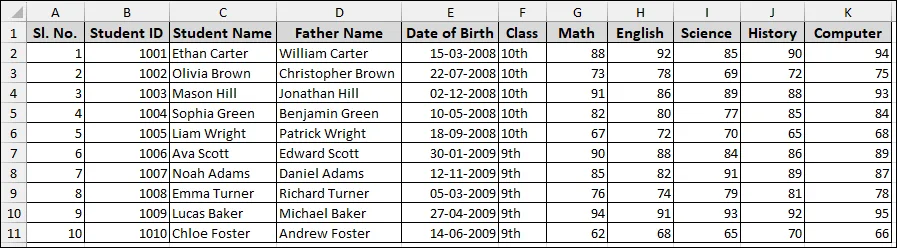
For creating a dynamic report card for students, we will make structured data first. This data will serve as the source from which all student-specific information will be pulled.
This organized data table is crucial, as the Student ID column will act as the unique identifier for the lookup functions.
Step 2: Designing the Report Card Layout
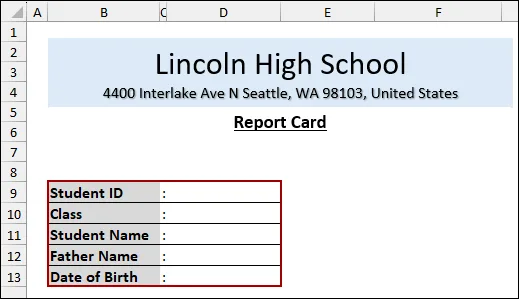
A professional appearance is essential for a report card. We will start by preparing the 'Report' sheet and adding basic elements.
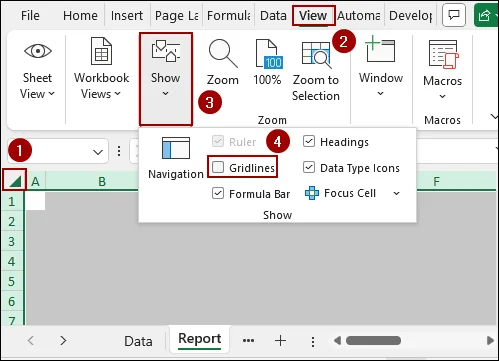
To make the report card look more like a document, we will remove the default gridlines.
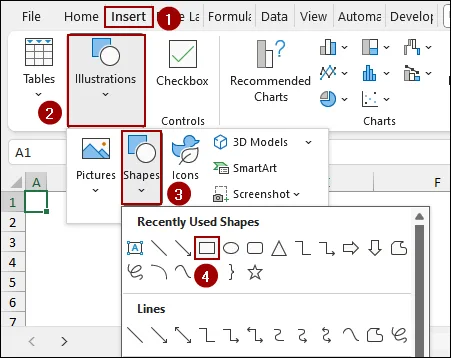
We will use shapes to create a header for the school and the report card title.
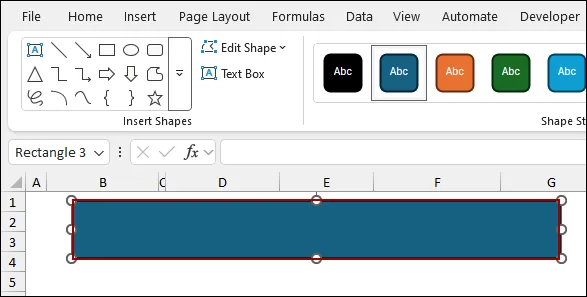
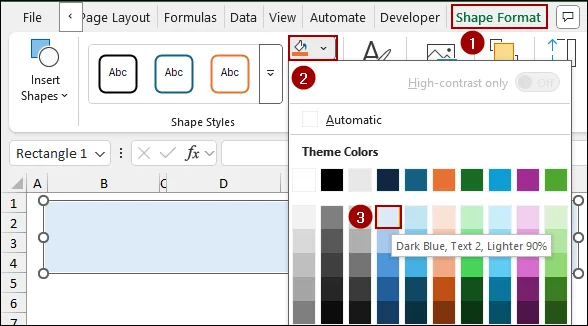
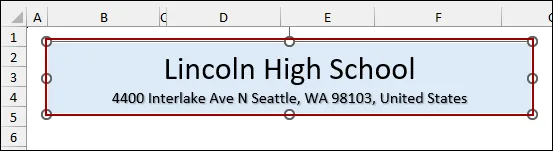
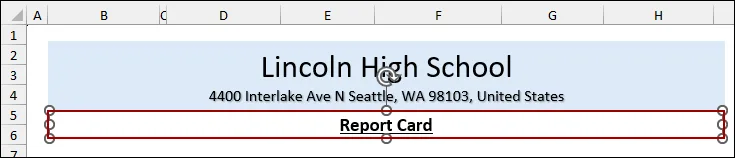
Next, we will set up the main sections for student details and the grading table.
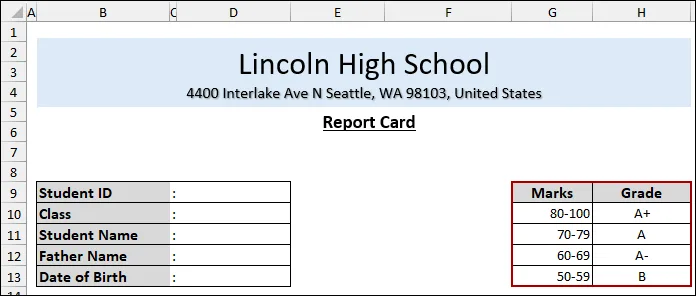
To the right, we will create a static table for the grading key.
Step 3: Implementing Dynamic Data Retrieval
This is the core dynamic part of the report card. We will use Data Validation to easily switch between students and then use VLOOKUP and MATCH to pull the correct data.
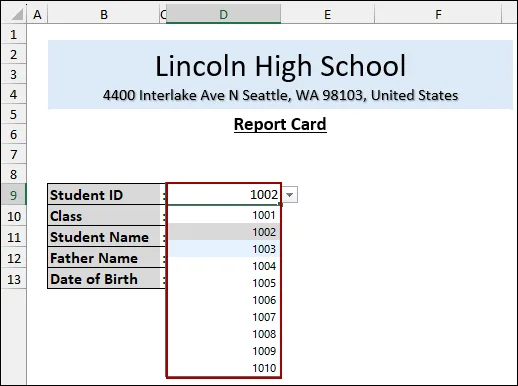
Instead of manually typing the ID, a drop-down list is more user-friendly.
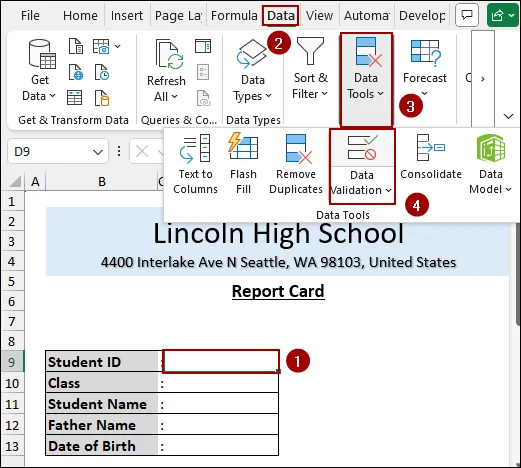
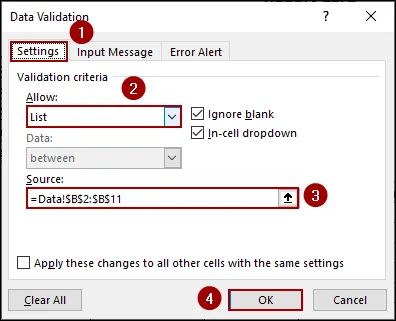
A dropdown arrow now appears in the cell, allowing you to select any Student ID from your list.
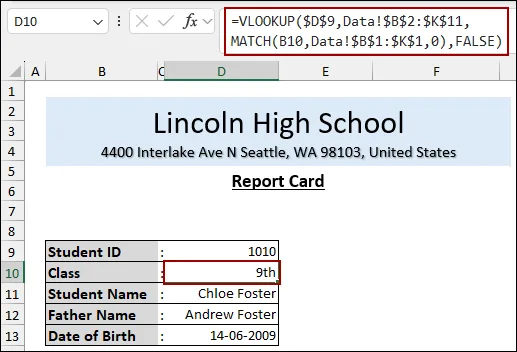
Now, we will use a combined VLOOKUP and MATCH functions to pull the student's Class, Student Name, Father Name, and Date of Birth based on the selected Student ID.
=VLOOKUP($D$9, Data!$B$2:$K$11, MATCH(B10, Data!$B$1:$K$1, 0), FALSE)➥ Data!$B$2:$K$11: The table array (the entire data table on the 'Data' sheet).
➥ MATCH(B10, Data!$B$1:$K$1, 0): This finds the column number for 'Class' dynamically by matching the text in cell B10 (which is "Class") against the header row of the data table.
➥ FALSE: Ensures an exact match is found.
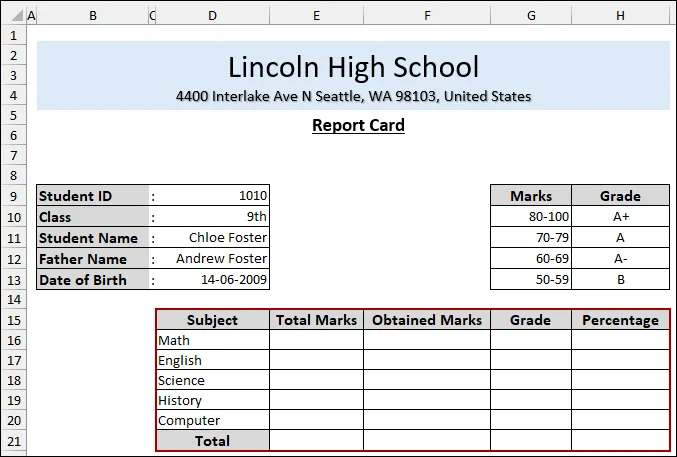
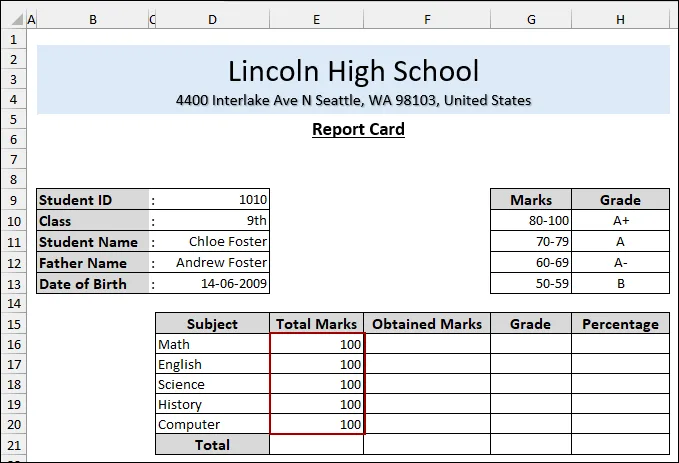
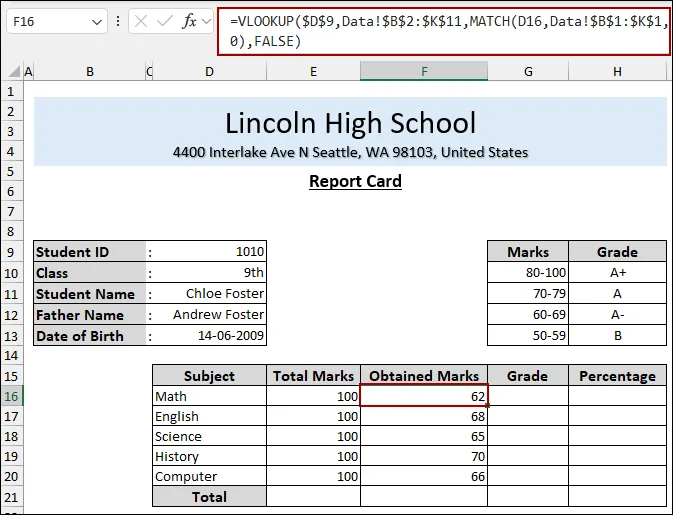
We will use the same dynamic formula to pull the marks for each subject.
=VLOOKUP($D$9, Data!$B$2:$K$11, MATCH(D16, Data!$B$1:$K$1, 0), FALSE)➥ Data!$B$2:$K$11: The table array.
➥ MATCH(D16, Data!$B$1:$K$1, 0): This finds the column number for 'Math' by matching the text in cell D16 ("Math") against the header row.
Hence, we will use a nested IF function to assign the grade based on the criteria in the grading table.
=IF(F16>=80, "A+", IF(F16>=70, "A", IF(F16>=60, "A-", IF(F16>=50, "B", "F"))))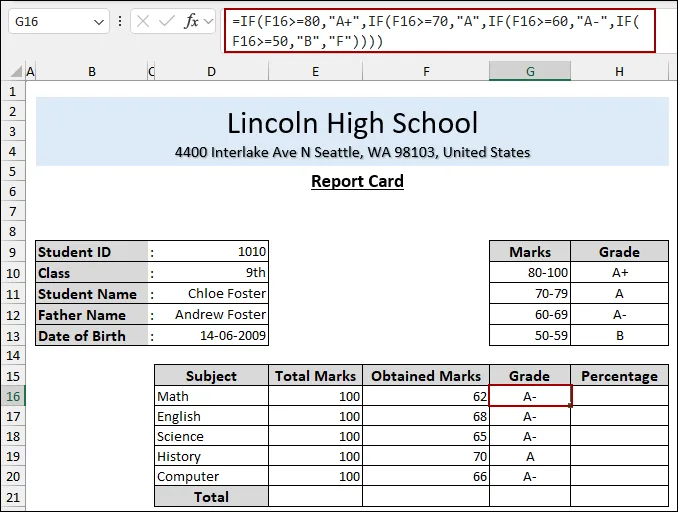
The percentage is simply the obtained marks divided by the total marks for that subject.
=F16/E16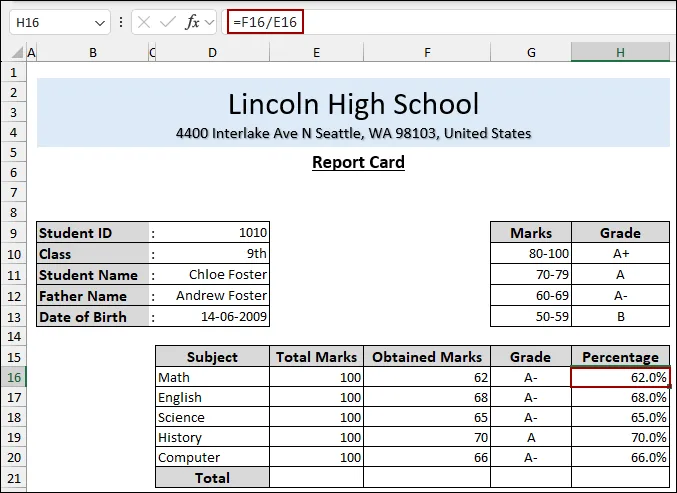
Step 4: Calculating Final Results
In this final step, we will calculate the total results for all the subjects.
First, we will use the SUM function for the total marks and the total obtained marks.
=SUM(E16:E20)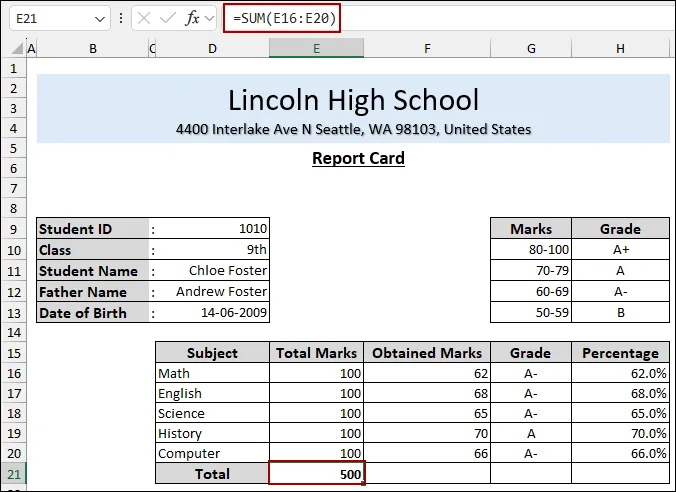
=SUM(F16:F20)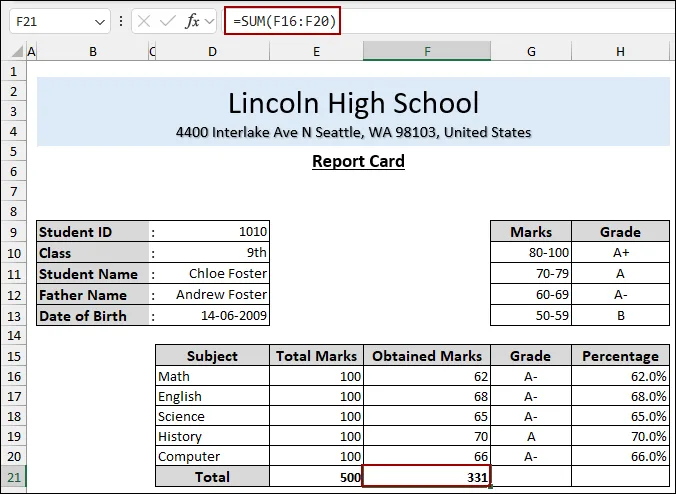
Let’s calculate the overall percentage by dividing the total obtained marks by the total marks.
=F21/E21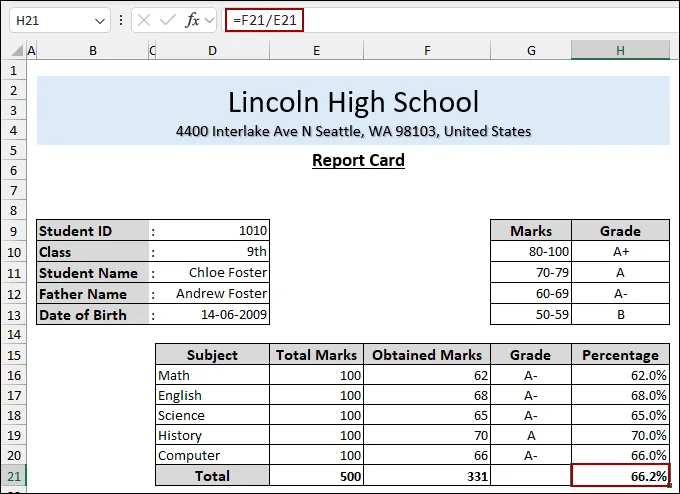
Finally, calculate the Overall Grade using the same nested IF Function. But we need to multiply the percentage by 100 to get a whole number.
=IF(H21*100>=80, "A+", IF(H21*100>=70, "A", IF(H21*100>=60, "A-", IF(H21*100>=50, "B", "F"))))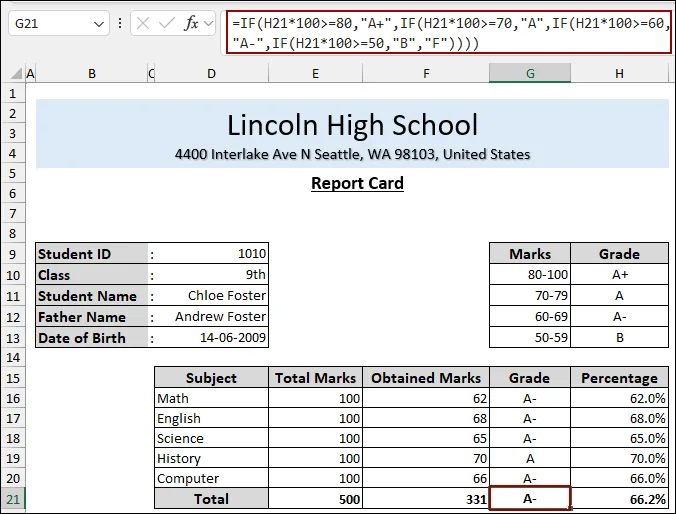
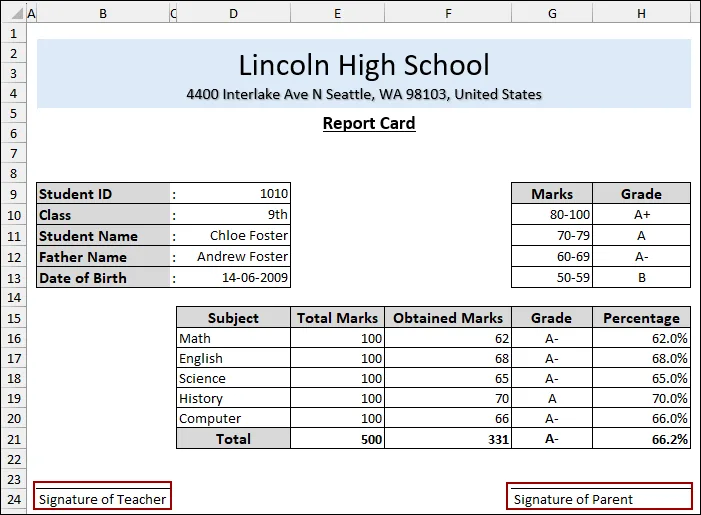
As a result, you will have a dynamic report card in Excel that updates automatically upon selecting a new Student ID.
Downloadable Resources
Get our practice workbook or necessary files that we have worked with to prepare this article.
Make Report Card.xlsx
Practice Workbook · Excel (.xlsx)
Frequently Asked Questions
Can I import student data from another Excel file?
Yes, you can use Power Query or the VLOOKUP function to collect student data from another workbook.
What is the best way to keep the original marks safe so teachers can't accidentally change them?
Create a separate marks entry sheet and link it to the report card, then lock the report card sheet.
Is it possible to generate report cards for all students in PDF format automatically?
Yes, with VBA macros or Power Automate (optional), Excel can loop and export each report card individually to PDF.
Concluding Words
Above, we have covered all the steps to make a report card in Excel. The combination of the Data Validation feature with the VLOOKUP and MATCH functions is a quick way to generate a report card that dynamically links to source data. Utilizing conditional logic for grading and formatting provides a unique look to the report. If you have any questions, please don't hesitate to share them in the comments section below.