
How to Change Page Orientation in Google Sheets
Changing the page orientation in Google Sheets is both a simple and very useful task. It lets you print any dataset in the format you prefer, which is Landscape or Portrait. For example, you’ve created a report and now need to print it in Landscape format. No matter what you’re printing, you always need to set the page orientation in the right format before printing.
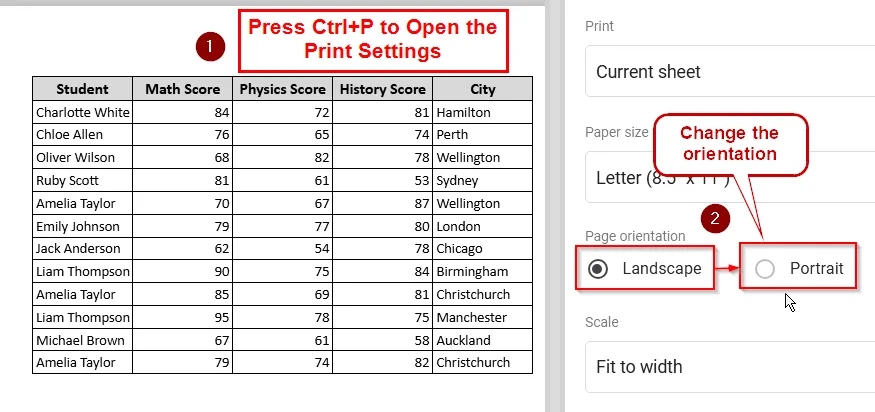
➤ Open a spreadsheet, then select File >> Print, or you can use the keyboard shortcut CTRL + P.
➤ Now, choose either Landscape or Portrait and then click on Next.
➤ Finally, you will see the Print option to print the sheet out.
In this article, I’ll show you how to change the page orientation in Google Sheets with a step-by-step guide and images. By the end of this article, you’ll know how to print any sheet in your preferred format.
I will be using a simple dataset of some students for this guide. You will see how I change the page orientation of this sheet for printing.
Steps to Change Page Orientation in Google Sheets
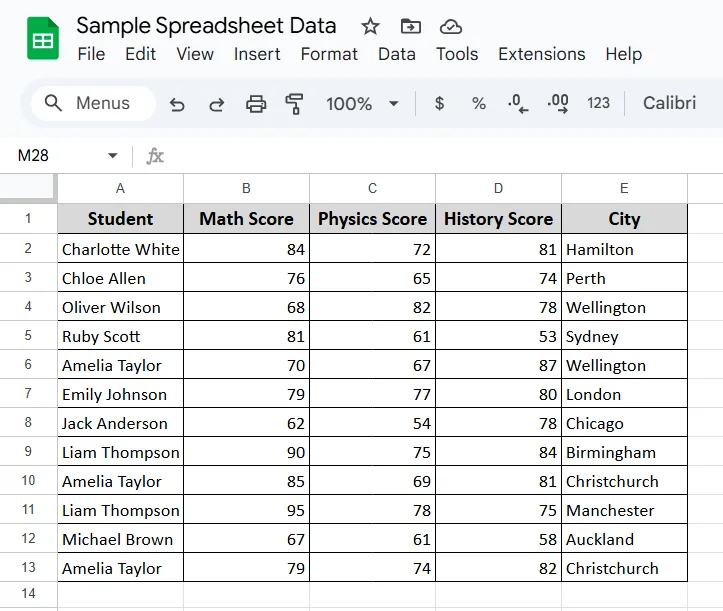
Let's say we have a sample spreadsheet data as shown below. Now we'll print this page and change the orientation with only two quick & simple steps.
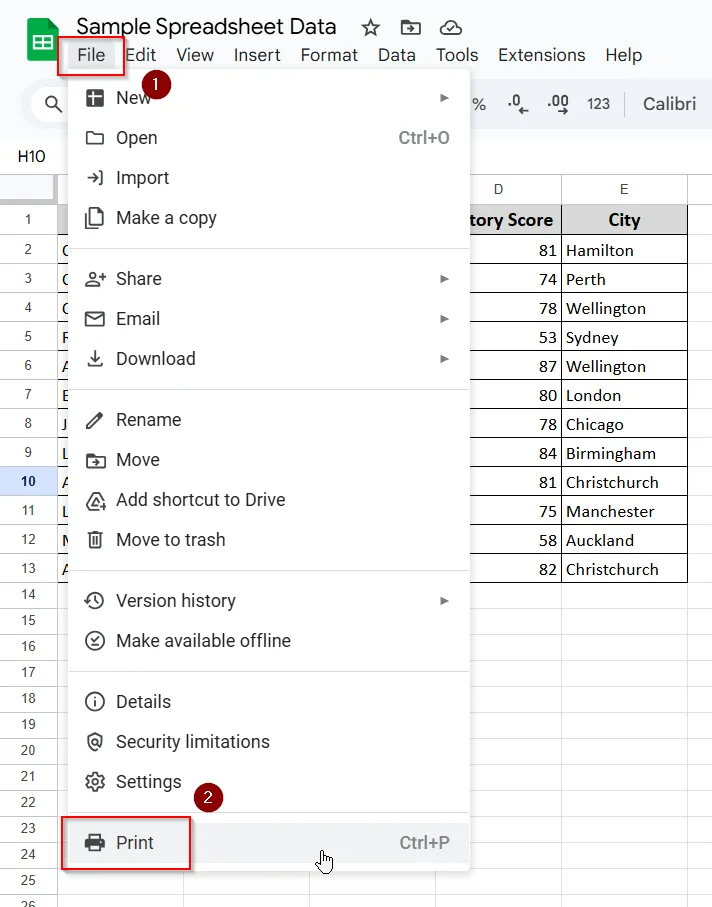
➤ First, open your Google Sheets and click on “File.”
➤ A menu will pop up. Scroll to the bottom and click on “Print.”
➤ After clicking “Print,” a new page will open. On the right side, you’ll see two options under a section called “Page Orientation.”
Step 2: Select Your Preferred Orientation Format
➤ Now, choose your preferred orientation. Click on “Landscape” if you want to print in Landscape format.
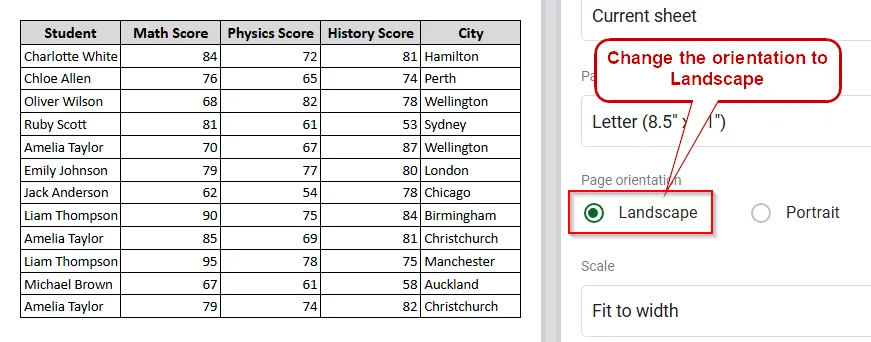
➤ Or click on “Portrait” if you want to print in Portrait format.
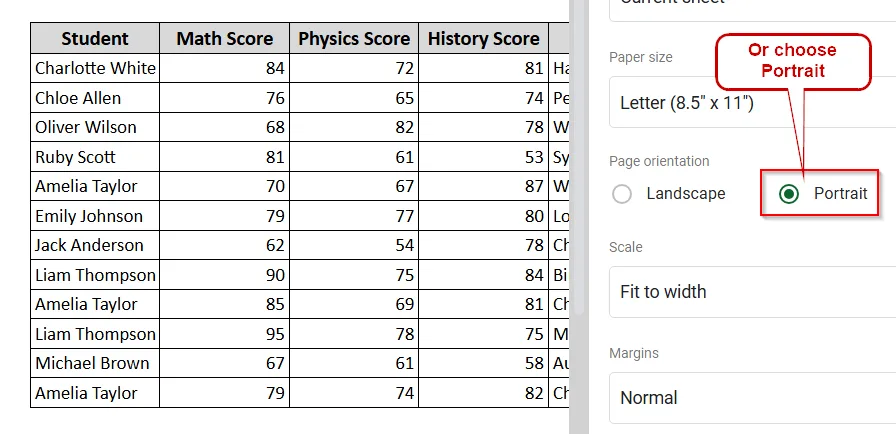
➤ After selecting the format you want, click on “Next” (you’ll find it in the top-right corner). Then simply print your Google Sheet. Now you're all good to go.
There’s a shortcut, too, for changing the page orientation. Press “CTRL + P” and the print page will appear, just like it does when you click “Print” from the “File” menu. After that, the procedure is the same.
Frequently Asked Questions
How do I change the page view in Google Sheets?
Open a sheet, go to View >> Full Screen/Zoom
Can I save the Google Sheet on my computer without printing?
Yes, you can. At the last stage of printing, there is a section called “Destination.” Click on that, and you will see an option to save the sheet as a PDF. Here is the path — Home >> Print >> Next >> Destination.
Concluding Words
Now you know how to change page orientation in Google Sheets. In this short and easy step-by-step guide, I’ve explained everything you need to know about switching the page orientation. It’s a simple process but very useful, especially for those who are new to Google Sheets. Actually, this method is helpful for anyone who wants to print a sheet in either landscape or portrait format. By following these steps, anyone can do it with ease.
Related Google Sheets Basics Articles
Master the fundamentals with these step-by-step spreadsheet tutorials



Liked this lesson? Get one practical spreadsheet tip every week.
Comments
No comments yet — be the first to ask a question.