
How to Split Cells in Google Sheets
Too much information can be saved in a single cell, such as lists with commas between them, entire names, or combined addresses. You may quickly divide cells into distinct columns in Google Sheets.
What Does Cell Splitting Mean in Google Sheets?
In Google Sheets, “split cell” refers to separating a single cell’s contents into multiple cells, typically in multiple columns. It’s useful because it:
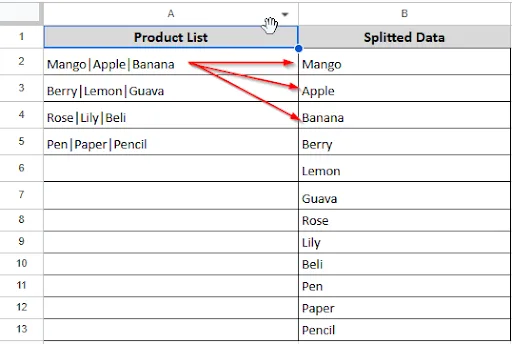
- Makes data simpler to read and organize.
- Helps in organizing or filtering lists.
- Reduces the time needed to clean up messy or imported data.
Splitting Text to Columns in Google Sheets
The quickest method for splitting data in a cell into separate columns is to use the Text to Columns function. It works best when commas, spaces, or other symbols separate your text. What you have to do is:
➤ Select the cell text you want to split.
➤ In the top menu, click “Data > Split Text to Columns”
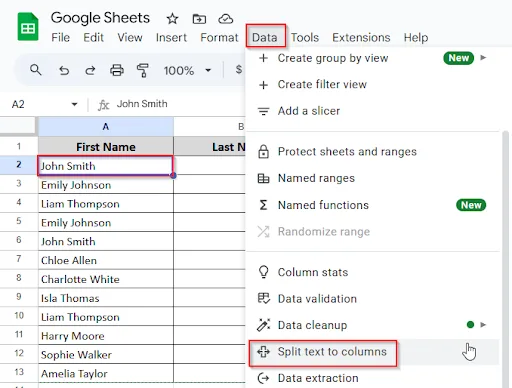
➤ At the bottom of your selected cell, a menu will appear.
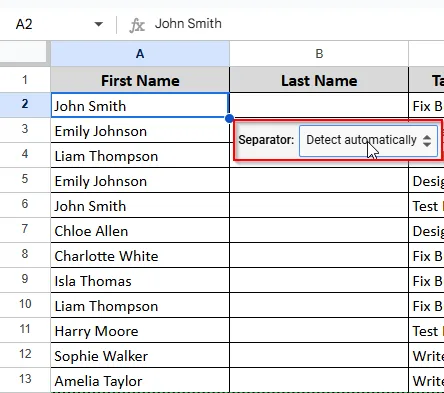
➤ Click on the dropdown menu and choose “space” separator.
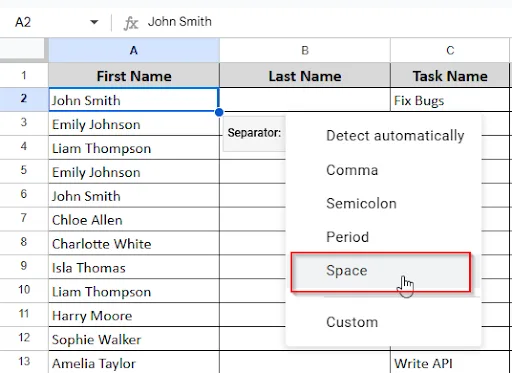
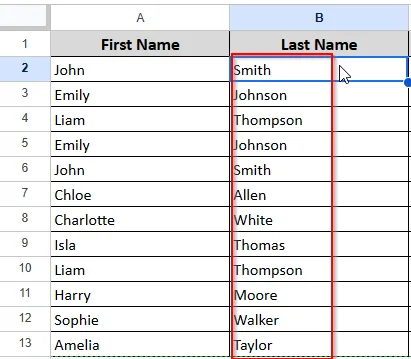
➤ Now, you will see the result. The text is separated into columns according to your chosen separator.
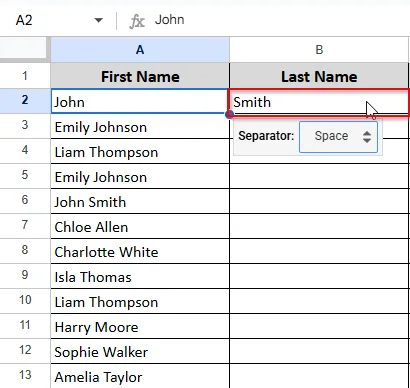
➤ You have to apply the same procedure to split the rest of the text.
Splitting Text to Rows in Google Sheets
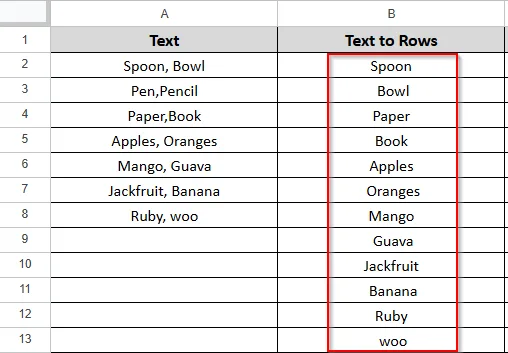
Sometimes you want to split data down rows rather than across columns. There isn’t a “split to rows” button in Google Sheets, but you can do it easily using a formula. What you have to do is:
➤ Click on cell B2 and type this formula:
=TRANSPOSE(SPLIT(A2, “,”))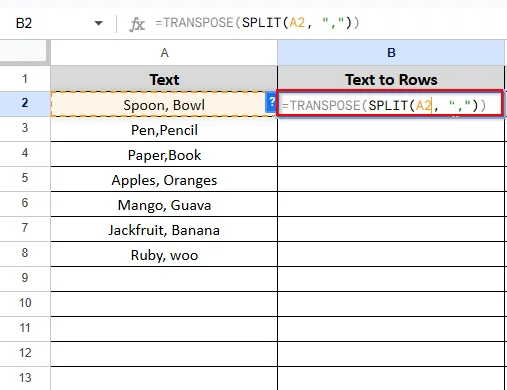
➤ Press Enter, and you will see the result.
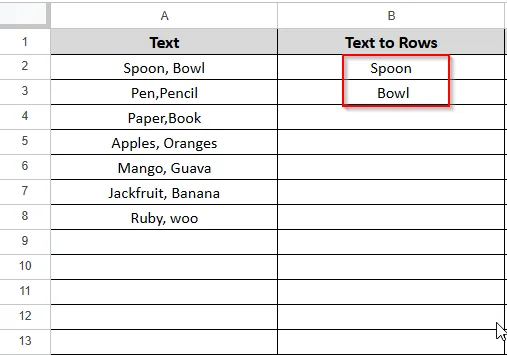
➤ Repeat this formula to separate the text into other rows.
Splitting a Cell Horizontally in Google Sheets
You can split a cell horizontally using functions like SPLIT. This is helpful when you want to show many values in an organized way or divide data in a single cell into more manageable parts. Let’s look at the dataset below, where you want to split a cell horizontally. What you have to do is:
➤ Click on cell B2 and type this formula:
=SPLIT(A2, “|”)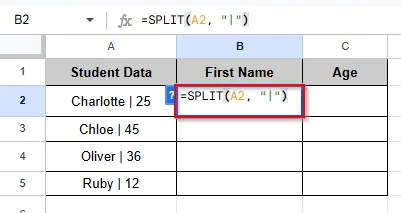
➤ Press Enter and see the result.
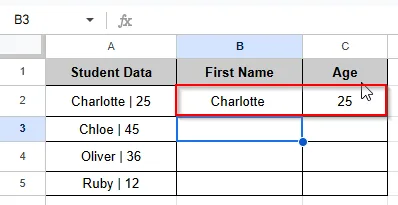
➤ Drag the formula down to apply it to the rest of the row.
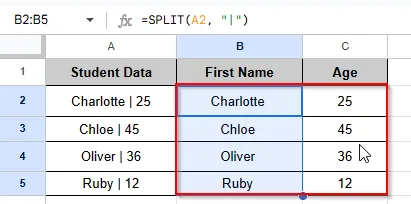
Splitting a Cell Vertically in Google Sheets
There isn’t a direct method for splitting a cell vertically in Google Sheets, but you can do this by combining the TRANSPOSE and SPLIT functions. What you have to do is:
➤ Click on cell B2 and type this formula:
=TRANSPOSE(SPLIT(A2, “|”)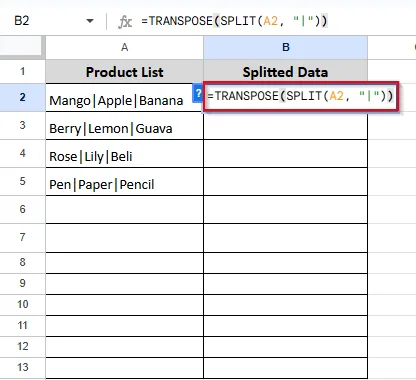
➤ Press Enter, and see the result.
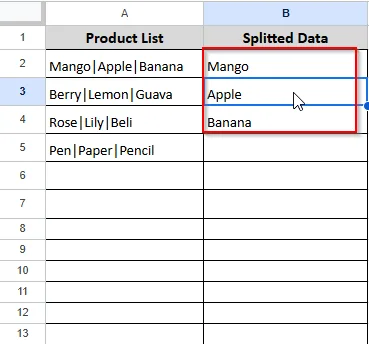
➤ Repeat this formula to separate the text into other rows.
Splitting Text Using Multiple Delimiters in Google Sheets
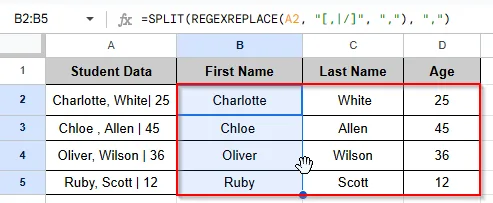
Multiple delimiters, such as commas(,), pipes |, slashes /, or semicolons ;, can sometimes appear in your data. You can split these in Google Sheets using regular expressions with SPLIT and the REGEXREPLACE function. Let’s explore here how now we can split text containing multiple delimiters into separate cells.
➤ Click on cell B2 and type this formula:
=SPLIT(REGEXREPLACE(A2, “[,|/]”, “,”), “,”)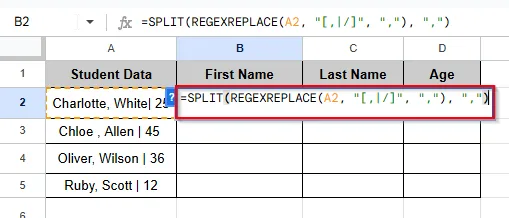
➤ Press Enter and see the result.
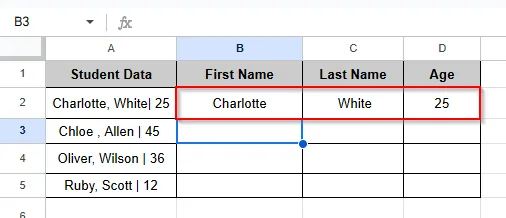
➤ Drag the formula down to apply it to the rest of the row.
Splitting and Getting the First Value in Google Sheets
Sometimes you only need the first value after splitting data in Google Sheets, even though your data in a single cell may have several values separated by a delimiter (such as commas, pipes |, slashes /, etc.). It’s easy in Google Sheets by using the SPLIT, REGEXREPLACE and INDEX Functions. What you have to do is:
➤ Click on cell B2 and type this formula:
=INDEX(SPLIT(REGEXREPLACE(A2, “[,|/]”, “,”), “,”), 1)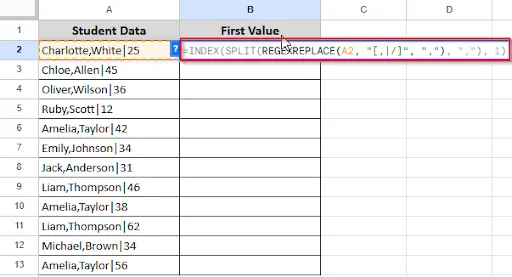
➤ Press Enter and see the result.
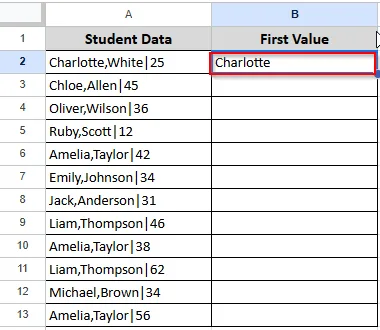
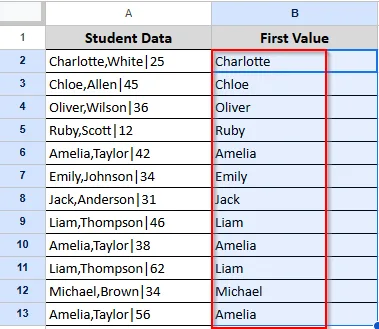
➤ Drag the formula down to apply it to the rest of the row.
Splitting Cell Diagonally in Google Sheets
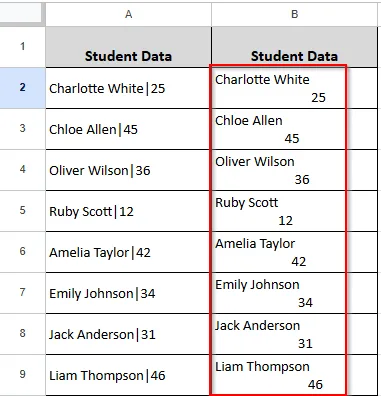
There is no simple solution for splitting a single cell diagonally in Google Sheets, such as placing one value in the upper-left corner and another in the lower-right. By using formatting techniques, you can create the visual look of a diagonal split. What you have to do is:
➤ Click on cell B2 and type “ Charlotte White”.
➤ Press Alt + Enter (Windows) orOption + Enter (Mac) to go to a new line inside the same cell.
➤ Type 4–6 spaces and then type “25” in the bottom-right corner.
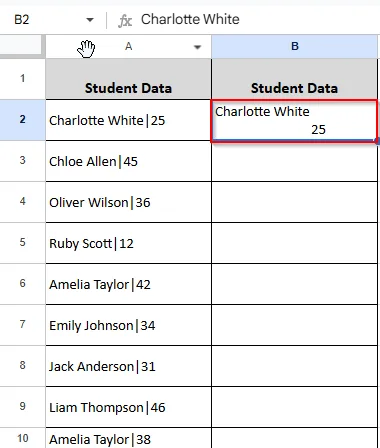
➤ Drag down to apply it to the rest of the row.
Separating Date and Time in Google Sheets
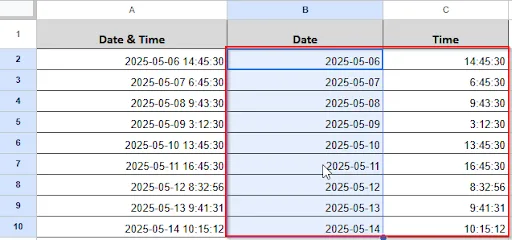
When you are working with dates and times in Google Sheets, it appears in a single cell, such as 2025-05-06 14:45:30. However, for filtering, formatting, or analysis purposes, you may often want to separate the date and time into separate columns. What you have to do is:
➤ Click on cell B2 and type this formula:
=SPLIT(A2, ” “)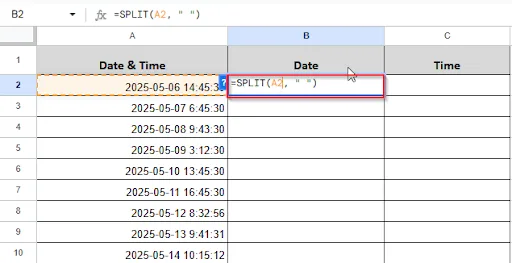
➤ Press Enter and see the result.
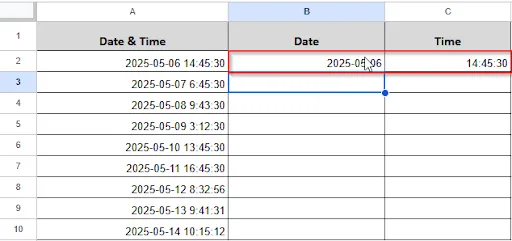
➤ Drag the formula down to apply it to the rest of the row.
Splitting a Cell in Half in Google Sheets
It is not possible to split a single cell into two parts in Google Sheets by applying a formula. However, by using cell formatting, you can get an appearance of a cell being split in half, either horizontally or vertically.
➤ Click on cell B2 and type this formula:
=SUBSTITUTE(A2, ” “, CHAR(10))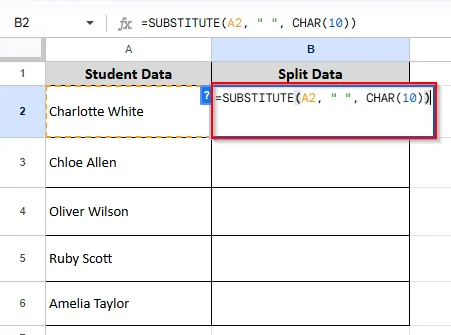
➤ Press Enter and see the result.
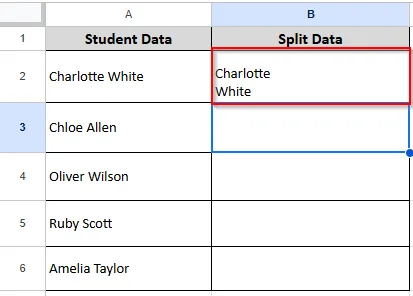
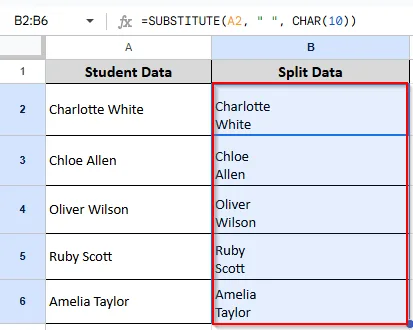
➤ Drag the formula down to apply it to the rest of the row.
Frequently Asked Questions
Is it possible to separate several cells at once?
Yes, to split all selected cells according to the selected separator, pick the full column or range of cells, then click Data > Split Text to Columns.
Is it possible to split a cell without removing the original information?
No, it’s not possible to split a cell without removing the original content. Before separating, copy and paste the original data into a different column to preserve it.
Concluding Words
In Google Sheets, splitting cells is a useful tool for better data management and organization. Google Sheets has a few easy-to-use tools to help you with tasks like splitting names, separating dates and times, for easier reading.
Related Google Sheets Basics Articles
Master the fundamentals with these step-by-step spreadsheet tutorials










Liked this lesson? Get one practical spreadsheet tip every week.
Comments
No comments yet — be the first to ask a question.