
How to Extract Numbers from a String in Google Sheets
To get a cleaned version or sort our dataset properly, we often need to extract numbers from strings in Google Sheets. For this purpose, we can use the REGEXEXTRACT, ARRAYFORMULA, and SPLIT functions. In this article, we will explain how to use these functions in steps.
➤ Then, select cell E2 and insert the following formula:
=REGEXEXTRACT(D2,"-*\d*\.?\d+")
➤ Finally, press Enter and drag the cursor of your mouse to get all the extracted numbers.
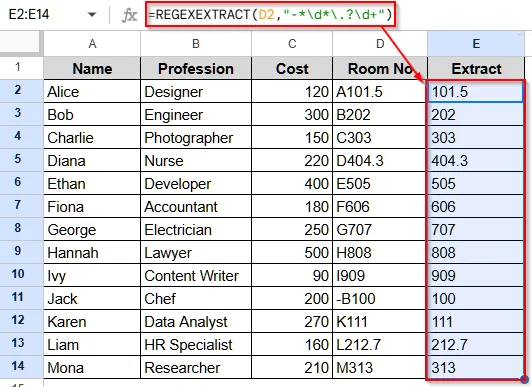
Extract Numbers from a String Using REGEXEXTRACT in Google Sheets
The REGEXEXTRACT function in Google Sheets can differentiate among numbers, decimals, texts, and negative symbols. Thus, it can easily extract numbers from string-type data in Google Sheets.
We will use the dataset below to explain how the REGEXEXTRACT function works to extract any numbers, negative signs, and decimals from string data in Google Sheets.
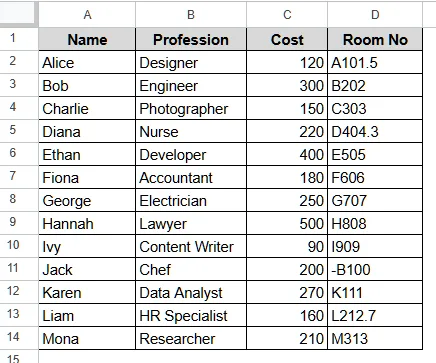
Here, column D shows “Room no”, which is string data having negative symbols, numbers, and texts.
Steps:
➤ First, select cell E1 and name it “Extract”.
➤ Then, click on cell E2 and insert the following formula:
=REGEXEXTRACT(D2,"-*\d*\.?\d+")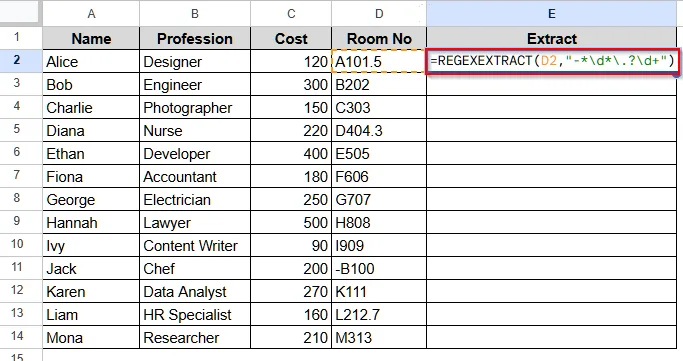
➤ Now, press Enter, and the data will be returned without any symbols or letters. Then, drag the cursor to get all the extracted number data.
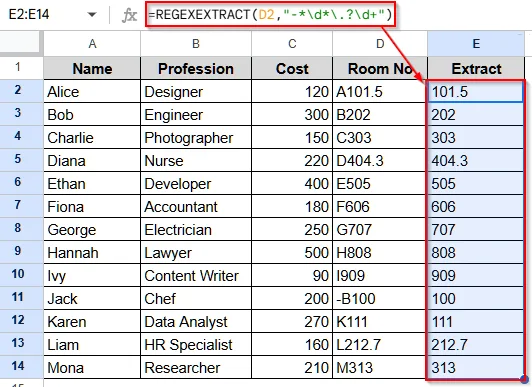
Use ARRAYFORMULA on Google Sheets Dataset to Extract Numbers from a String
The ARRAYFORMULA function extracts numbers by combining the REGEXEXTRACT function. It is particularly useful if you want to extract the data in a whole column at once.
Steps:
➤ First, click on cell E1 and give it a name.
➤ Then, select cell E2 and insert a formula as:
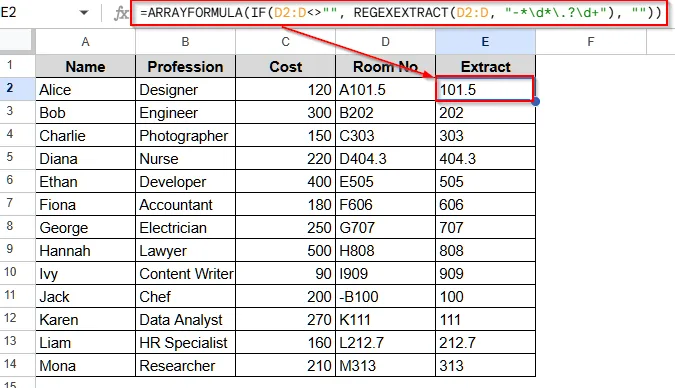
=ARRAYFORMULA(IF(D2:D<>"", REGEXEXTRACT(D2:D, "-*\d*\.?\d+"), ""))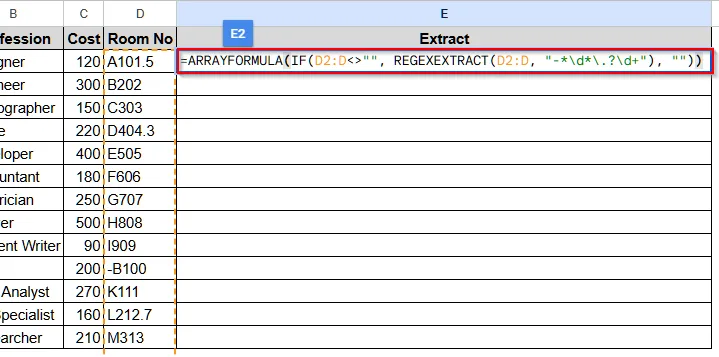
➤ Press Enter, and you will see the extracted numbers for the whole column returned at once.
Extract Numbers in Different Columns from a String Using SPLIT Function
The SPLIT function can remove letters and take on different delimiters like commas, alphabets, etc. With this function, we can easily extract numbers from a string that’s also in separate columns.
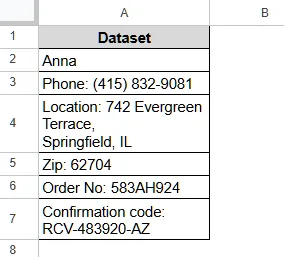
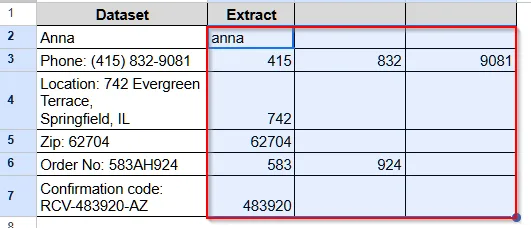
To explain how to use the SPLIT function, we will use the dataset below.
Steps:
➤ First, select cell B1 and give it a name.
➤ Then, select cell B2 and insert the following formula:
=SPLIT(LOWER(A2), "abcdefghijklmnopqrstuvwxyz!@#$%^&*()_+-=~`[]{}|\:;""'<>,.?/ ")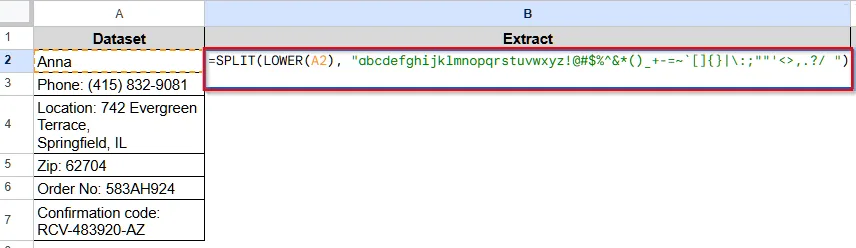
➤ Now, press Enter and drag the cursor down to get all the extracted numbers.
Extract Numbers from a String Using Power Tools in Google Sheets
With Power Tools, you can extract numbers from a string without any formula. However, most of the power tools are paid. So, we will use the basic version or the free version of AbleBits Power Tools to extract the numbers from any string-type data.
Steps:
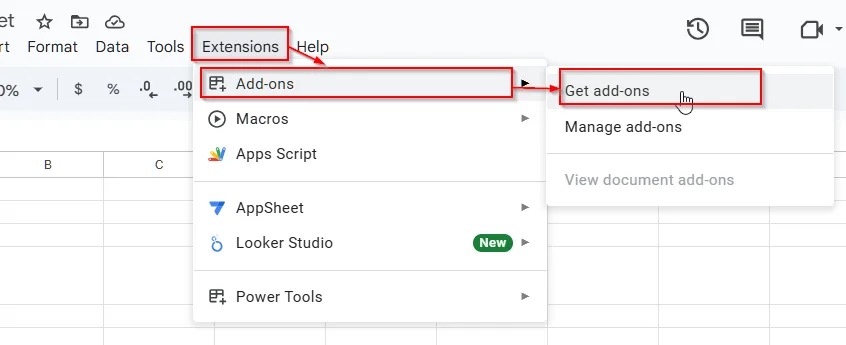
➤ First, select Extensions from the top menu bar.
➤ Now, a pop-up window will open, and select Add-ons from there.
➤ Then, another pop-up will open, and select Get add-ons.
➤ Now, you will see a new window and an option called Search apps.

➤ Select the Search apps option, write down Power Tools, and press Enter.
➤ Now, you will see some options. Look for the Power Tools by AbleBits and select Install.

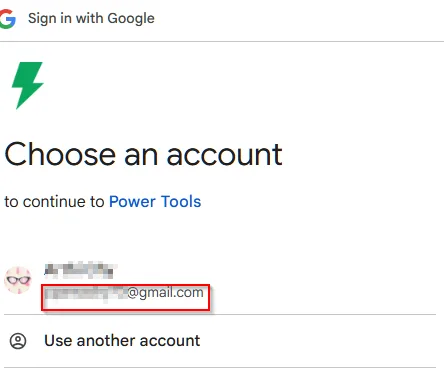
➤ Now, a new pop-up will open. Select an email account or add a new email account. Press Enter, and another window will open. Then press Continue, and you will see another pop-up.
➤ Select Allow, and the Power Tools will be installed. Select Done.

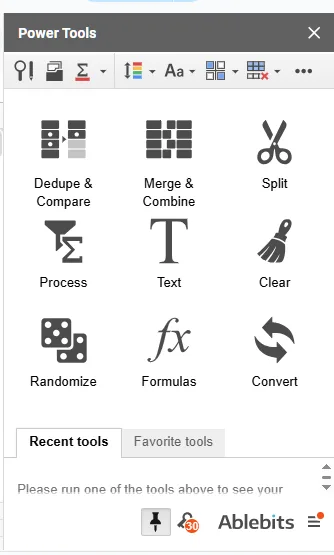
➤ Now, close the window, and you will see a window on the right side.
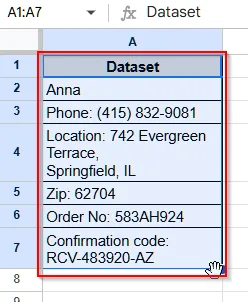
➤ Select the dataset you want to extract the numbers from.
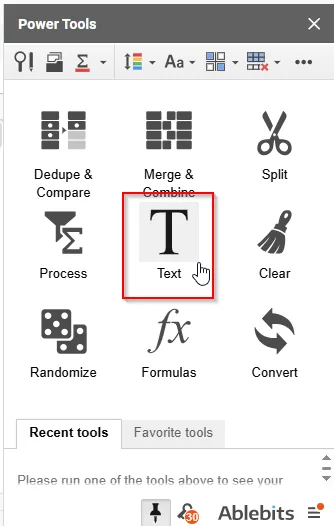
➤ Then, select the Text option from the Power tools.
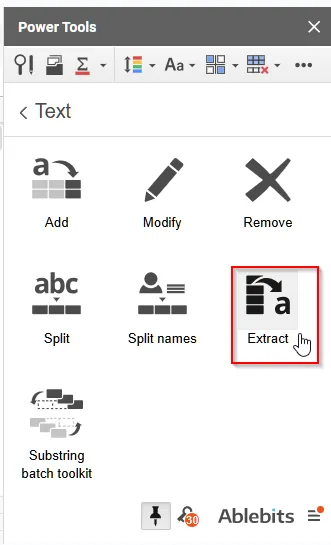
➤ Now, you will see a list of options. Choose Extract from the list, and a new pop-up will open.
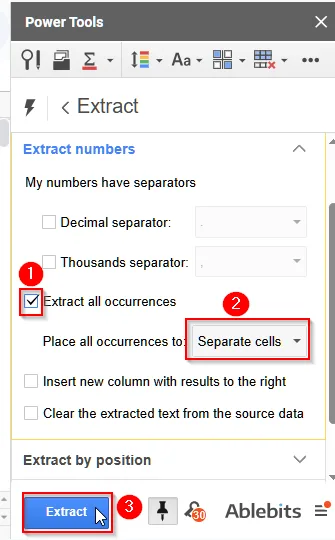
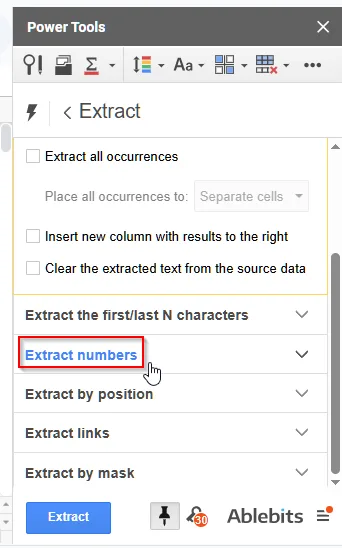
➤ Scroll to Extract numbers and click it. Then, select Extract all occurrences.
➤ Inside the “Place all occurrences to:” box, select Separate cells
➤ Finally, select Extract.
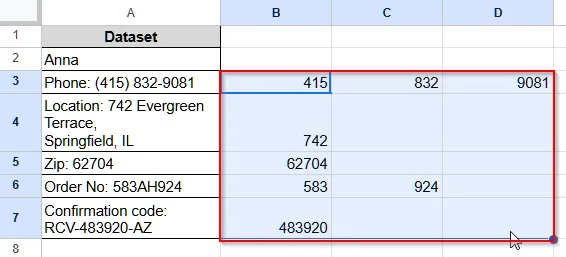
➤ Now, you will see that all the numbers will be extracted in separate cells.
Practice Resources
Get our practice workbook or necessary files that we have worked with to prepare this article.
Extract Numbers from a String in Google Sheets [Make a Copy]
Frequently Asked Questions
Why Am I Getting #VALUE Error While Using the REGEXEXTRACT Formula?
There are two main reasons for getting the #VALUE error while using the REGEXEXTRACT function. One is, either you mistyped the formula, or your data has only numeric values without any text, symbols, or decimals. To fix this error, first check whether your formula is correct. If it is correct and the error still exists, use the IFERROR function to fix it. The formula will be:
=IFERROR(REGEXEXTRACT(D2:D, "-*\d*\.?\d+"), "")
How to Remove Text from Different Parts of a String to Extract Numbers in Google Sheets?
To remove text from different parts of a string, we need to use the =REGEXREPLACE function. Let’s say we have a data like 347HY98A56 in cell D2. Now, to extract only the numbers, we will use the following formula: =REGEXREPLACE(D2,”[a-zA-Z]”,””)
Wrapping Up
Through this article, we have learned to use the REGEXEXTRACT and ARRAYFORMULA to extract numbers from a string in Google Sheets. We have also discussed a few tips in the FAQ section. Try these methods and share your thoughts with us.
Related Google Sheets Basics Articles
Master the fundamentals with these step-by-step spreadsheet tutorials













Liked this lesson? Get one practical spreadsheet tip every week.
Comments
No comments yet — be the first to ask a question.