Excel VBA
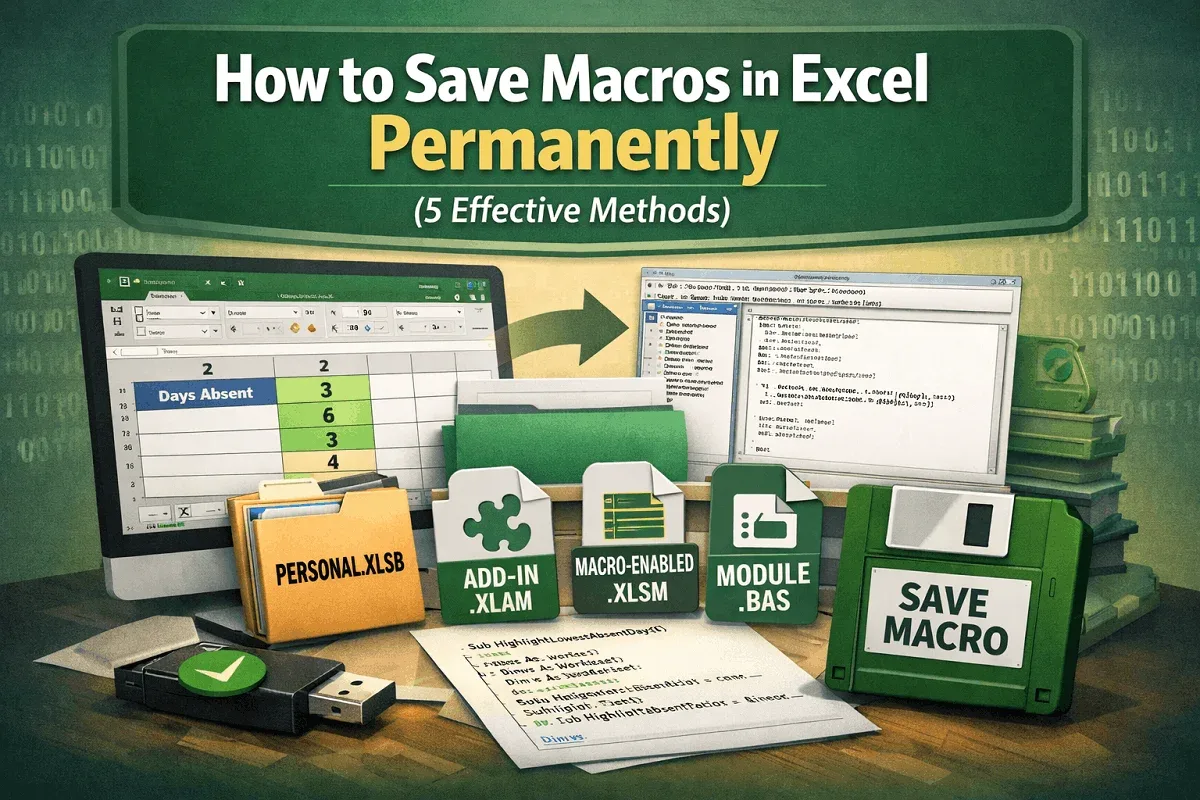
How to Save Macros in Excel Permanently (5 Effective Methods)
Learn how to save macros in Excel permanently using Personal.xlsb, add-ins (.xlam), macro-enabled files (.xlsm), or exporting as .bas files.
Read article

7 lessons in order
Learn how to save macros in Excel permanently using Personal.xlsb, add-ins (.xlam), macro-enabled files (.xlsm), or exporting as .bas files.
![[Fixed] Macros Enabled But Not Working (8 Probable Solutions)](https://pub-b39c974f4c124a36a2fb517be38076ec.r2.dev/images/2026/08/featured-image-macros-enabled-but-not-working-2-96fb01ac.webp)
Fix macros not working even when enabled in Excel. Learn 8 proven solutions including trusted location, settings, and code error fixes.
![[Fixed] Cannot Edit Macro on a Hidden Workbook](https://pub-b39c974f4c124a36a2fb517be38076ec.r2.dev/images/2026/08/featured-image-cannot-edit-a-macro-on-a-hidden-workbook-2-d3e8b523.webp)
Fix the “Cannot edit a macro on a hidden workbook” error in Excel by unhiding, adjusting PERSONAL.xlsb, enabling macros or disabling add-ins.
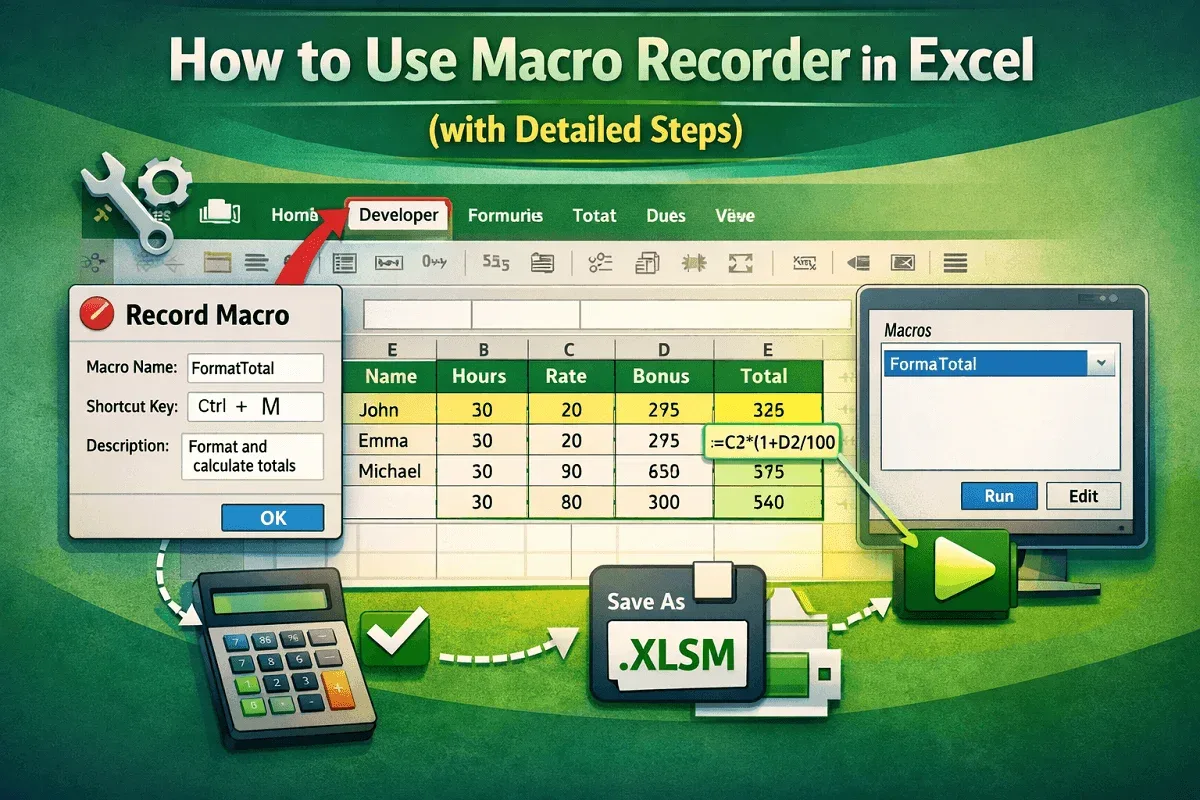
Learn how to use Excel’s Macro Recorder with simple steps to record, automate, and run tasks, and save your workbook properly today.
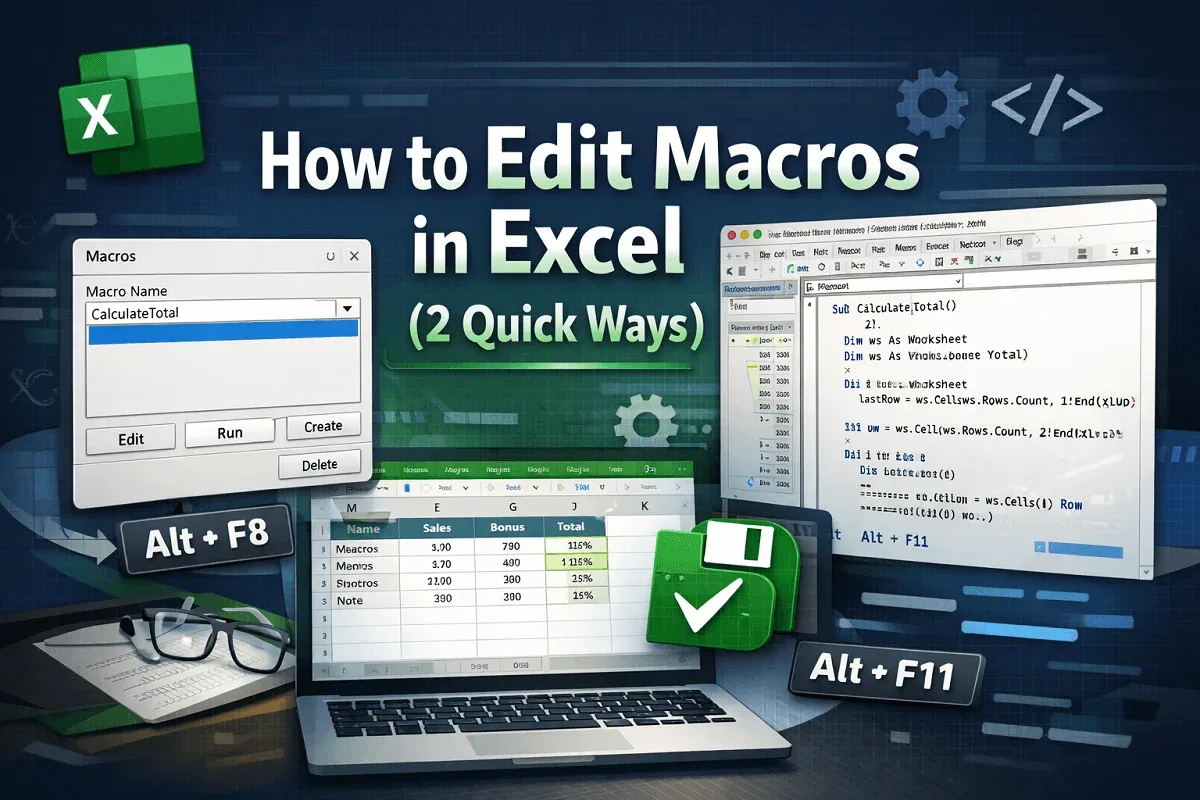
Learn how to edit macros in Excel using quick keyboard shortcuts and the Developer tab to access and modify VBA code efficiently today.
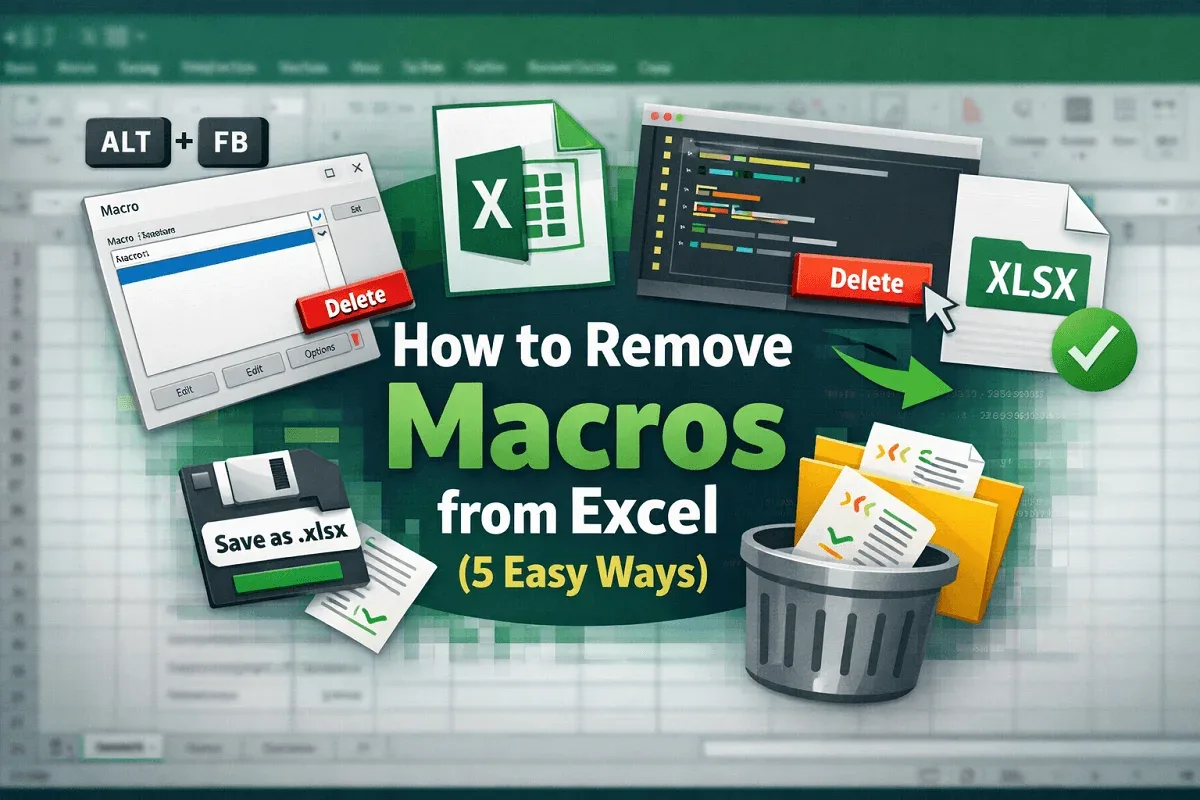
Learn how to remove macros from Excel using the Macro dialog, shortcut keys, the VBA Editor, and by saving your file as .xlsx format.
Fix Excel macros not working by enabling or unblocking macros, checking file formats, and adjusting global macro settings.