Excel Pro Tips
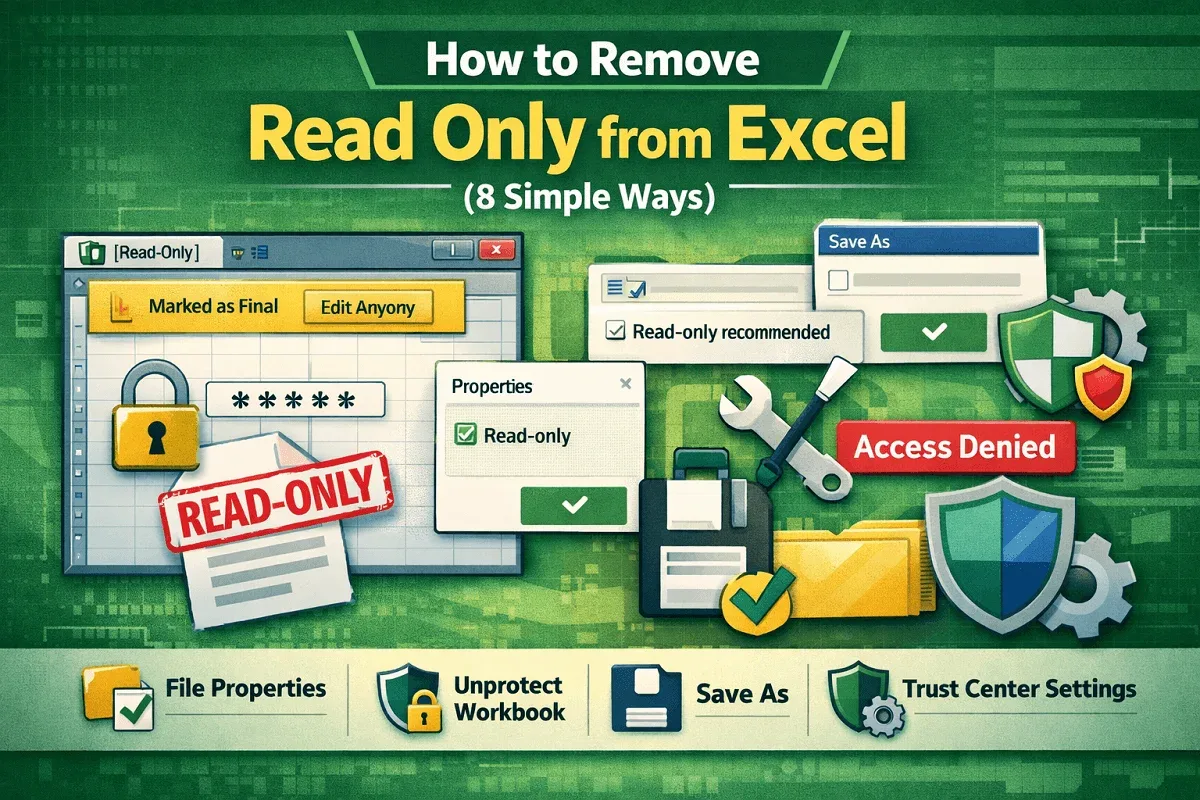
How to Remove Read Only from Excel (8 Simple Ways)
Remove Excel read-only mode by editing file properties, unprotecting the workbook, adjusting settings, and fixing permissions.
Read article

8 articles tagged with “Protect Excel Workbook”
Remove Excel read-only mode by editing file properties, unprotecting the workbook, adjusting settings, and fixing permissions.

Learn how to make an Excel file read-only by setting file preferences, adding a password, and applying OS-level protection.

Learn how to protect specific cells in Excel using built-in features, formulas & VBA to secure your data while allowing edits where needed.
![[Fixed] This Workbook Was Opened in Read Only Mode](https://pub-b39c974f4c124a36a2fb517be38076ec.r2.dev/images/2026/08/featured-image-this-workbook-was-opened-in-read-only-mode-1-db78c0aa.webp)
Fix 'This workbook was opened in read-only mode' in Excel by removing read-only settings, editing file properties & disabling Protected View.

Learn how to insert a digital signature in Excel using signature lines, invisible signatures, handwritten or typed styles, or PDF attachments.

Learn how to password protect an Excel workbook from opening by using Encrypt with Password, Save As dialog box & Protect Workbook feature.

Learn how to password protect an Excel sheet from viewing by hiding sheets, encrypting the workbook, using IRM, read-only mode or VBA macros.
Learn how to protect an Excel workbook from editing using passwords, worksheet protection, read-only mode, and view-only sharing options.