Excel Charts
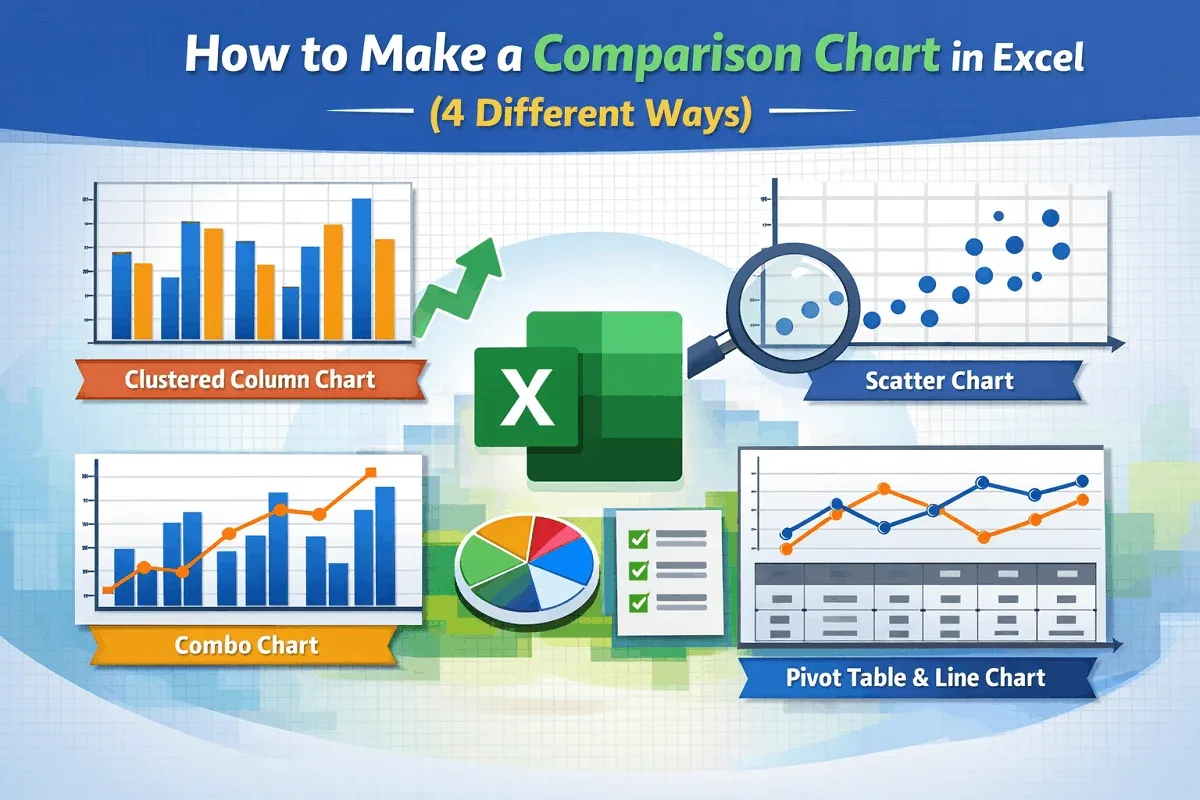
How to Make a Comparison Chart in Excel (4 Different Ways)
Learn how to make a comparison chart in Excel using clustered columns, scatter plots, combo charts, or Pivot Tables with line charts.
Read article

1285 articles
Learn how to make a comparison chart in Excel using clustered columns, scatter plots, combo charts, or Pivot Tables with line charts.
Learn how to group columns in Google Sheets, create nested groups for better organization, and ungroup columns when needed for flexibility.
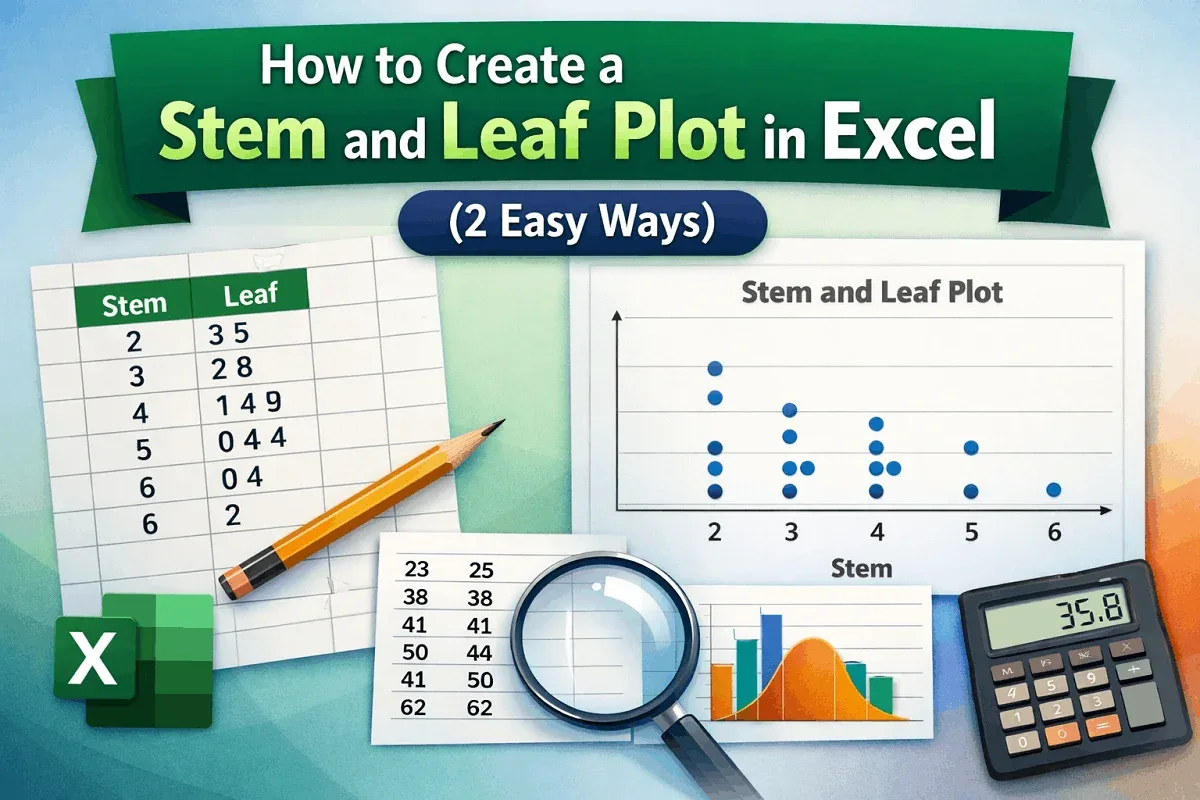
Learn how to create a stem and leaf plot in Excel using a scatter chart for visualization or by manually building a traditional plot.
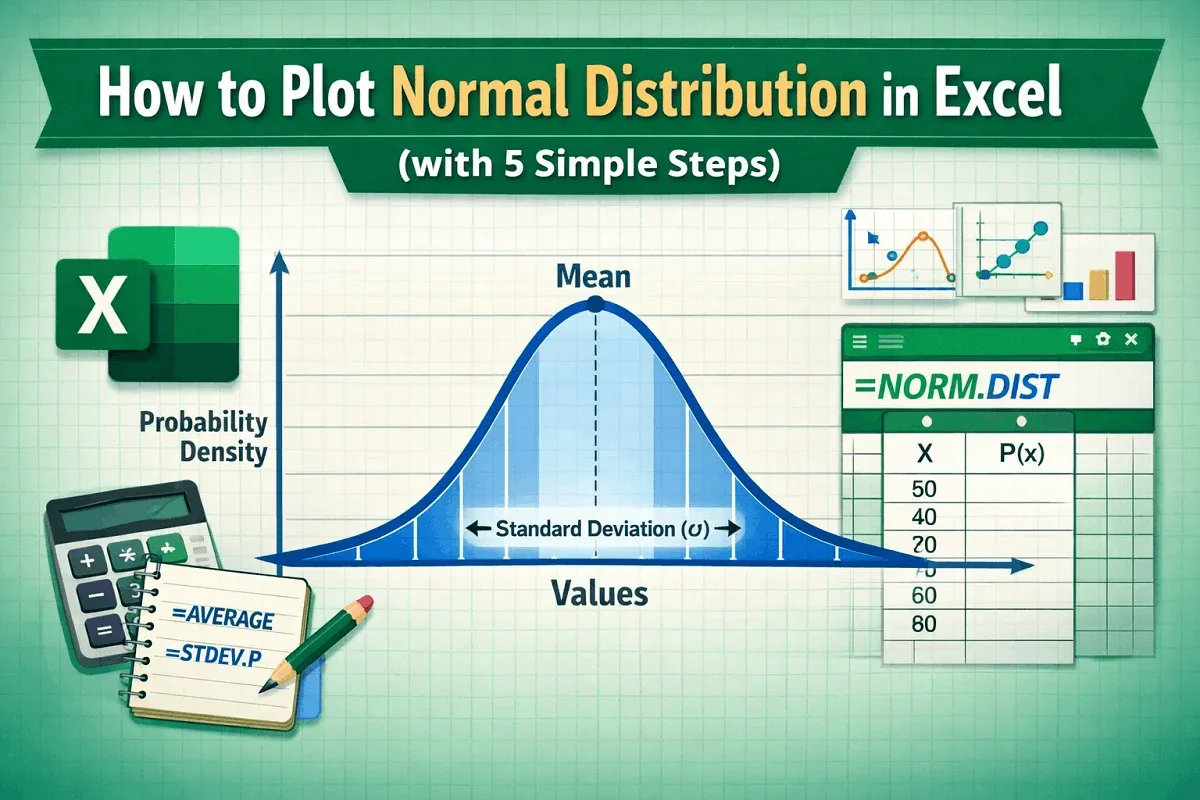
Learn how to plot a normal distribution in Excel by calculating mean, standard deviation, using NORM.DIST, and inserting a customized chart.
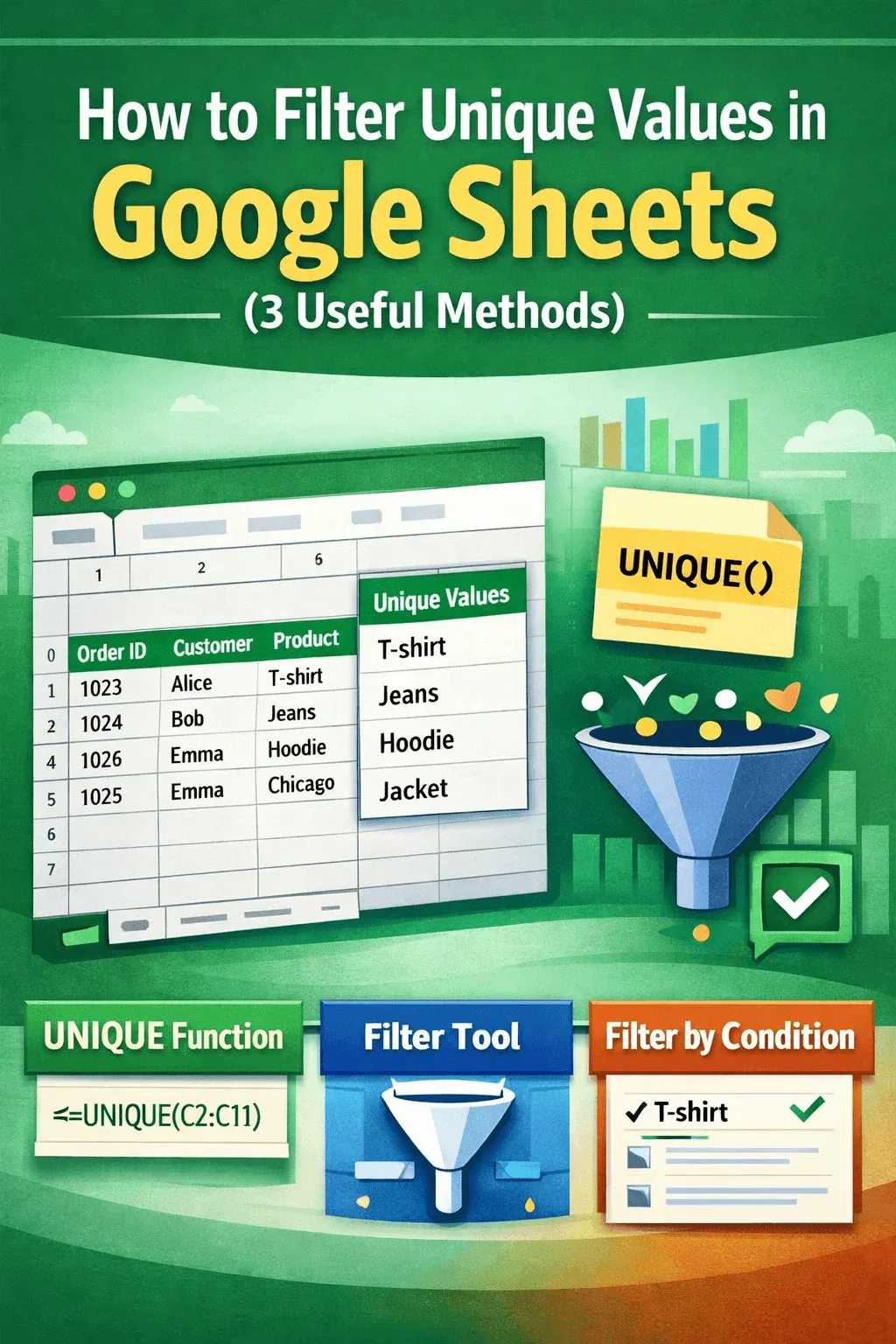
Filter unique values in Google Sheets using the UNIQUE function, filters, or conditions to extract distinct product, city, or customer data.
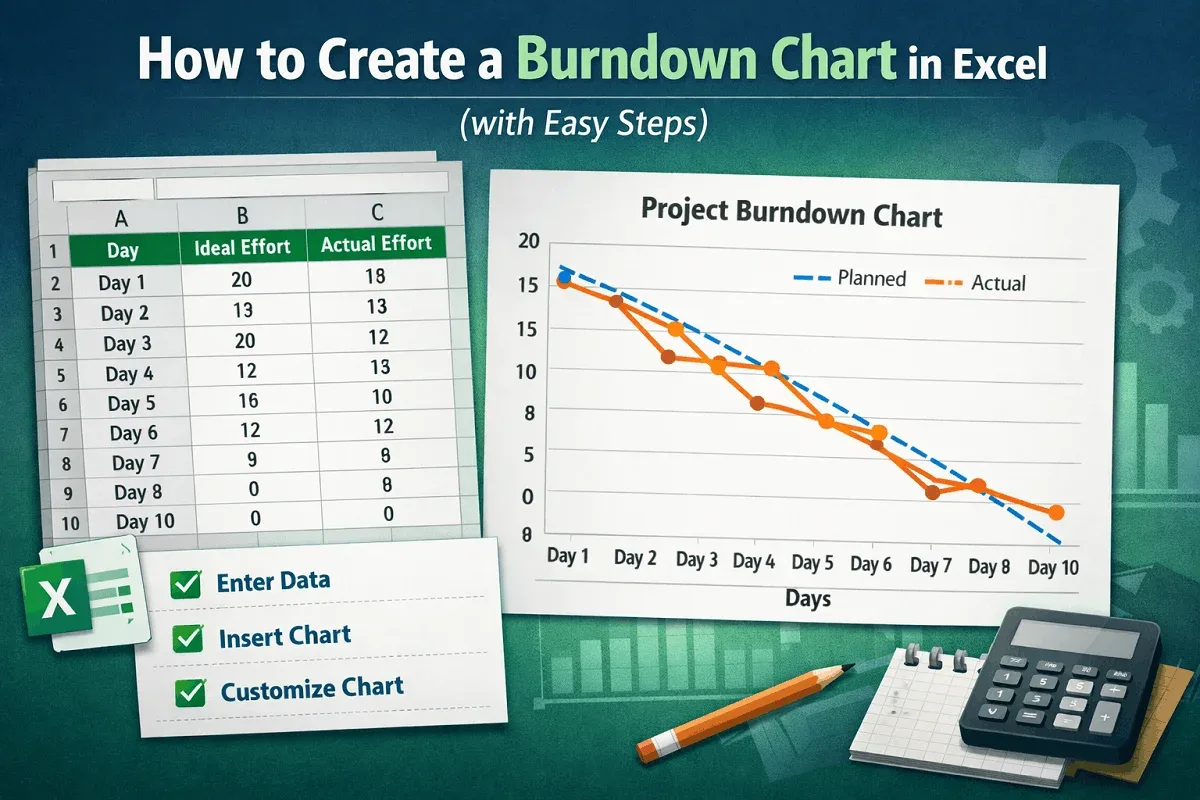
Learn how to create a burndown chart in Excel by entering your dataset, inserting a line chart, and customizing it for project tracking.

Learn how to create a matrix in Excel using grids, SmartArt, PivotTables, bubble charts, or 4-quadrant charts for analysis and visualization.
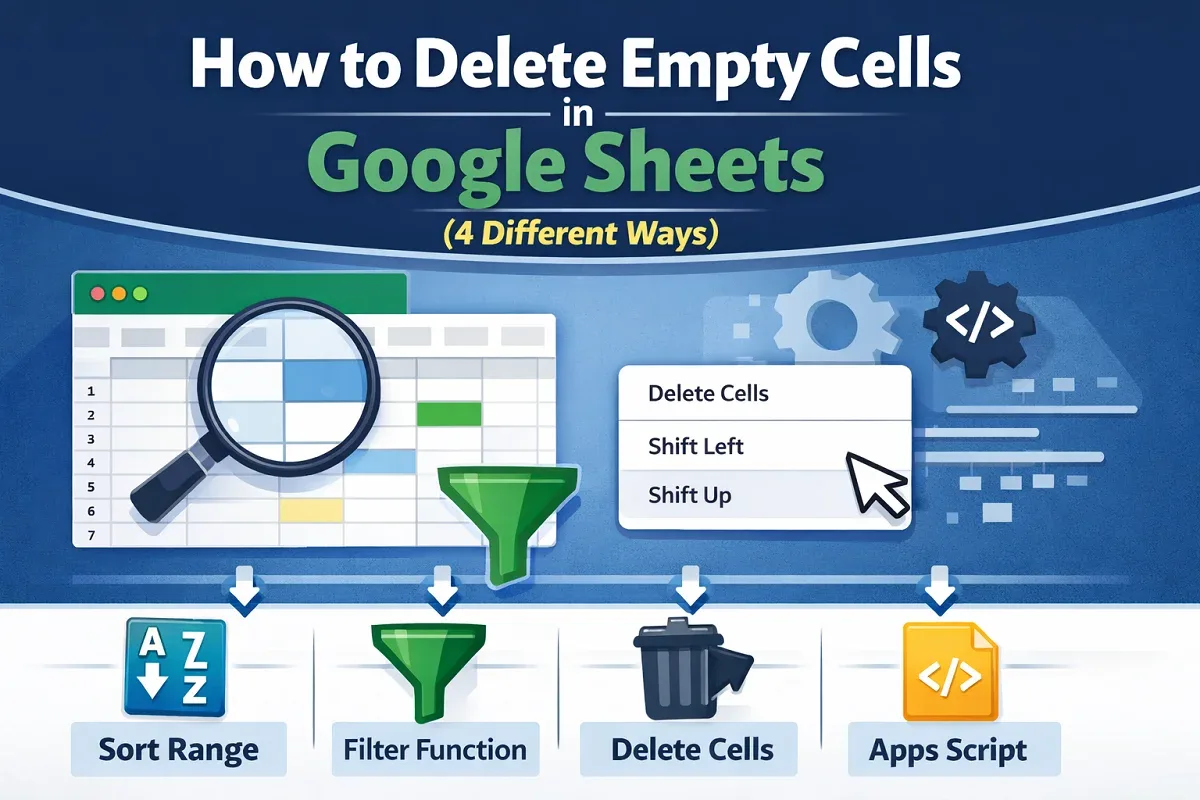
Learn how to delete empty cells in Google Sheets using sort range, FILTER function, delete cell options, or Google Apps Script automation.
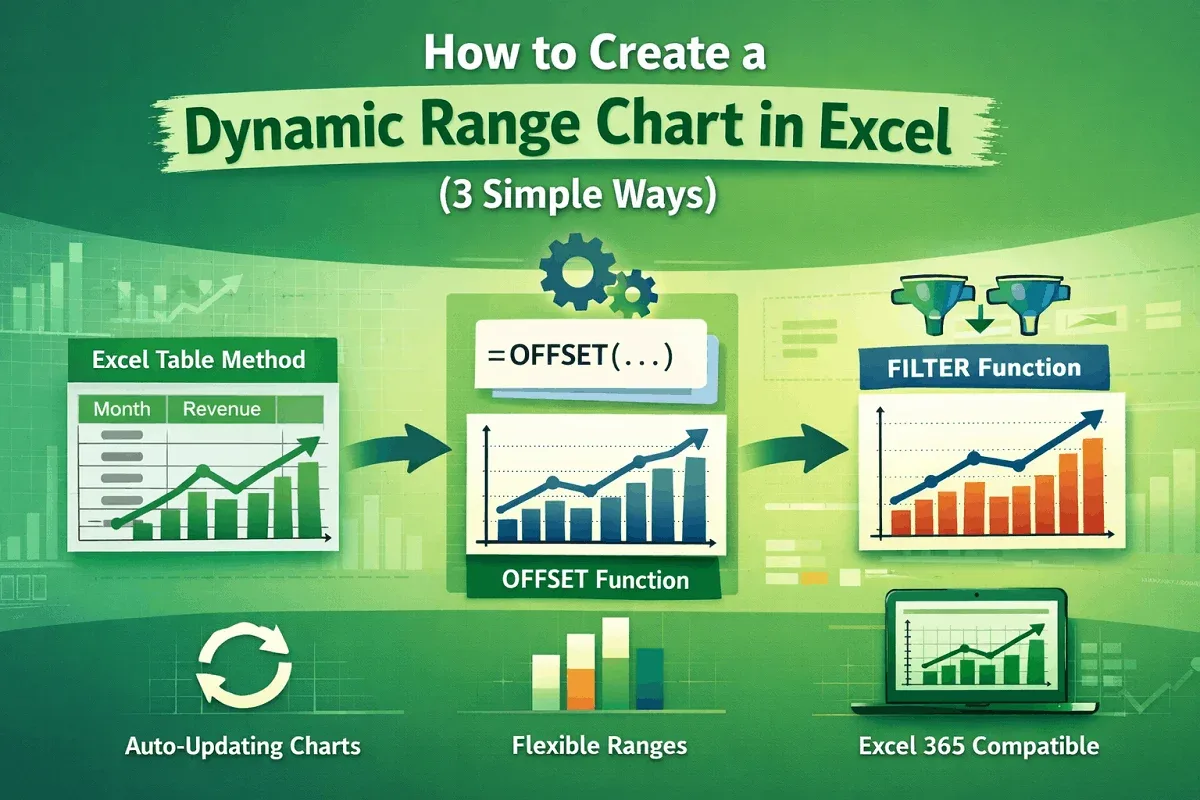
Learn how to create a dynamic range chart in Excel using tables, OFFSET with named ranges, or FILTER with dynamic arrays in Excel 365.
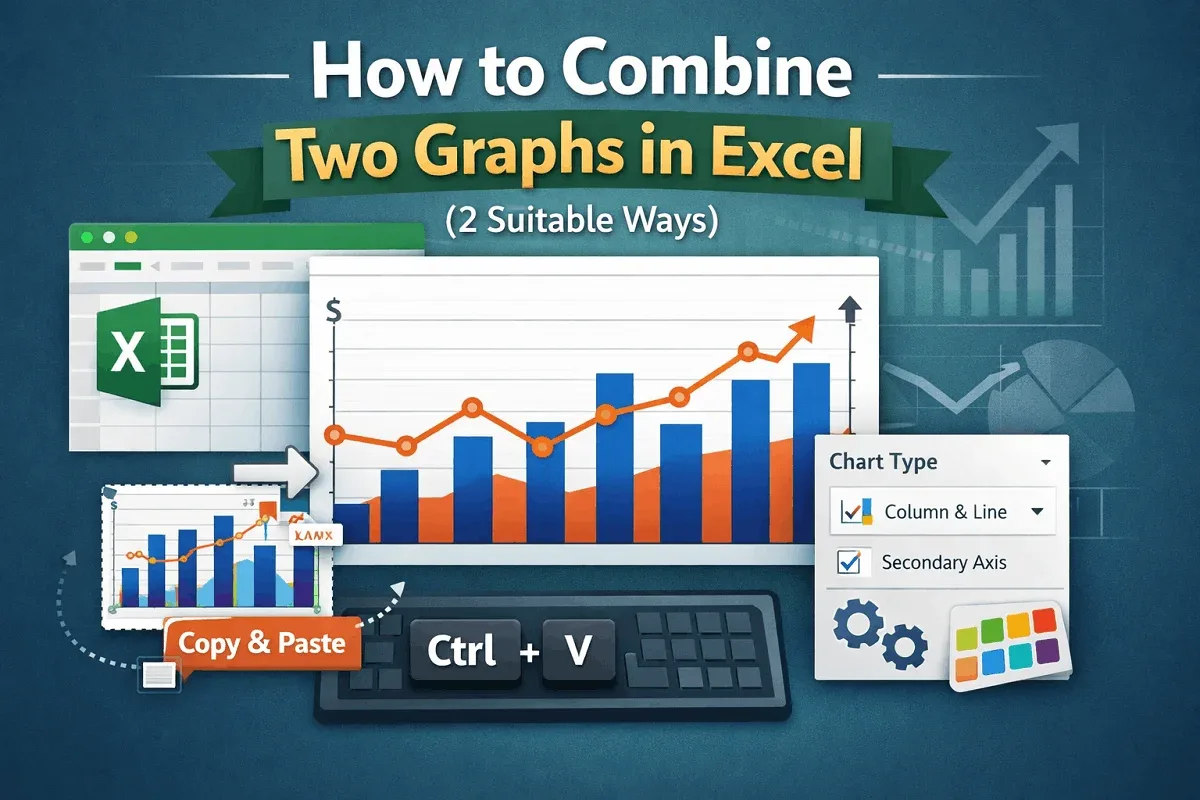
Learn how to combine two graphs in Excel using the Combo Chart tool to overlay data or by manually merging charts with a simple copy-paste.
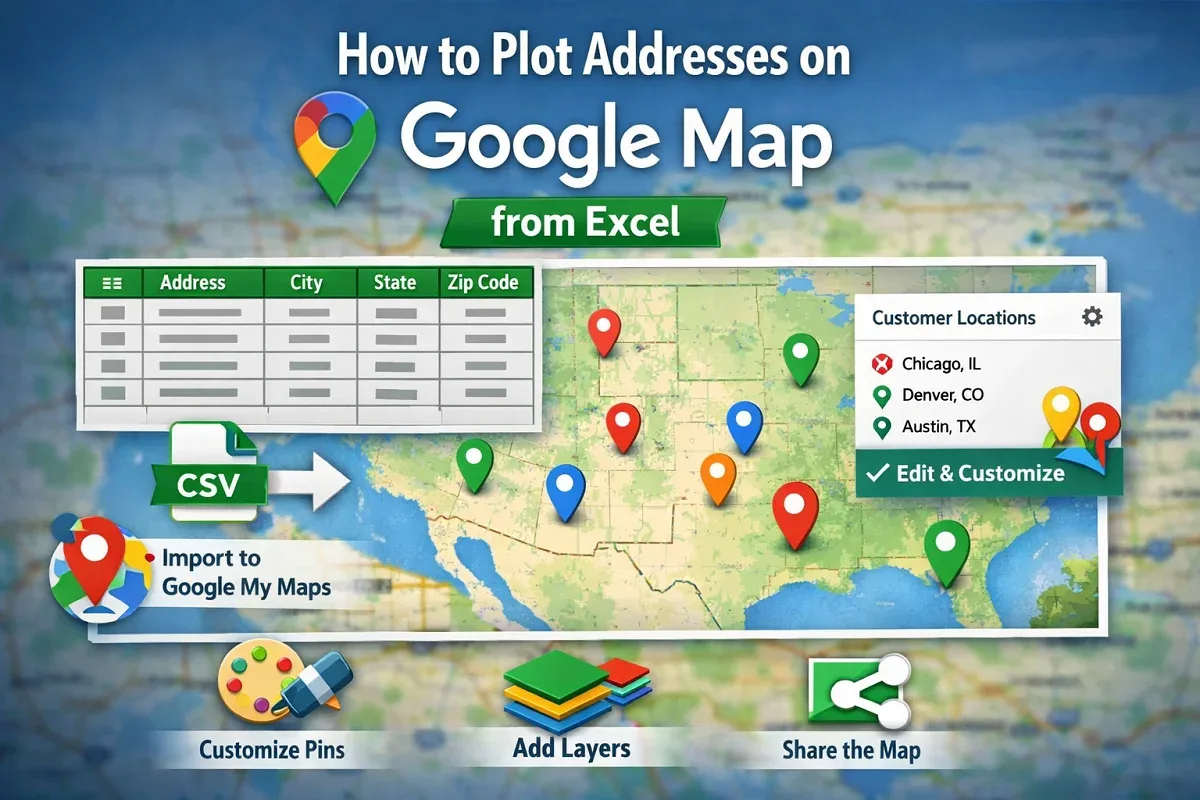
Learn how to plot addresses on Google Maps from Excel by preparing data, importing it into Google My Maps, and customizing labels & styles.
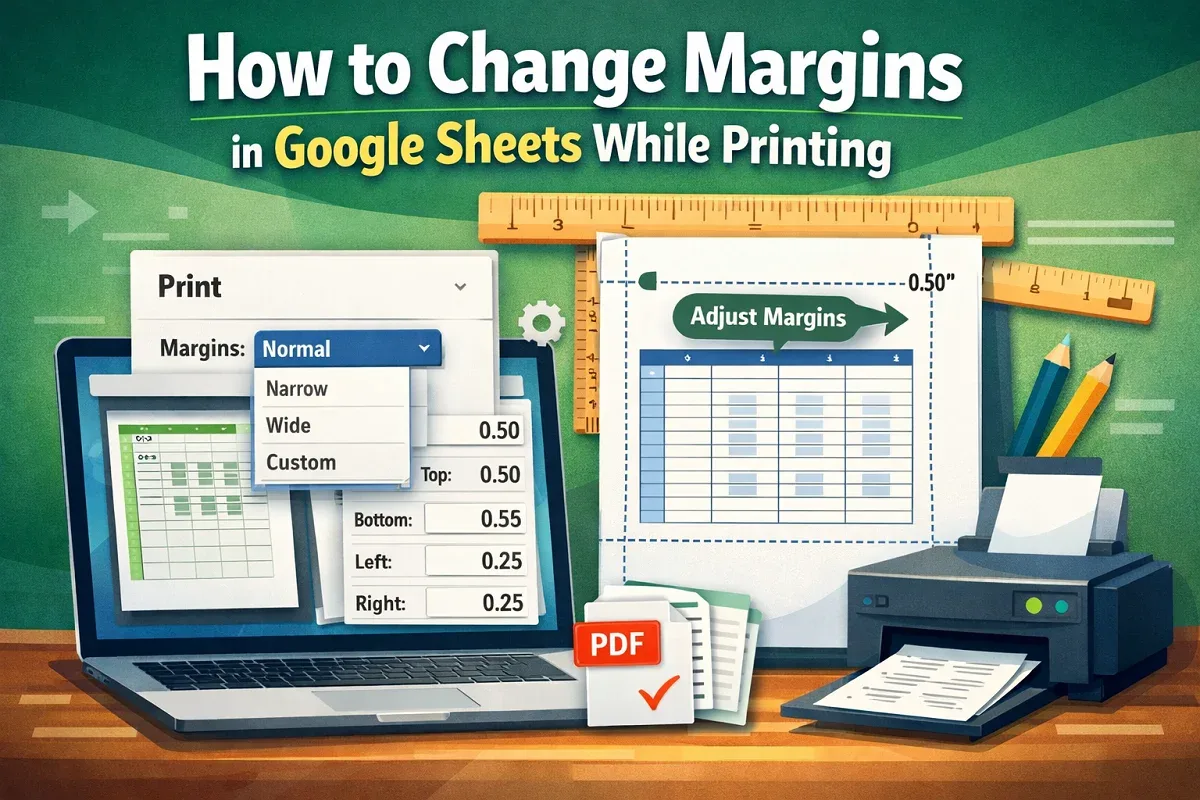
Learn how to change margins in Google Sheets by accessing print settings, choosing preset options, or customizing values to fit your needs.