

Creating a Stacked Bar Chart in Excel is an excellent way to display data when we want to show both the individual parts and the overall total in one view. Instead of listing numbers in a table, this chart makes it easy to see how categories contribute to the whole.
Whether you’re analyzing sales, expenses, or survey results, stacked bar charts make comparisons simple and visually clear.
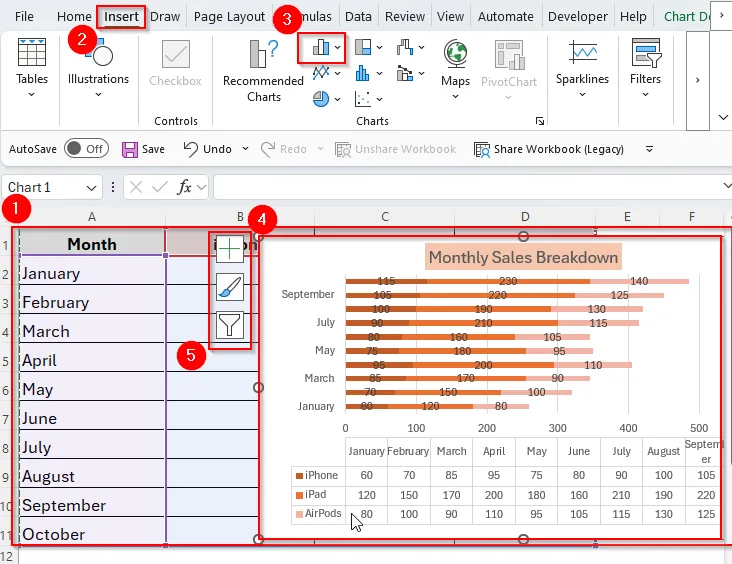
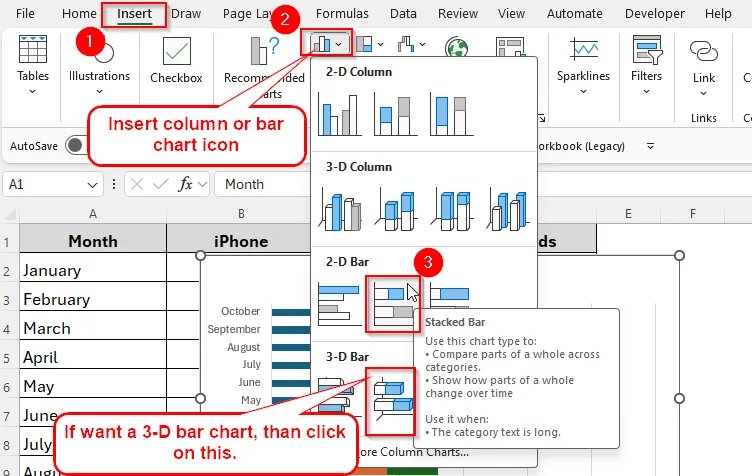
➤ Go to Insert → Charts → Bar Chart → Stacked Bar.
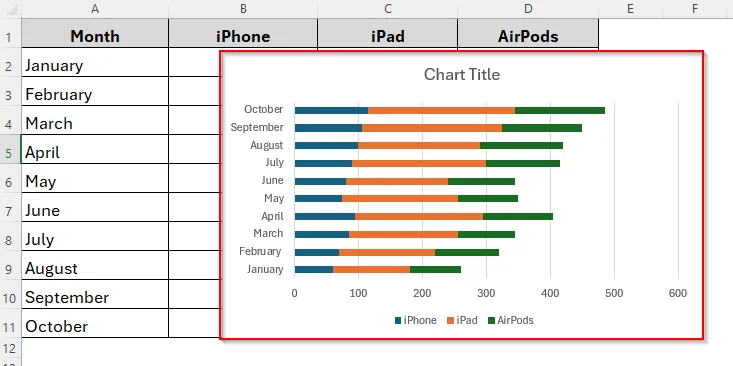
➤ Excel will insert a stacked bar chart with months on the horizontal axis and product sales stacked by category.
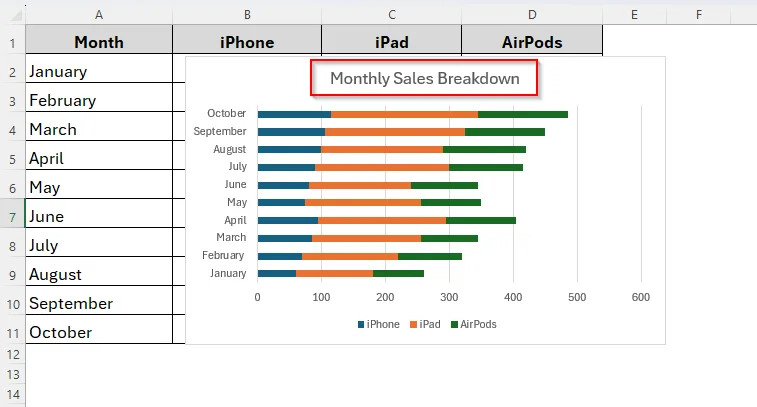
➤ Customize by adding a chart title, axis labels, and data labels if needed.
Now let's walk through the step-by-step guideline.
Overview of a Stacked Bar Chart in Excel
A stacked bar chart in excel is almost like a regular bar chart we use. The only difference is that it stacks multiple values together instead of showing only one value.
Let's assume we’re tracking monthly expenses, where each bar represents one month. And inside the bar, different colors show rent, food, travel and other expenses. So, in this way, we can easily see both the total expenses per month and the breakdown of different categories.
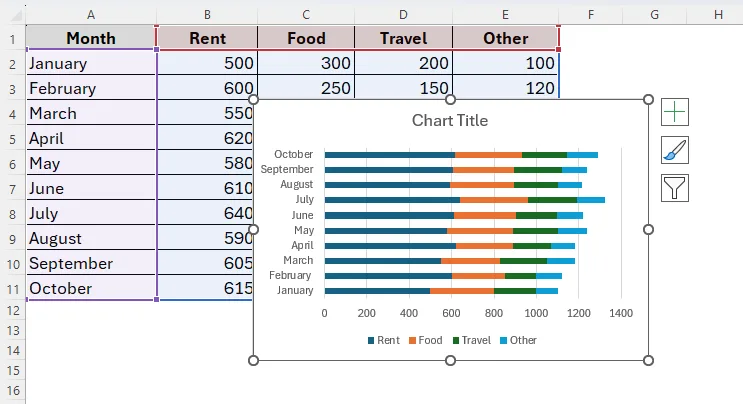
However, there’re usually three types of stacked bar charts in Excel.
Steps to Create a Stacked Bar Chart in Excel
As we already mentioned, stacked bar charts are useful for various purposes. For example, we have a dataset of an Apple retailer company containing three different products iPhone, iPad and AirPods and their total sales for the months January to October.
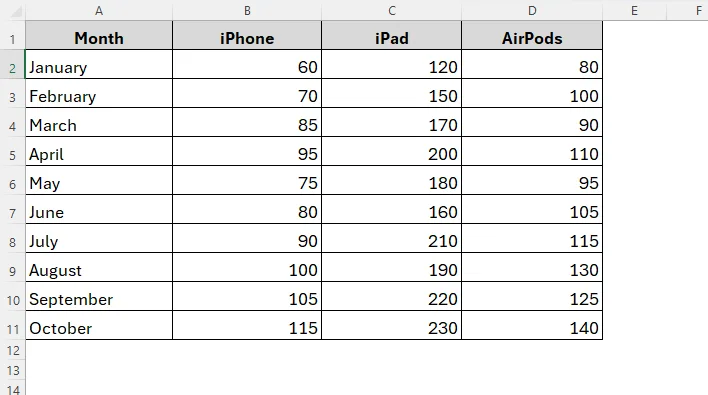
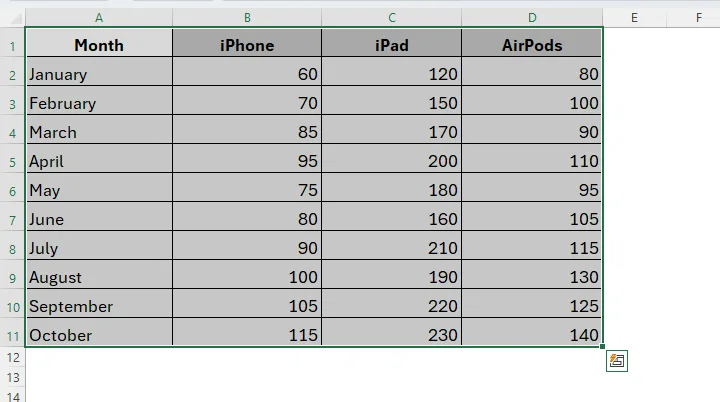
Now we’ll be creating a bar chart showing the total sales for different months for these three products in three particular colors. To do so, we have to follow two major steps. First, we’ll make the bar chart and second we have to customize it as required. So, let's see how it goes.
Step-2: Customizing the Chart for Better Visualization
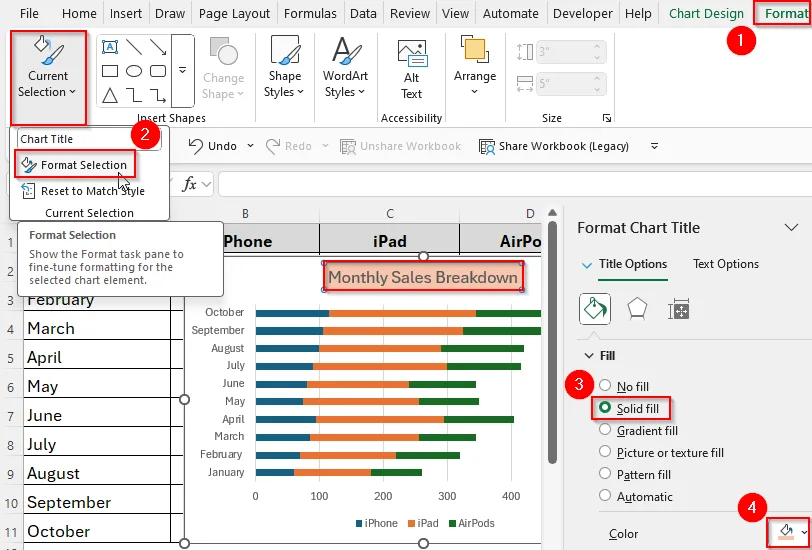
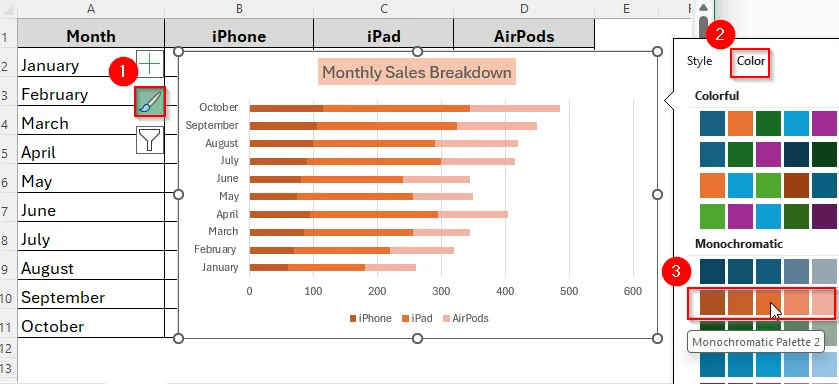
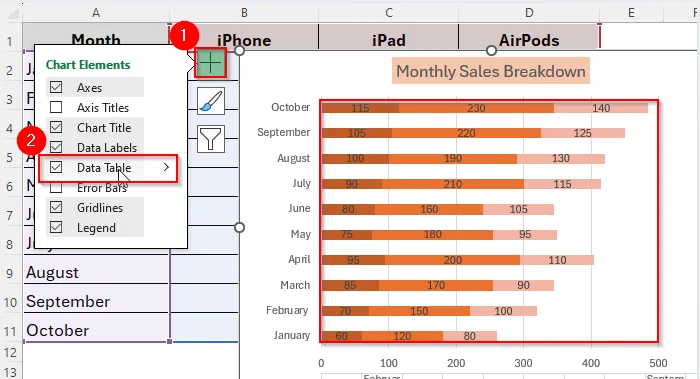
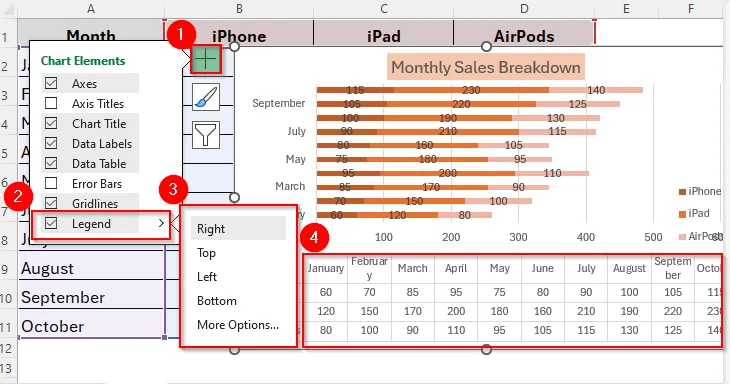
Now that we have created the chart, let's customize it according to your personal preferences. We can simply change the chart size, position, color, fonts, title, labels, legends and so on. Below are the steps you can follow to do so.
Tips for Stacked Bar Chart in Excel
Here are some additional tips to follow while making a stacked bar chart in excel.
- Firstly, arrange your data clearly in a table.
- Select the right type of stacked bar. You can choose from between 2D and 3D Stacked Bar. Also, make sure whether you're using only Stacked Bar or 100% Stacked Bar. Use Stacked Bar for actual numbers and 100% Stacked Bar for percentages.
- Best for small datasets. Better to avoid while working with large datasets, otherwise it will make it clunky.
- Consider alternative chart types depending on your data type.
Downloadable Resources
Get our practice workbook or necessary files that we have worked with to prepare this article.
Make Stacked Bar Chart.xlsx
Practice Workbook · Excel (.xlsx)
Frequently Asked Questions
When Can I Use a 100% Stacked Bar Chart?
You can use a 100% Stacked Bar Chart when you need to compare percentages in your dataset instead of actual numbers.
What’s the difference between a stacked bar chart and a clustered bar chart?
The key difference between a stacked bar chart and a clustered bar chart is combining the values. Stacked bar charts combine values in one bar, while clustered bar charts represent values side by side.
Can I switch between vertical and horizontal stacked bars?
Definitely, you can. You can change the chart type anytime by using the Change Chart Type option.
Concluding Words
So, now that we know how to make a stacked bar chart in excel, next time you’re working with multi-category data, try a stacked bar chart. It might be exactly what you need to make your presentation impressive.
A stacked bar chart makes it easier to compare how different parts contribute to the whole across categories. With a few clicks, you can create a clear, professional chart that transforms raw numbers into insights. So, let's make it stand out.