If you have ever typed a long sentence in Google Sheets, you have probably seen it either spills over into the next cell or gets cut off entirely. It can make even the neatest spreadsheet look messy and hard-to-read.
Google Sheets offers some simple ways to make cells automatically expand to fit the text you enter. These features improve readability and make your spreadsheets look more polished and professional.
In this guide, we’ll show you two simple features in Google Sheets that automatically expand a cell to fit your text. These methods also help keep your spreadsheet clean, organized, and easy to read.
Here’s a step-by-step guide how you can do that:
➤ Open your Google spreadsheet and select the cells or range you want to expand. For example, let’s select Column B to apply the change to the entire column..
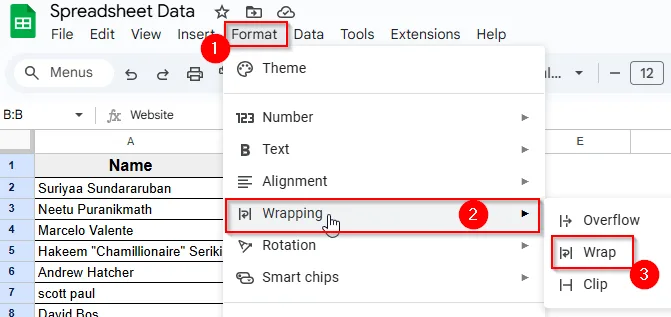
➤ Go to the top Menu and click Format >> Wrapping>> Wrap.
➤ Now, the selected cells will automatically adjust. The text will stay within the cell and appear on multiple lines if needed.
Why Do You Need to Expand Cells to Fit Text?
Expanding cells to fit your text helps make your spreadsheet clearer and easier to understand. When all the text is visible, you avoid missing important details that might otherwise be hidden.
Instead of resizing each cell by hand, you can let Google Sheets do the work for you. Using these automatic features to adjust cell size saves you time and makes your sheet look neat and well-organized.
Using Fit to Data to Resize the Column
Google Sheets offer a simple and effective feature Fit to Data, that makes your text fully visible. This method automatically adjusts the column width based on the length of the content inside the cell. When you apply this option, Google Sheets resizes the column to show all the text in a single line.
➤ Open your Google spreadsheet and select the column you want to apply this method to. For example, we need to expand the cells in Column B.

➤ Click the column header “B” to select the entire column. If you want to apply this method to multiple columns, simply select them together.

➤ Next, right-click the column header, or click the small dropdown arrow next to the column letter.
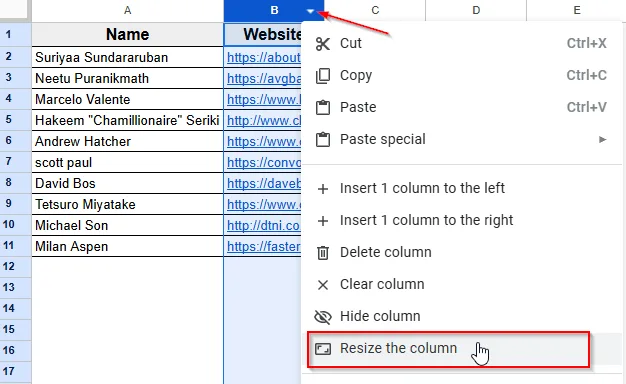
➤ Click the Resize Column option from the dropdown menu. A popup window will appear.
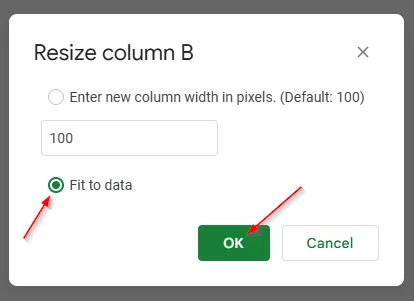
➤ Select the Fit to data option instead of entering a specific column width, then click OK.
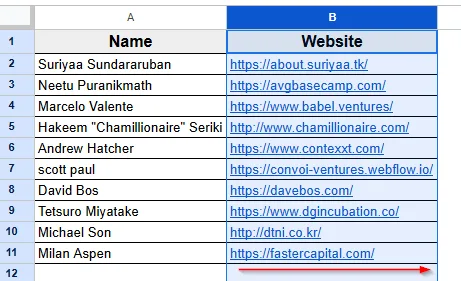
➤ Google Sheets will now resize the column to fit the long texts.
Using the Wrap Text Feature
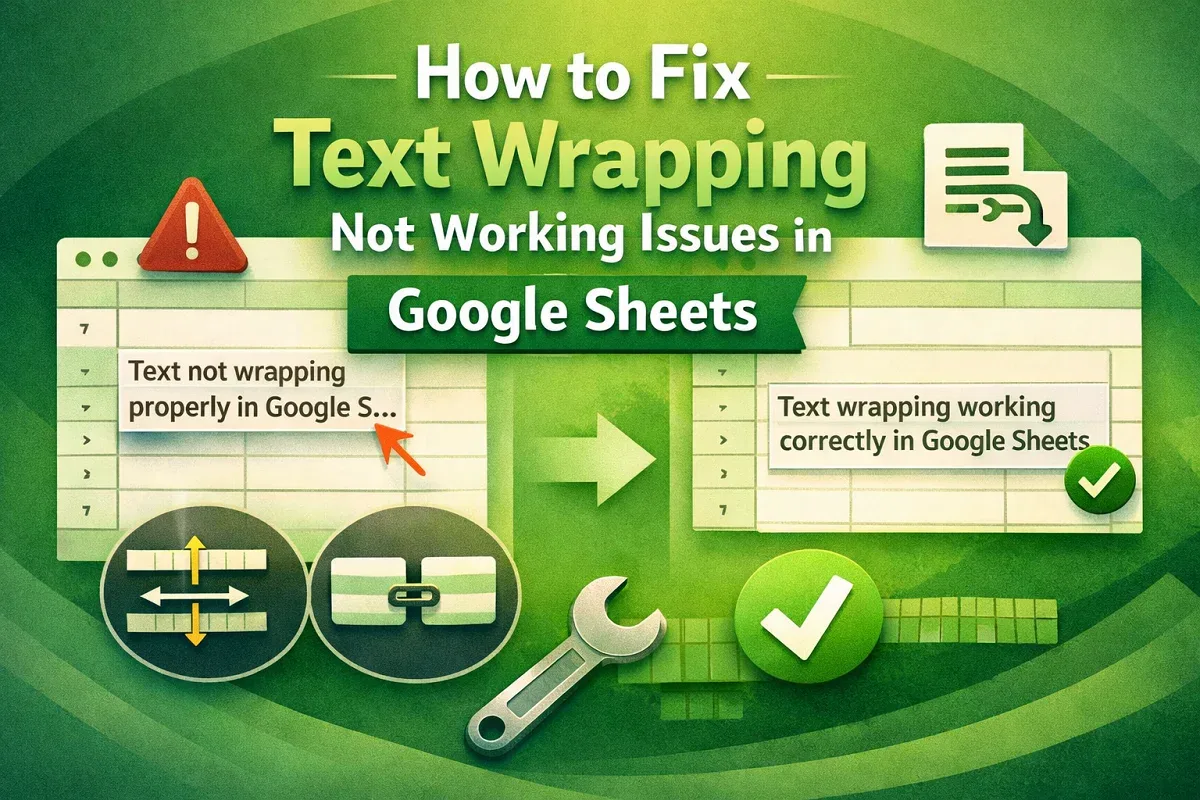
One of the easiest ways to make sure all your text is visible in a cell is by using the Wrap Text feature. When you use this Format, Google Sheets automatically adjusts the row height so the entire text adjusts to the cell. Wrap Text feature organises the long sentences on multiple lines, which helps keep your columns narrow without hiding anything.
➤ Open your Google spreadsheet and select the cells or range you want to expand. For example, let’s select Column B to apply the change to the entire column.
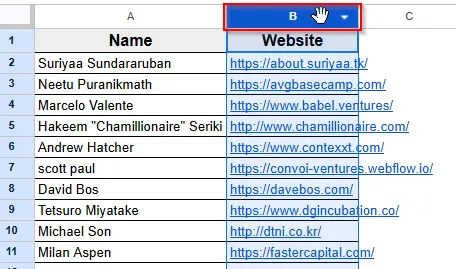
➤ Go to the top Menu and click Format.
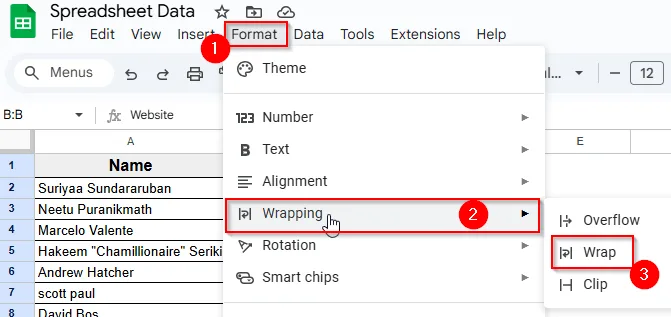
➤ Click the Wrapping option from the dropdown menu. A side menu will appear.
➤ Next, click Wrap from the side menu.

➤ Now, the selected cells will automatically adjust. The text will stay within the cell and appear on multiple lines if needed.
Practice Resources
Get our practice workbook or necessary files that we have worked with to prepare this article.
Expand Cell To Fit Text in Google Sheets [Make a Copy]
Frequently Asked Questions
How can I automatically resize a column to fit its content?
To auto-resize a column:
➤ Select the column you want to resize.
➤ Right-click on the column header and choose Resize column.
➤ In the dialog box, select Fit to data and click OK.
Alternatively, you can double-click the boundary line between column headers and drag it to expand cells. This way you can automatically adjust the column width to fit the longest texts.
Why isn't the Wrap Text feature working in Google Sheets?
If the Wrap Text feature isn't working:
➤ Ensure that the cell isn't merged with others.
➤ Check if there's any conditional formatting or data validation applied.
➤ Try clearing the formatting of the cell and then applying Wrap Text again.
Wrapping Up
Making cells expand to fit text in Google Sheets make a big difference in how your spreadsheet looks and functions. Sometimes, long text entries can make your spreadsheet look messy or hard to read. Manually resizing cells each time takes extra time and effort, especially when working with a lot of data.
With features like Wrap Text and Fit to Data, you can keep your content clear, well-organized, more professional. Also, when you share your spreadsheet to someone it will be easy for anyone to read.