
How to Calculate Duration Between Two Times in Google Sheets
Using Google Sheets to calculate the duration between two times is often necessary for tracking schedules, employee work hours, or time-based data analysis. Although there are no direct functions in Google Sheets to let you calculate this, there are some easy formulas that you can use.
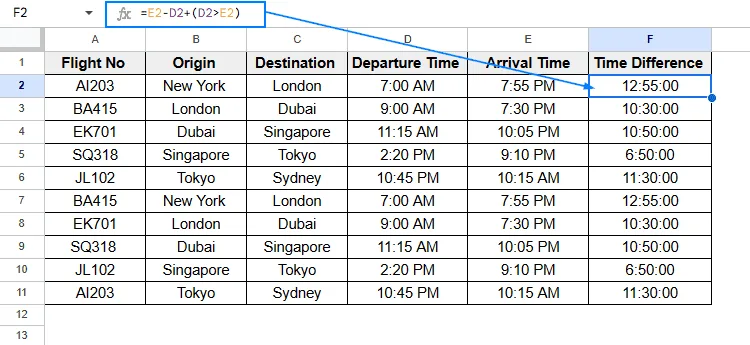
➤ Click on the Cell F2 and enter the formula: =E2-D2+(D2>E2)
➤ Hit Enter, then head towards Format >> Number >> Duration. Now, you should see the time difference in proper duration format.
➤ Drag and extend the cell to fill all columns with calculated time difference.
In this article, we will learn 5 easy ways of calculating the duration between two times using Google Sheets. You can use any of these methods that best fit your needs.
Calculate Duration Between Two Times by Subtraction
This is the easiest and simplest method of calculating the duration between two times. Here, we will use the basic subtraction feature of Google Sheets to calculate it. We have taken different flight schedules in the following dataset as an example. Column D shows the departure time for the flight, Column E shows arrival time for the flight, and lastly, Column F shows the time difference between the two times.
➤ Select Cell F2 and put the formula:
=E2-D2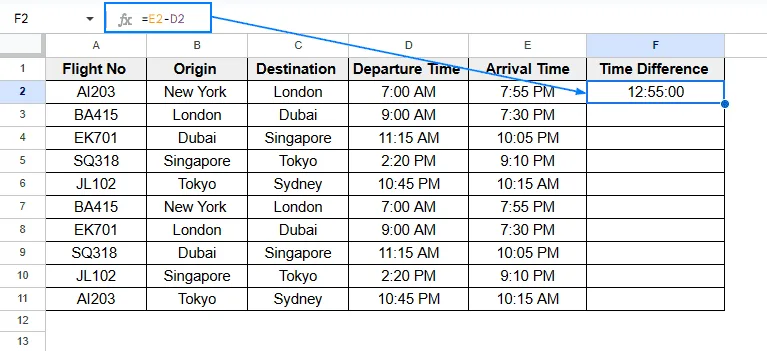
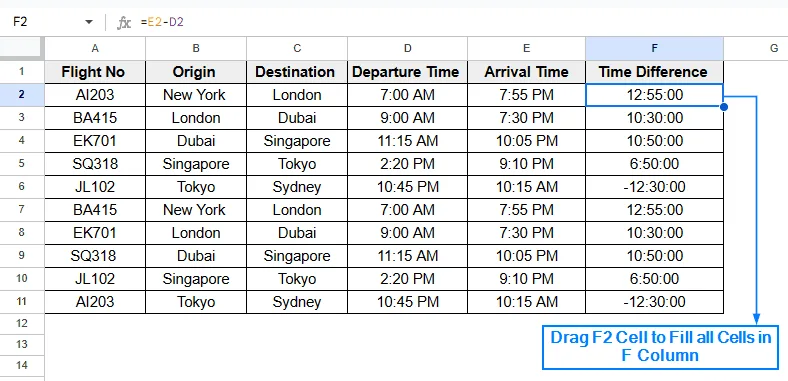
➤ Hit Enter and drag the F2 cell to fill all other elements of F column.
Calculate Duration Between Two Times Using Modified Subtraction Method
This is a bit advanced version of the first method. Here, we will use an additional parameter with the subtract function to handle negative values. Follow the steps below to calculate the time duration accurately.
➤ Select cell F2 and write down the following formula:
=E2-D2+(D2>E2)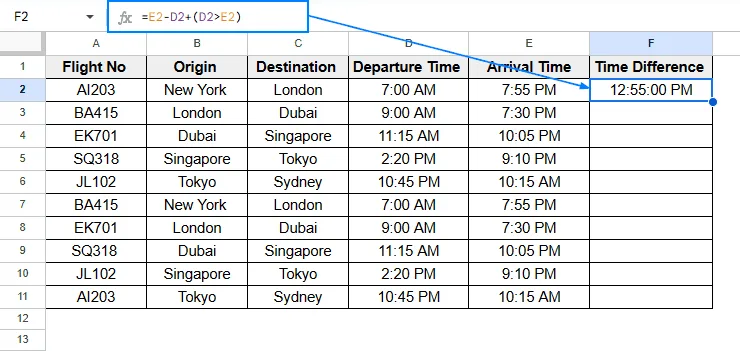
➤ Then, hit Enter. The time difference should be displayed now. But there is a problem with the output. If you look carefully, you will see that the time difference is shown in an incorrect format and it actually shows a time display format instead of time duration. We have to fix this issue.
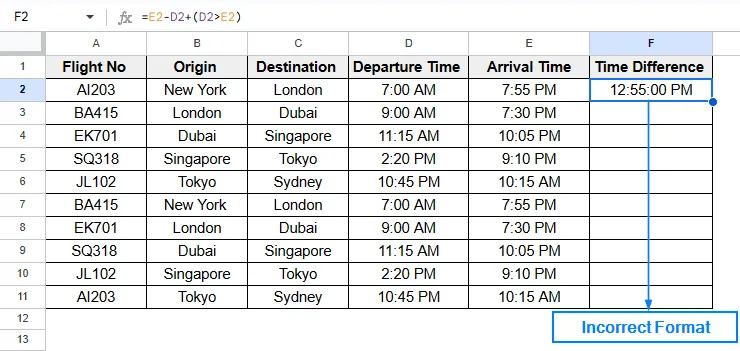
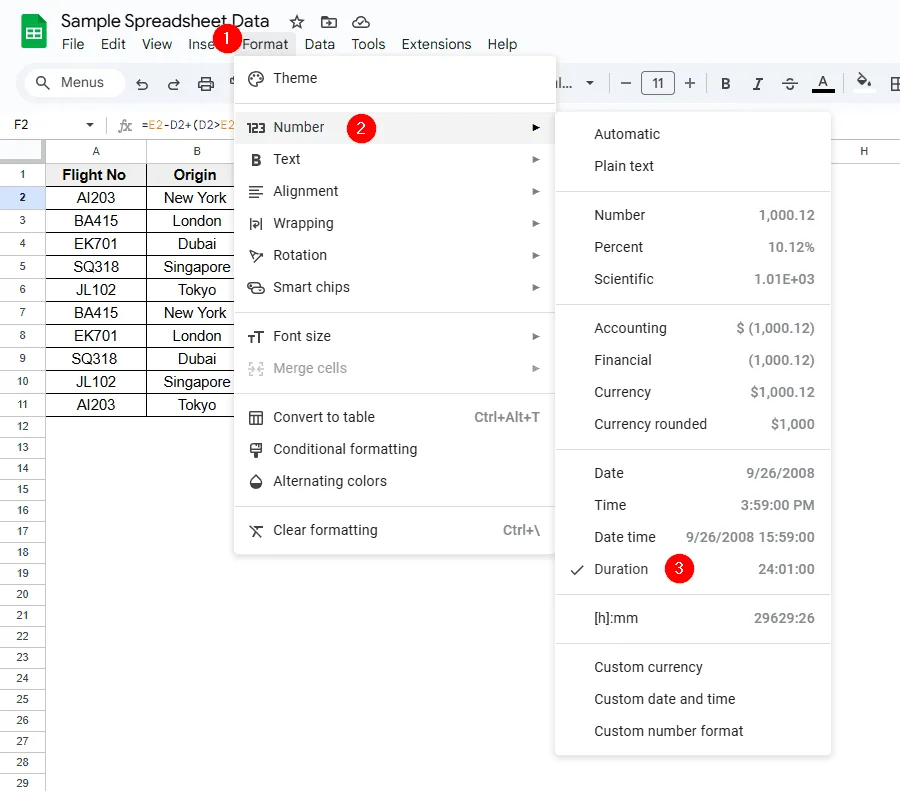
➤ Click on F2 Cell and head to Format >> Number >> Duration. The time difference should be displayed now in Hours:Minutes:Seconds format.
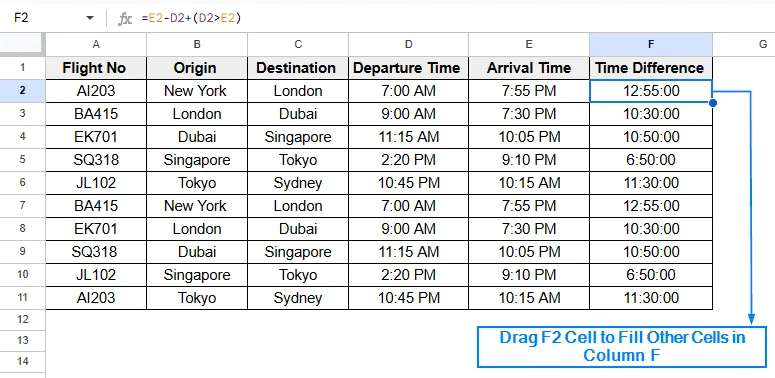
➤ Next, select the F2 Cell again and drag it down to fill all other cells in the F2 column.
Calculate Duration Between Two Times by Using TEXT Function
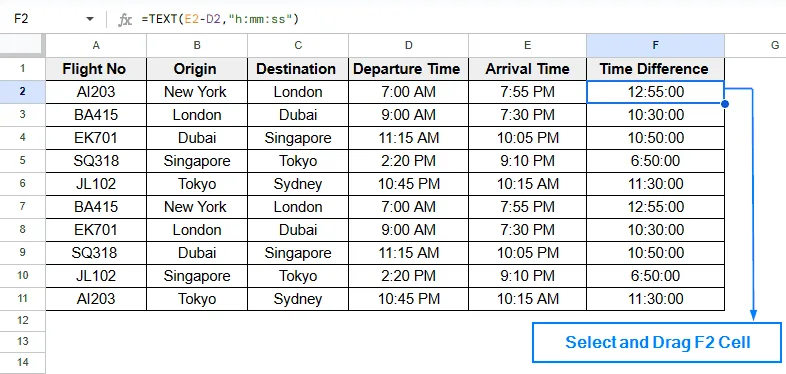
You can also calculate the duration between two times in Google Sheets by using the TEXT function. The TEXT function converts numbers or other values into text, allowing it to display output into different formats, like time duration. Unlike the first method, this method does not return any negative value. Follow these steps.
➤ Select F2 Cell and put the formula:
=TEXT(E2-D2,"h:mm:ss")➤ Hit Enter, and you should see the result being displayed in Hours:Minutes:Seconds format.
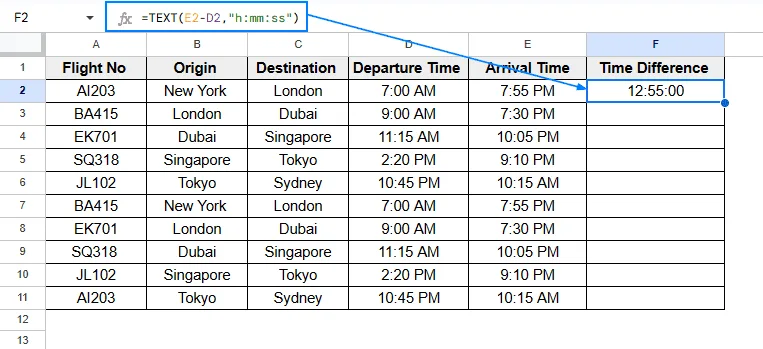
➤ Drag and extend F2 Cell to fill the F2 Column.
Calculate Duration Between Two Times Separately in Hours, Minutes and Seconds
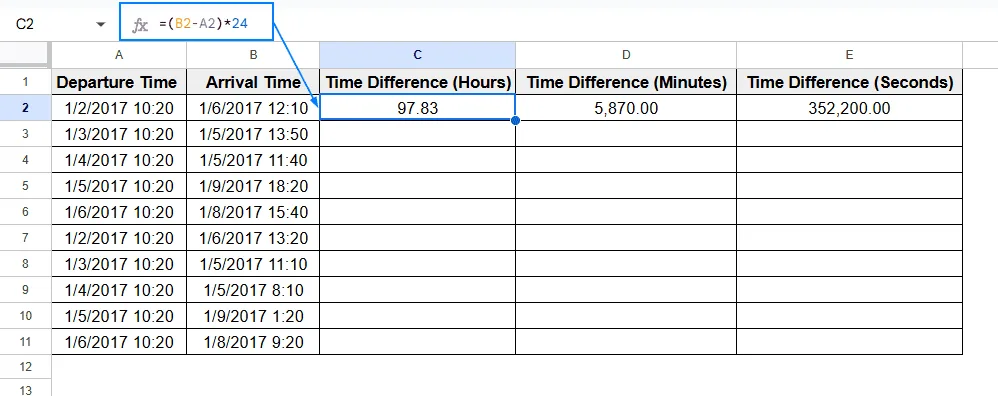
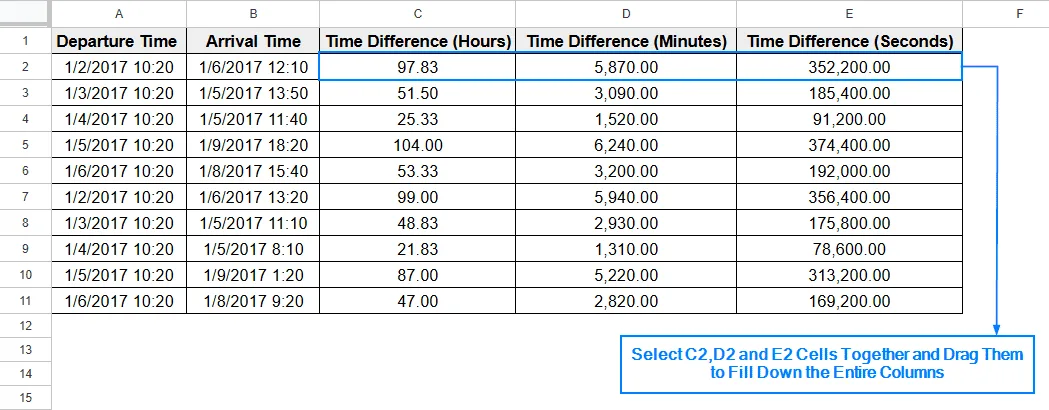
If you wish to calculate the duration between two times separately in only hours, minutes, or seconds, you can do so easily by following the steps below.
➤ Select Cell C2 and put the formula:
=(B2-A2)*24➤ Press Enter, and the time difference in only Hours should be displayed.
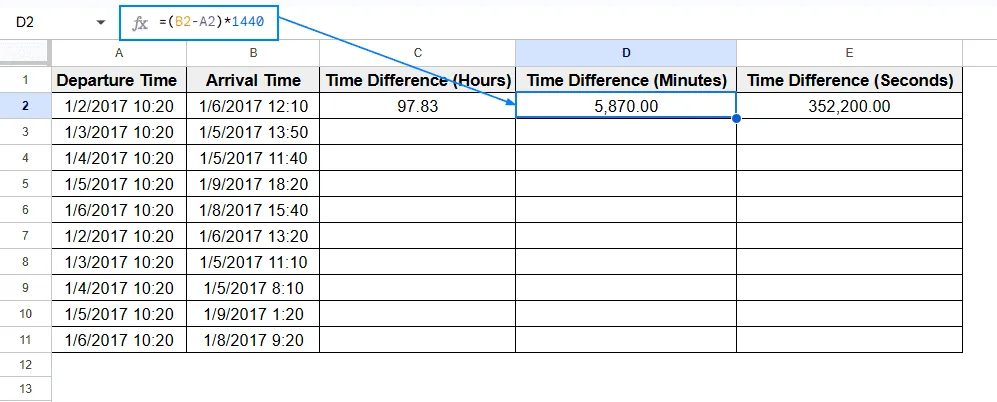
➤ Then select Cell D2 and put the formula:
=(B2-A2)*1440➤ Press Enter, and you should see the difference in Minutes be displayed.
➤ Again, select Cell E2 and put the formula:
=(B2-A2)*86400➤ Then, Press Enter and you should see the duration in Seconds is displayed.
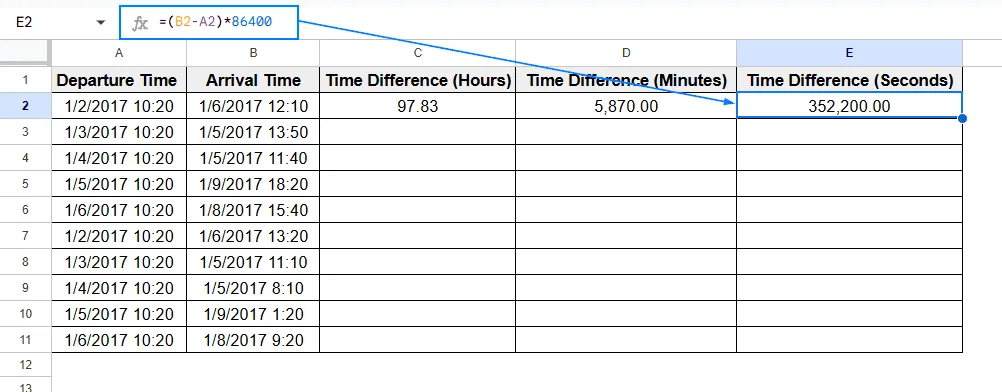
➤ Now, select all 3 cells (C2, D2 and E2) and drag them down to fill all three of these columns.
Calculate Duration Between Two Different Dates with Time
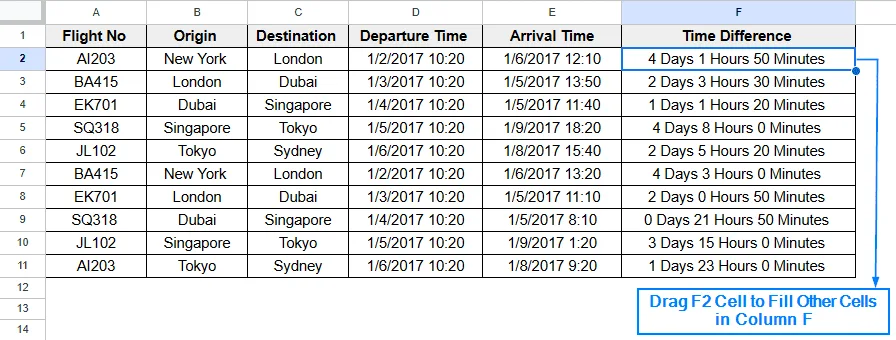
Sometimes, you might need to calculate the duration between two different dates with different times. We have to use the INT and MOD functions of Google Sheets to perform this operation. The INT function returns value of the integer part of the number, excluding the decimals. Whereas, the MOD function returns the value of remainder after dividing two numbers. We will use the same dataset to properly explain the steps.
➤ Click on F2 Cell and put the formula:
=INT(E2-D2)& " Days "&HOUR(MOD(E2-D2,1))& " Hours " &MINUTE(MOD(E2-D2,1))& " minutes "➤ Press Enter, you should now see the time difference being displayed in Days:Hours:Minutes format.
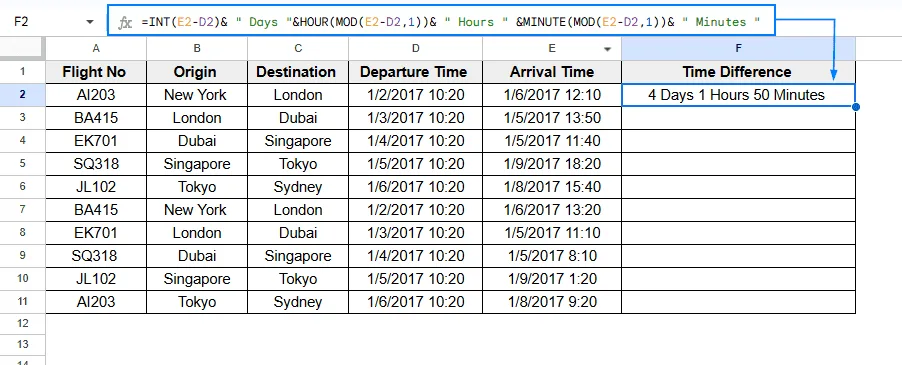
➤ Similar to all other methods, select F2 Cell and drag it to fill all the columns with the calculated time difference.
Practice Resources
Get our practice workbook or necessary files that we have worked with to prepare this article.
Calculate Duration Between Two Times in Google Sheets [Make a Copy]
Frequently Asked Questions
Why is my duration calculated in decimal instead of actual time?
Using an incorrect cell format can cause this issue. To fix this problem, head to Format >> Number >> Duration. Now you should have your result in the proper time format instead of being in decimal.
Why is my time being displayed in negative?
If your end time is earlier than the start time, this problem can arise. Follow the formula:
=EndTime - StartTime + (StartTime > EndTime) (as shown in the second method) to resolve it.
Can I use custom date formats to calculate my time?
Yes, you can apply custom date formats in Google Sheets to your calculated time. Just click on the cell you want to reformat and head to Format >> Number >> Custom number formats.
Concluding Words
Calculating duration between two times is necessary for a number of time based applications like tracking flight schedule, employee work hour, event planning etc. In this article, we have discussed five effective methods of calculating time difference, including basic subtraction method, modified subtraction method for handling negative value, using TEXT, INT and MOD functions to accurately calculate time duration. We have also discussed several common issues and how to address them. By properly following all these methods, you can easily calculate time duration using Google Sheets, enhancing your ability to efficiently handle time-related data.
Related Google Sheets Basics Articles
Master the fundamentals with these step-by-step spreadsheet tutorials













Liked this lesson? Get one practical spreadsheet tip every week.
Comments
No comments yet — be the first to ask a question.