
How to Highlight Duplicates with Formula in Google Sheets
When handling large datasets, duplicates can sneak in and cause errors or misinterpretations. Whether you are cleaning up a contract list, verifying product IDs, or reviewing survey responses, highlighting duplicates helps you quickly spot and resolve issues.
In this article, we will find out how we can apply different but some simple functions & formulas inside Conditional Formatting to automatically highlight these repeated values.
➤ Select the range A2:A13
➤ Go to Format > Conditional Formatting
➤ In Format Cell If, choose “Custom formula is”
➤ Enter the formula =COUNTIF(A:A, A2)>1
➤ Pick a color and click Done.
Here, we will explore 4 simple ways to find the last row with data in Google Sheets' built-in functions like COUNTIF, ARRAYFORMULA, COUNTIFS, and UNIQUE.
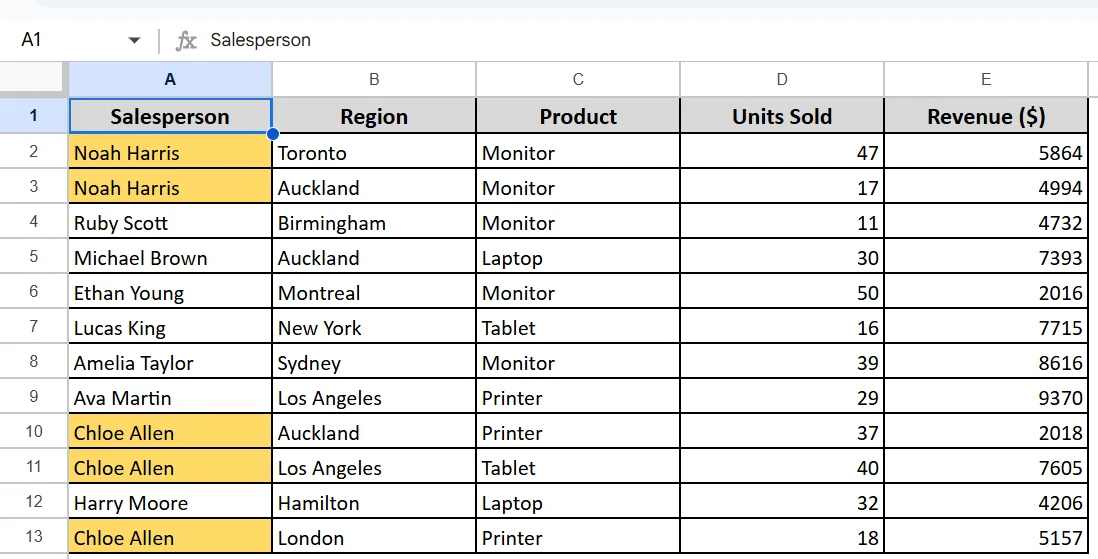
Highlight Duplicates in Single Column Using COUNTIF
If you want Google Sheets to automatically highlight values that appear more than once in a column, you can use the COUNTIF function. This function counts how often a value occurs in a specified range based on a given condition. By combining it with conditional formatting, you can instantly spot duplicate entries without manually scanning through rows.
➤ Select the range A2:A13
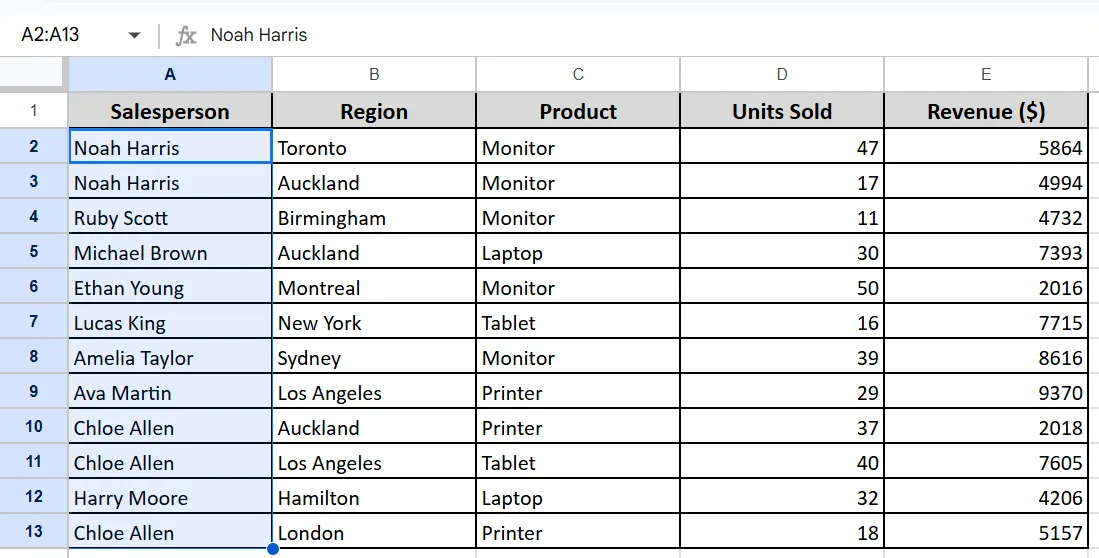
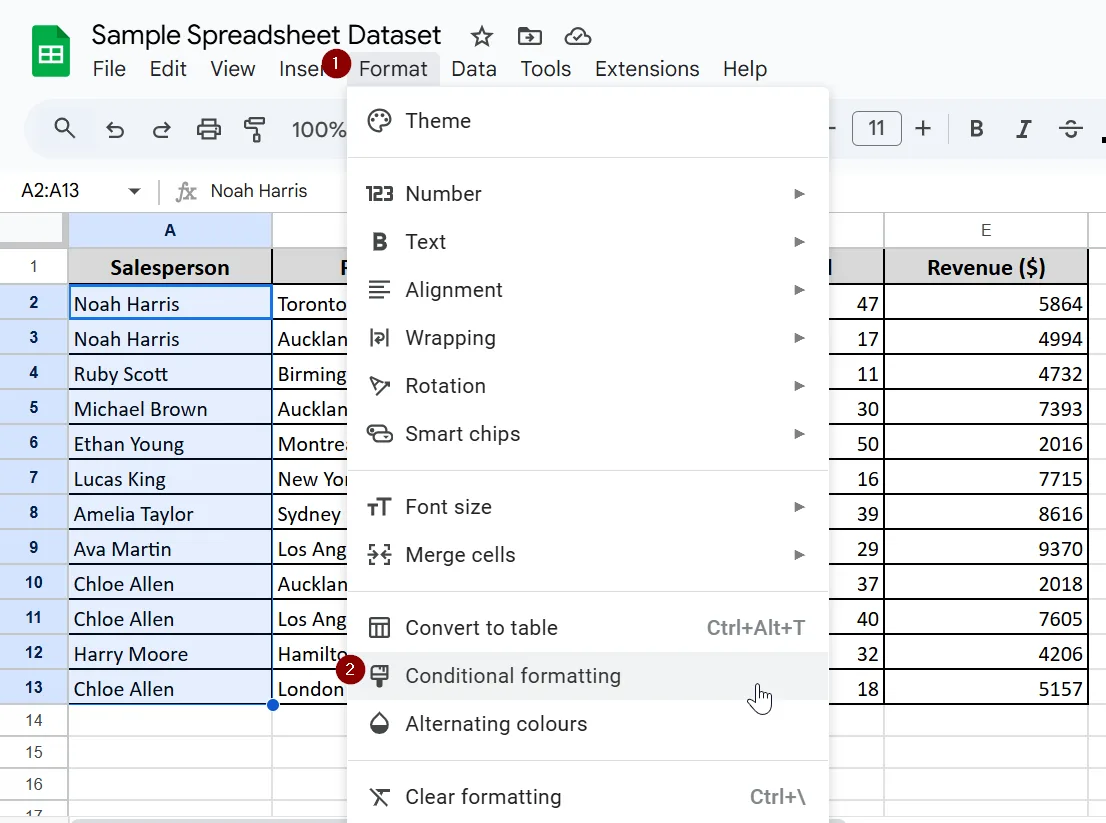
➤ Go to Format > Conditional Formatting
➤ Go to in Format Cell If, choose “Custom formula is”
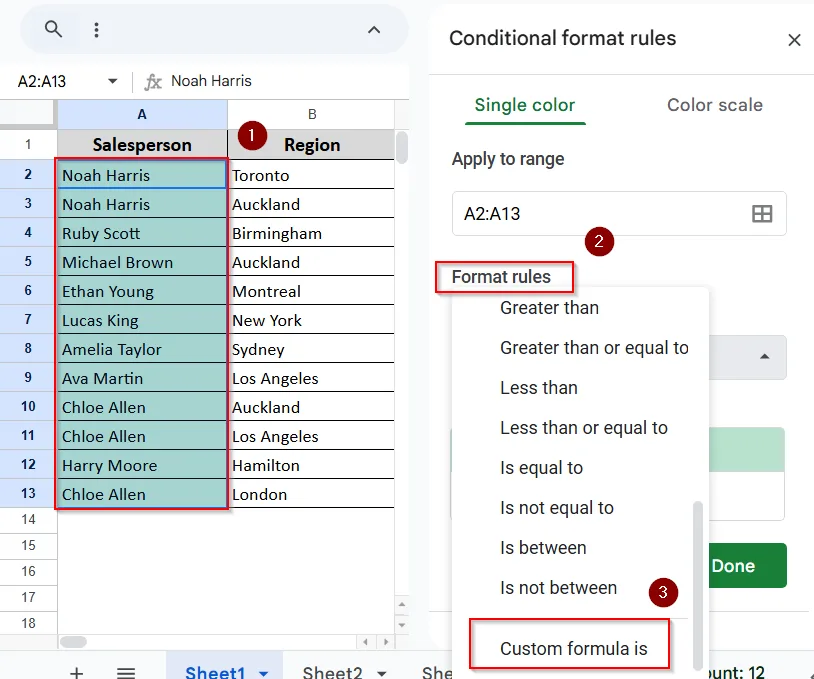
➤ Enter the formula:
=COUNTIF(A:A, A2)>1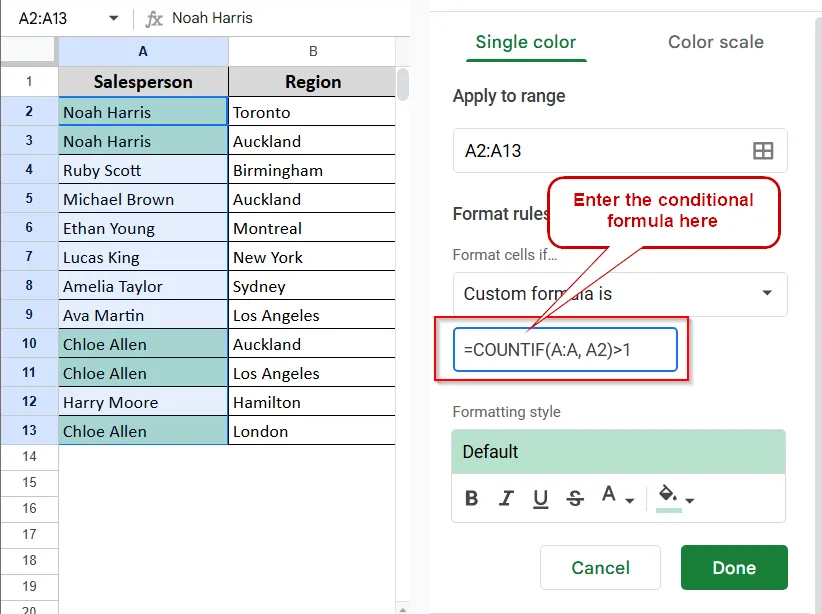
➤ Pick yellow or any other color and click Done.
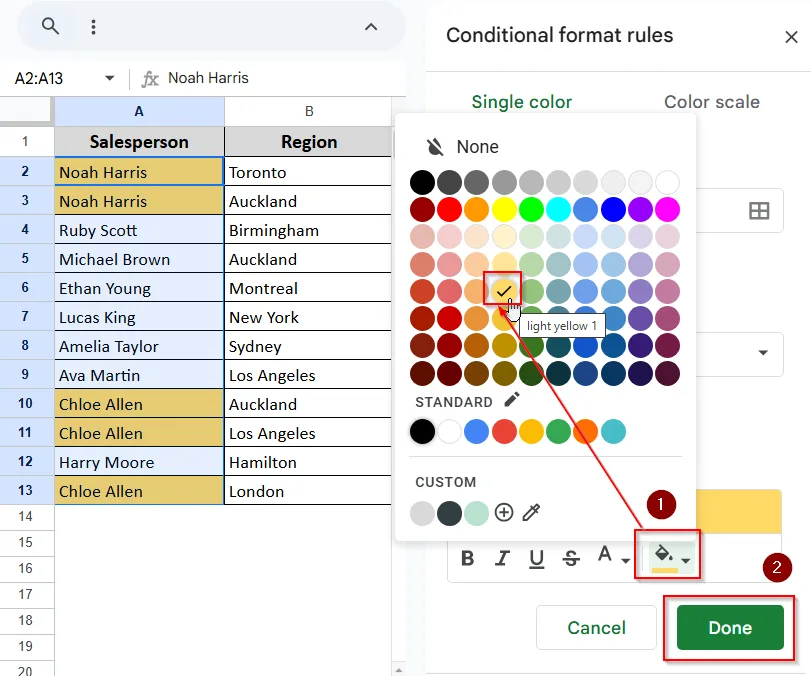
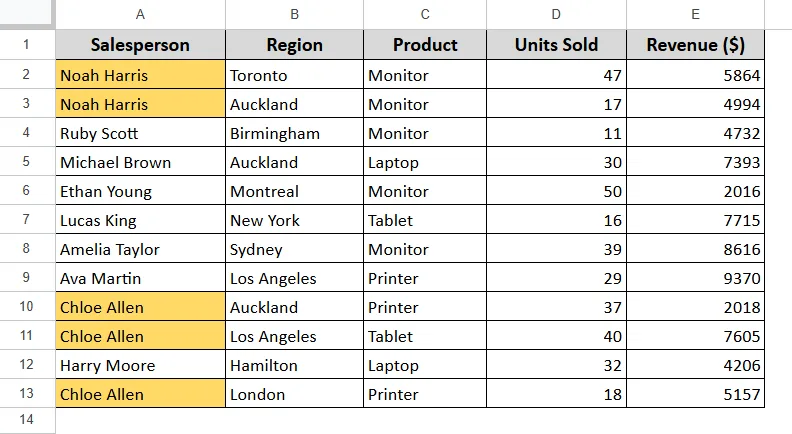
➤ It will return the yellow color, whose value is duplicate.
Using ARRAYFORMULA to Highlight Duplicates
To flag duplicates automatically as new data is added, use the ARRAYFORMULA with COUNTIF. This setup checks for repeated entries and labels them as “duplicate or “unique” in a separate column. It updates dynamically, so you don't need to copy the formula down each time.
➤ Let's take a helper column F and label cell F1 as Status
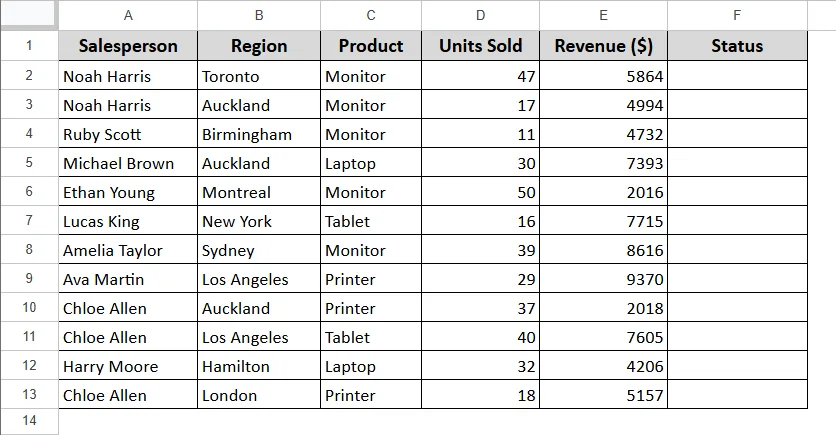
➤ In cell F2, enter the formula and click Enter.
=ARRAYFORMULA(IF(A2:A="", "", IF(COUNTIF(A2:A, A2:A)>1, "Duplicate", "Unique")))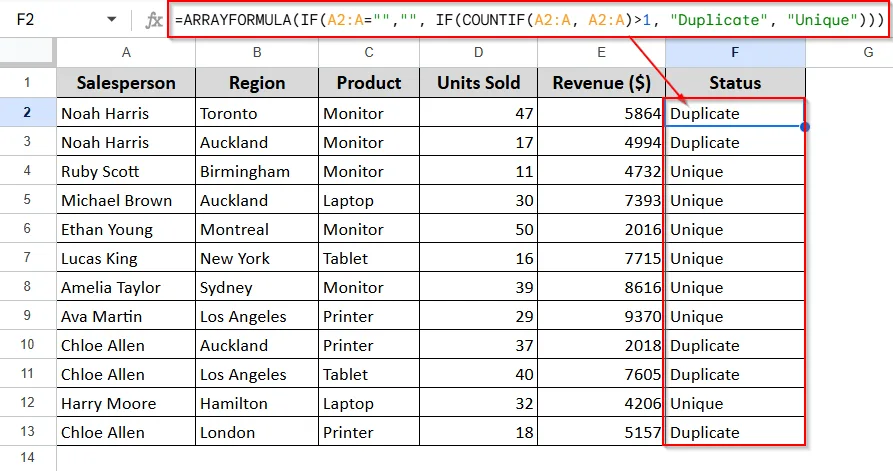
➤ The formula will return "Duplicate" for values that appear more than once anywhere in the same column.
Highlight Duplicates Using Additional Criteria with COUNTIFS
If you want to find duplicates based on multiple conditions, like matching both the salesperson and product, you can use the COUNTIFS function. The formula will highlight any rows where the same salesperson sells the same products more than once.
➤ Select the range A2:A13
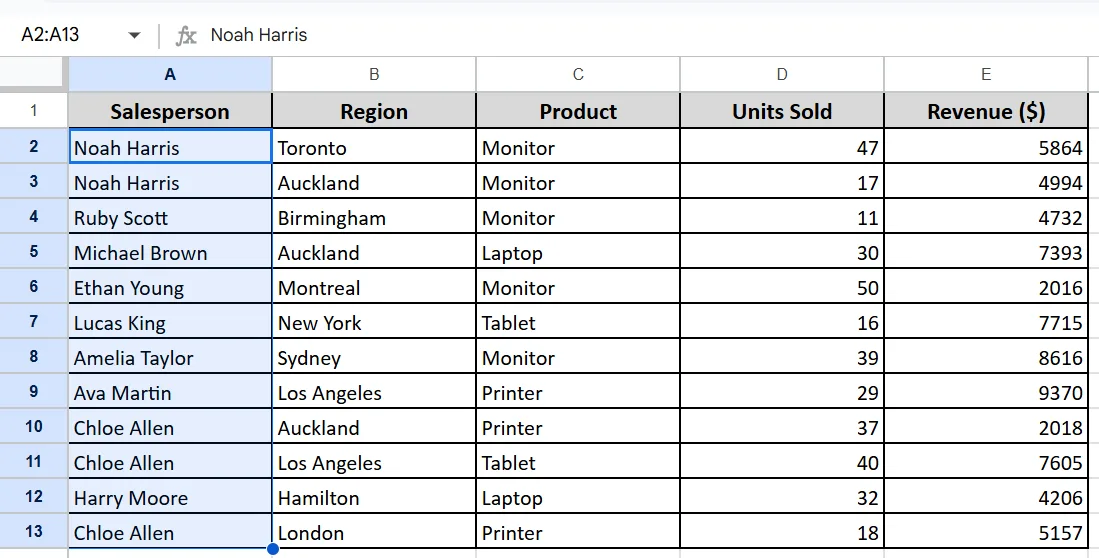
➤ Go to Format > Conditional Formatting, just like the first method, then go to In Format Cell If, choose “Custom formula is” Enter the formula
=COUNTIFS(A:A, A2, C:C, C2)>1➤ Pick the green color and click Done.
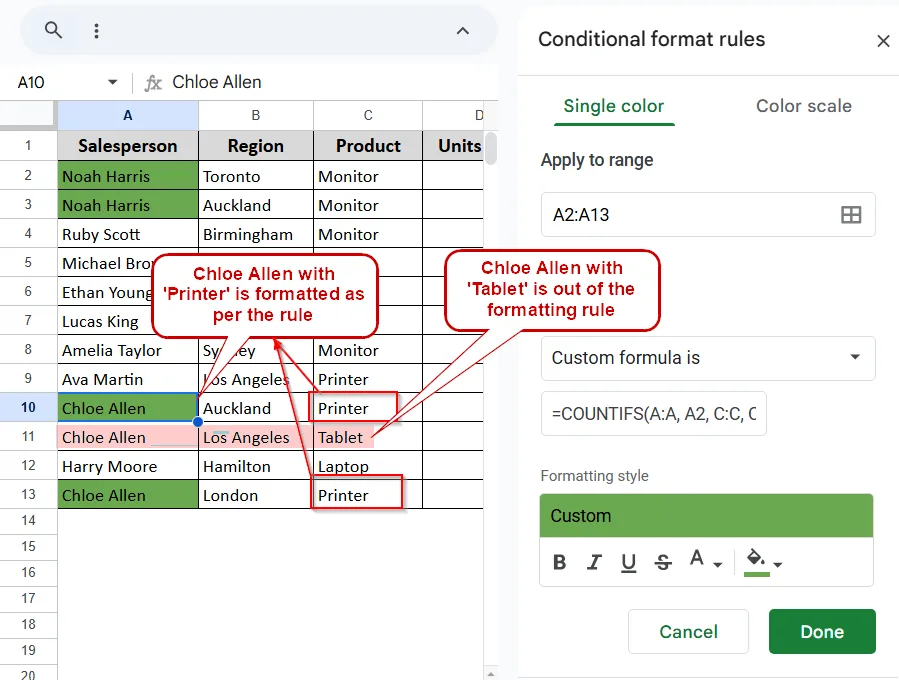
➤ It will highlight a cell if the combination of values in two or more columns appears more than once in the datasets.
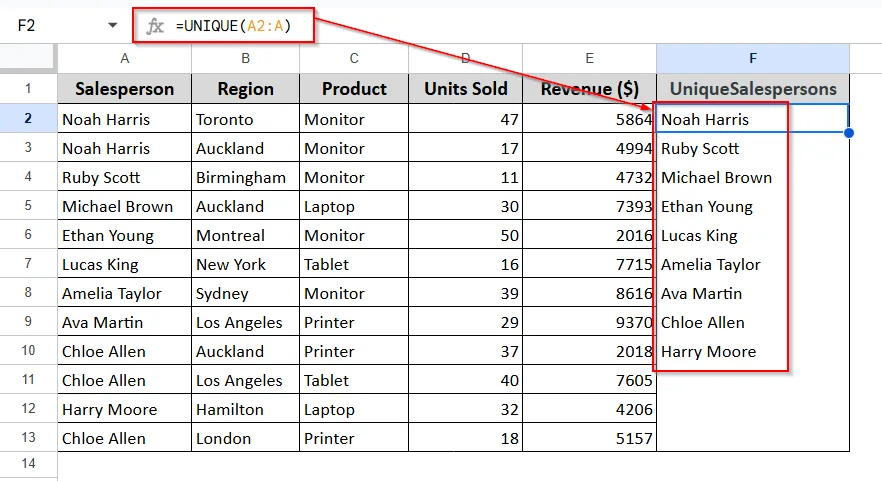
Use UNIQUE Function to Get a List Without Duplicates
If you need to quickly remove duplicates and create a clean list of unique values, the UNIQUE function is the best choice. It scans a range and returns only one instance of each entry or row. It is great for summaries, dropdown lists, or data cleanup.
➤ Label F1 as Unique Salespersons
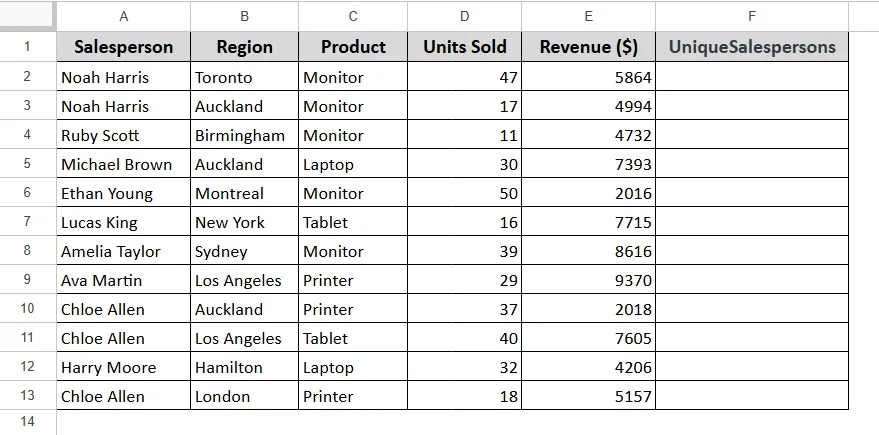
➤ In cell F2 enter the formula
=UNIQUE(A2:A)➤ Click Enter and you'll find all unique names from column A at once.
Practice Resources
Get our practice workbook or necessary files that we have worked with to prepare this article.
Highlight Duplicates with Formula in Google Sheets [Make a Copy]
Frequently Asked Questions
Will the duplicate highlighting update automatically when I add new data?
Yes. As long as your formula or conditional formatting covers the full column, it will update dynamically whenever you add or change values.
Can I highlight duplicate rows instead of individual cells?
Use COUNTIFS formula combining multiple column and apply conditional formatting across the entire row range.
Can I count how many times a duplicate appears?
Yes, Use a formula like =COUNTIF(A:A, A2) in a new column to see the frequency of each entry.
Will the UNIQUE function keep the first or last occurrence?
UNIQUE function keeps the first occurrence of each value and remove all subsequent duplicates.
Wrapping Up
Managing duplicates in Google Sheets is essential for maintaining clean, reliable data, whether you are tracking sales, tasks, or contacts. With powerful functions like COUNTIF, ARRAYFORMULA, COUNTIFS, and UNIQUE, you can easily highlight, tag, or remove duplicate entries without manual effort.
Related Google Sheets Basics Articles
Master the fundamentals with these step-by-step spreadsheet tutorials










Liked this lesson? Get one practical spreadsheet tip every week.
Comments
No comments yet — be the first to ask a question.