
How to Remove Hyperlinks in Google Sheets (5 Easy Ways)
Hyperlinks often show automatically in Google Sheets when importing data from outside sources or pasting URLs. Although helpful in some situations, these links can become distracting or irrelevant when preparing presentations, printing sheets, or working with huge data sets. Users usually look for ways to remove hyperlinks either from a few cells or from whole columns without removing the cell content. This question mostly results from either cleanly formatting sheets or removing metadata for reports.
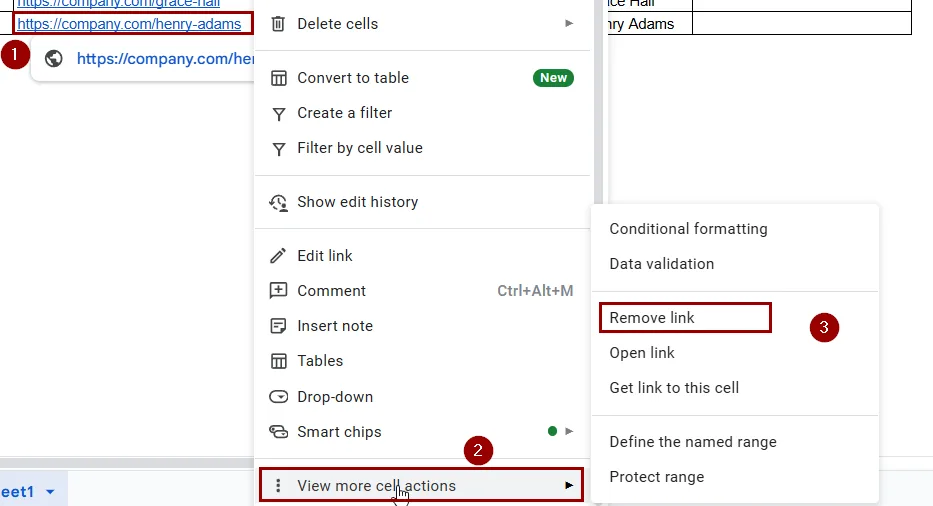
➤ Choose the B11 cell that has the hyperlink.
➤ Right-click on the selection.
➤ Choose View more cell actions and then choose Remove link from the context menu.
➤ Repeat for other linked cells.
We will discuss all reasonable ways to remove hyperlinks in Google Sheets in this post: manually, with Link Preview, in bulk with formulas, using Apps Script, and with paste special techniques. These techniques will help you quickly organize your spreadsheet, whether you are simplifying a shared report or cleaning raw data.
What is a Hyperlink in Google Sheets?
A hyperlink in Google Sheets is a clickable text or URL that redirects to a web page or location when clicked. It’s either entered manually using the HYPERLINK function or automatically created when pasting URLs into cells. Hyperlinks in Google Sheets can be useful, but removing them becomes necessary when you want to retain only the plain text or prevent accidental clicks.
This is the easiest method when you're dealing with a small number of hyperlinks. It allows you to remove links without affecting the visible text or formatting. Ideal for quick edits and simple datasets.
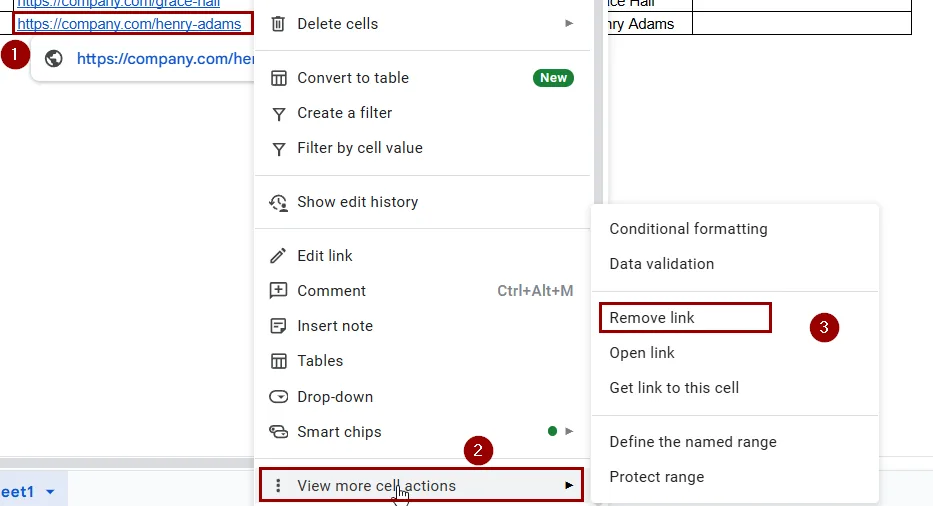
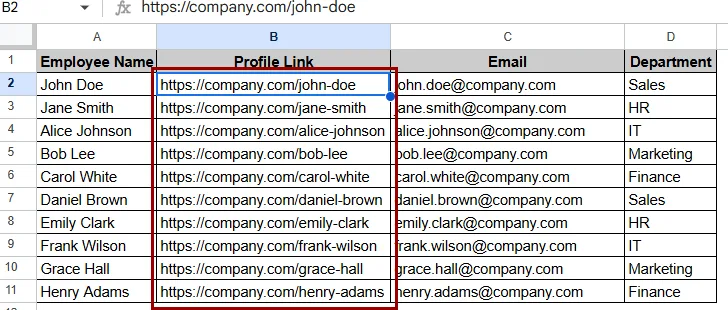
➤ Select the cell or cells that contain the hyperlink. Here is the whole B column.
➤ Right-click on it.
➤ Click on View more cell actions and then choose Remove link from the menu.
➤ The hyperlink will be removed, and only the plain text will remain.
Remove Hyperlinks with Link Preview Option
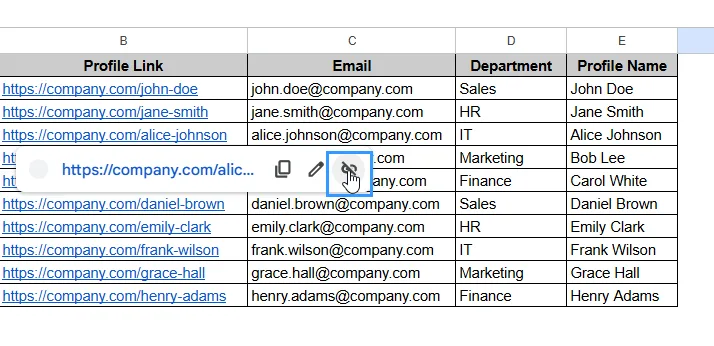
Google Sheets offers a quick and graphic approach to handling individual hyperlinks using the Link Preview feature. When you move your cursor over a cell containing a hyperlink, a small preview box appears, making it easy to confirm or remove links without digging into the cell content.
➤ Hover your mouse over the cell you want to check, here in column B.
➤ If the cell contains a hyperlink, a popup will appear showing:
- The full URL
- Quick-action icons: Copy link, Edit link and Remove link
➤ To remove the link, click the Remove link icon in the popup.
Inserting Formulas to Remove Hyperlinks in Google Sheets
You can use a basic formula to remove a hyperlink from a cell in Google Sheets without sacrificing the visible text. It operates by pushing Google Sheets to treat the value as plain text rather than rich text with formatting or links. Here’s the formula:
=""&B2➤ Select a blank column, here F2.
➤ Enter the following formula:
=""&B2➤ Press Enter.
➤ Drag the formula down to apply it to the remaining cells in that column.
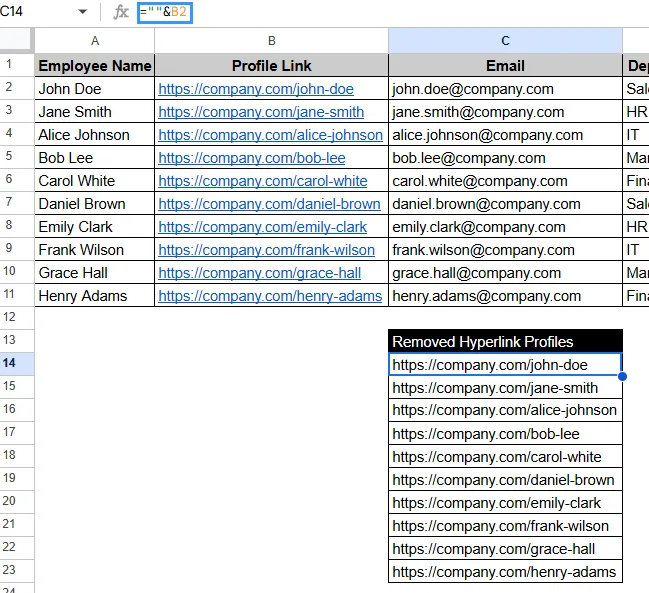
Paste Special Option to Remove Hyperlinks
Finding the hyperlinks in the process, this trick helps when you copy linked cells and want to paste them as plain text. It's fast and does not require scripts or formulas.
➤ Select the cells containing hyperlinks.
➤ Press Ctrl + C or right-click to select Copy.
➤ Right-click on the destination cell, here F2.
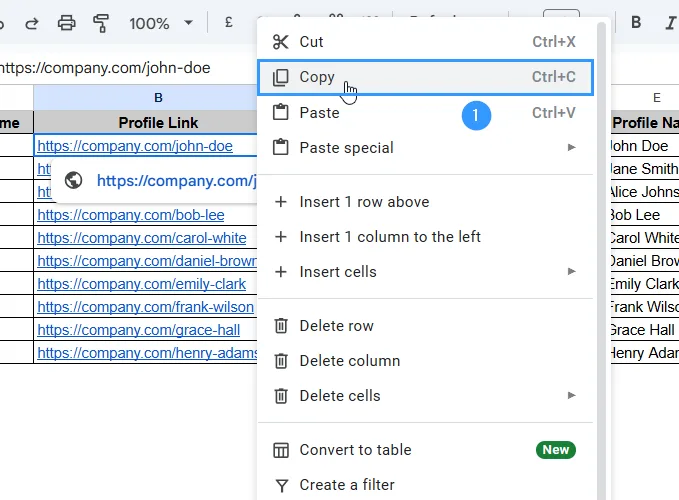
➤ Select Paste special > Values only. Or you can just press Ctrl + Shift + V.
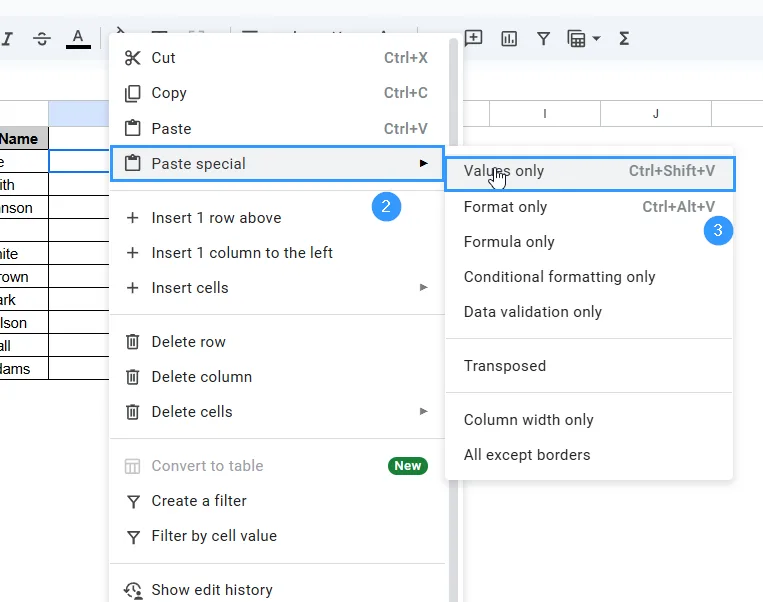
➤ Here are the results:
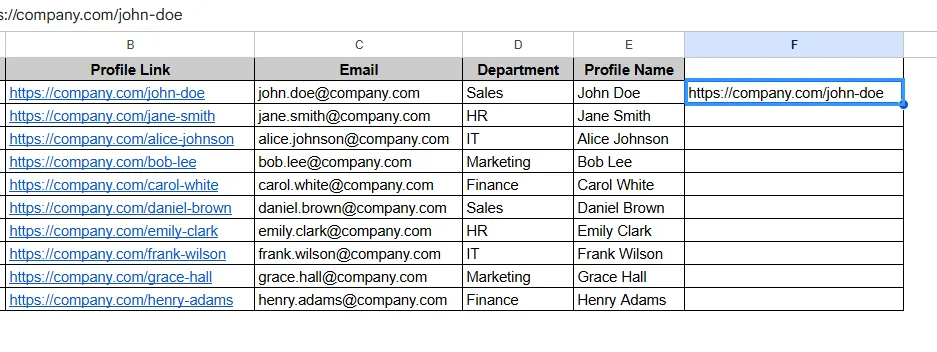
Remove All Hyperlinks at Once with Apps Script Code
Google Apps Script offers a great method for those who enjoy scripting to automatically remove hyperlinks in Google Sheets. Advanced users who deal with big datasets and want to decrease the need for repeated manual actions will find this approach perfect. This approach effectively removes any embedded hyperlinks by retrieving the text content from every cell in the chosen range and converting it to plain text.
Steps:
➤ First select the column or cell where hyperlinks are at, here column B.
➤ Go to Extensions > Apps Script.
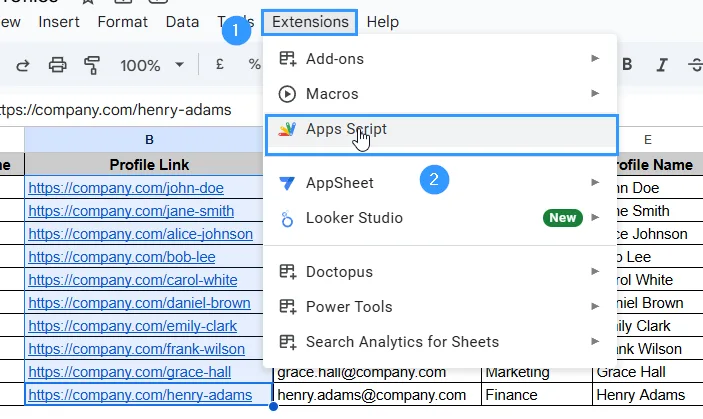
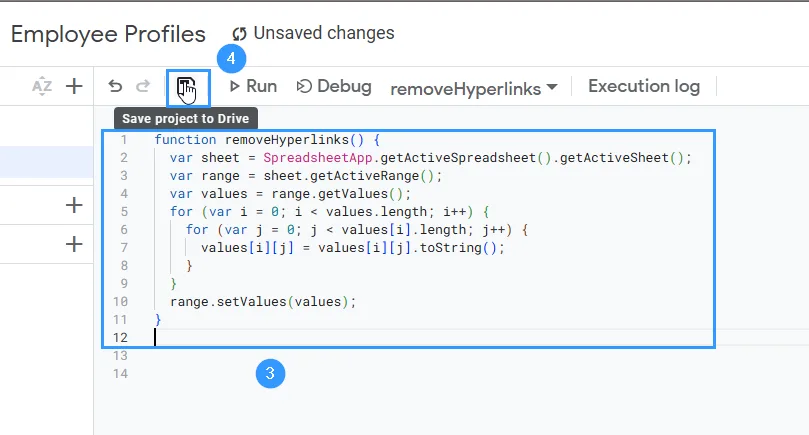
➤ Remove any placeholder code, then copy and paste the following Apps Script code:
function removeHyperlinks() {
var sheet = SpreadsheetApp.getActiveSpreadsheet().getActiveSheet();
var range = sheet.getActiveRange();
var values = range.getValues();
for (var i = 0; i < values.length; i++) {
for (var j = 0; j < values[i].length; j++) {
values[i][j] = values[i][j].toString();
}
}
range.setValues(values);
}
➤ Click the Save icon.
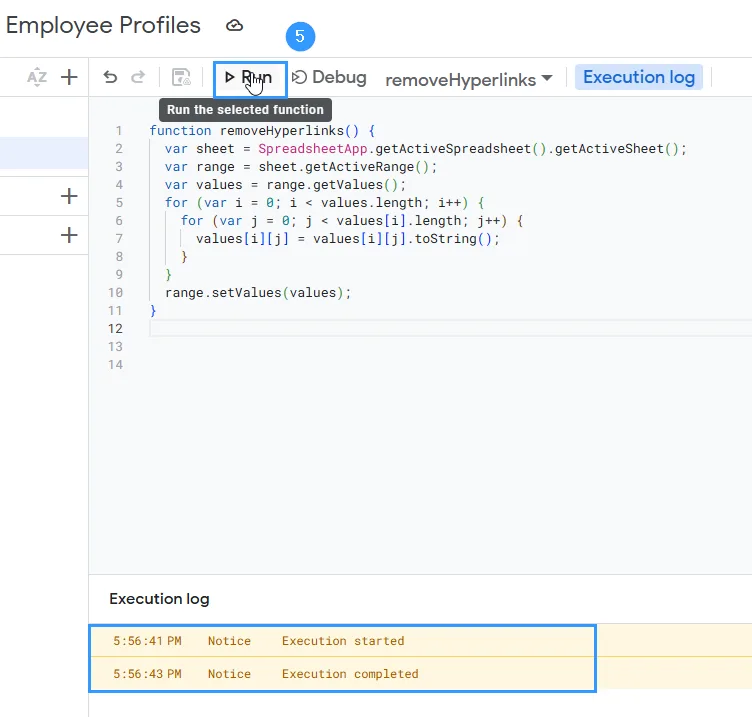
➤ Click the Run button from the toolbar. At the Execution log you’ll see the Execution started and Execution completed.
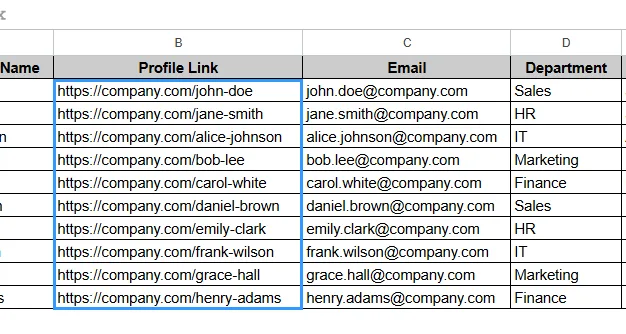
➤ Back in the sheet, select the range you want to clean, and run the function again if needed. Here are the results:
Practice Resources
Get our practice workbook or necessary files that we have worked with to prepare this article.
Remove Hyperlinks in Google Sheets [Make a Copy]
Frequently Asked Questions
Does removing a hyperlink also remove the cell content?
No. Using Apps Script or a right-click removes a hyperlink only. The text stays in the cell.
Can I stop Google Sheets from automatically creating links?
Google Sheets does not currently provide a way to turn off automatic hyperlinks. To avoid link formatting, remove them manually or by pasting with Ctrl + Shift + V.
Are hyperlinks removed by Google Sheets' formulas?
No formula in Google Sheets directly removes a hyperlink from a cell. To essentially strip the link, though, you can replicate the plain text from another cell using formulas.
Will Google Apps Script take hyperlinks off notes or comments?
Not at all. The given script just removes hyperlinks from the cell material. Notes or comments' links have no effect.
Concluding Words
Depending on how the links were produced, hyperlinks in Google Sheets can be removed using formulas, scripts, or add-ons. These techniques help you keep your data neat and simpler to work with, whether you're organizing imported data or clearing a shared spreadsheet.
Related Google Sheets Basics Articles
Master the fundamentals with these step-by-step spreadsheet tutorials
Liked this lesson? Get one practical spreadsheet tip every week.
Comments
No comments yet — be the first to ask a question.