
How to Swap Rows in Google Sheets (4 Quick Tricks)
If you need to swap two rows in Google Sheets but don’t want to mess up your data or formatting, Google Sheets makes it easier. This article will show you different ways to swap rows, with or without dragging, and help you fix common mistakes people run into.
We’ll use a simple dataset where a few employee attendance records are listed across rows. Let’s find out how to move them around without breaking anything.
➤ Drag and drop rows.
➤ Copy-paste to swap rows manually.
➤ Use cut and paste with keyboard shortcuts.
➤ Swap Rows using App Script.
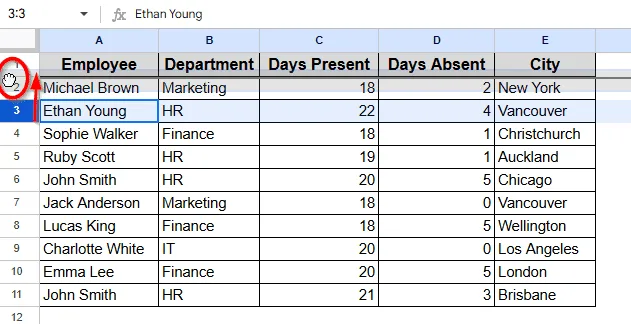
Drag and Drop Rows
This is the easiest and quickest method to reorder rows. It’s perfect for small dataset and if you just want to move a row up or down. Just grab and drop. No extra clicks or menus needed.
Here we used a sample dataset of employee attendance that will help us to brief every method.
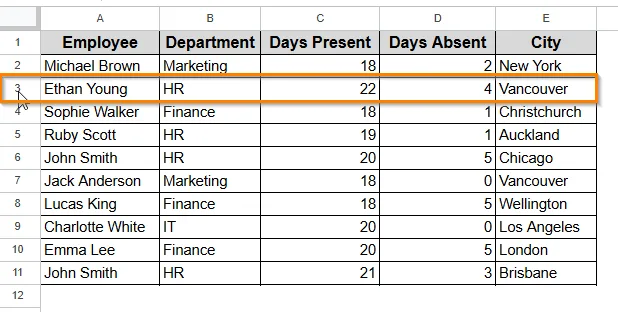
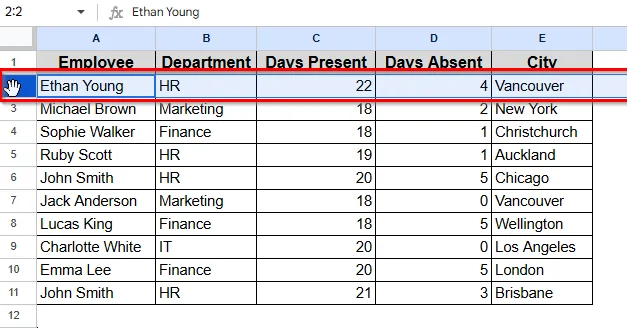
➤ Click the row number of Row 3 from the far-left side. It will highlight the entire row.
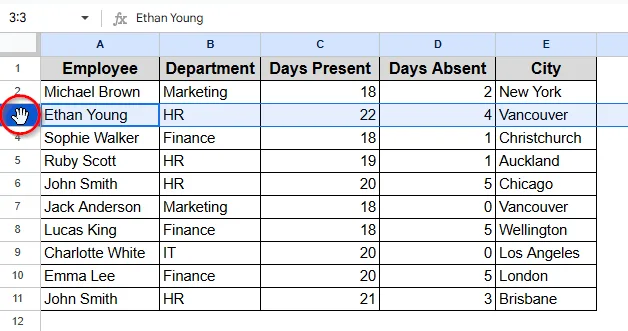
➤ Move your mouse to the edge until the hand icon appears.
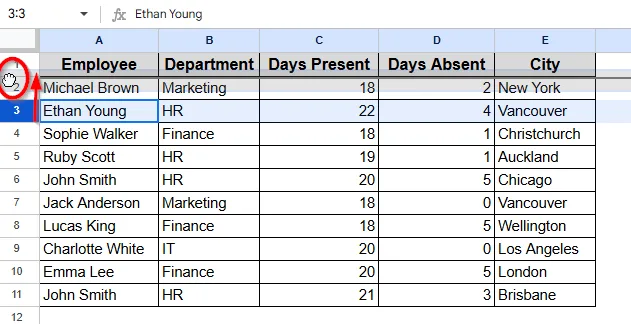
➤ Click and drag the row to the new position. A grey line will show where it’ll be dropped.
➤ Release the mouse. The row will move, and everything below will shift.
Copy and Paste To Manually Swap Rows
If drag and drop feels risky or messy, use copy-paste. It is more manual but safer. This method gives you control if you are worried about overwriting or losing data. By using a temporary row as a backup space, you make sure nothing gets accidentally deleted.
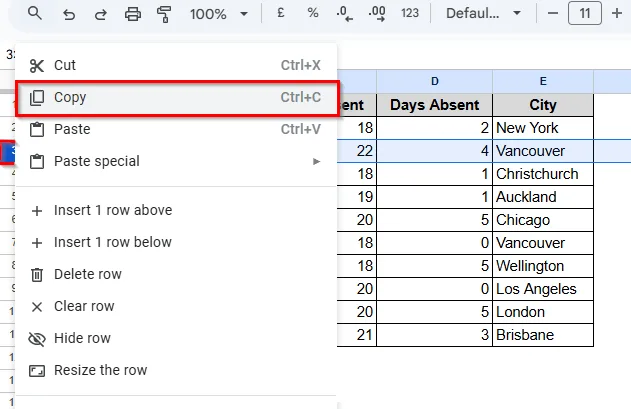
➤ Click Row number of Row 3 > Right click > choose Copy from option menu.
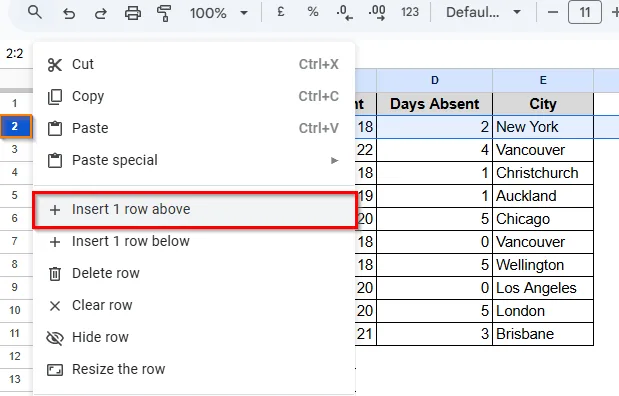
➤ Now insert a new rew at desired spot, above Row 2. Follow Right click on row number > Insert 1 row above.
➤ A new row will be inserted as Row 2.
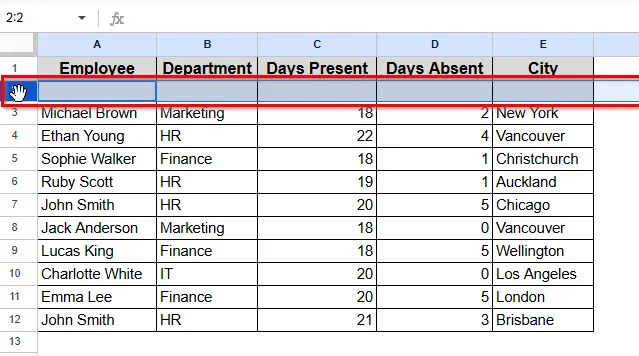
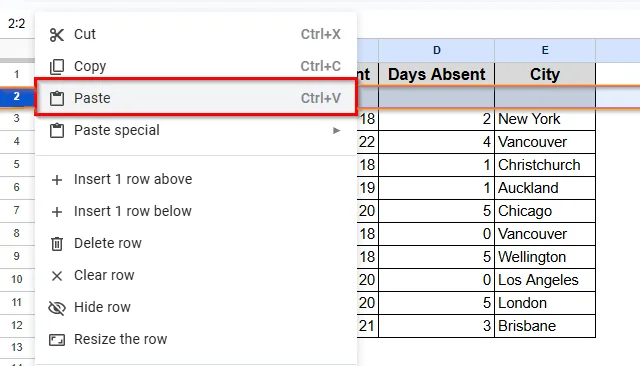
➤ Right click > click Paste to paste the copied row data in Row 2
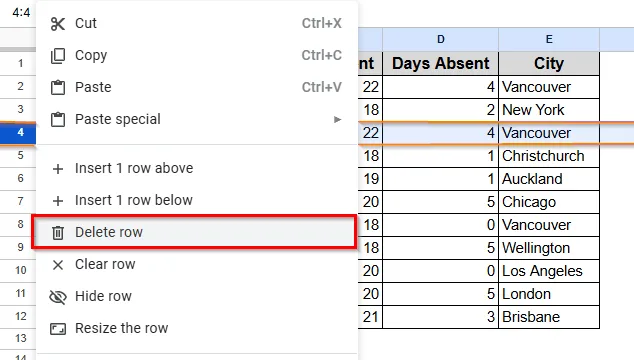
➤ Now right click > click Delete row to delete the previously copied row to avoid duplicate rows.
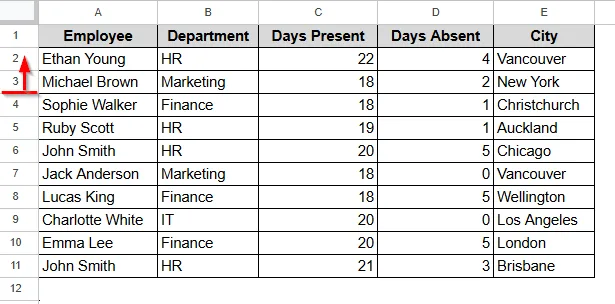
➤ Here is the result.
Use Cut and Paste with Keyboard Shortcut
If you prefer keyboard over mouse or are fast with shortcuts, this is even quicker than copying.you can move rows around with just a few key presses. You can handle multiple swaps quickly.
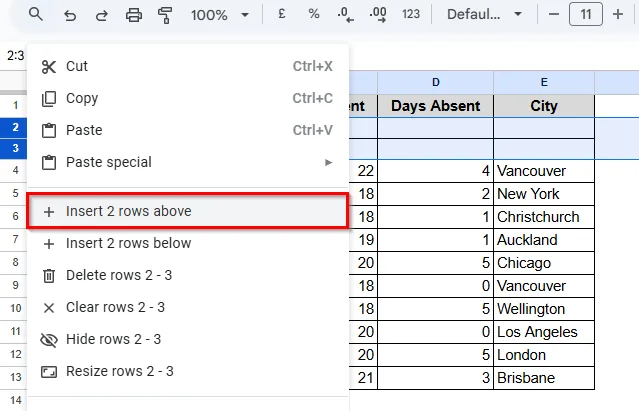
➤ Click the row where you want to paste above, and follow Insert > Rows > Insert 1 row above.
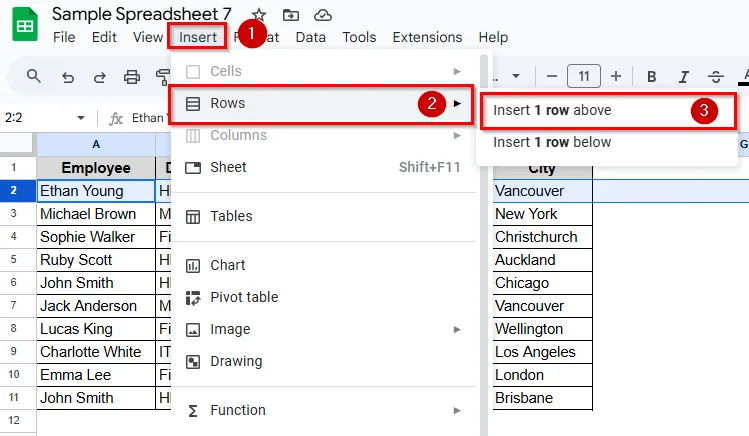
➤ You can also insert rows from the menu option (by clicking on the left side of your mouse). The new rows will be inserted, and other rows will shift down.
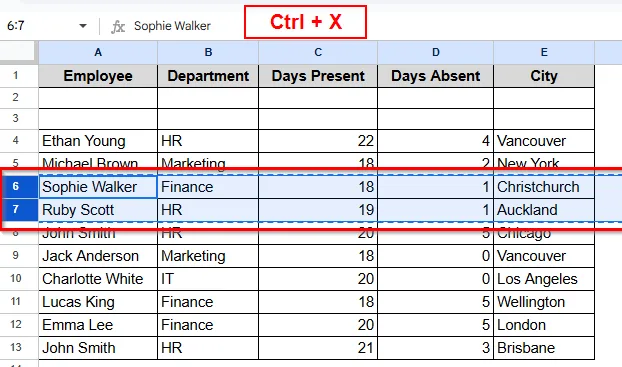
➤ Click the row number of Row 4 & 5 > Press Ctrl + X to cut.
➤ Now, press Ctrl + V to paste into the newly inserted rows
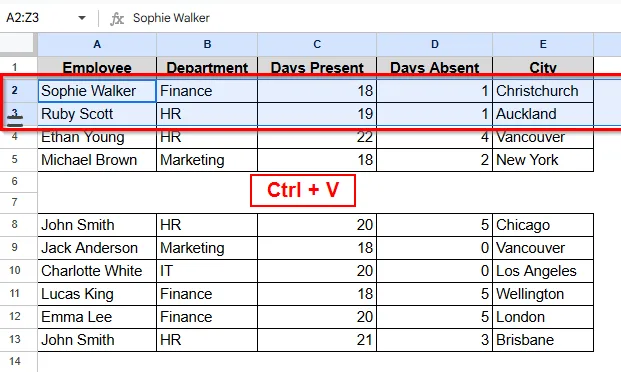
➤ Cut rows will be pasted into the new spot as Row 2 & 3.
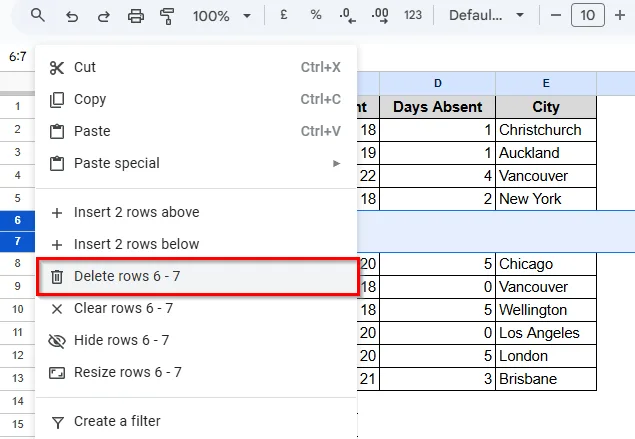
➤ Then delete the blank rows to leave no gap.
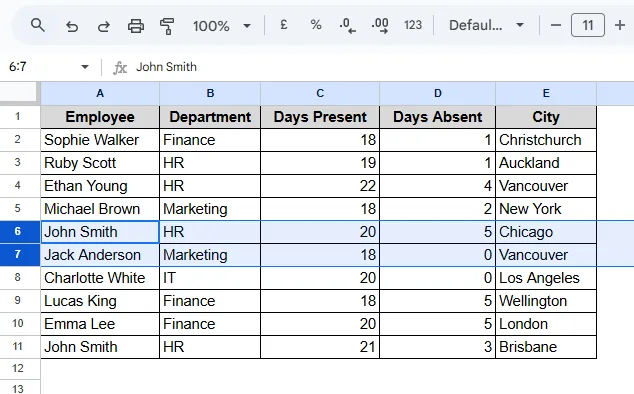
➤ The result is shown here.
Swap Rows Using Apps Script
If you often need to swap the same rows or automate the task, Apps Script is useful as it saves your time. This is more advanced for users who want automation. With just one click, the script will swap the rows for you. No manual steps are needed each time.
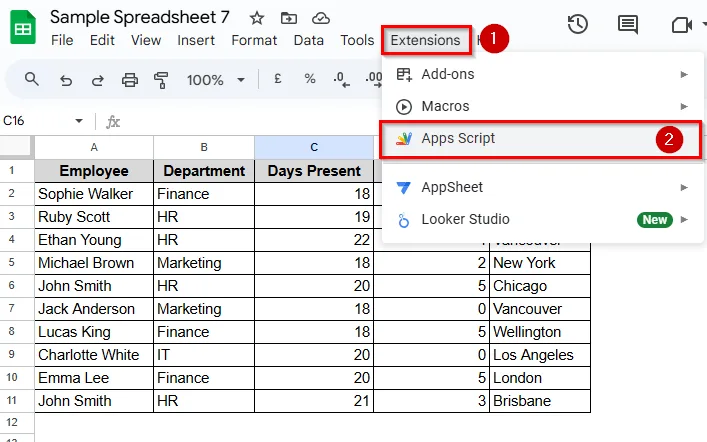
➤ Go to Extensions > apps Script.
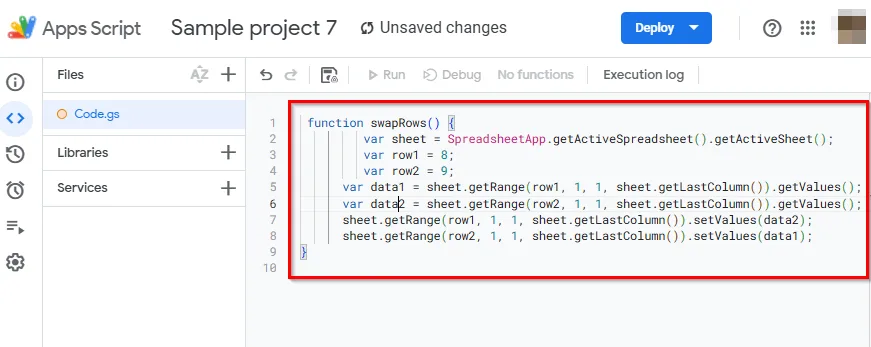
➤ Paste the code.
     function swapRows() {
         var sheet = SpreadsheetApp.getActiveSpreadsheet().getActiveSheet();
         var row1 = 8;
         var row2 = 9;
      var data1 = sheet.getRange(row1, 1, 1, sheet.getLastColumn()).getValues();
      var data2 = sheet.getRange(row2, 1, 1, sheet.getLastColumn()).getValues();
      sheet.getRange(row1, 1, 1, sheet.getLastColumn()).setValues(data2);
      sheet.getRange(row2, 1, 1, sheet.getLastColumn()).setValues(data1);
}
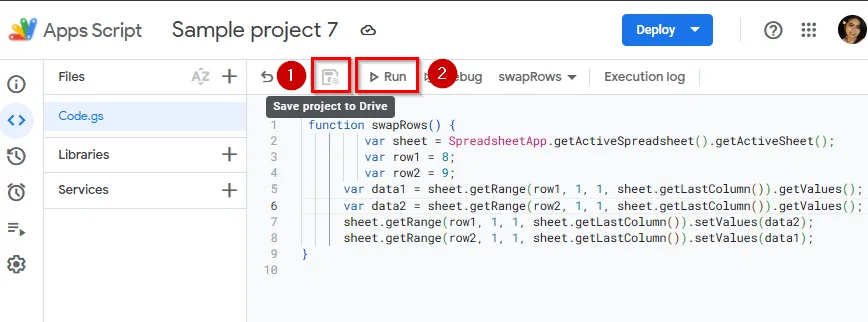
➤ Save and click the Run button to execute.
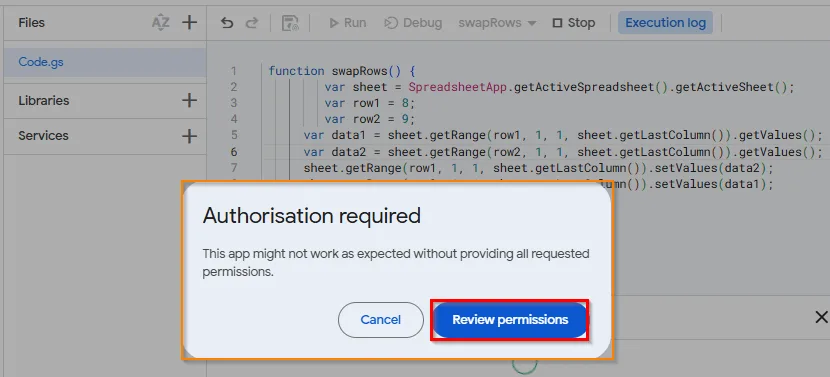
➤ A pop-up will appear asking for authorization. Click Review Permission.
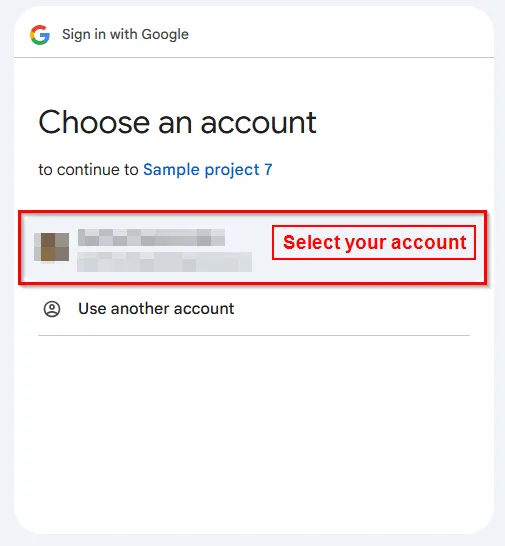
➤ Then choose your account.
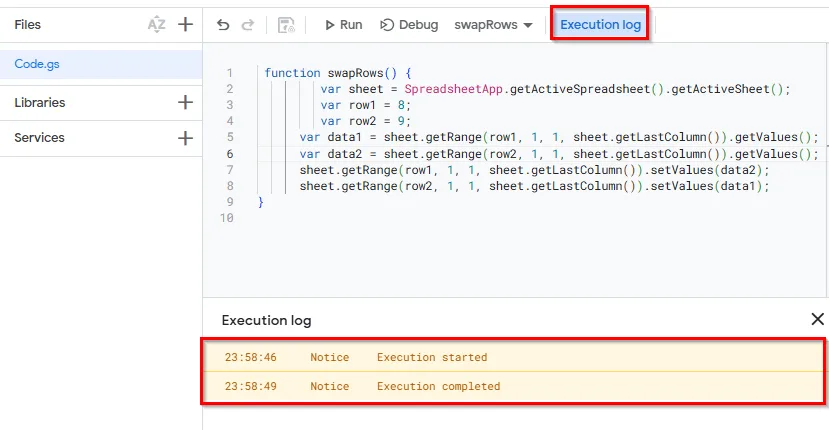
➤ An execution log will appear.
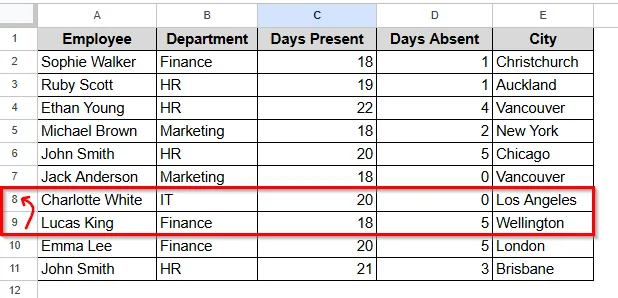
➤ Row 8 will be swapped with Row 9 as shown here.
Practice Resources
Get our practice workbook or necessary files that we have worked with to prepare this article.
Swap Rows in Google Sheets [Make a Copy]
Frequently Asked Questions
Can I swap multiple rows at once?
Not directly. Move one row at a time or copy-paste in chunks.
Will formulas update correctly after moving rows?
If they use relative cell references, yes. However, those may break if they refer to specific rows (like = A4+B4). Always double-check.
Does pasting overwrite data?
Yes, unless you paste into a blank area first. Always back up rows before swapping.
Can I undo row swaps?
Yes. Use Ctrl + Z to undo any mistake anytime.
Wrapping Up
Swapping rows to manage data in Google Sheets is simpler than you think. Whether you drag, paste, or use a script, each method is for a different purpose. Google Sheets provides multiple ways as drag and drop for quick moves, copy and paste for accuracy, and scripts for automation. Don’t forget to back up your rows if you are working with important data. Now you can swap any row without confusion. Feel free to share your feedback.
Related Google Sheets Basics Articles
Master the fundamentals with these step-by-step spreadsheet tutorials










Liked this lesson? Get one practical spreadsheet tip every week.
Comments
No comments yet — be the first to ask a question.