Excel Pro Tips
How to Protect Excel Workbook from Editing (6 Useful Tricks)
Learn how to protect an Excel workbook from editing using passwords, worksheet protection, read-only mode, and view-only sharing options.
Read article

8 lessons in order
Learn how to protect an Excel workbook from editing using passwords, worksheet protection, read-only mode, and view-only sharing options.

Learn how to password protect an Excel sheet from viewing by hiding sheets, encrypting the workbook, using IRM, read-only mode or VBA macros.

Learn how to password protect an Excel workbook from opening by using Encrypt with Password, Save As dialog box & Protect Workbook feature.

Learn how to insert a digital signature in Excel using signature lines, invisible signatures, handwritten or typed styles, or PDF attachments.
![[Fixed] This Workbook Was Opened in Read Only Mode](https://pub-b39c974f4c124a36a2fb517be38076ec.r2.dev/images/2026/08/featured-image-this-workbook-was-opened-in-read-only-mode-1-db78c0aa.webp)
Fix 'This workbook was opened in read-only mode' in Excel by removing read-only settings, editing file properties & disabling Protected View.

Learn how to protect specific cells in Excel using built-in features, formulas & VBA to secure your data while allowing edits where needed.

Learn how to make an Excel file read-only by setting file preferences, adding a password, and applying OS-level protection.
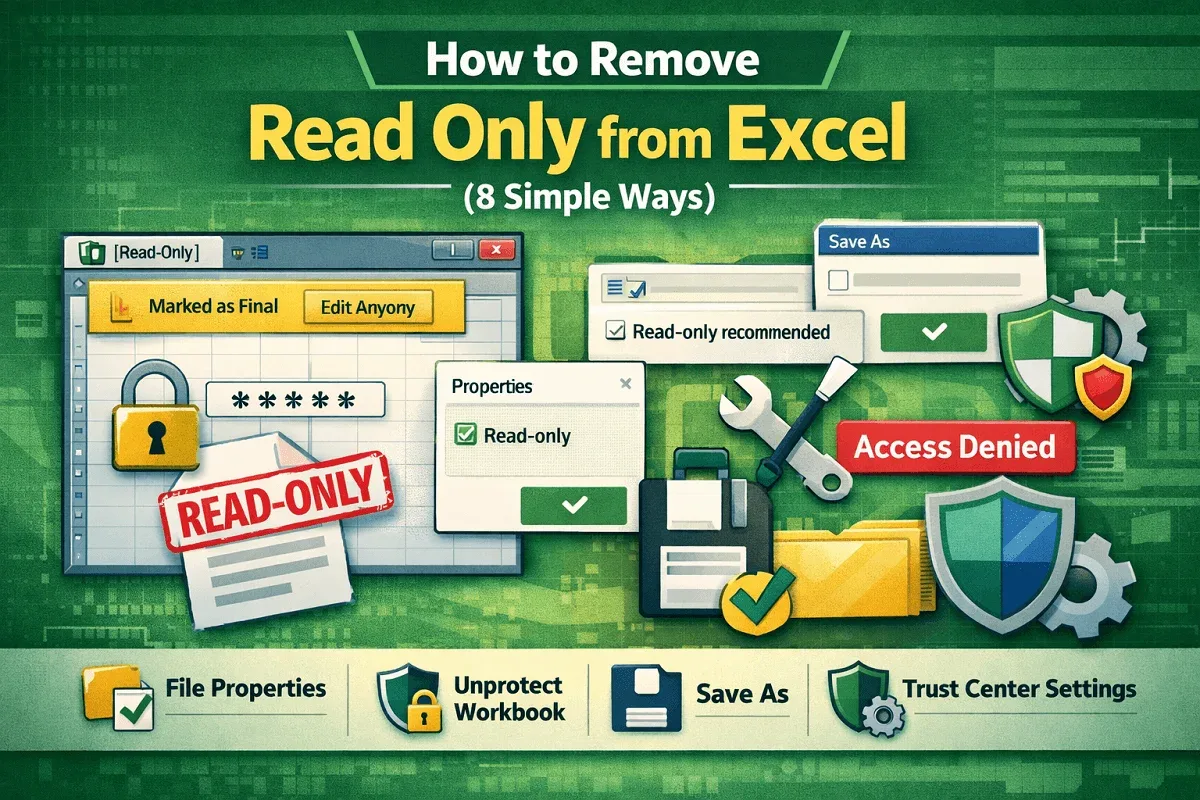
Remove Excel read-only mode by editing file properties, unprotecting the workbook, adjusting settings, and fixing permissions.