

An Excel file password protects your workbook from unauthorized access. If you forget the password, you may lose access to important data stored in the file. Fortunately, there are several methods you can try to recover or regain access to a password-protected Excel workbook.
Your chances of recovering the password depend on the type of protection, the version of Excel, and whether you have a backup copy of the file.
In this article, you’ll learn how to recover an Excel file password step by step using different methods.
Here’s how to recover an encrypted Excel file password:
➤ Download and install Excel Password Genius from the iSunshare website.
➤ Open the program and select your password-protected Excel file.
➤ Choose the appropriate password recovery settings. For example, select All digits (0-9) if your password contains only numbers.
➤ Click Start to begin the recovery process.
➤ Wait for the software to recover the password.
➤ Once the recovery finishes, use the displayed password to open your Excel file.
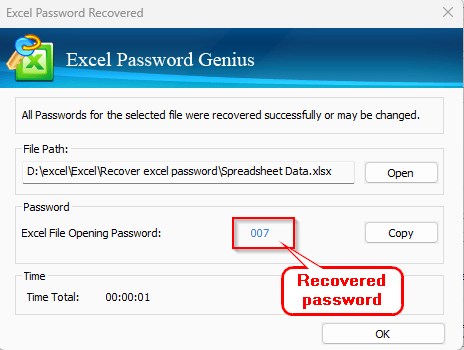
Recovering an Encrypted Excel File Password with a Password Recovery Tool
If your Excel file requires a password to open, recovering the password can be challenging. In such cases, you can use a password recovery tool such as Excel Password Genius by iSunshare. This tool attempts to recover the original password using different recovery methods.
Keep in mind that the free trial version has limitations. It may recover very short or simple passwords, but longer passwords such as more than 3 characters, typically require the paid version.
Steps:
➤ Visit the iSunshare website.
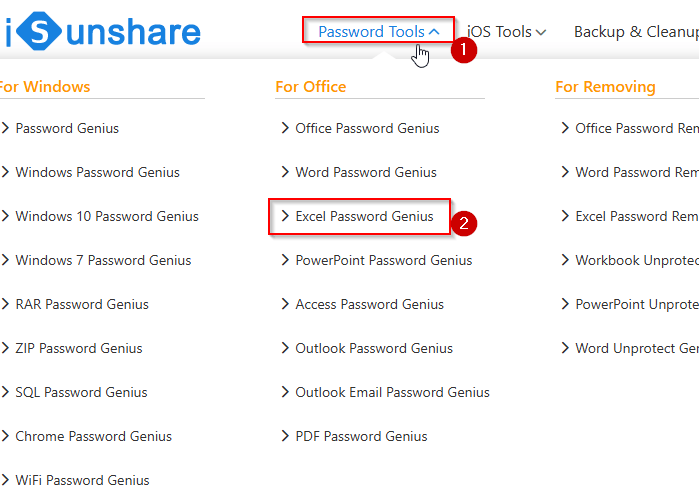
➤ Click Password Tools and select Excel Password Genius.
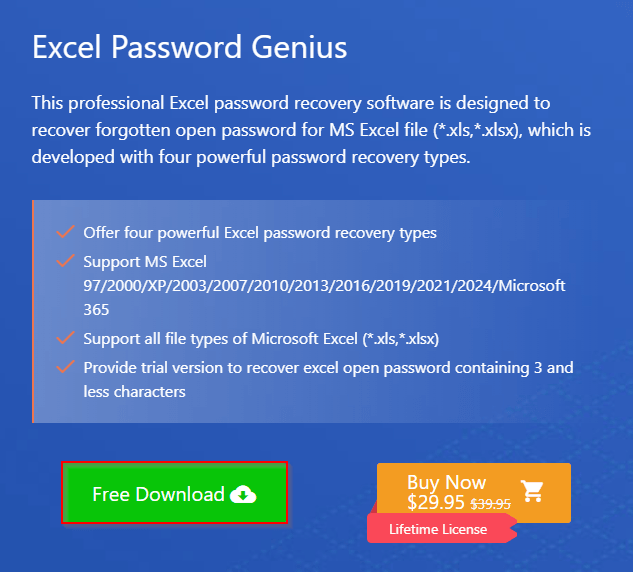
➤ Click Free Download to download the software.
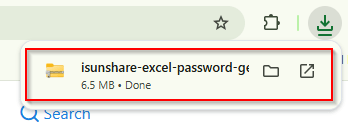
➤ Once the download finishes, locate the setup file in File Explorer and open it.
➤ Click Yes if Windows asks for permission.
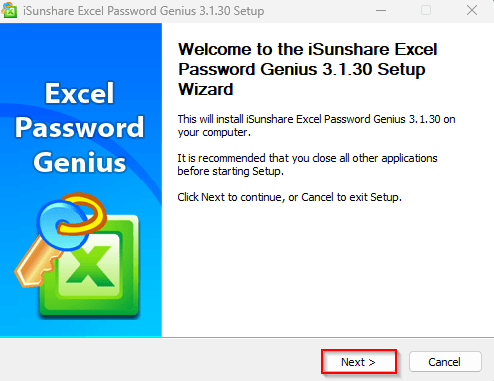
➤ In the setup wizard, click Next.
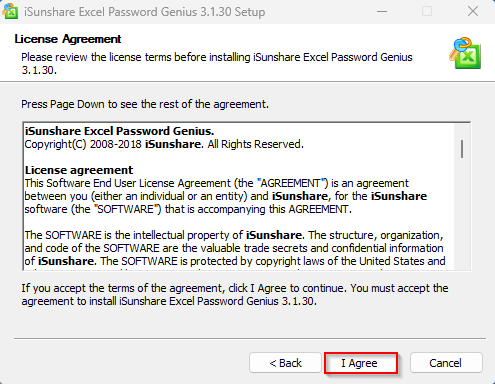
➤ Read the license agreement and click I Agree.
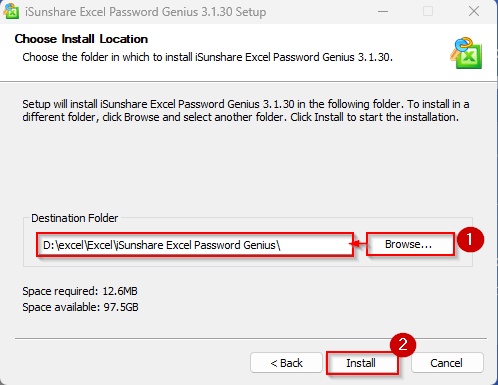
➤ Browse the Destination Folder and click Install and wait for the installation to complete.
➤ Click Finish to launch the program.
➤ In the main window, click Open and select your password-protected Excel file.
➤ Choose the password recovery settings. For example, if you know the password contains only numbers, select the option that limits the search to digits (0-9).
➤ Check All digits(0-9).
➤ Click Start to begin the recovery process.
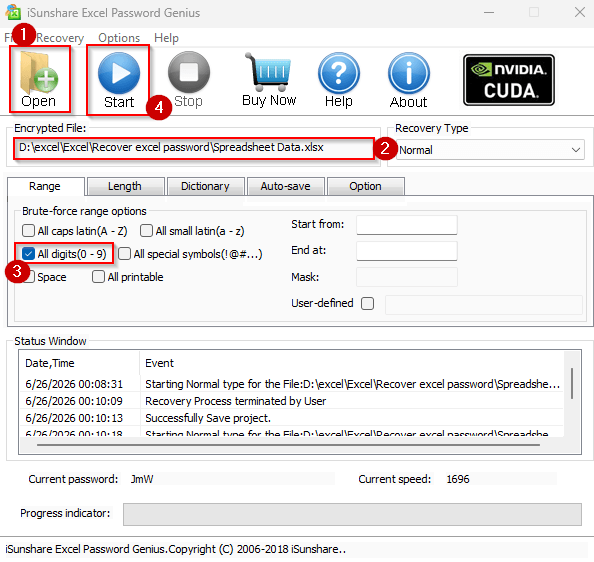
➤ Wait for the software to search for the password.
➤ Once the process finishes, the tool will display the recovered password if it successfully finds a match.
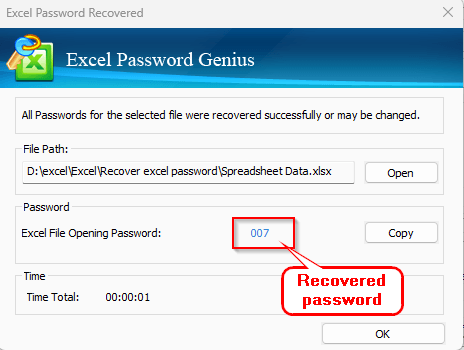
Note: The recovery time depends on the length and complexity of the password. Simple passwords may take only a few seconds, while longer and more complex passwords can take significantly more time to recover.
Removing Worksheet Protection by Editing the Excel XML File
If the workbook opens normally but prevents you from editing a worksheet, you may be able to remove the protection by editing the workbook’s XML files. This method works only for worksheet or workbook structure protection. It does not work for files that require a password to open.
Steps:
➤ Create a backup copy of the Excel file before making any changes.
➤ Locate the protected workbook in File Explorer.
➤ Copy and Paste the file for backup.
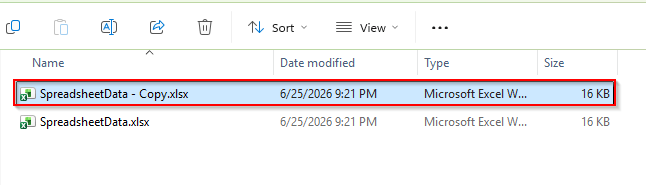
➤ Select the excel file and change the file extension from .xlsx to .zip. For example:
SpreadsheetData.xlsx > SpreadsheetData.zip
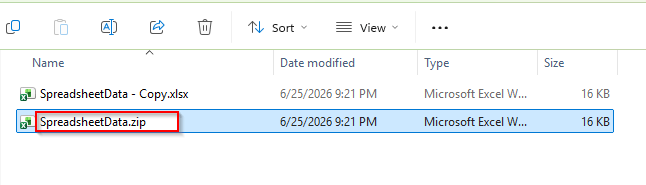 ➤ Click Yes if Windows asks for permission.

➤ Open the ZIP file and open the folder xl.
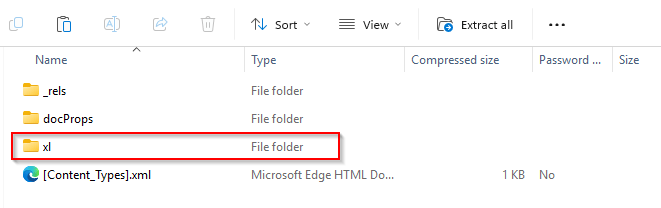
➤Now open the Worksheets folder.
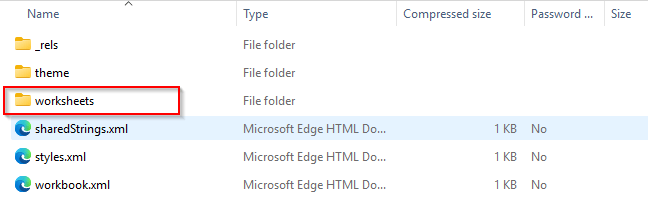
➤ Find the worksheet file you want to unprotect, such as sheet1.xml.
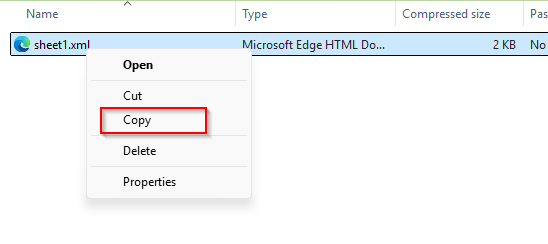
➤ Now copy sheet1.xml and paste it outside of the zip file.
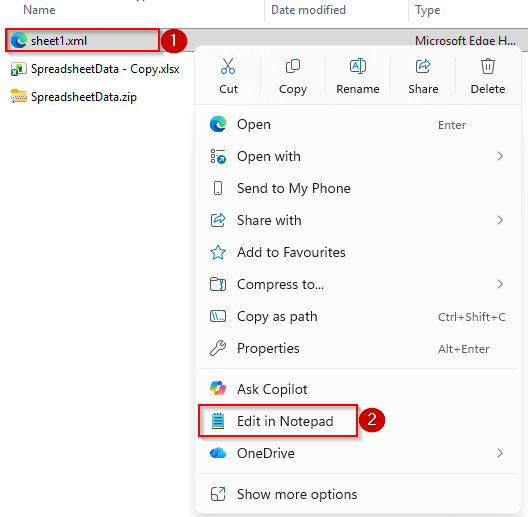
 ➤ Open the copy XML file with a text editor like Notepad.
➤ Press Ctrl + F and search for:
sheetProtect
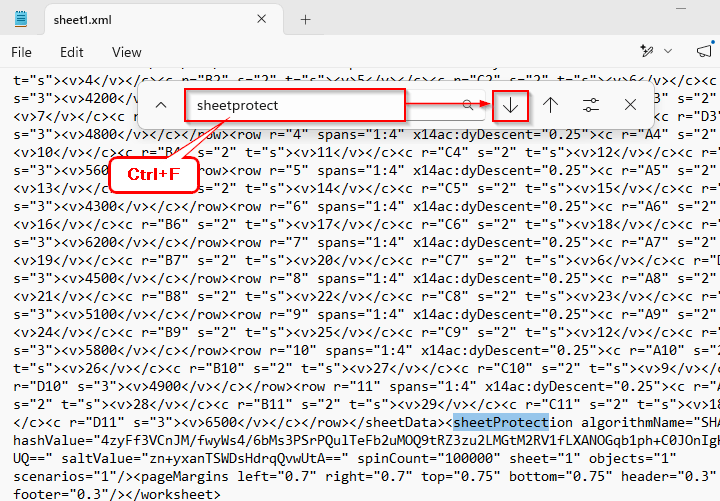
➤ Locate the entire <sheetProtection … /> tag.
➤ Delete the complete sheetProtection line.
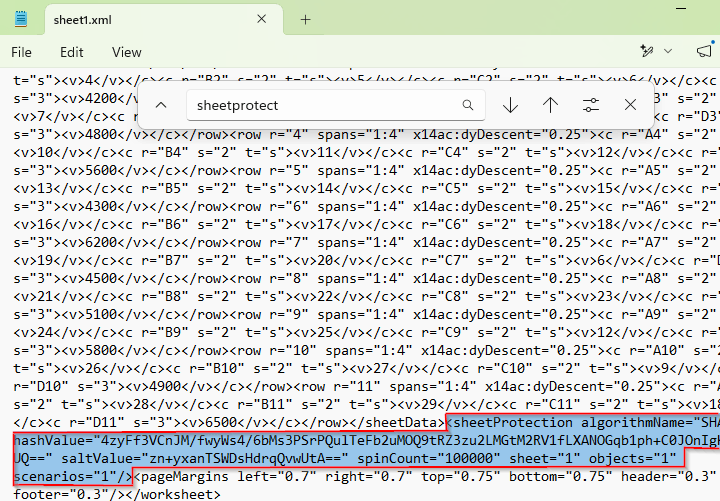
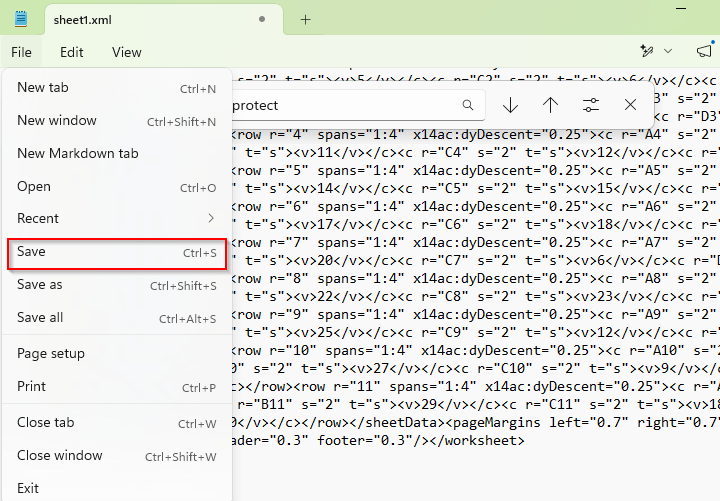
➤ Save the XML file.
➤ Replace the original XML file inside the ZIP archive with the edited version.
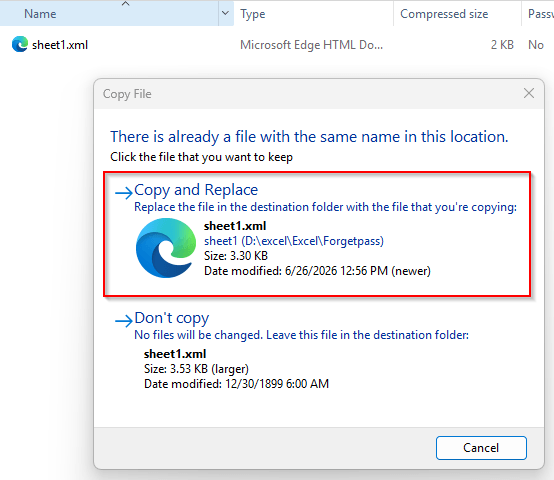
➤ Cut the edited xml file and go to the ZIP file >> xl >> worksheets folder.
➤ Click paste and select Copy and Replace.
➤ Next, change the file extension back from .zip to .xlsx.
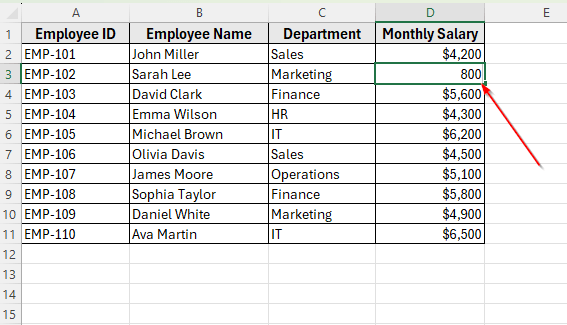
 ➤ Open the workbook in Excel and your worksheet will open without protection.
➤ Now you can edit cells, formulas, and formatting.
Removing Worksheet Protection by Opening the File in Google Sheets
You can also access data in a protected worksheet by importing the workbook into Google Sheets. In some cases, Google Sheets imports the worksheet without keeping the editing restrictions. You can then edit the data and download the workbook as a new Excel file.
Steps:
➤ Go to Google Sheets and open a new spreadsheet.

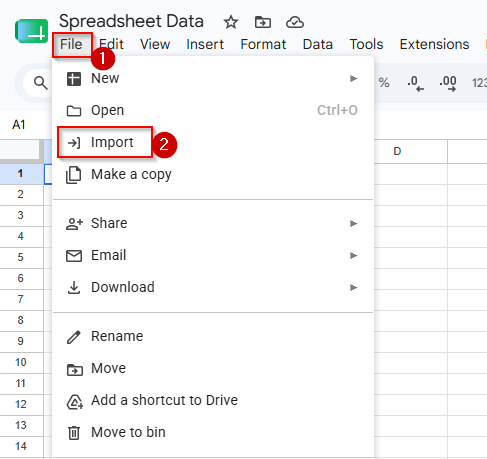
➤ Click File on the Menu and then select Import.
➤ In the Import File window, select the Upload tab and click Browse.

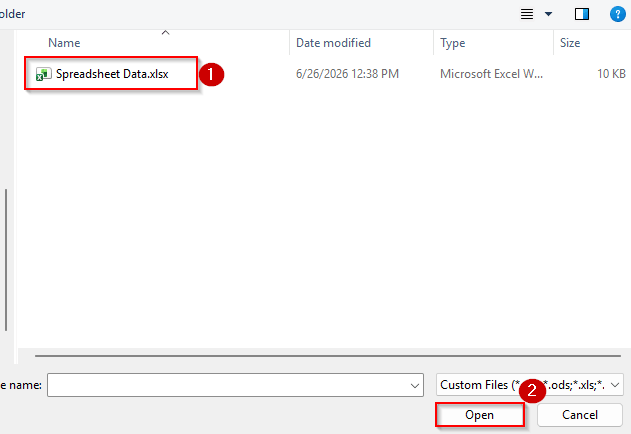
➤ Now select your password-protected Excel file and click Open.
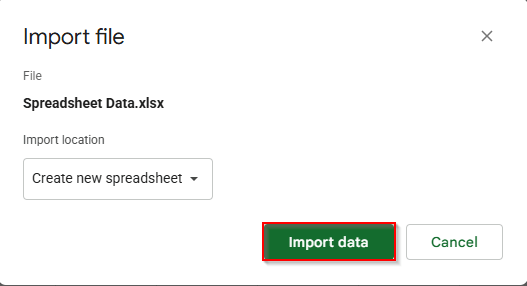
➤ Click Import Data and wait for Google Sheets to import the workbook.
➤ Once the import finishes, verify that you can access the worksheet data.
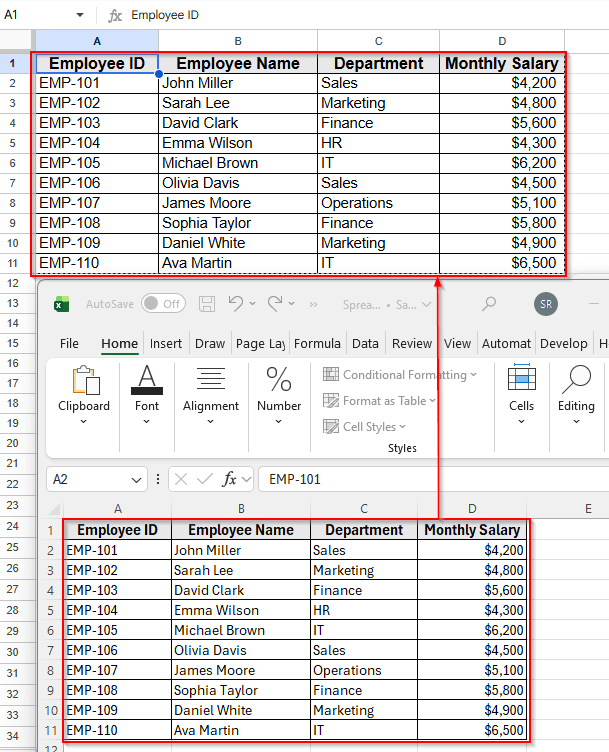
➤ Open a new workbook in Excel.
➤ Copy the data from Google Sheets and paste it into the new Excel workbook.
➤ Save the workbook. You can now edit the worksheet without restrictions.
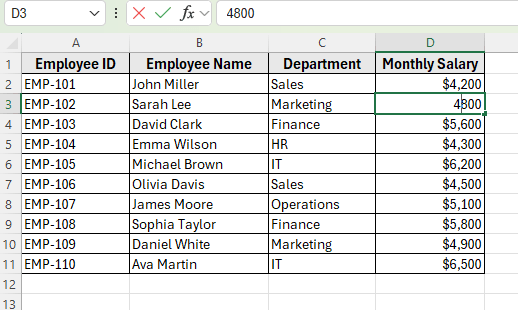
Note: This method only works in some cases. If the workbook requires a password before it can be opened, Google Sheets cannot import the file without that password.
Downloadable Resources
Get our practice workbook or necessary files that we have worked with to prepare this article.
Recover Excel File Password.xlsx
Frequently Asked Questions
How do I unlock an Excel file if I forgot my password?
The best method depends on the type of protection used. If the file requires a password to open, you can use a trusted password recovery tool such as iSunshare. If only a worksheet is protected, you can try the XML editing method or open the workbook in Google Sheets.
How can I remove password protection in Excel?
If you know the password, open the workbook, click File >> Info >> Protect Workbook >> Encrypt with Password, delete the password, and click OK. Then save the workbook. If you don’t know the password, you must recover it first or use one of the recovery methods discussed in this article.
Can I recover an encrypted Excel file without the password?
You may be able to recover access by restoring a backup or using a password recovery tool. However, there is no built-in Excel feature that can remove an unknown password from an encrypted workbook.
Wrapping Up
Losing access to a password-protected Excel file can be frustrating, but it does not always mean your data is gone. The right solution depends on how the workbook is protected and the resources available to you.
To avoid similar problems in the future, keep a secure record of your passwords and create regular backups of important Excel files. These simple habits can save you time and help protect your data.





These solutions sound absolutely ridiculous.
Step 1. Open the workbook. the problem is the workbook is password protected, thereby keeping it from opening.
Hello Mark,
These solutions are mainly based on recovering passwords, not before opening a workbook always. But still we will update the article soon with more robust fixes.