
Excel Pro Tips
How to Split Excel Sheets into Multiple Files (3 Suitable Ways)
Learn how to split Excel sheets into multiple files using VBA, Power Query, or manual methods like Filter and Save As for data management.
Read article

Tasmia Rahim holds a B.Sc in Electrical Engineering with a focus on automation and embedded systems, supporting logic-driven spreadsheet workflows. With 2 years of Excel and Google Sheets experience, she works with conditional formatting and basic automation. She is interested in using macros and ActiveX controls to simplify Excel tasks and improve usability.
Articles by Tasmia Rahim are developed under the guidance of ExcelInsider’s core training program and are technically reviewed by Nehad Ulfat, lead spreadsheet consultant, to ensure accuracy and user-centric value.
Learn how to split Excel sheets into multiple files using VBA, Power Query, or manual methods like Filter and Save As for data management.

Learn how to find the last cell with value in a row in Excel using LOOKUP, INDEX, MAX, XLOOKUP, and VBA for accurate data tracking.
Learn how to keep the header row visible when printing in Excel using Print Titles, Page Setup, and tips for on-screen viewing.
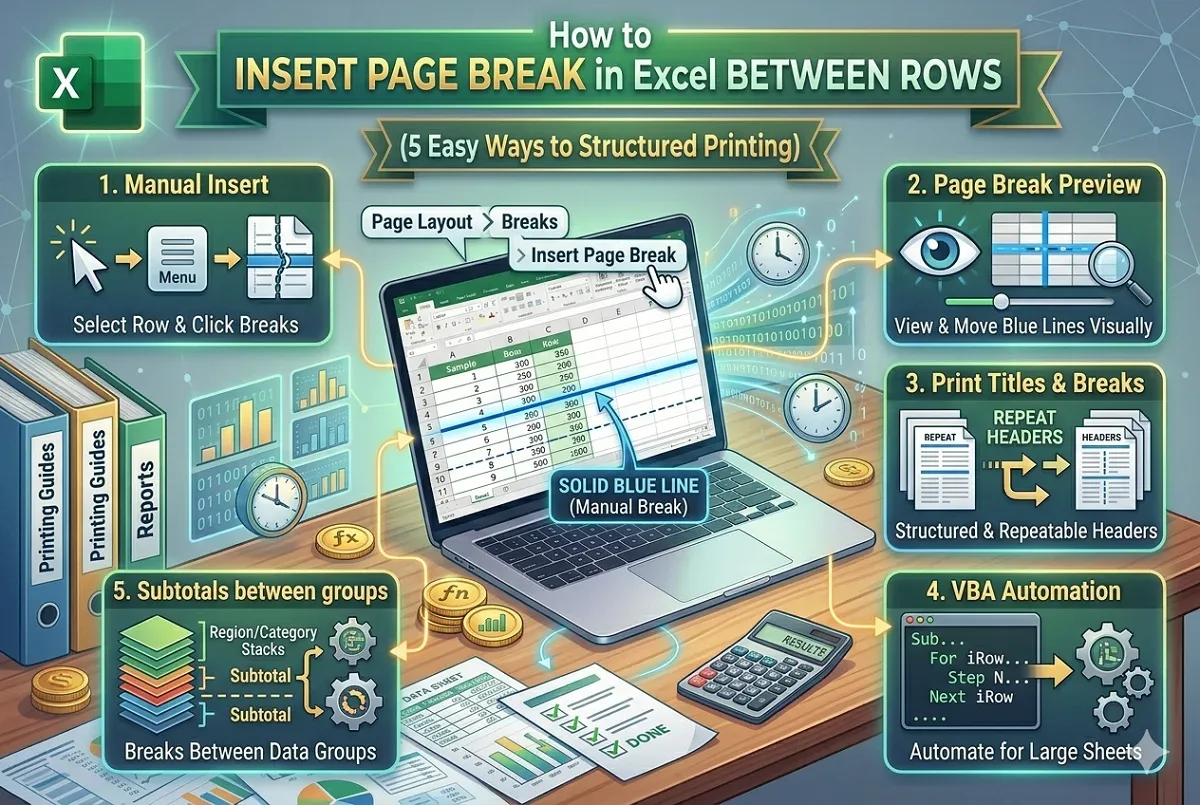
Learn how to insert page breaks in Excel between rows manually, with VBA, using subtotals, and how to remove them for better print layout.
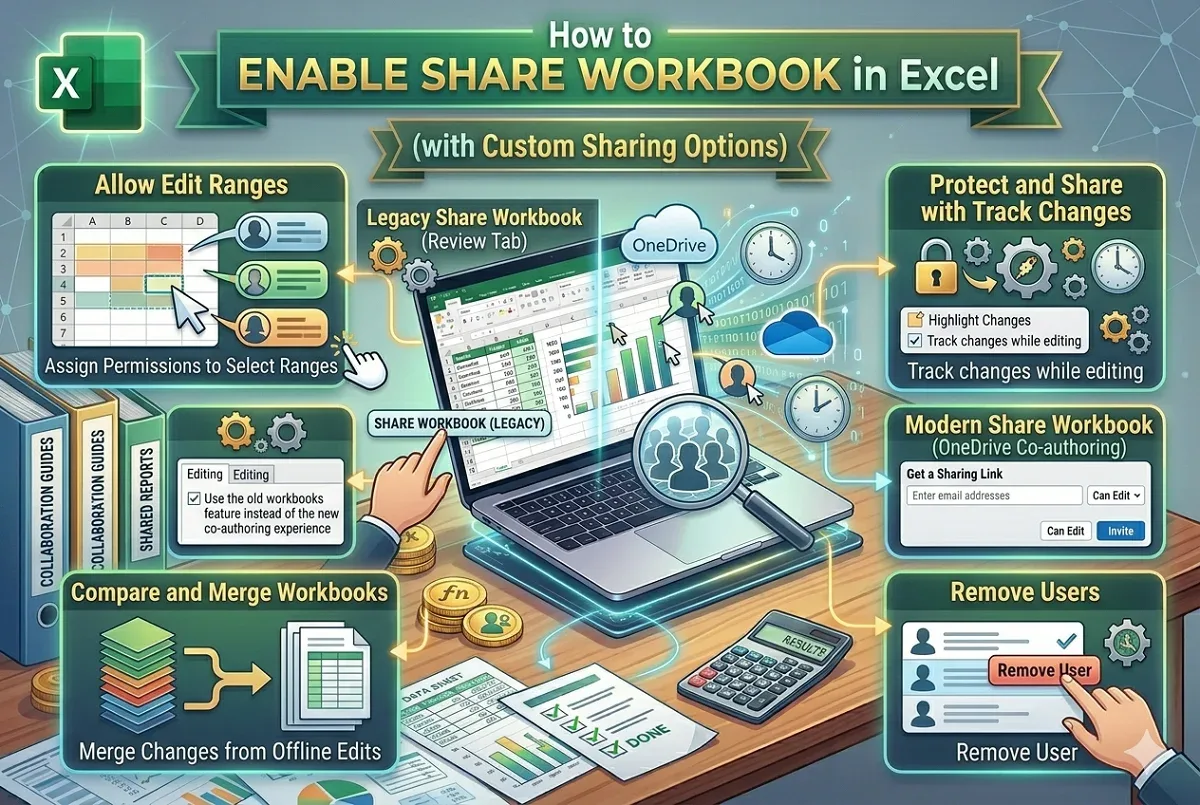
Learn how to enable sharing workbooks in Excel, manage user access, compare changes, and use OneDrive for modern co-authoring seamlessly.
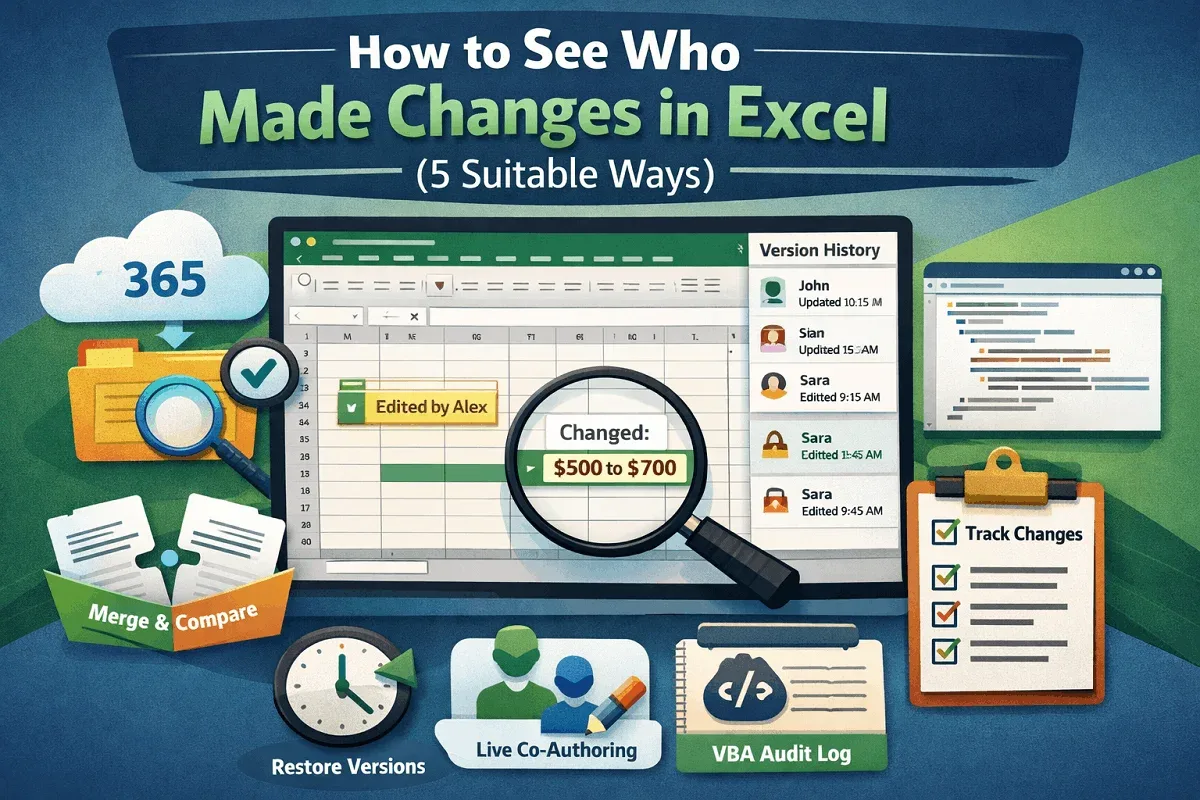
Learn how to see who made changes in Excel using version history, co-authoring, legacy track changes, and VBA for audit trails.
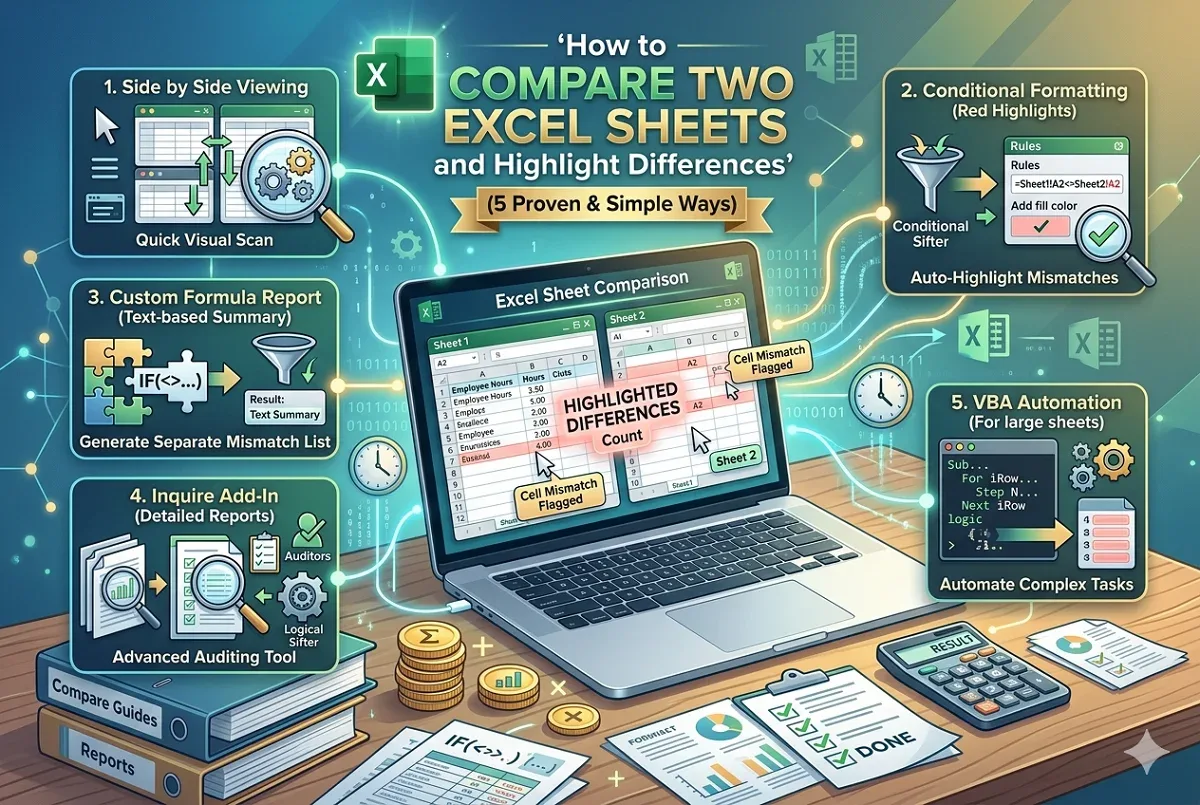
Easily compare two Excel sheets and highlight differences using built-in features, formulas, or VBA for accurate data analysis.
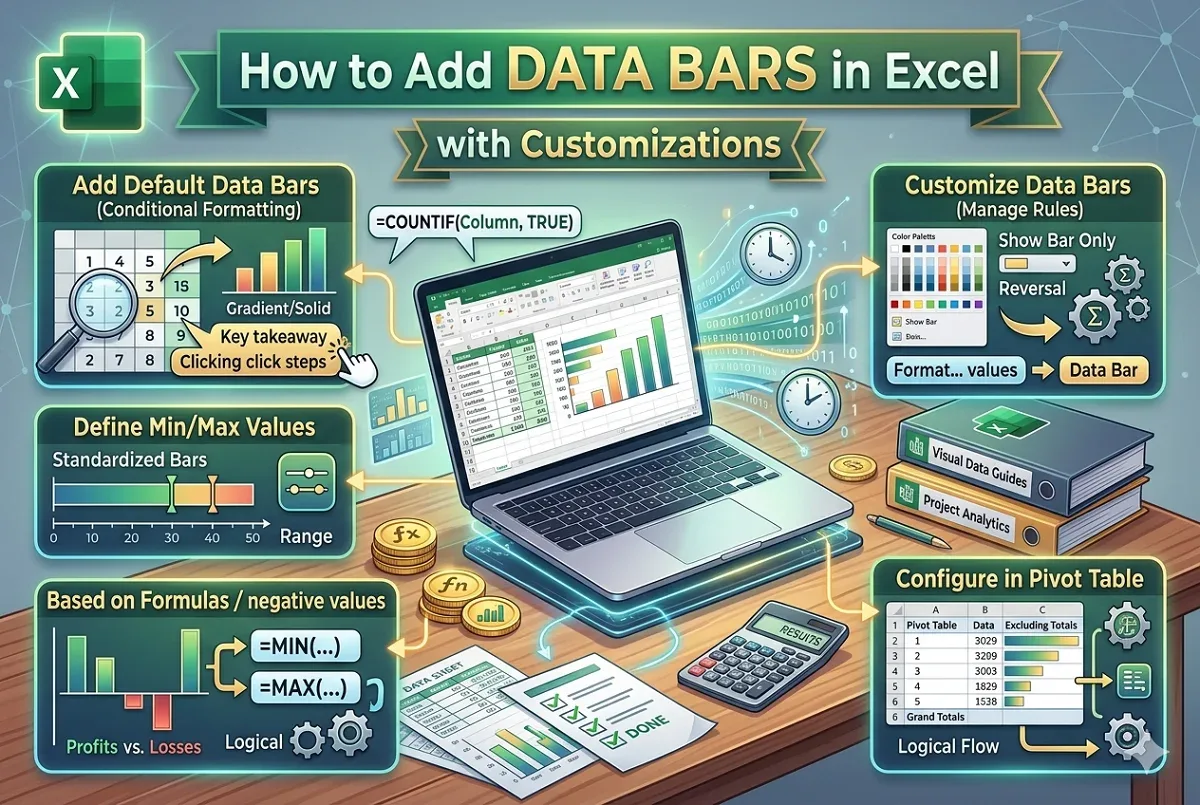
Learn how to add data bars in Excel using conditional formatting, customize them, and apply them to pivot tables and formulas.
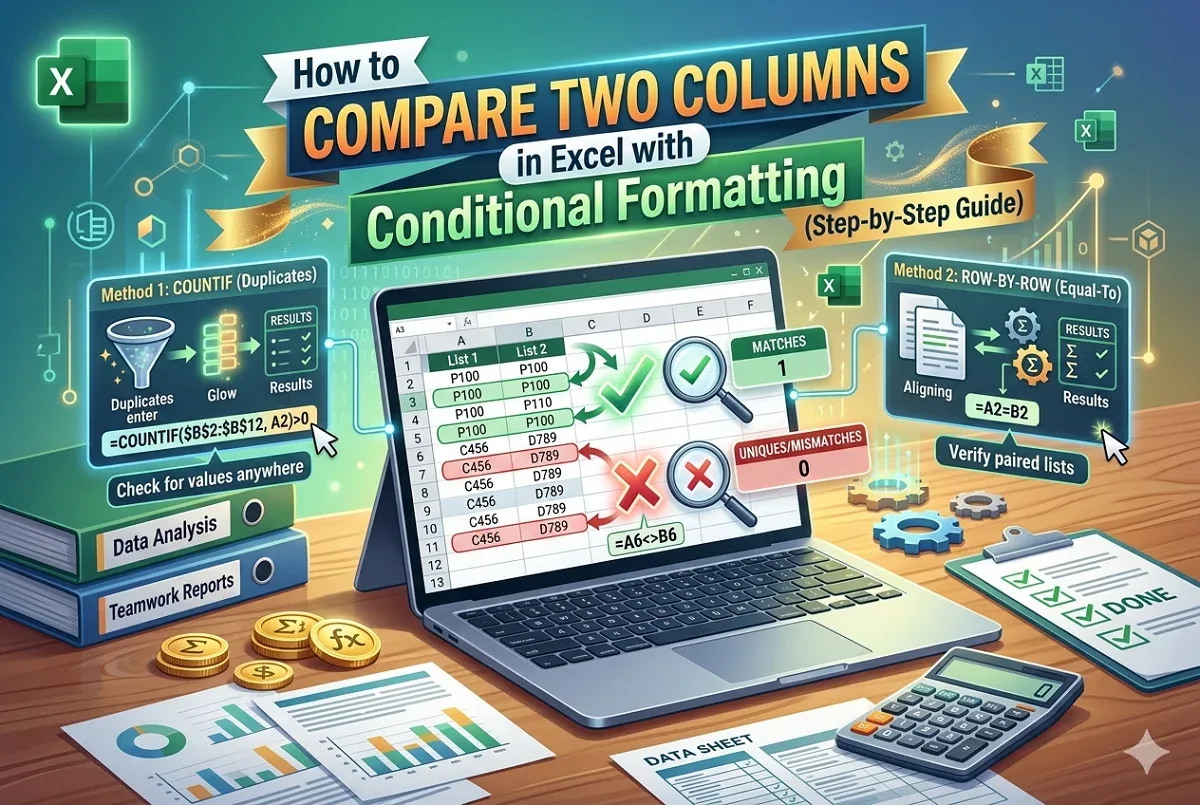
Learn how to use conditional formatting in Excel to compare two columns and highlight matching or unique values easily.
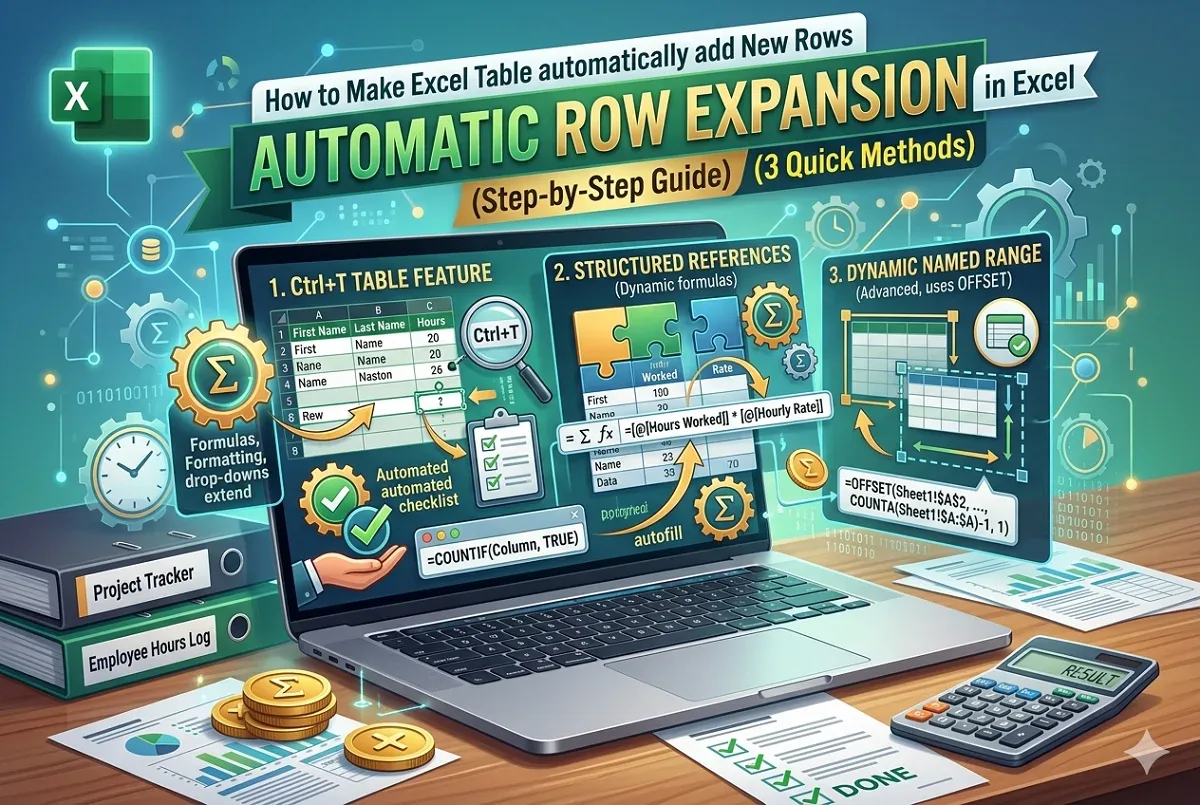
Learn how to make Excel tables automatically add new rows using table features, structured references, and dynamic named ranges.
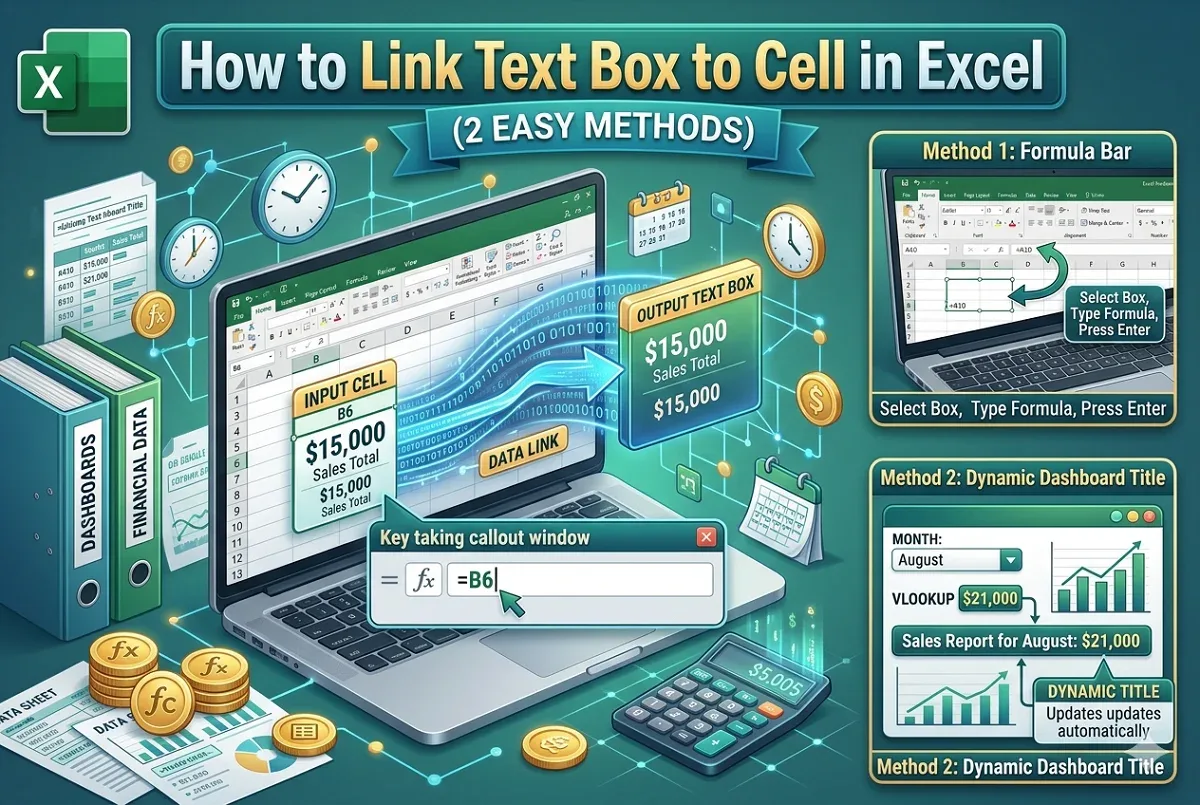
Learn how to link a text box to a cell in Excel for dynamic content, including using the formula bar and creating dynamic dashboard titles.
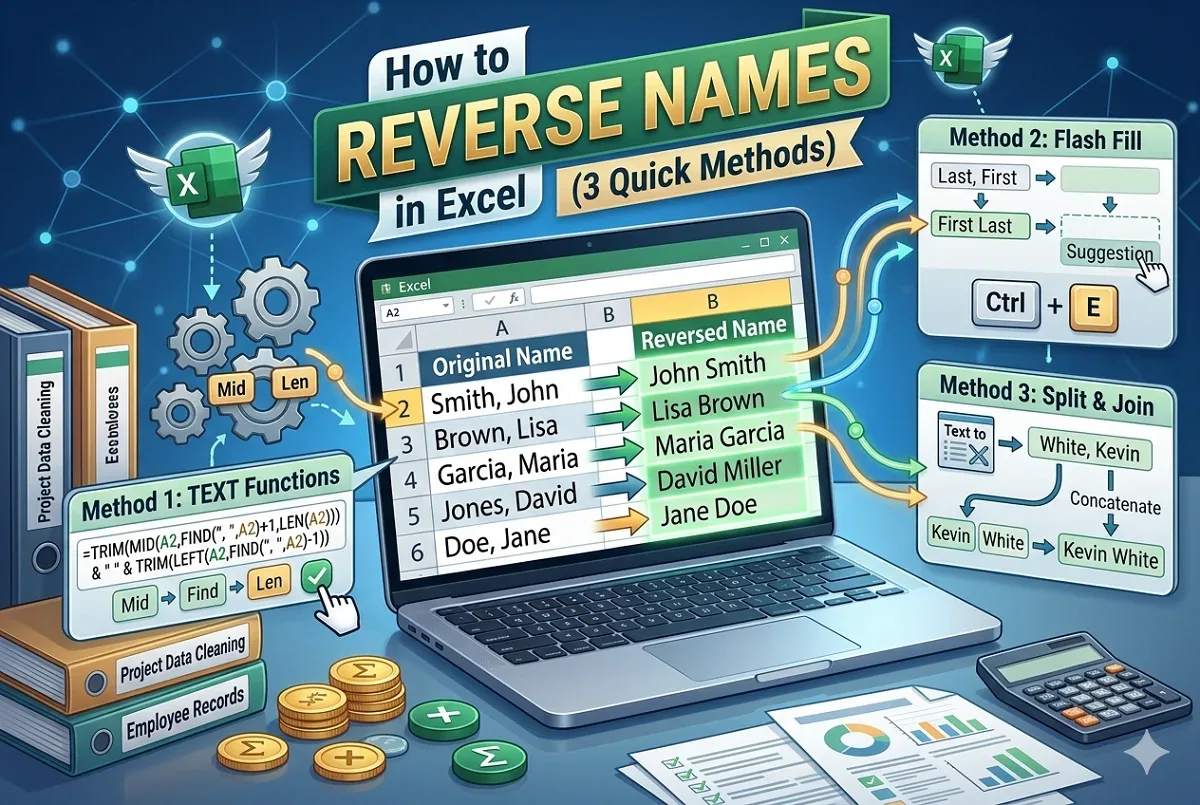
Learn how to reverse names in Excel using text functions, Flash Fill, or Text to Columns and concatenate for easy “Last, First” formatting.