Excel for Finance
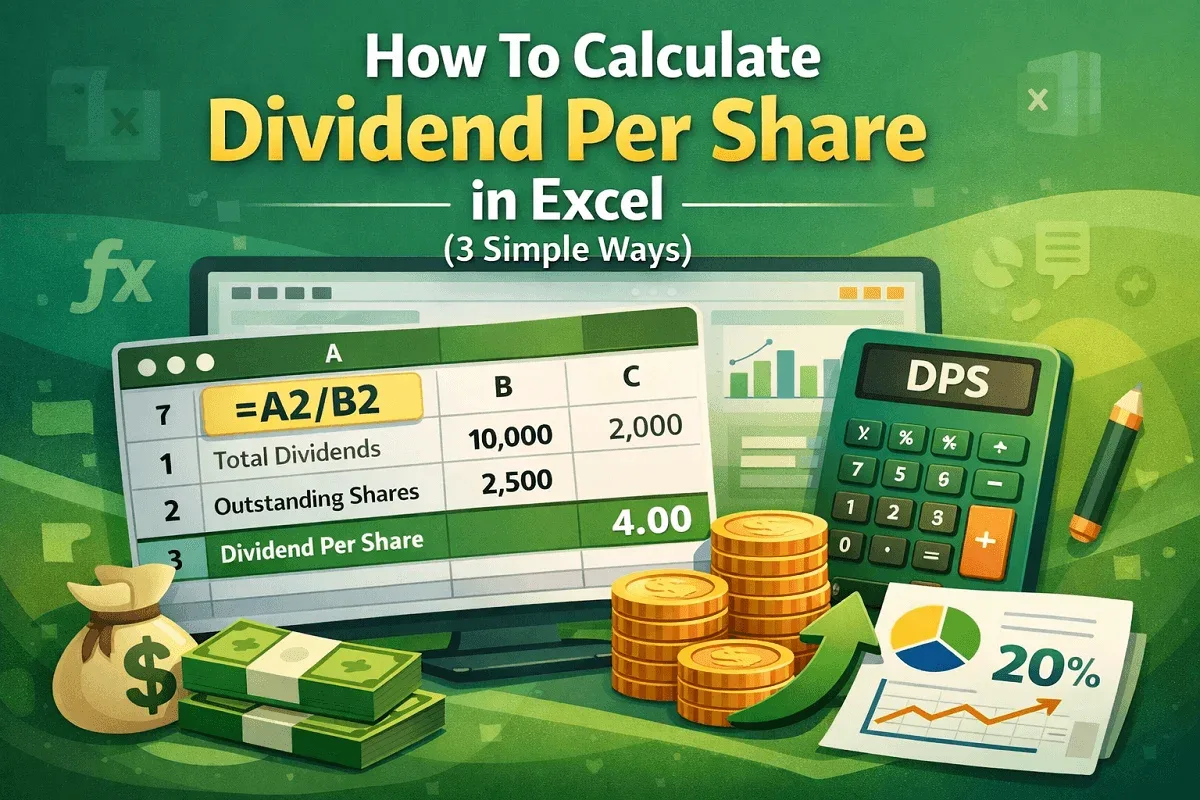
How to Calculate Dividend Per Share in Excel (3 Simple Ways)
Learn how to calculate Dividend Per Share in Excel using total dividends, outstanding shares, EPS, and payout ratios with easy formulas.
Read article


Rudra Nil Utsa holds a BBA and MBA in Marketing from Jahangirnagar University, where he developed strong analytical and spreadsheet-focused skills. With 3+ years of Excel experience, including 7 months dedicated to advanced workflows, he specializes in formulas, text functions, PivotTables, financial calculations, automation, and data cleanup. He has created extensive tutorials, workflow guides, and troubleshooting resources. He enjoys exploring formula tricks and automation techniques.
Articles by Rudra Nil Utsa are developed under the guidance of ExcelInsider’s core training program and are technically reviewed by Nehad Ulfat, lead spreadsheet consultant, to ensure accuracy and user-centric value.
Learn how to calculate Dividend Per Share in Excel using total dividends, outstanding shares, EPS, and payout ratios with easy formulas.
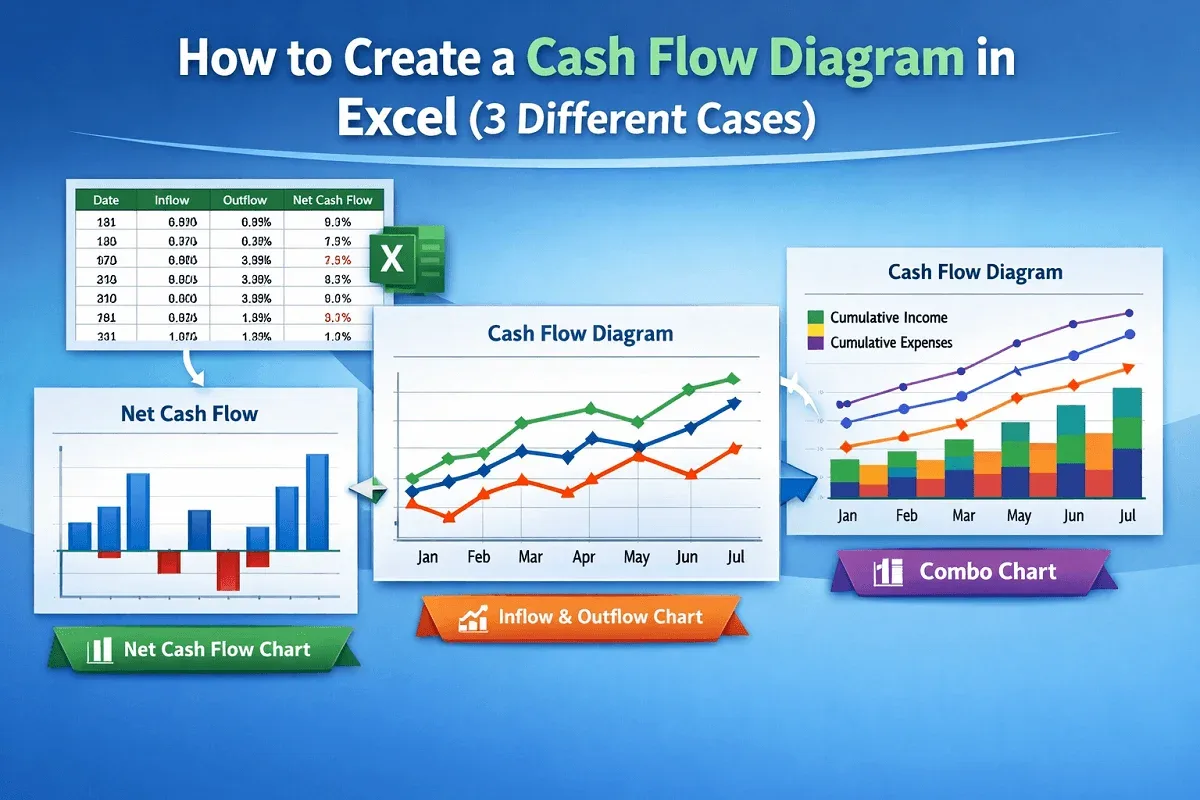
Learn how to create a cash flow diagram in Excel by visualizing inflows, outflows, and cumulative cash flow using a combo chart layout.
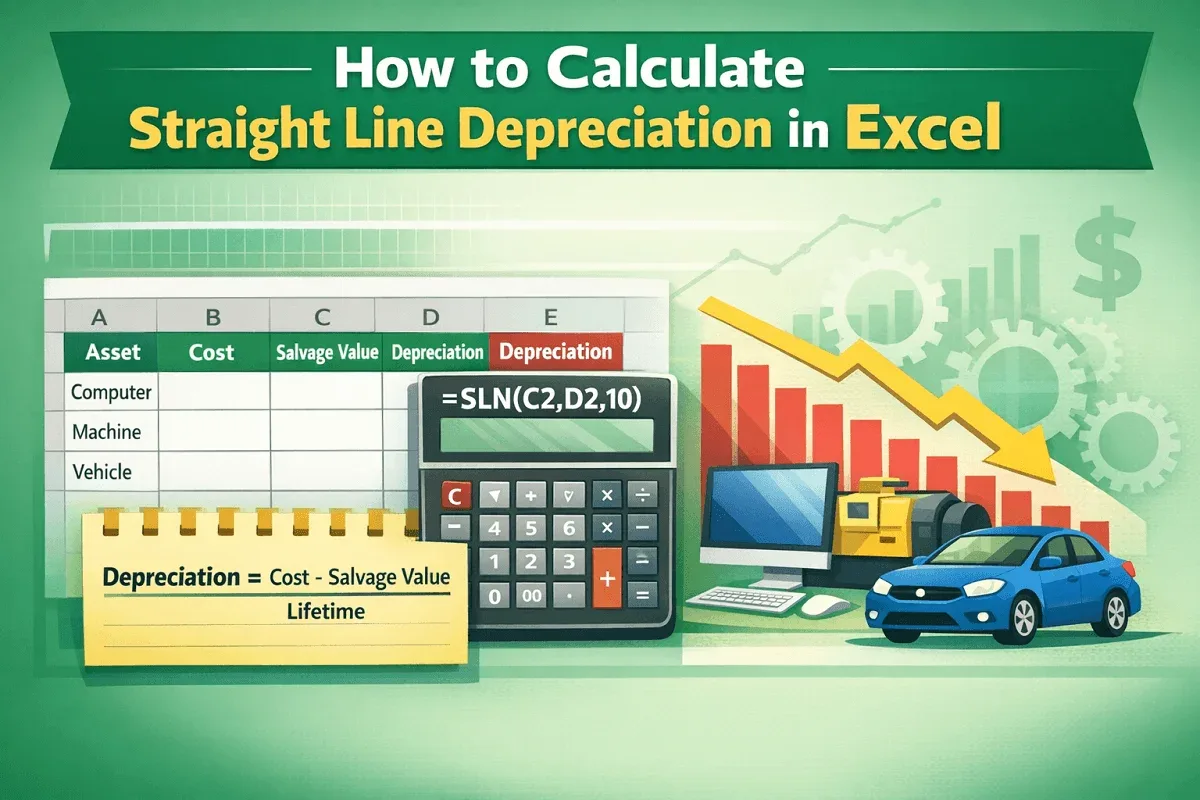
Learn how to calculate straight line depreciation in Excel using the SLN function or manual formula with clear, step-by-step guidance.
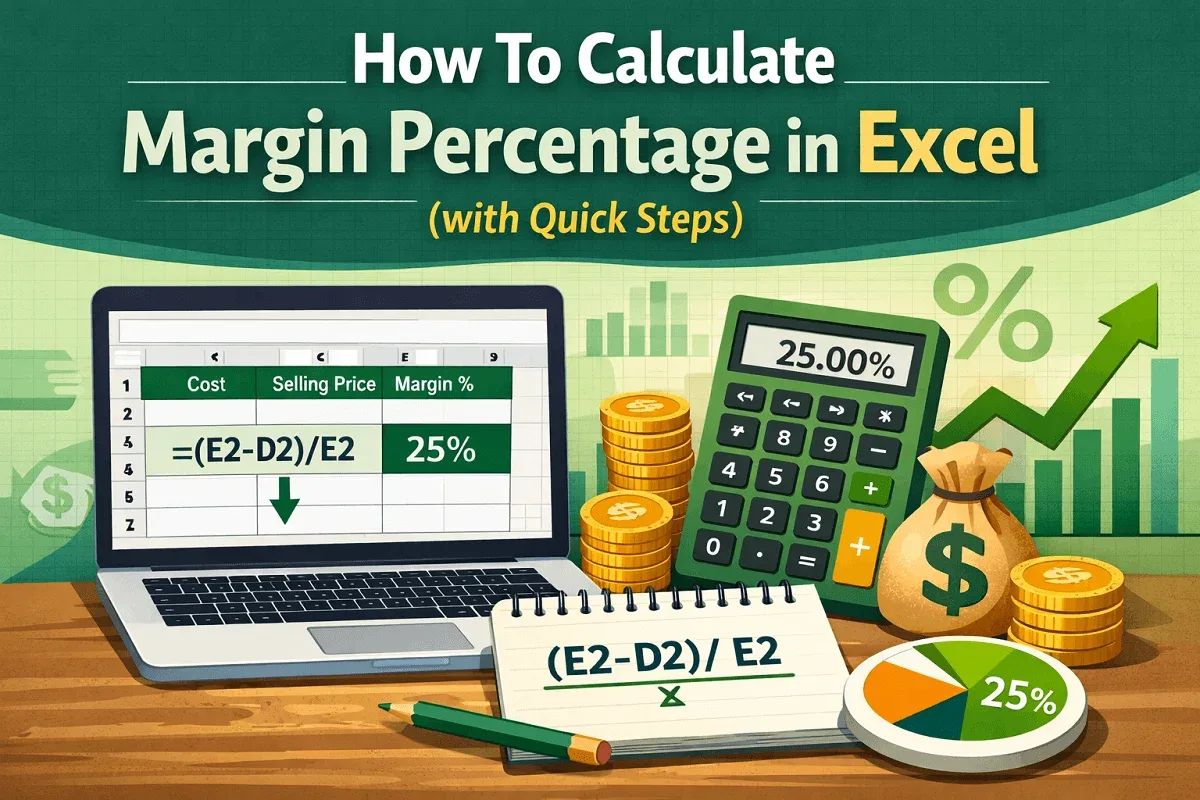
Learn how to calculate margin percentage in Excel with simple steps, including adding a column and using the correct formula.
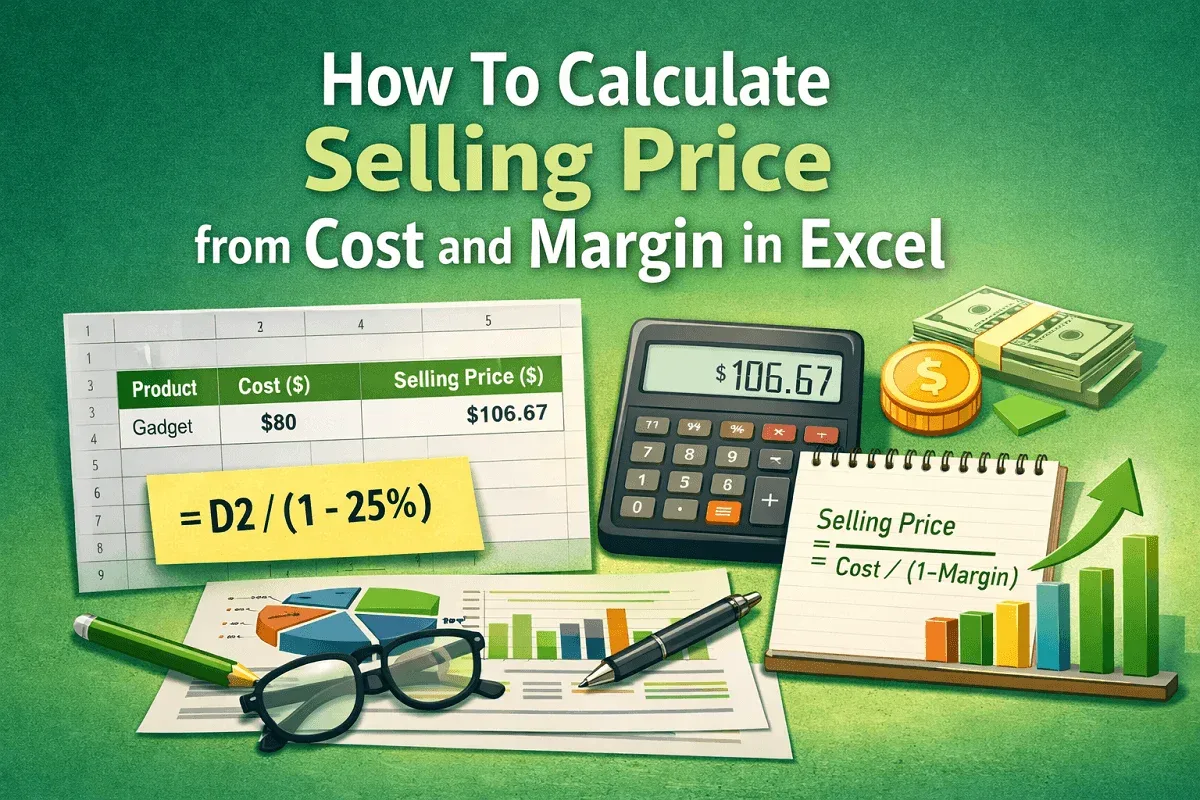
Learn how to calculate selling price from cost and margin in Excel by adding a helper column and applying the right formula step-by-step.
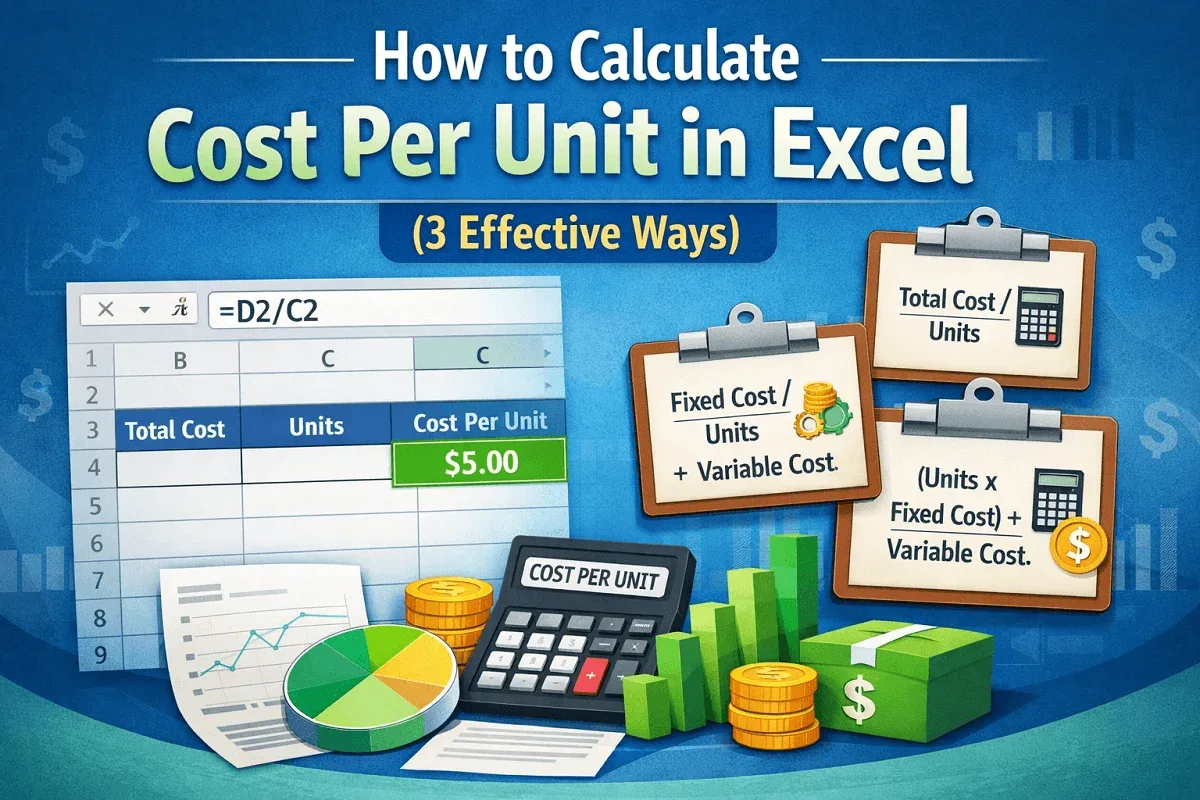
Learn how to calculate cost per unit in Excel using total cost, total fixed cost, and fixed cost per unit for accurate cost analysis.
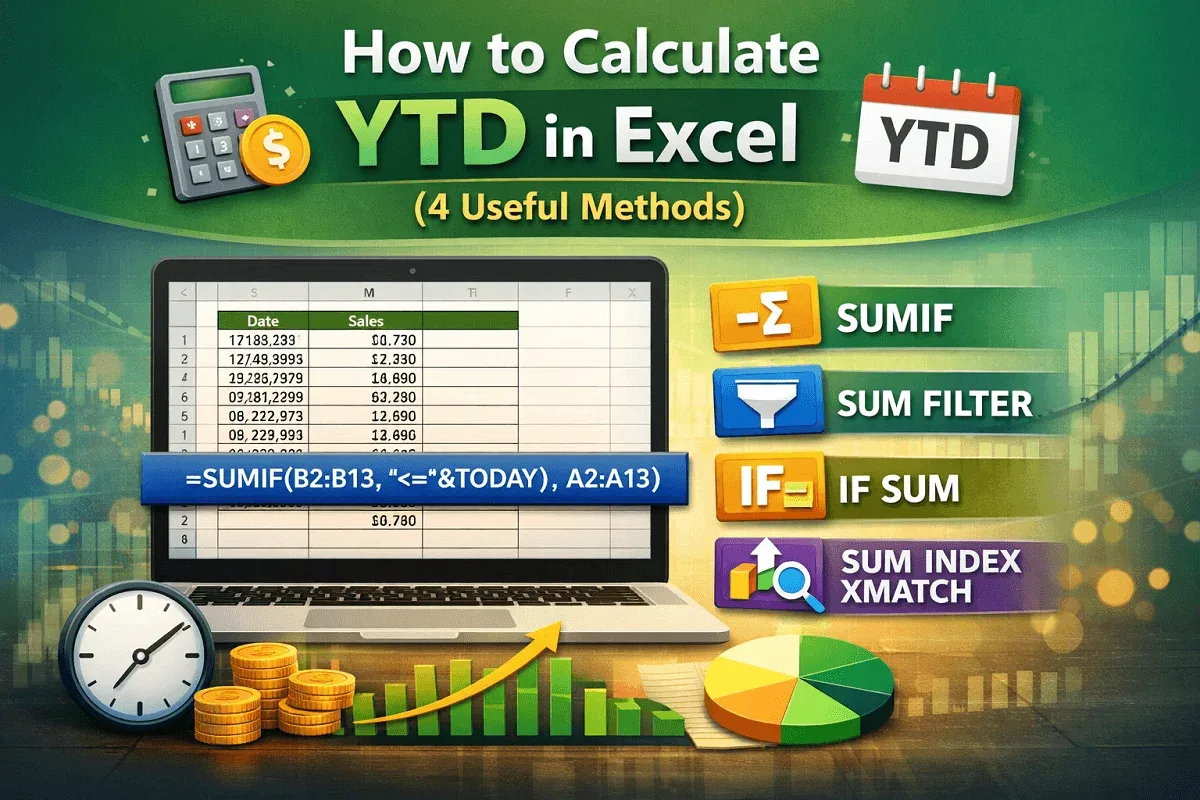
Learn how to calculate Year-to-Date (YTD) in Excel using SUMIF, SUM with FILTER, IF-SUM, and SUM-INDEX-XMATCH for dynamic YTD tracking.
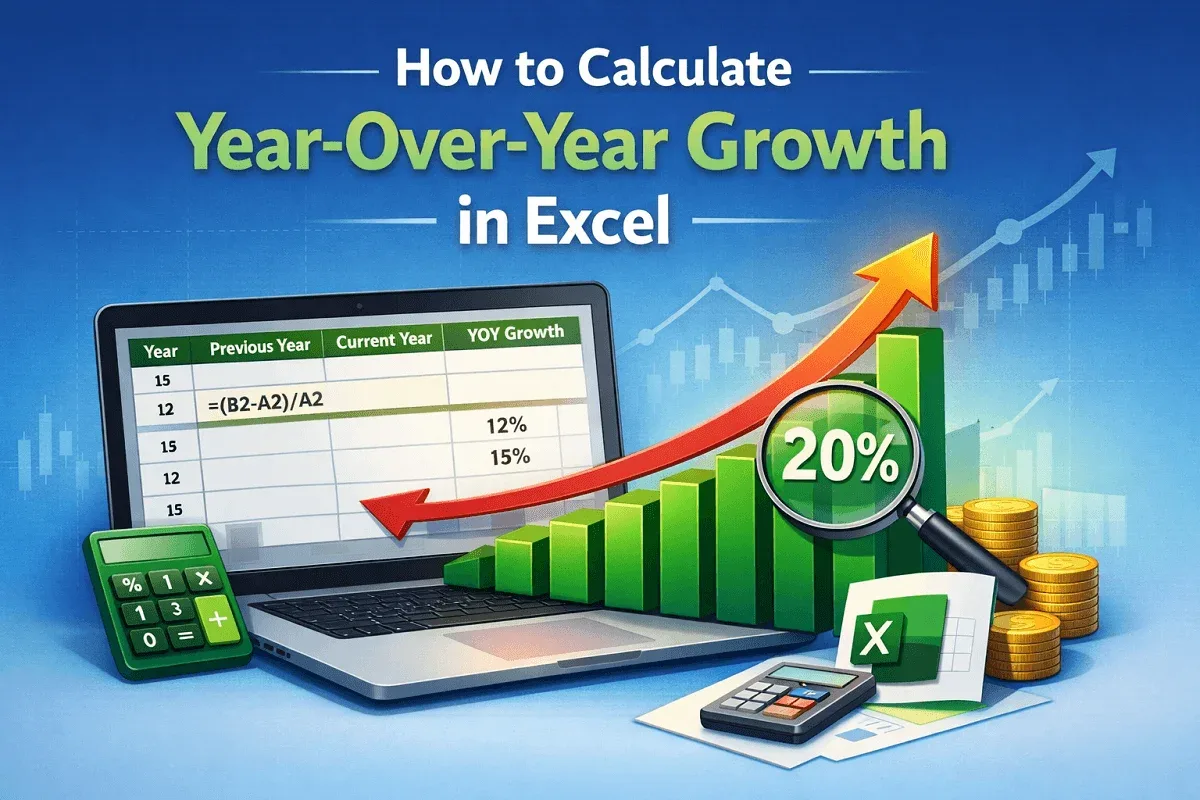
Learn how to calculate year-over-year growth in Excel using data from two or multiple years, including presuming growth rates effectively.
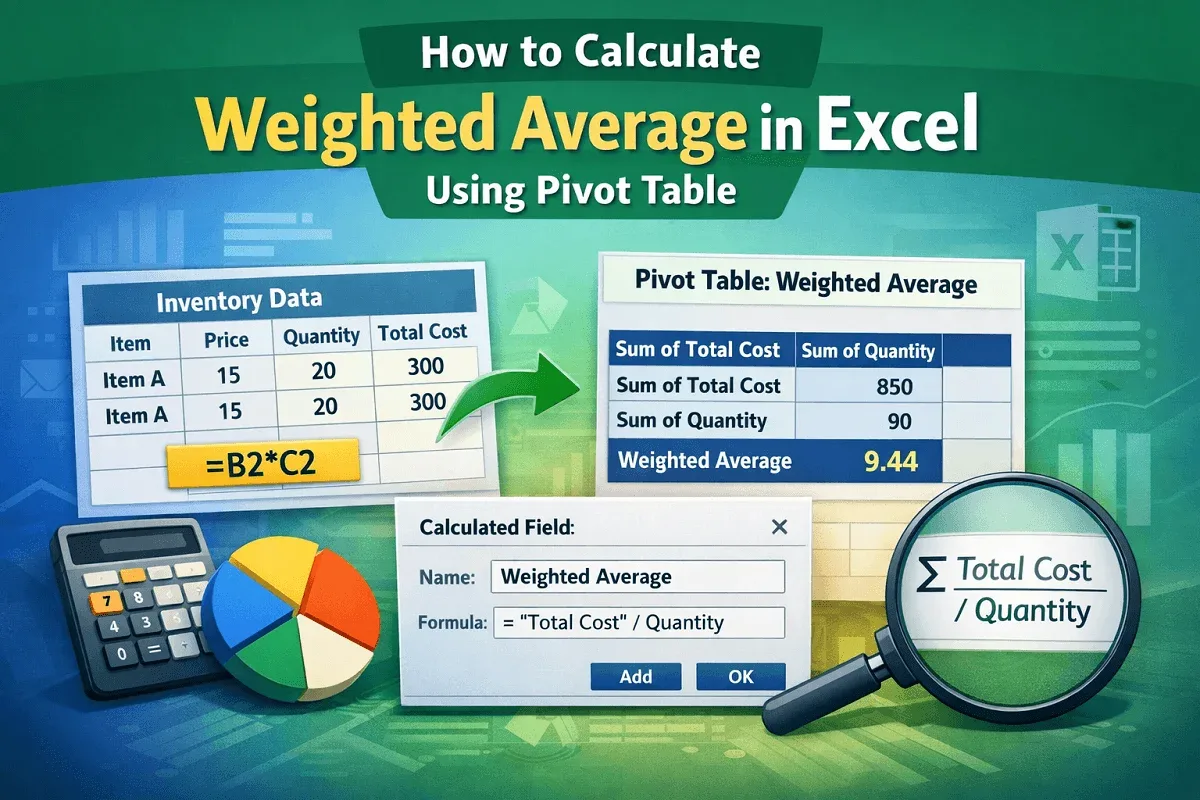
Learn how to calculate weighted average in Excel using a Pivot Table with helper columns and calculated fields in a few simple steps.
Learn how to create a Pivot Table calculated field in Excel that divides sum by count using a helper column and a custom formula step-by-step.
Learn how to use an IF statement in a Pivot Table’s calculated field in Excel, including applying conditions to text fields effectively.
Learn how to delete a calculated field in Excel PivotTables manually or by using VBA for quick and efficient cleanup of your data.