
The conditional check is an action where "If a cell contains a value, then do something" command is established. It is one of the most commonly used logical patterns in Excel VBA. This command is the basis for a variety of Excel automations, such as highlighting specific conditional data, copying rows of finished tasks or creating reports. This command recognizes specific text or numerical values inside a cell and initiates actions accordingly.
➤ Select Insert > Module.
➤ Copy and paste the following code in the module. Input your specific text or value in the searchTerm.
Sub ShowMessageIfContains()
    Dim ws As Worksheet
    Dim cell As Range
    Dim searchTerm As String
    Dim lastRow As Long
    Set ws = ThisWorkbook.Worksheets("Sheet1")
    searchTerm = "Paid"
    lastRow = ws.Cells(ws.Rows.Count, "B").End(xlUp).Row
    For Each cell In ws.Range("B2:B" & lastRow)
        If InStr(1, CStr(cell.Value), searchTerm, vbTextCompare) > 0 Then
            MsgBox "The word '" & searchTerm & "' was found in " & cell.Address
        End If
    Next cell
End SubWe have introduced the If Cell Contains Value Then command in Excel VBA thoroughly in this article along with the explanation of how it works. You will get to know how you can use this command to perform conditional checks and display, highlight specific values or even generate a separate worksheet containing the values.
What Is "If Cell Contains Value Then" in Excel VBA?
"If cell contains value then" is a conditional statement used in VBA to assess the contents of a cell or collection of cells and take action if a particular condition is fulfilled. It instructs the computer to examine a cell, check its contents for a condition (whether it includes a word or a number) and only act if that condition is met.
VBA first evaluates the If statement in the regular way. It reads the cell's value, compares it to the condition you've provided, and executes the code inside the Then block if it matches. If it doesn't match the condition, VBA either moves on to the next line or uses an Else block to carry out another action.
This structure has a great deal of flexibility. You can automate almost any rule-driven work in Excel VBA if you understand how to utilize it.
How Does "If Cell Contains Value Then" Logic Work in Excel VBA?
The general structure of the VBA code with “If Cell Contains Value Then” looks like this:
Sub ProcedureName()
For Each cell In ws.Range("A1:A" & lastRow)
If InStr(1, CStr(cell.Value), searchTerm, vbTextCompare) > 0 Then
' Action to perform if the cell contains the value
Else
' Optional: Action if it does not contain the value
End If
Next cell
End Sub
How this logical test works is explained below by breaking down the code:
For Each cell In ws.Range("A1:A" & lastRow)
Here, ws refers to the worksheet you’re working with. Range("A1:A" & lastRow) defines the area the code will search, which is from cell A1 down to the last non-empty row.
If InStr(1, CStr(cell.Value), searchTerm, vbTextCompare) > 0 Then
InStr determines if a substring is present in another string and the first argument 1 begins searching from the first character. CStr(cell.Value) converts the cell's contents to text if it is numbers or blanks. searchTerm will be the phrase, word or number of the condition. vbTextCompare makes the search case-insensitive. InStr returns a position number (such as 5 or 10) if it locates the specific value which is indicated by the condition > 0. Otherwise, it returns 0.
' Action to perform if the cell contains the value
Define what happens when the condition is true in this line. For instance, include MsgBox cell.Address & " contains the value!" here to display the text.
Else
' Optional: Action if it does not contain the value
This Else section is optional in the code. This line only runs when the cell does not contain the search term, meaning the condition is false. It is used to do another operation after not meeting the condition.
Examples of "If Cell Contains Value Then" Command in Excel
Example 1: Display a Message If the Corresponding Cell Contains A Specific Text
Sometimes, you need to identify which cells contain a specific value or text in the entire worksheet. You can’t look for the text manually in a large dataset. Excel VBA has the simplest way to check if a cell contains a particular word or phrase. By utilizing If Cell Contains Value Then, it will display a message box whenever a specific text appears in a range of cells.
Suppose, this is our dataset with invoice numbers and their status:
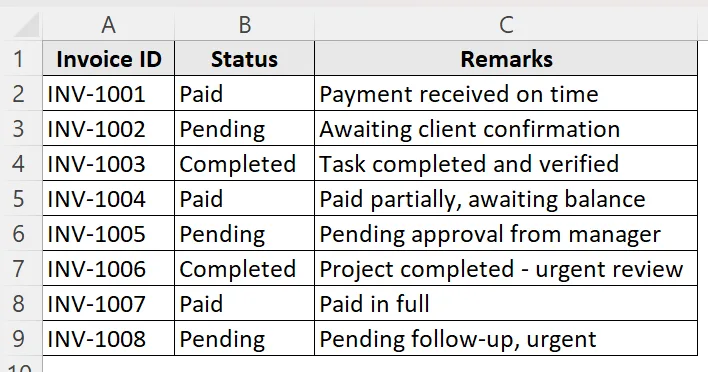
We want to identify the cells that contain the status Paid for easier identification.
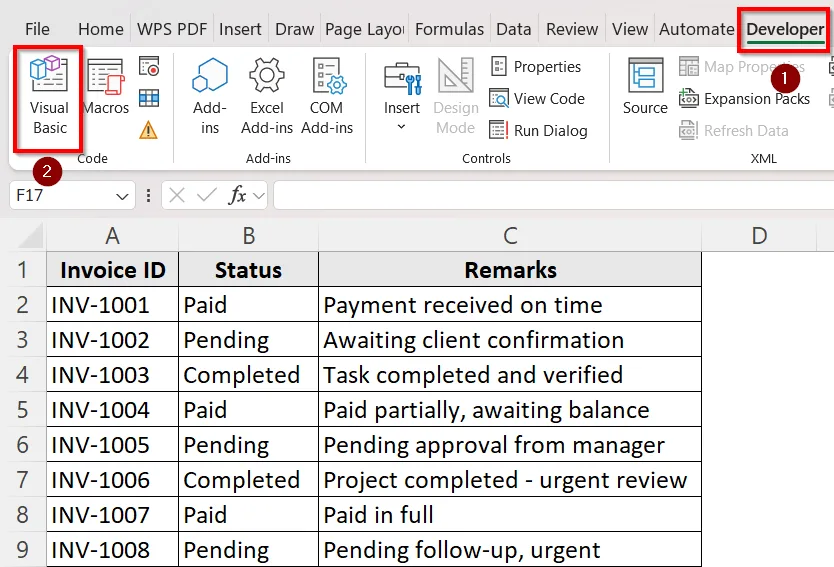
➤ Go to the Developer tab.
➤ Click on Visual Basic to open the VBA Editor.
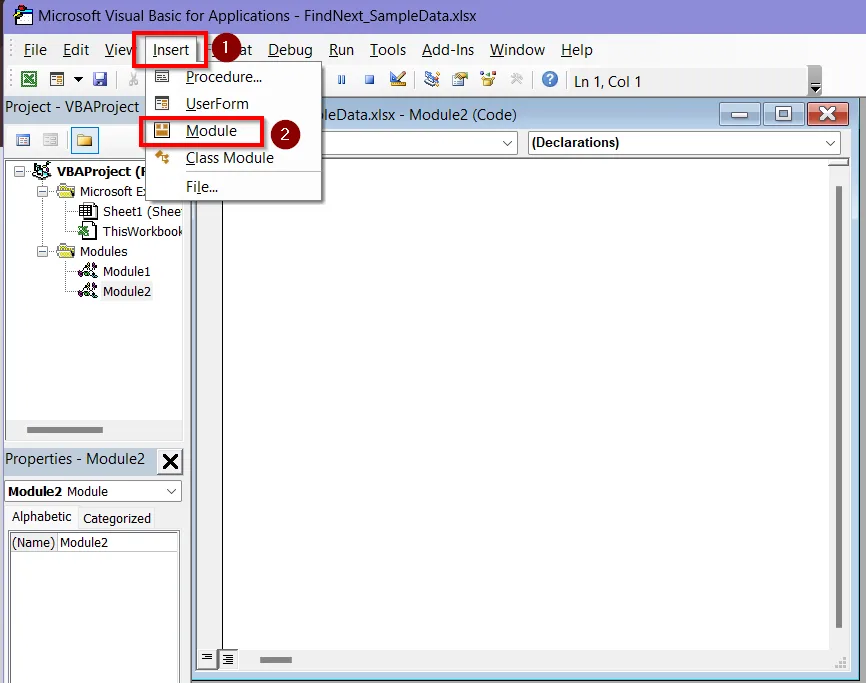
➤ Click on Insert and select Module. A new module in the VBA Editor window will open.
➤ Enter the following code in the module.
Sub ShowMessageIfContains()
    Dim ws As Worksheet
    Dim cell As Range
    Dim searchTerm As String
    Dim lastRow As Long
    Set ws = ThisWorkbook.Worksheets("Sheet1")
    searchTerm = "Paid"
    lastRow = ws.Cells(ws.Rows.Count, "B").End(xlUp).Row
    For Each cell In ws.Range("B2:B" & lastRow)
        If InStr(1, CStr(cell.Value), searchTerm, vbTextCompare) > 0 Then
            MsgBox "The word '" & searchTerm & "' was found in " & cell.Address
        End If
    Next cell
End Sub
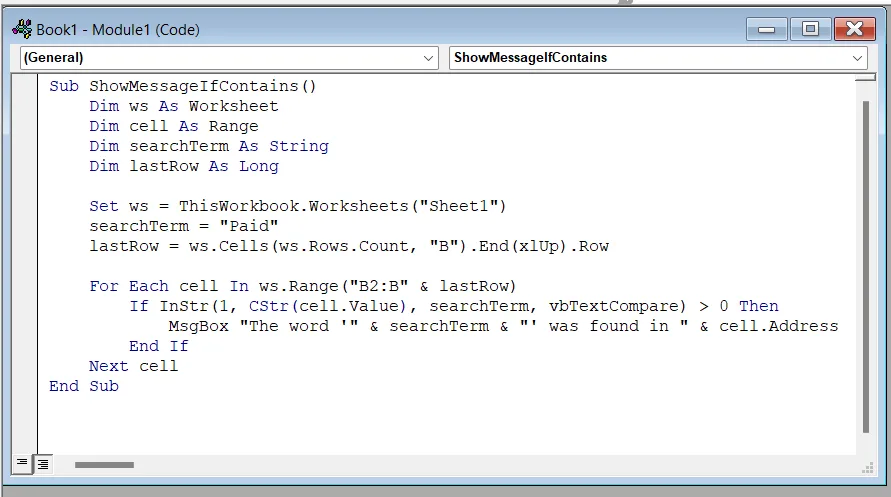
➥ searchTerm = "Paid" defines the specific text as Paid which VBA will look for in the worksheet.
➥ InStr(1, s, "Paid", vbTextCompare) checks if “Paid” appears anywhere in the cell’s text.
➥ MsgBox "The word '" & searchTerm & "' was found in " & cell.Address shows a message box saying which cell the text was found in if the condition is true.
➤ Click on Run > Run Sub/UserForm to execute the code.
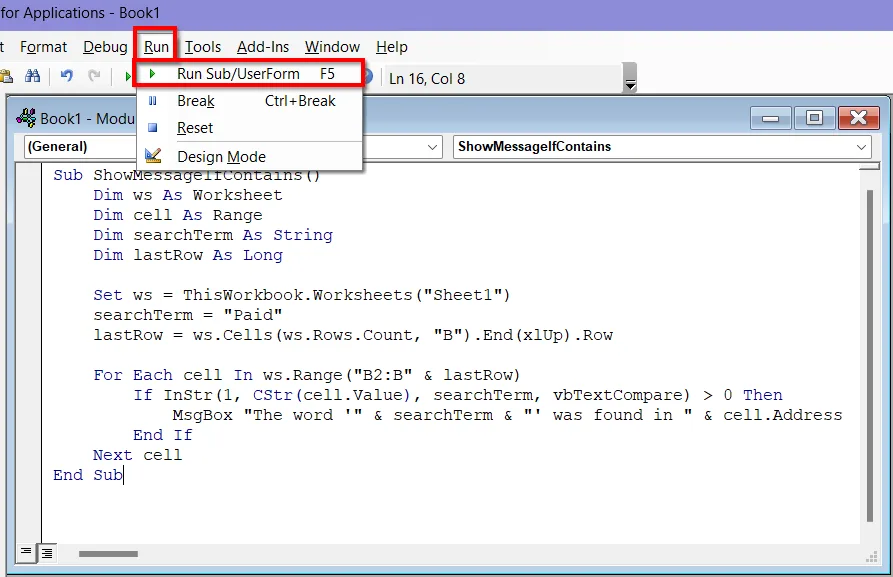
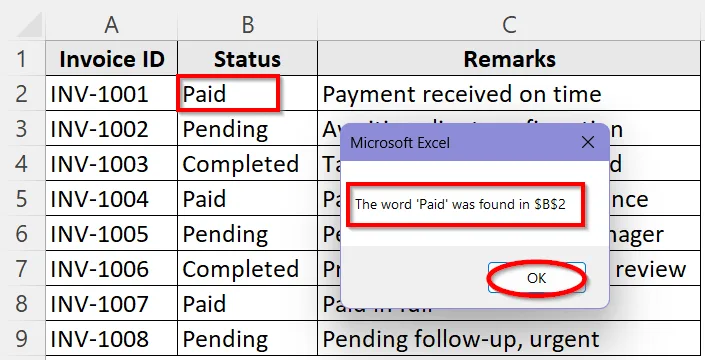
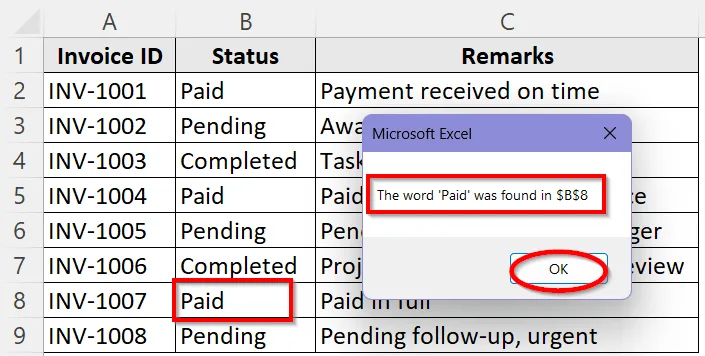
➤ You will see the result in a message box. The first Paid text is in cell B2. So the result shows- The word “Paid” was found in B2. Click OK to see the next cell this text is in.
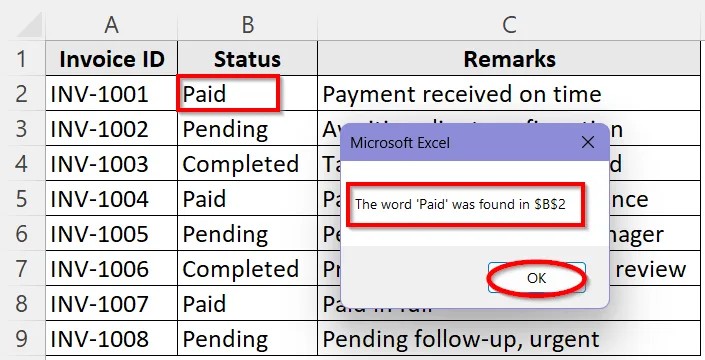
➤ The word “Paid” was found in B5 is the next result. Click OK to see the next cell.
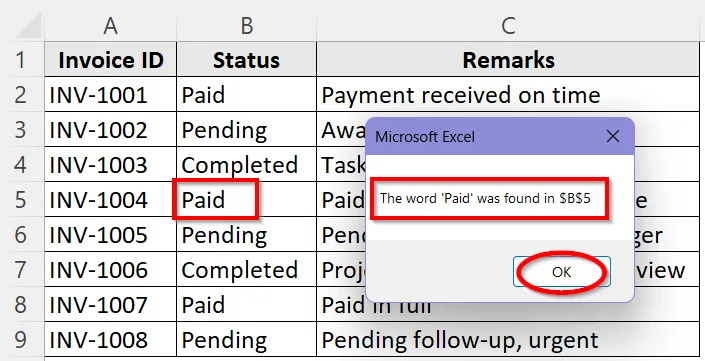
➤ The word “Paid” was found in B8 is the last result. Now when you click OK, the VBA will stop as there is no more Paid text in the worksheet.
Example 2: Highlight Cells If the Corresponding Cell Contains a Specific Text
One of the best methods to make important data or value stand out in a big dataset is color coding them. You can use the If Cell Contains Value Then command to check if a specific text is in the cell and then highlight that specific cell. This will allow you to see which tasks are finished and which still require attention.
Suppose, this is our dataset with invoice numbers and their status:
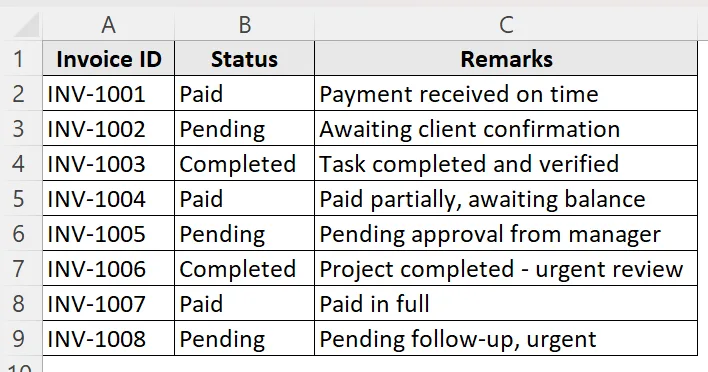
We want to generate a new report with all the Urgent remarks so that we can send those invoices the earliest.
➤ Go to the Developer tab.
➤ Click on Visual Basic to open the VBA Editor.
➤ Click on Insert and select Module. A new module in the VBA Editor window will open.
➤ Enter the following code in the module.
Sub ReportUrgentEntries()
Dim ws As Worksheet, outWS As Worksheet, cell As Range
Dim lastRow As Long, outRow As Long
Set ws = ThisWorkbook.Worksheets("Sheet1")
On Error Resume Next
Application.DisplayAlerts = False
ThisWorkbook.Worksheets("UrgentReport").Delete
Application.DisplayAlerts = True
On Error GoTo 0
Set outWS = ThisWorkbook.Worksheets.Add
outWS.Name = "UrgentReport"
outWS.Range("A1:D1").Value = Array("Row", "Column", "Value", "Position")
outRow = 2
lastRow = ws.Cells(ws.Rows.Count, "C").End(xlUp).Row
For Each cell In ws.Range("C2:C" & lastRow)
If InStr(1, CStr(cell.Value), "Urgent", vbTextCompare) > 0 Then
outWS.Cells(outRow, "A").Value = cell.Row
outWS.Cells(outRow, "B").Value = cell.Column
outWS.Cells(outRow, "C").Value = cell.Value
outWS.Cells(outRow, "D").Value = InStr(1, CStr(cell.Value), "Urgent", vbTextCompare)
outRow = outRow + 1
End If
Next cell
outWS.Columns("A:D").AutoFit
MsgBox "Report generated with " & outRow - 2 & " urgent entries."
End Sub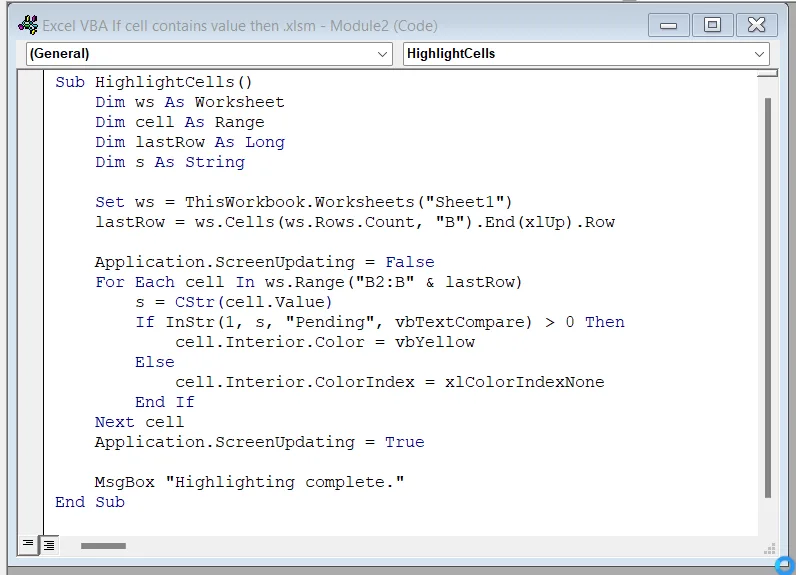
➥ If InStr(1, s, "Pending", vbTextCompare) > 0 checks if “Pending” appears anywhere in the cell’s text.
➥ Then cell.Interior.Color = vbYellow highlights the cells if the condition is true.
➥ Else cell.Interior.ColorIndex = xlColorIndexNone does not highlight the cell where the condition is not satisfied.
➤ Click on Run > Run Sub/UserForm to execute the code.
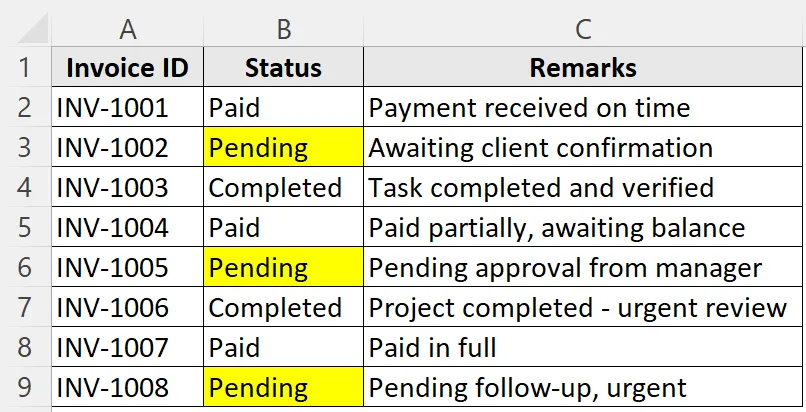
➤ Now, all the cells containing the text Pending will be highlighted in the worksheet.
Example 3: Generate a Report of All Entries If the Corresponding Cell Contains a Specific Text
This example demonstrates how to create a clear, condensed report on a new sheet by searching for a specific term in the worksheet. All matches including the text are gathered, their row and column locations are noted, and the results are presented in a well-formatted summary table by the VBA macro. In real-world reporting assignments this type of routine is extremely helpful, to extract important information from a dataset.
Suppose, this is our dataset with invoice numbers and their status:
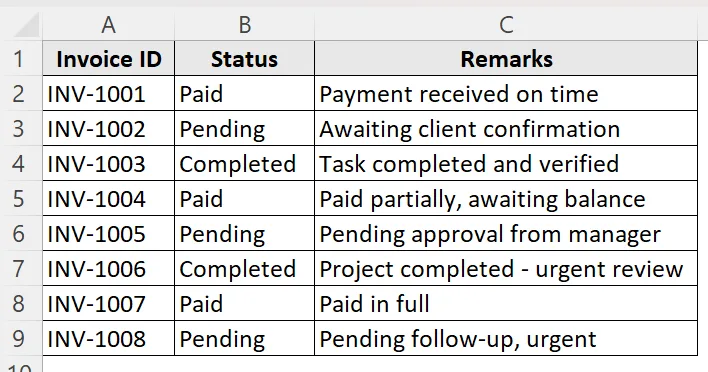
We want to generate a separate report containing all the urgent invoices from the worksheet.
➤ Go to the Developer tab.
➤ Click on Visual Basic to open the VBA Editor.
➤ Click on Insert and select Module. A new module in the VBA Editor window will open.
➤ Enter the following code in the module.
Sub ReportUrgentEntries()
    Dim ws As Worksheet, outWS As Worksheet, cell As Range
    Dim lastRow As Long, outRow As Long
    Set ws = ThisWorkbook.Worksheets("Sheet1")
    On Error Resume Next
    Application.DisplayAlerts = False
    ThisWorkbook.Worksheets("UrgentReport").Delete
    Application.DisplayAlerts = True
    On Error GoTo 0
    Set outWS = ThisWorkbook.Worksheets.Add
    outWS.Name = "UrgentReport"
    outWS.Range("A1:D1").Value = Array("Row", "Column", "Value", "Position")
    outRow = 2
    lastRow = ws.Cells(ws.Rows.Count, "C").End(xlUp).Row
    For Each cell In ws.Range("C2:C" & lastRow)
        If InStr(1, CStr(cell.Value), "Urgent", vbTextCompare) > 0 Then
            outWS.Cells(outRow, "A").Value = cell.Row
            outWS.Cells(outRow, "B").Value = cell.Column
            outWS.Cells(outRow, "C").Value = cell.Value
            outWS.Cells(outRow, "D").Value = InStr(1, CStr(cell.Value), "Urgent", vbTextCompare)
            outRow = outRow + 1
        End If
    Next cell
    outWS.Columns("A:D").AutoFit
    MsgBox "Report generated with " & outRow - 2 & " urgent entries."
End Sub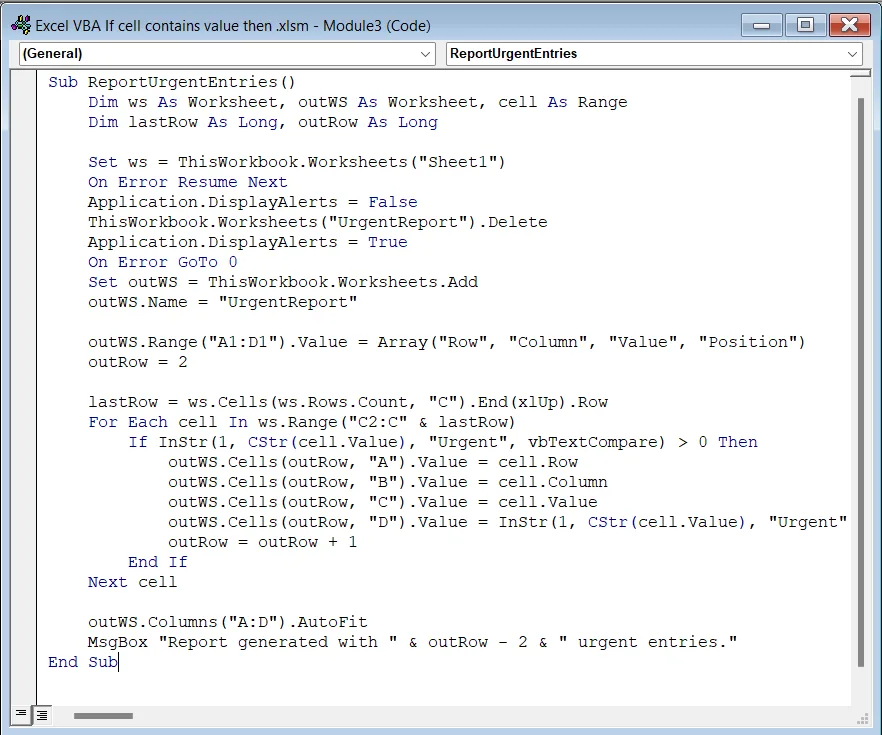
➥ If InStr(1, CStr(cell.Value), "Urgent", vbTextCompare) > 0 Then checks if the cell contains "Urgent".
➥ outWS.Cells(outRow, "D").Value = InStr(1, CStr(cell.Value), "Urgent", vbTextCompare writes the matching details to the report if the cell contains the specific text.
➥MsgBox "Report generated with " & outRow - 2 & " urgent entries shows the total number of entries with the specific text Urgent in the report.
➤ Click on Run > Run Sub/UserForm to execute the code.
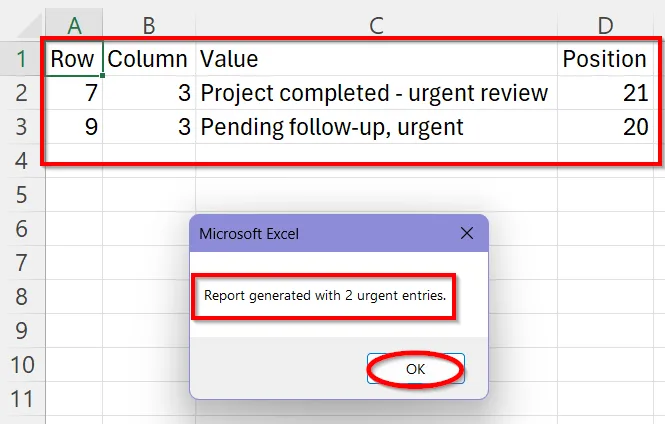
➤ Now, a new worksheet containing all the information about every single entry with the word Urgent is generated. This report includes the row, column, the entire text and the position of the entries in the original worksheet. Click OK to end the macro.
Downloadable Resources
Get our practice workbook or necessary files that we have worked with to prepare this article.
Return Output Based on Cell Content.xlsx
Frequently Asked Questions (FAQs)
How Do I Make The Search Case-insensitive While Running The Code?
Adding the command vbTextCompare in the InStr function makes the search running case-insensitive. This is necessary as it ignores the differences between paid, Paid or PAID. as long as the text exists in the sheet in any form, it is detected this way. An example of how you can use this is:
If InStr(1, CStr(cell.Value), "paid", vbTextCompare) > 0 Then
Can I Search for Multiple Values at Once in the VBA Macro?
Yes, you can search for more than one single text in this method. Add logical operators like Or, And between two different conditions to search for multiple values.
For instance,
If InStr(1, CStr(cell.Value), "Paid", vbTextCompare) > 0 Or _
InStr(1, CStr(cell.Value), "Completed", vbTextCompare) > 0 Then
This will look for both the texts Paid and Completed in the worksheet at the same time.
Can I Use If Cell Contains Value Then Command if a Cell is Empty or Contains a Number?
If Cell Contains Value Then command can be used without any error even if the cell is empty or has a numerical value. Wrapping empty cells or non-text values in CStr() first converts the cell's content to a string and then inspects it. This guarantees that your macro will function properly even if your data isn't entirely text based.
Wrapping Up
One of VBA's most effective techniques for transforming static spreadsheets into intelligent, automated systems is the "If cell contains value then" condition. These conditional checks save time and effort by automating repetitive manual tasks in a fast, dependable, and error-free manner.
We have learnt that we can do a variety of tasks using this command, starting from highlighting cells to generating dynamic, concise reports. Hope this guide was helpful for you to understand this command better and create necessary loops for automation by yourself.