If you’re using Google Sheets to enter and keep track of your data, you’re likely to have negative numbers on your spreadsheet for money reports, temperature changes, stock lists, survey results, etc. But sometimes, you need to change those negative numbers into positive ones for purposes of study or other research. Thankfully, Google Sheets provides a simple way to accomplish this.
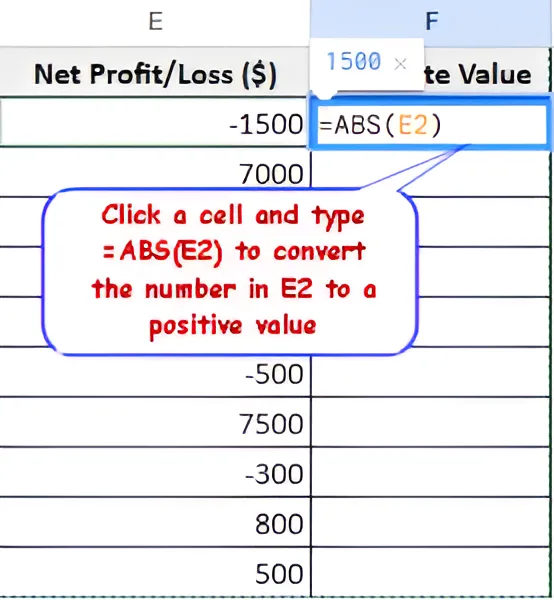
➤ Click the cell where you want to see the positive number.
➤ Type the following formula:
=ABS(E2)
➤ Click Enter to make it work.
For example, here if cell E2 has -950, putting =ABS(E2) in a new cell will show 950.
In this article, we will talk about five easy ways to turn negative numbers into positive ones in Google Sheets: using the ABS function, times by -1, IF function, Find and Replace tool, ARRAYFORMULA function, and the Power Tools add-on.
Using the ABS Function
One of the easiest and quickest ways to turn negative numbers in Google Sheets into positive ones is to use the ABS function. This function turns any negative number into a positive one but will keep the numerical values or the digits the same.
Let's say we have a data set with some negative numbers in column E, and we want to convert those in another column to positive values using the ABS function.
➤ Click on the cell where you want the positive value to appear—for example F2.
➤ Type the formula:
=ABS(E2)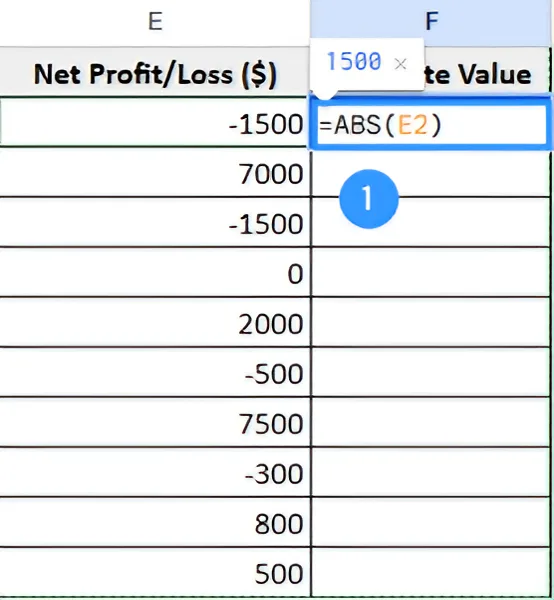
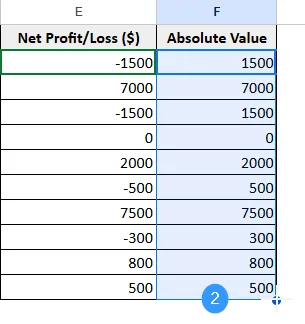
➤ Press Enter and now the cell will display the positive version of the number in E2.
➤ If you need to apply the same formula to the rest of the column, just use the fill handle (the small square in the bottom right corner of the cell) and drag it down to autofill the remaining rows.
Multiplying by -1
Another easy way to turn a negative number into a positive number in Google Sheets is to multiply the number by -1. It's actually very simple to turn numbers the other way around — the negative could be turned into the positive and vice versa.
➤ Select the cell where you want the positive value.
➤ Enter the formula in cell F2 and press Enter:
=E2*-1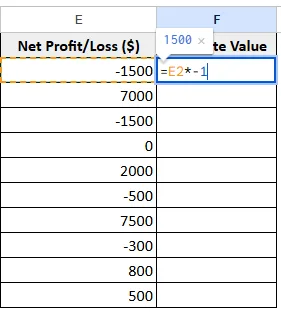
➤ After auto-filling the entire column, here’s the output you’ll see:
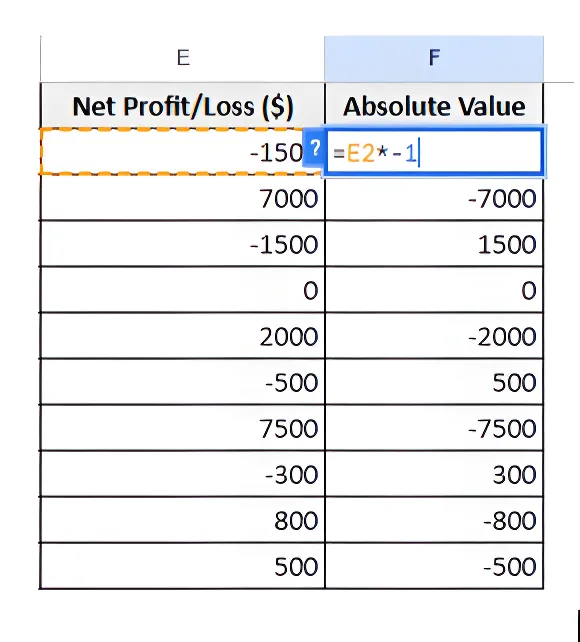
Using =E2*-1 will have it autofill as =E3*-1, =E4*-1, etc so you would have to do each cell manually if there is a column of positive numbers.
Using the IF Function
The IF function essentially means "if that condition is true or not" and provides different results if it is or isn't true. In this case, the function is checking to see if a number is negative, and if it is, multiplying that number by (- 1) to make it positive. If not, just return to the original number.
➤ Click on the cell where you want the result to go.
➤ Type the formula in cell F2:
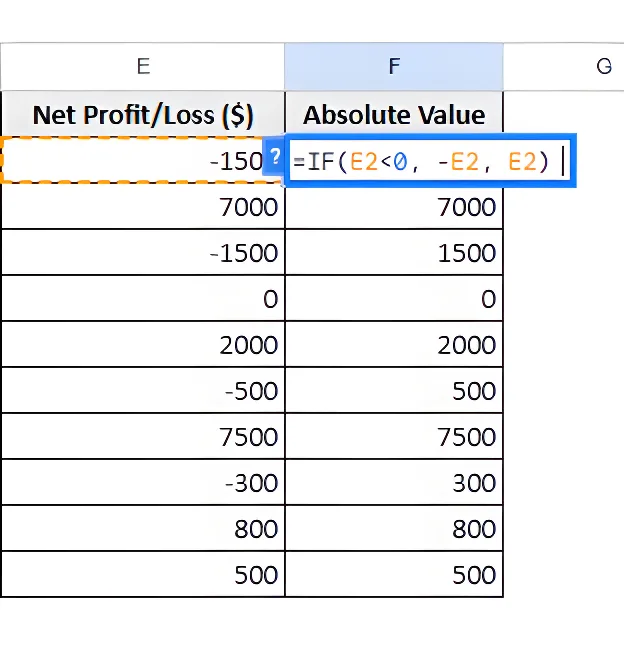
=IF(E2<0, -E2, E2)➤ And press Enter.
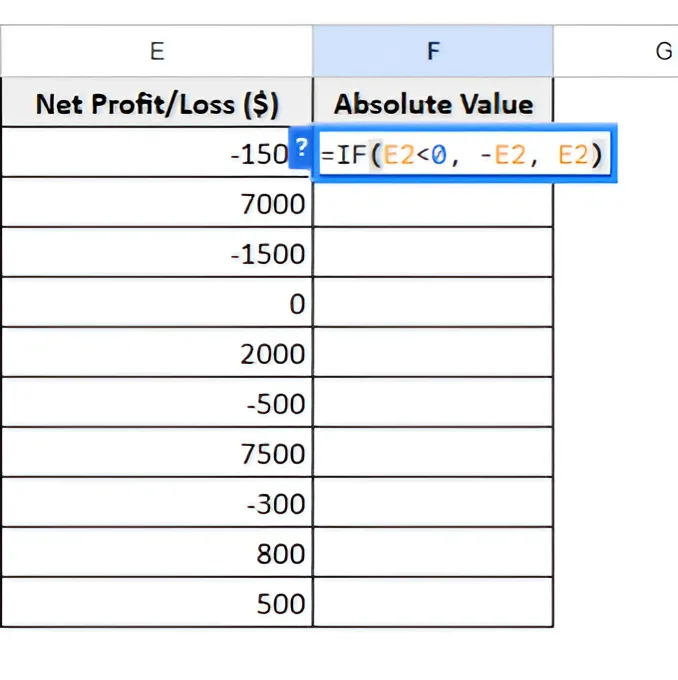
➤ After auto-filling the entire column, here’s the output you’ll see:
Using ARRAYFORMULA for the Entire Column
If you are using a large dataset in Google Sheets, and it was just taking a bit more time manually dragging formulas to every column. Fortunately, you can use the ARRAYFORMULA function in Google Sheets so that you don't have to drag the ABS function one column at a time.
ARRAYFORMULA lets you perform calculations on a wide range of cells by using only one formula. Using the ABS function, it will turn all cells in a column that contains negative numbers into positive ones.
➤ Click on the cell where you want the results to start (e.g., F2).
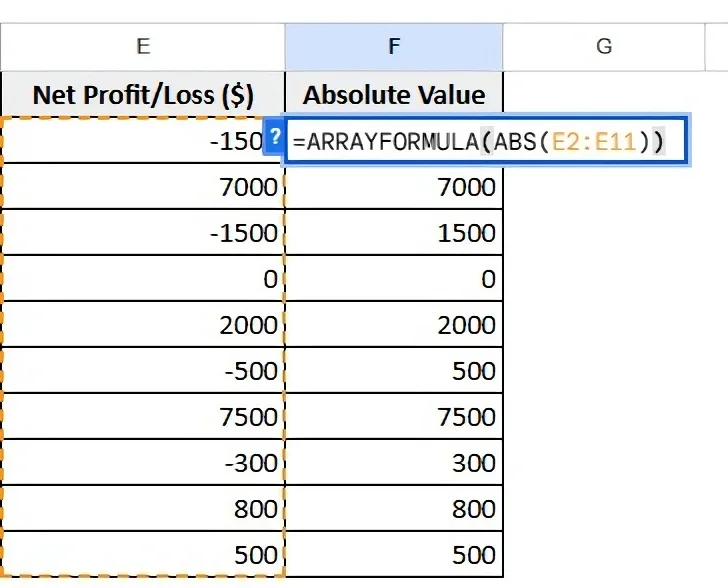
➤ Type the following formula:
=ARRAYFORMULA(ABS(E2:E11)).➤ Press Enter. Here’s the output you’ll see:
Using Find and Replace Tool
If you are looking for a quick and easy way to make negative numbers positive in Google Sheets without using formulas then the Find and Replace tool can be a great help. The main purpose of this is to remove the "-" sign from all selected data which turns the value into a positive number.
This method is best used for a one-time conversion where you don't want to keep the original data. It can work best where you are not dealing with any form of formula and not with any text as well. Just use Find and Replace to remove the negative sign.
➤ Select the range of cells that contain the negative numbers, here in column E.
➤ Press Edit to open the Find and Replace dialog box.
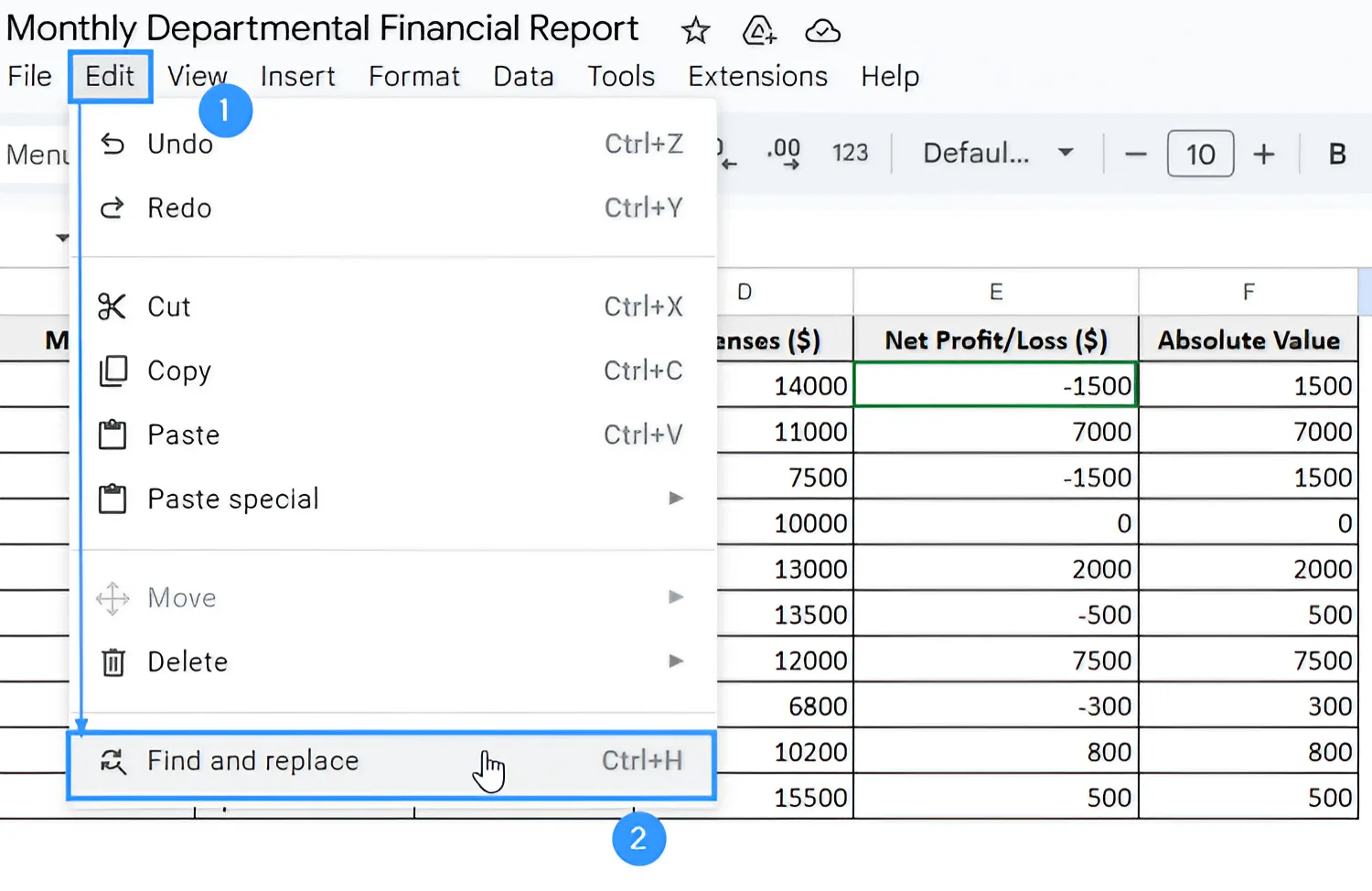
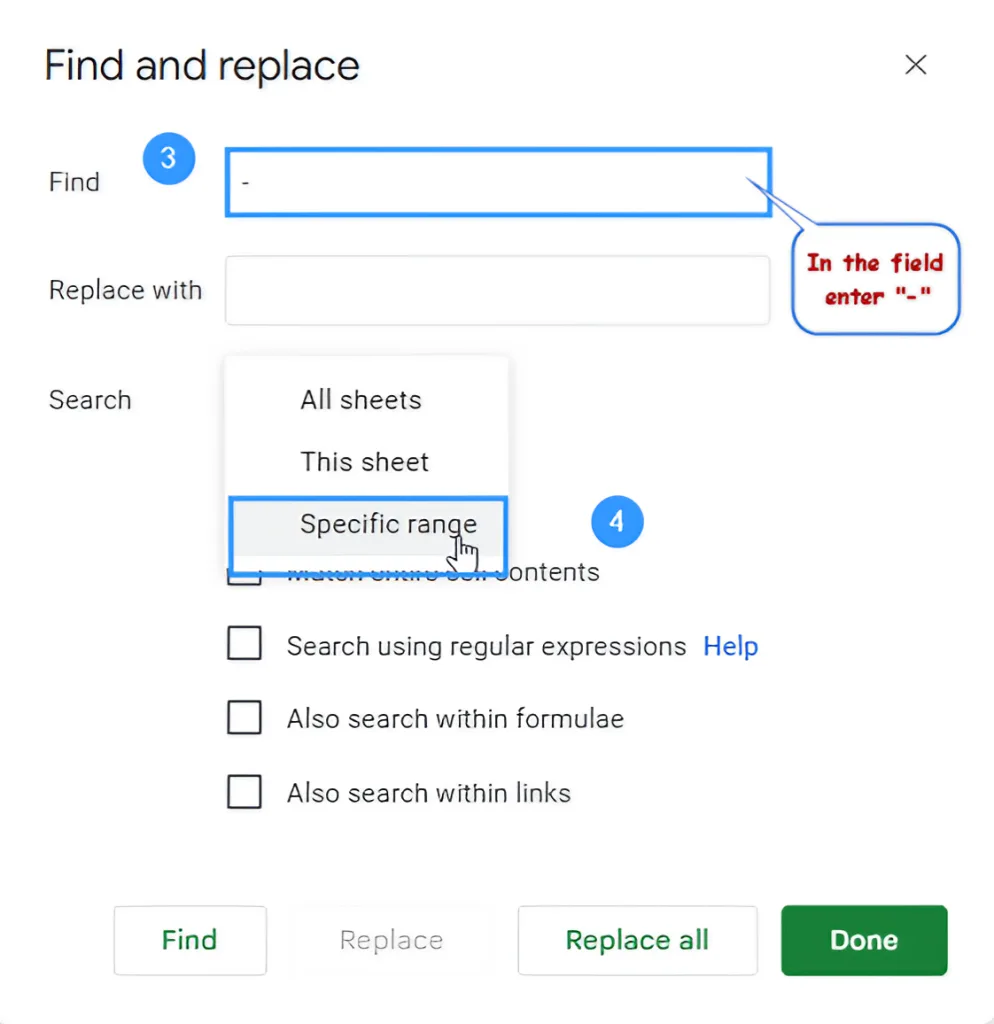
➤ In the Find field, type a minus sign: -
➤ Click on Search and choose the Specific range option.
➤ Enter the range Sheet1!E2:E11.
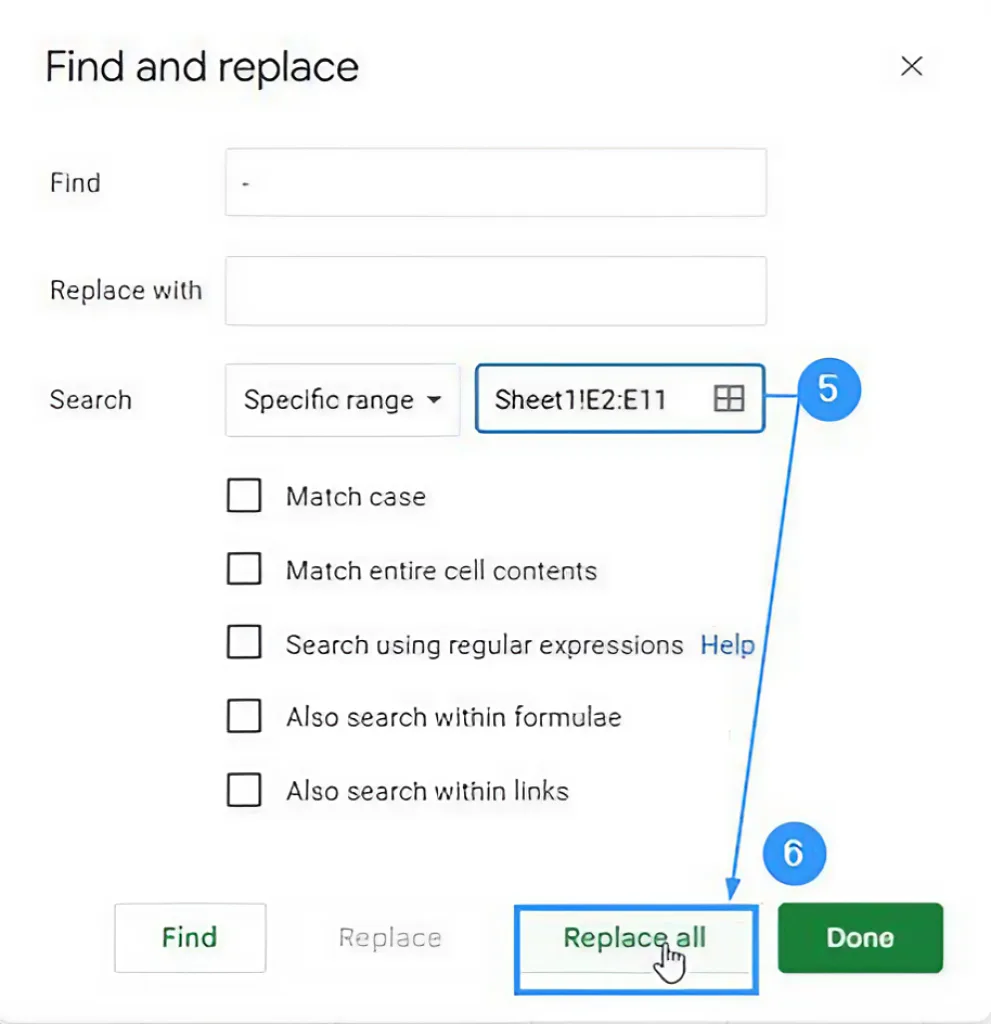
➤ Click on Replace all.
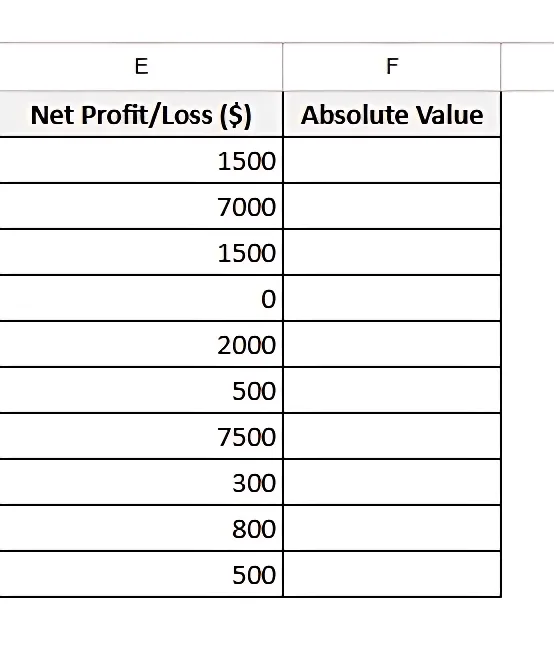
➤ Here’s the output you’ll see:
Practice Resources
Get our practice workbook or necessary files that we have worked with to prepare this article.
Change Negative Numbers to Positive in Google Sheets [Make a Copy]
Frequently Asked Questions
Can Find and Replace change positive numbers?
No. It just swaps out the minus sign (-). Positive numbers still stay the same.
Can I turn negative numbers into positive numbers without affecting other formulas?
Yes. Insert the ABS function in a new cell. This keeps old formulas from affecting.
Can you undo Find and replace in Excel?
Suppose you hit Ctrl + Z or the Undo button. However, it's best to copy your numbers before making huge changes.
Can I use conditional formatting to highlight negative numbers before converting them?
Yes. You can definitely use conditional formatting with a custom formula =A1<0 to show negative numbers. This makes it easy to see the numbers before you change them.
Concluding Words
You can easily change negative numbers to positive numbers in Google Sheets using formulas, tools, or add-ons. Take the method that works best for your data and workflow to keep your spreadsheets clean and ready for analysis.