We can easily manage and analyse data using Google Sheets. Sometimes, we need to save our Google Sheets data in CSV (Comma-Separated Values) format. CSV format is widely used because it’s lightweight, supported by almost every application, and easy to share. In this article, we’ll explore all the methods for saving Google Sheets as CSV.
➤ Open your Google Sheet.
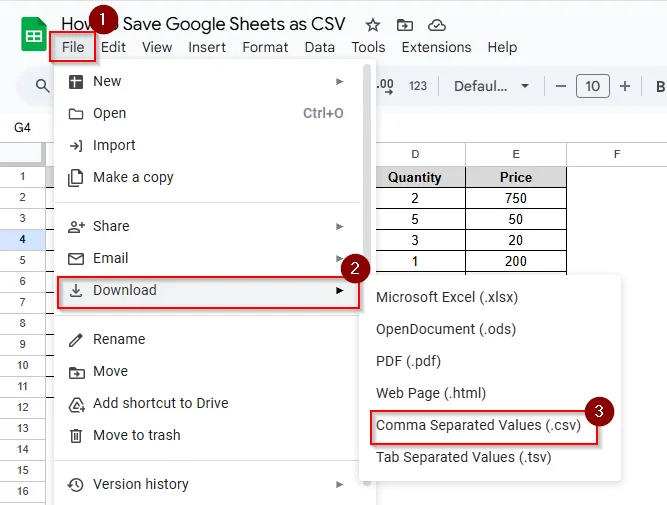
➤ From the top menu, click File > Download.
➤ Select Comma Separated Values (.csv). The current sheet will be downloaded in .csv format.
In this article, we will learn how to save Google Sheets as CSV using various methods. Download as CSV, Publish to the Web as CSV, Export Using Google Apps Script, Copy and Paste into a Text Editor are the ways to save Google Sheets as CSV.
Download as CSV from Google Sheets
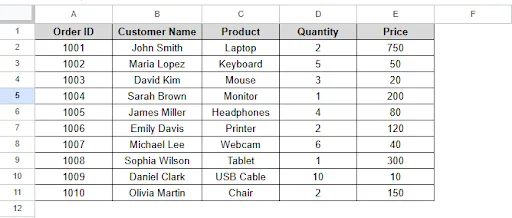
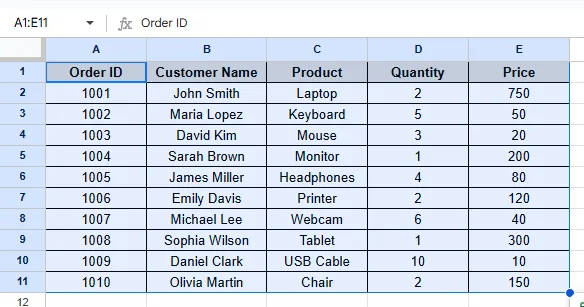
Let’s consider the dataset below, where we have order ID, Customer Name, Product, Quantity and Price Columns.
Steps:
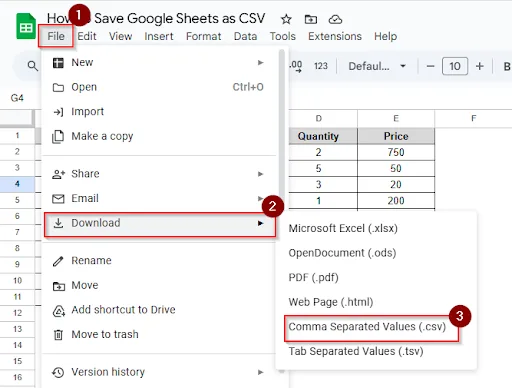
➤ Go to the top menu and click File > Download.
➤ Select Comma Separated Values (.csv). The Current Sheet will be saved as a .csv format on your computer.
➤ To save multiple sheets, you need to repeat these steps for each sheet and save them with a different name. All the sheets will be saved in a .csv format.
Publish to the Web as CSV
By publishing Google Sheets to the web in CSV format, you can save Google Sheets. After publishing the sheet on the web, you can obtain a link to access the file at any time.
Steps:
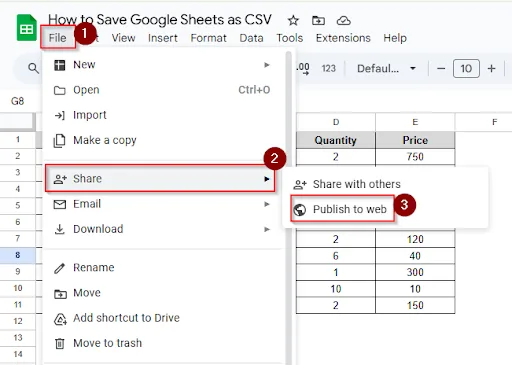
➤ Go to File > Share > Publish to web.
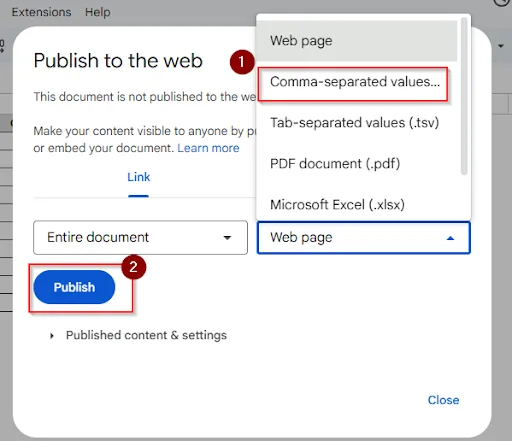
➤ Choose “Entire Document” or the sheet you want to publish and click the Publish button
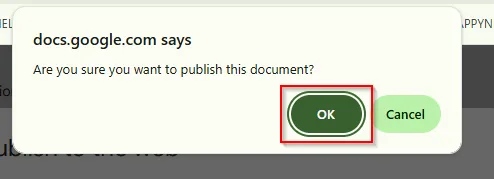
➤ Now, a pop-up will come to confirm your publishing. Click OK.
➤ Copy the generated link.
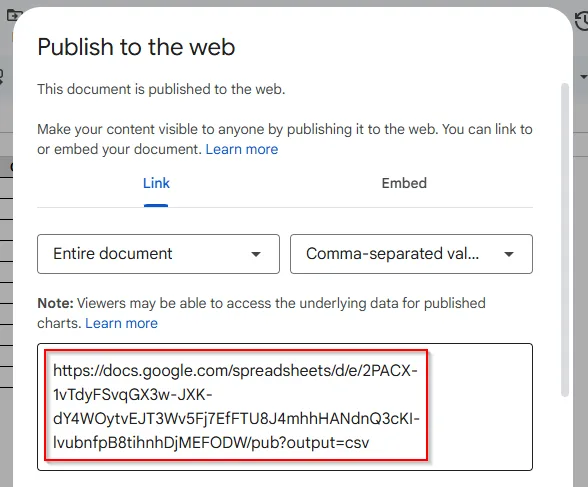
➤ Now, anyone with the link can download the sheet as a CSV file.
Export as CSV Using Google Apps Script
Google Apps Script is the advanced option to save Google Sheets as CSV. The Sheet will be saved in the Google Drive in CSV format.
➤ Go to Extensions > Apps Script.
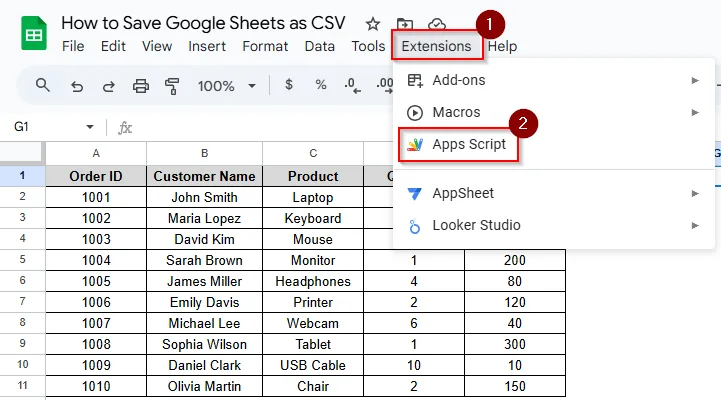
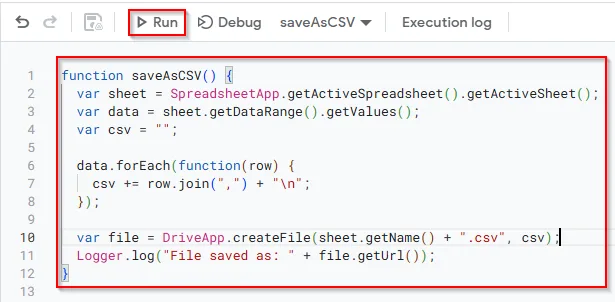
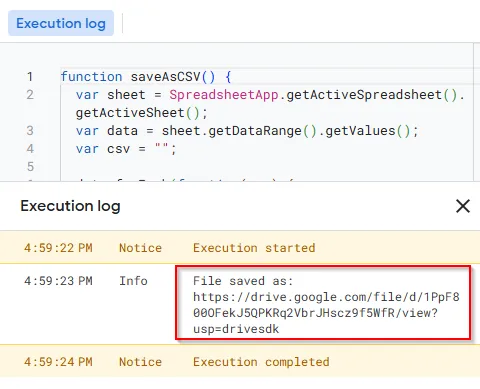
➤ Paste this code and click Run.
function saveAsCSV() {
var sheet = SpreadsheetApp.getActiveSpreadsheet().getActiveSheet();
var data = sheet.getDataRange().getValues();
var csv = "";
data.forEach(function(row) {
csv += row.join(",") + "\n";
});
var file = DriveApp.createFile(sheet.getName() + ".csv", csv);
Logger.log("File saved as: " + file.getUrl());
}
➤ A pop-up window will appear to review permission. Click on the “Review Permissions” Button.
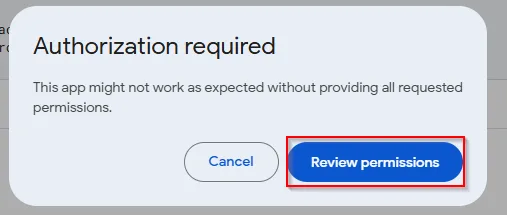
➤ After giving permission, code execution will begin, and the file will be saved in CSV format on Google Drive.
Copy and Paste into a Text Editor
Copying and pasting into a text editor is the quickest and manual way to save Google Sheets in CSV format. In the text editor file, you can save the data with a .csv extension.
➤ Select the entire dataset and press Ctrl + C (for windows) / Cmd + C (for MAC) to copy the dataset.
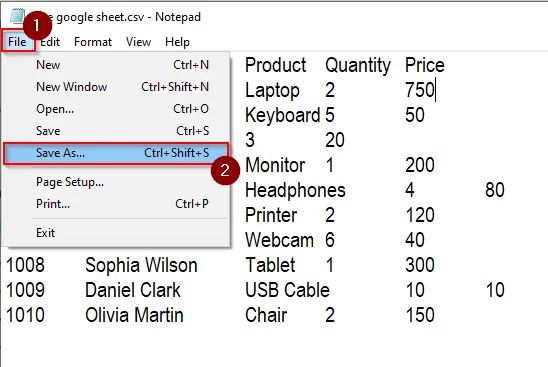
➤ Paste the data into Notepad (Windows) or TextEdit (Mac) and click File> Save As…
➤ Write the file name with the .csv extension and click Save.

Practice Resources
Get our practice workbook or necessary files that we have worked with to prepare this article.
Save as CSV in Google Sheets [Make a Copy]
Frequently Asked Questions (FAQs)
Will the formulas, bold text, and color formatting remain the same in CSV files?
No. The only data is stored in the CSV file. Formulas and formatting (borders, colors, and fonts) will be lost in the CSV file. Only the calculated values will be the same.
Is it possible to save only selected rows or columns as CSV?
By default, Google Sheets saves the entire sheet. But it is possible to save only the selected rows or columns as CSV. To save only the selected rows or columns, copy them into a new sheet and then download that sheet as a CSV file.
Can I save Google Sheets as a CSV file directly on my mobile device?
Yes, you can save Google Sheets as CSV directly on mobile devices using the Google Sheets mobile app. At first, you need to open the sheet. Then, click the three-dot menu → Share & export → Save as → CSV. But Apps Script are only available on desktop.
Concluding Words
In this article, we learned how to save Google Sheets as CSV using four different ways. Download as CSV, publish to the web, Export using Google App Script and copy-paste into a text editor. Feel free to give us suggestions and feedback regarding this article.