
How to Delete Multiple Sheets in Google Sheets (3 Suitable Ways)
Deleting multiple sheets can be necessary when you're working with a spreadsheet full of unused or outdated tabs. If you have a long list of sheets to remove, deleting them one by one can be time-consuming. Instead, you can use a few simple methods to delete multiple sheets quickly.
In this article, we’ll show you how to delete multiple sheets in Google Sheets using three easy methods. These will help you save time while clearing out old data or unnecessary tabs.
Here’s how you can use this method:
➤ Open the Google Sheets file where you want to delete multiple unnecessary sheets.
➤ Press the Ctrl key on your keyboard and hold it until you've finished selecting sheets. For example, let's select Sheet1, Sheet3, Sheet5, and Sheet7 to delete.
➤ Now, right-click or click on the dropdown icon next to the sheet name.
➤ Click the Delete option and a popup dialog box will appear for confirmation.
➤ Next, click OK. The selected sheets will be deleted automatically.
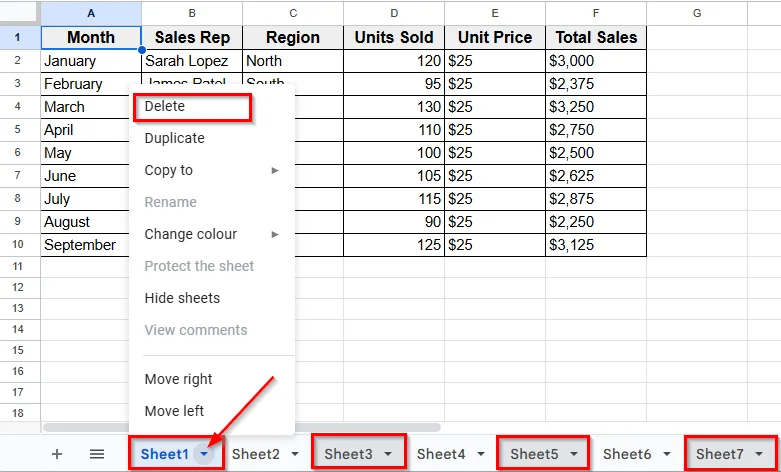
Delete Multiple Non-Adjacent Sheets In Google Sheets
Google Sheets has a built-in option to delete sheets manually. But when you want to delete multiple sheets at once, using the Ctrl key (or Command key on Mac) is a quick and simple way to select and remove them. This method works best when you want to manually choose which tabs to delete.
Here’s how you can use this method:
➤ Open the Google Sheets file where you want to delete multiple unnecessary sheets.
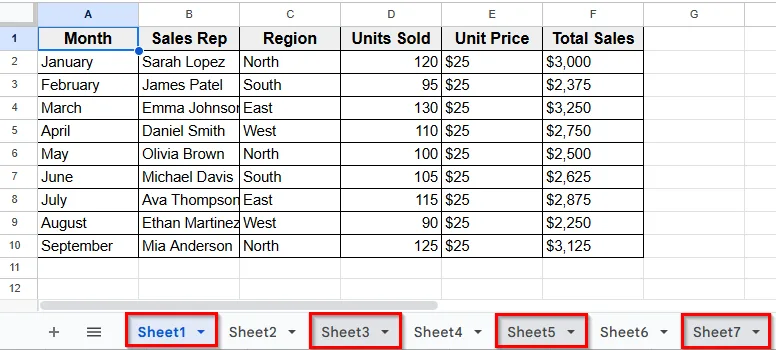
➤ Press the Ctrl key on your keyboard and hold it until you've finished selecting sheets. For example, let's select Sheet1, Sheet3, Sheet5, and Sheet7 to delete.
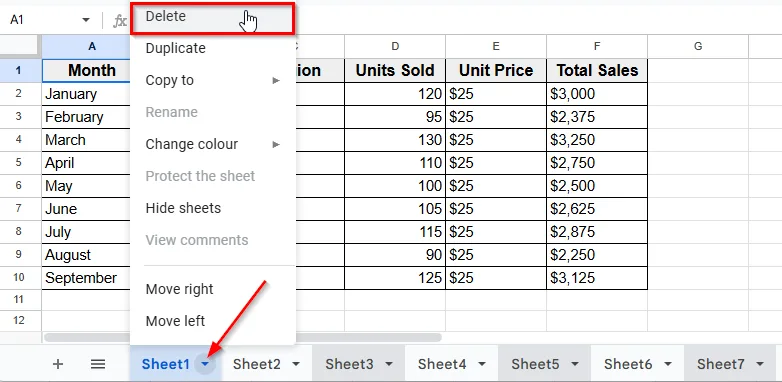
➤ Now, right-click or click on the dropdown icon next to the sheet name.
➤ Click the Delete option.
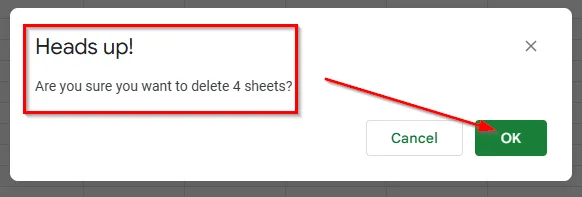
➤ A popup dialog box will appear for confirmation.
➤ Next, click OK.
➤ The selected sheets will be deleted automatically.
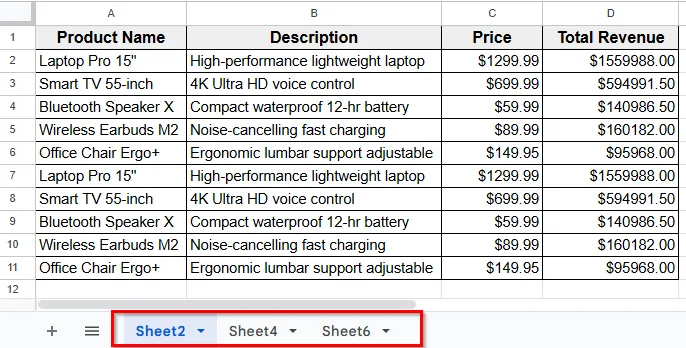
Using Google Apps Script to Delete Multiple Sheets
If you regularly work with spreadsheets that contain many tabs, you can use Google Apps Script to automate the process of deleting multiple sheets at once. This method is especially helpful when you need to remove a large number of sheets or apply specific rules, like keeping only a few important ones.
Here is a step-by-step guide to apply this method:
➤ Open the Google Sheets file that contains multiple sheets tabs.
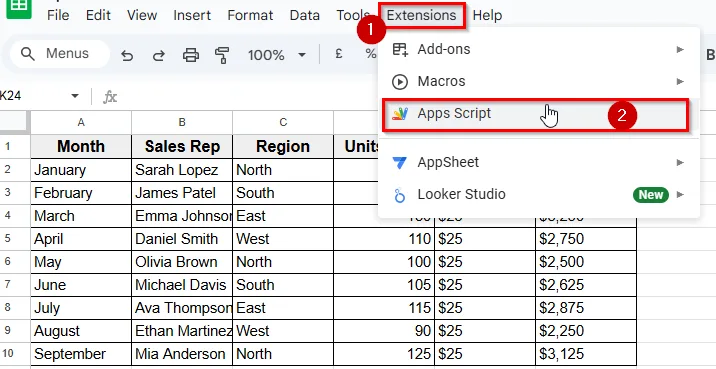
➤ Click Extension from the top Menu tab.
➤ Next click Apps script from the dropdown menu.
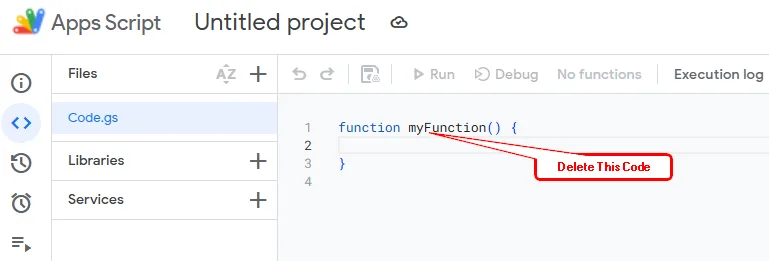
➤ Once the script editor opens in a new tab, delete any existing code you see.
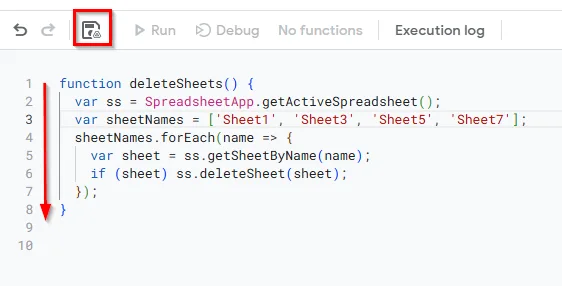
➤ Now, copy and paste the script below into the editor. Use this script if you want to delete only certain named sheets. Change the sheet names as per your need.
function deleteSheets() {
var ss = SpreadsheetApp.getActiveSpreadsheet();
var sheetNames = ['Sheet1', 'Sheet3', 'Sheet5', 'Sheet7']; // List the sheets you want to delete
sheetNames.forEach(function(name) {
var sheet = ss.getSheetByName(name);
if (sheet) ss.deleteSheet(sheet);
});
}
➤ Once you paste the code, click on the disc icon to save the script.
➤ After saving the script the Run button will become active.
➤ Click Run to start execution.
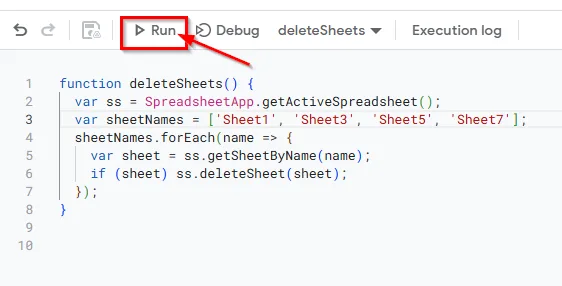
➤ If you run the script for the first time, Google will ask for permission to access your spreadsheet. Follow the prompt to continue the process.
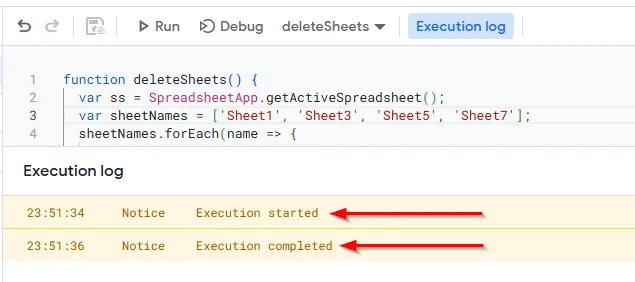
➤ Now, you’ll see two messages below the page: Execution started and Execution completed.
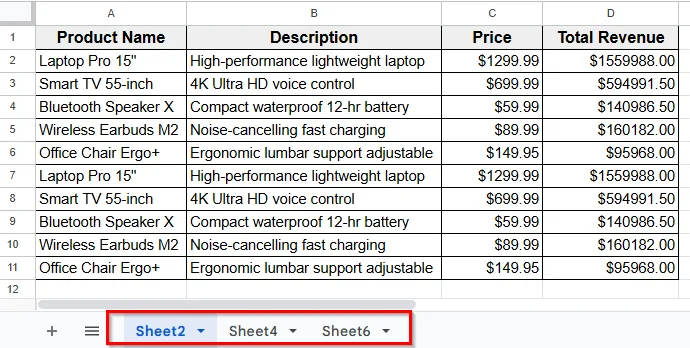
➤ Go back to your spreadsheet. Once the script finishes running, the selected sheets will be deleted automatically.
Script to Delete All Sheets Except Certain Ones
If you want to keep only specific sheets and delete everything else, use this script:
function deleteAllExcept() {
  var keep = ['Sheet3']; // Sheets to keep
  var ss = SpreadsheetApp.getActiveSpreadsheet();
  ss.getSheets().forEach(function(sheet) {
    if (!keep.includes(sheet.getName())) {
      ss.deleteSheet(sheet);
    }
  });
}
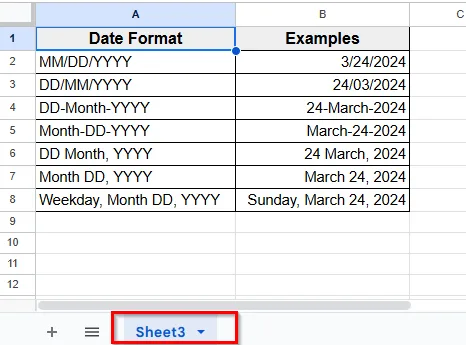
➤ You’ll see all sheets are deleted except the certain ones.
Using Google Sheets Add-ons
If you want more control, you can use a third-party Google Sheets Add-ons to delete multiple sheets without writing any code. There are several add-ons available that help you manage sheet tabs more efficiently.
One popular tool for this task is called Bulk Sheet Manager. With this option, you can select multiple sheets from a list and delete them all at once. To use it, go to Get Add-ons and then install Bulk Sheet Manager.
Here are some easy steps to do this:
➤ Open your Google Sheets file that contains multiple sheets.
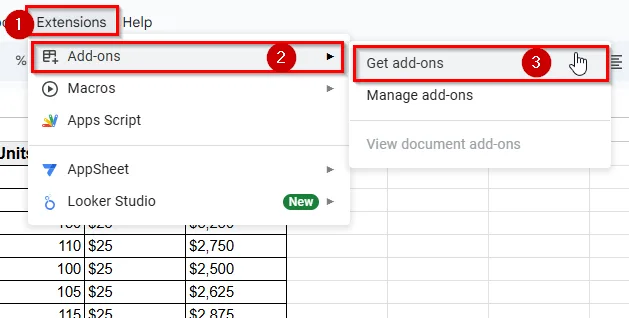
➤ Go to the top Menu and click Extensions >> Add-ons >> Get add-ons.
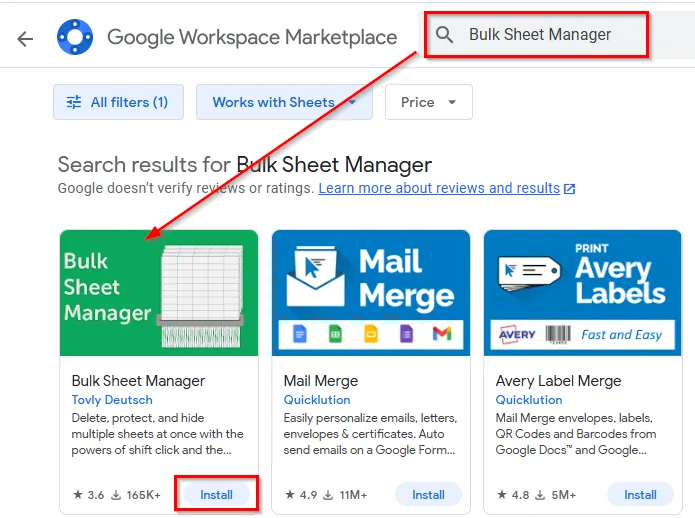
➤ In the Google Workspace Marketplace, search for Bulk Sheet Manager.
➤ Install the Bulk Sheet Manager.
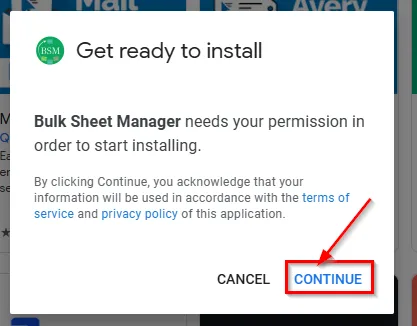
➤ A popup dialog box will open that asks your permission in order to start installing.
➤ Click Continue and follow the authorization prompts.
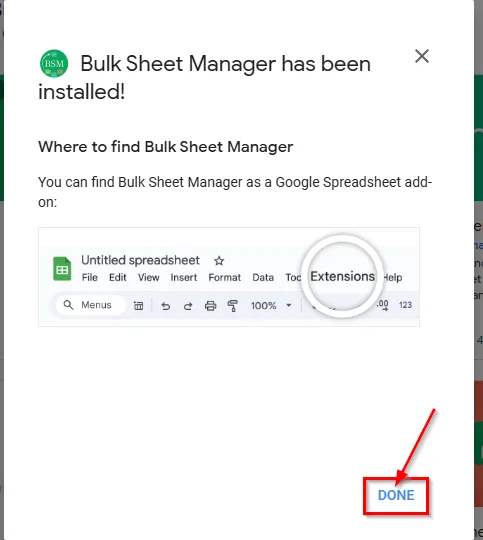
➤ Once installed, a popup dialog box will open with a message where you can find the Bulk Sheet Manager option.
➤ Click Done and go back to your spreadsheet.
➤ Go to Extensions >> Bulk Sheet Manager >> Manage Sheets.
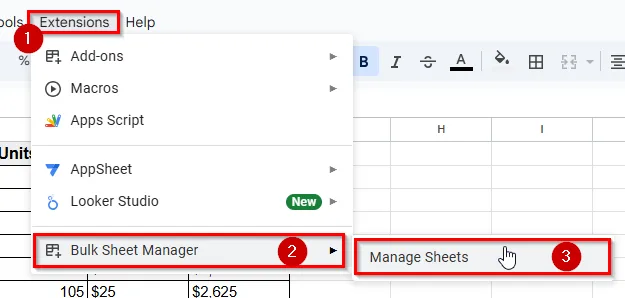
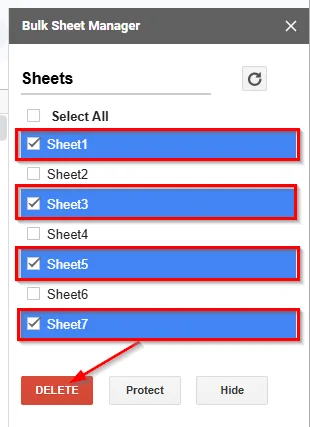
➤ A sidebar will appear showing all your sheet tabs. Use the checkboxes to select the ones you want to delete.
➤ Click the Delete button.
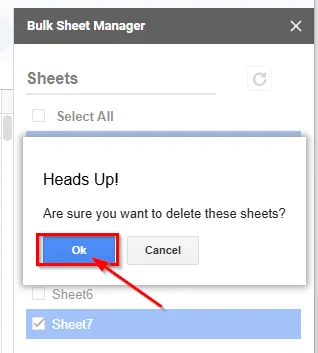
➤ Click OK in the dialog box that opens to confirm.
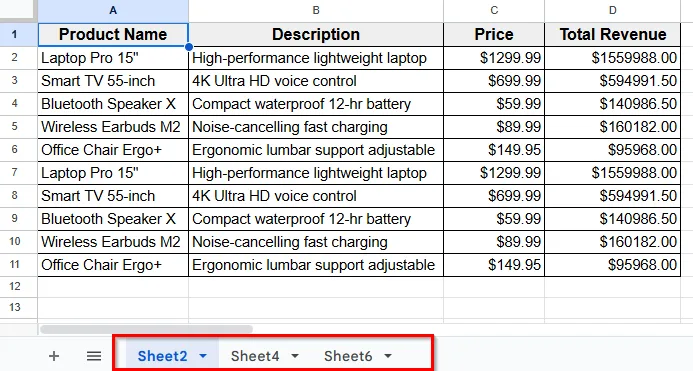
➤ Now, you’ll see the selected sheets will be removed in seconds.
Practice Resources
Get our practice workbook or necessary files that we have worked with to prepare this article.
Delete Multiple Sheets in Google Sheets [Make a Copy]
Frequently Asked Questions
How do I delete multiple Google Sheets tabs at once?
You can delete multiple tabs at once using the Ctrl key (or Command key on Mac) along with Google Sheets built-in Delete option.
Here’s how you can do that:
➤ Open your Google Sheets file where you want to delete multiple sheets.
➤ Hold down the Ctrl key (or Command key on Mac).
➤ Click on each sheet tab you want to delete.
➤ Right-click on one of the selected tabs.
➤ Click on the Delete option from the dropdown menu, then click OK to confirm.
You can use a simple Google Apps Script to delete hidden sheets in bulk.
Here’s how you can do that:
➤ Open your spreadsheet. Go to Extensions >> Apps Script.
➤ Delete any existing code and paste this:
function deleteHiddenSheets() {
var ss = SpreadsheetApp.getActiveSpreadsheet();
var sheets = ss.getSheets();
for (var i = 0; i < sheets.length; i++) {
if (!sheets[i].isSheetHidden()) continue;
ss.deleteSheet(sheets[i]);
}
}
➤ Click the disk icon to save the script.
➤ Next, click the Run button to execute the script.
How do I remove all sheets except the active one in Google Sheets?
You can delete all sheets except the one you're currently working on using a Google Apps script.
Here’s how you can do that:
➤ Open your spreadsheet and click on the sheet you want to keep.
➤ Go to Extensions >> Apps Script.
➤ Delete any existing code and paste this
function deleteAllExceptActive() {
var ss = SpreadsheetApp.getActiveSpreadsheet();
var activeSheet = ss.getActiveSheet();
var sheets = ss.getSheets();
sheets.forEach(function(sheet) {
if (sheet.getSheetId() !== activeSheet.getSheetId()) {
ss.deleteSheet(sheet);
}
});
}
➤ Next, to save the script click the disk icon, it also activates the Run button.
➤ Now, click the Run button to execute the script.
Wrapping Up
Sometimes your Google Sheets file gets filled with tabs you no longer need. If the list is long, it quickly becomes time consuming and frustrating to delete them one by one manually. That’s why using smarter methods like selecting multiple sheets, running a Google Apps script, or installing an Add-on, can save you time and effort.
Each option works well depending on how comfortable you are with tools like Apps Script or third-party add-ons. Pick the method that fits your workflow, and keep your spreadsheet clean and more manageable.
Related Google Sheets Basics Articles
Master the fundamentals with these step-by-step spreadsheet tutorials

Liked this lesson? Get one practical spreadsheet tip every week.
Comments
No comments yet — be the first to ask a question.