EAN-13 is a widely used barcode standard consisting of 13 digits, commonly applied in product labelling, inventory management, and sales tracking. By combining Excel’s built-in features with external add-ins or tools, we can easily generate EAN-13 barcodes within a dataset.
Follow the steps below to generate EAN-13 barcodes within your Excel dataset:
➤ First, visit a trusted website to download the EAN-13 barcode font, then install it on your system.
➤ Next, restart Excel and open your dataset.
➤ Select the cells containing numeric codes and head to Home >> Font and choose EAN-13 from the list.
➤ Your numeric codes should now automatically get converted to an EAN-13 format barcode.

In this article, we will learn 3 useful methods for generating EAN-13 barcodes in Excel.
Install an External Font to Generate EAN-13 Barcode
In the sample dataset, we have a worksheet called “Product Details” containing information about Product Name and EAN-13 format numbers in columns A and B, respectively. By installing the EAN-13 style front from an external website, we will display the generated barcode in column C. The updated dataset will be stored in a separate “EAN-13 Font” worksheet.
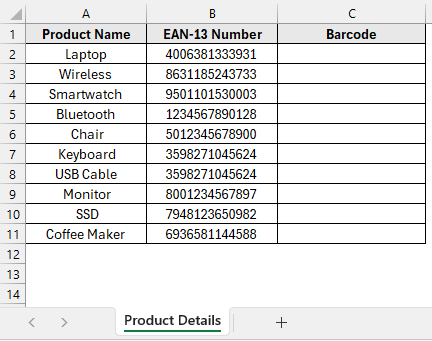
The Font tool in Excel allows users to change the appearance of text and numbers by applying different font styles. In our case, by applying the EAN-13 font, the numeric codes in column B will get visually transformed into barcodes in column C.
Steps:
➤ Start by visiting a website to download the EAN-13 style font, then install it by clicking the Install button.

Note:
Always download fonts from trusted sources. In our case, we downloaded it from www.fontpalace.com/font-download/EAN-13/. After installing the font, restart Excel.
➤ Next, head to the EAN-13 Font worksheet and copy the contents of column B to column C.

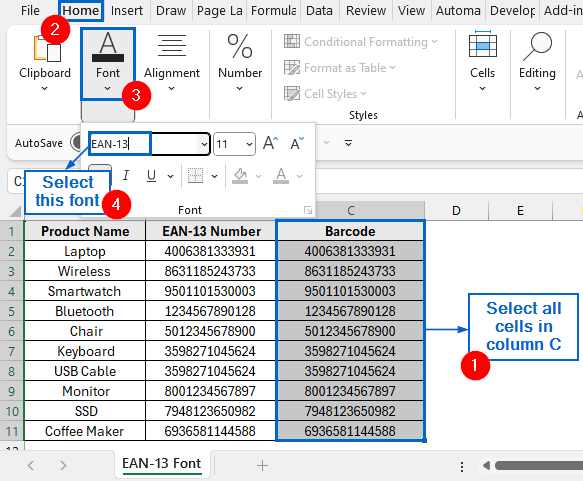
➤ Select all cells in column C, then go to Home >> Font, choose the EAN-13 font from the list, and press Enter.
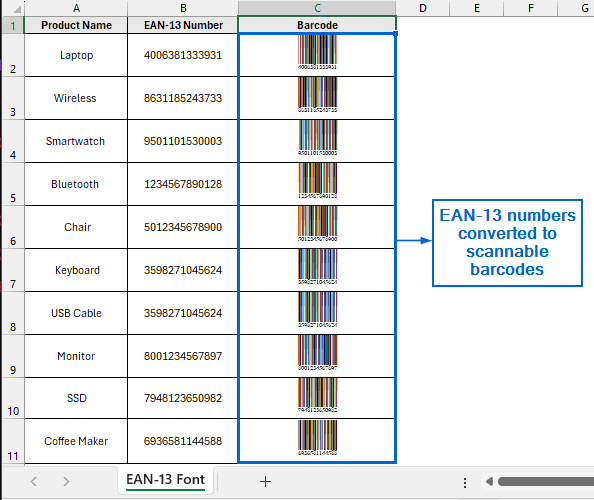
➤ All EAN-13 numbers should now be converted to scannable barcodes.
Generate EAN-13 Barcode with IMAGE Function and External Link
The IMAGE function in Excel is an important tool which allows users to insert pictures directly into cells. By combining this function with an external barcode generator link, we can display EAN-13 barcodes for each product based on its respective numeric code.
Working with the same dataset, we will now generate EAN-13 barcode in column C by using the image function. We will display the modified dataset in a separate “IMAGE Function” worksheet.
Steps:
➤ Head to the IMAGE Function worksheet and in cell C2, paste the following formula:
=IMAGE("<a href="https://barcodeapi.org/api/EAN13/%22&B2" target="_blank" rel="noopener">https://barcodeapi.org/api/EAN13/"&B2</a>)

➤ Next, select cell C2 and double-click the fill handle to apply the formula across entire column.

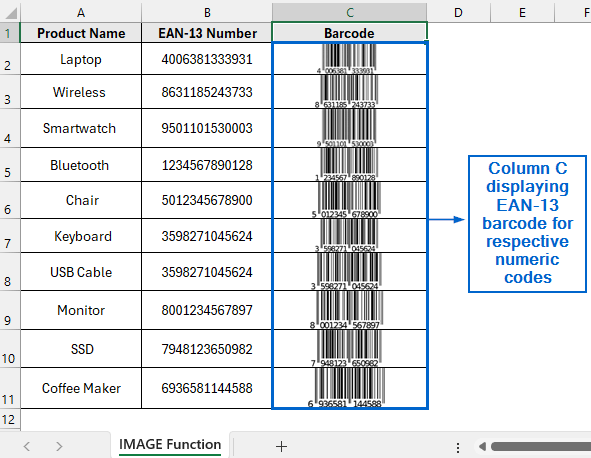
➤ All numeric codes should now be converted to scannable EAN-13 barcodes and displayed in column C.
Use External Add-ins to Generate EAN-13 Barcode
Excel’s Add-ins feature allows users to extend the functionality of a dataset by installing various third-party tools. By using a barcode generator add-in, we can easily create EAN-13 barcodes directly within the dataset.
Working again with the same dataset, we will now use an external add-in to generate EAN-13 barcodes. The updated dataset will be stored in a separate “Add-ins” worksheet.
Steps:
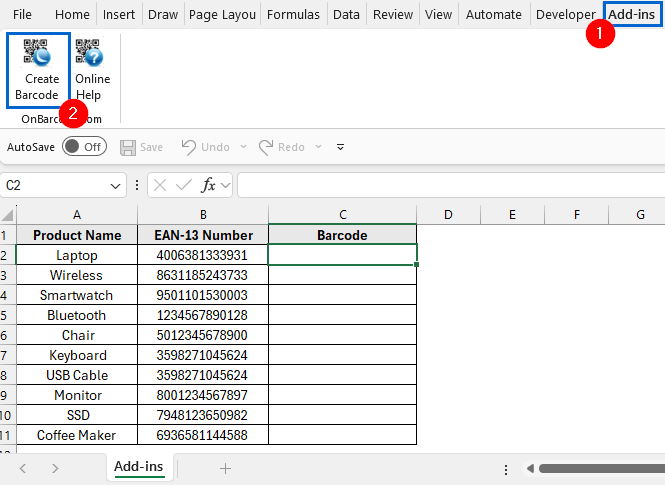
➤ Open the Add-ins worksheet and from the main menu, head to Add-ins then select the barcode generator.
Note:
Make sure to download and install the barcode generator from an authentic source. For this article, we downloaded it from www.onbarcode.com/excel_barcode/
➤ Then, copy the values from column B into column C.
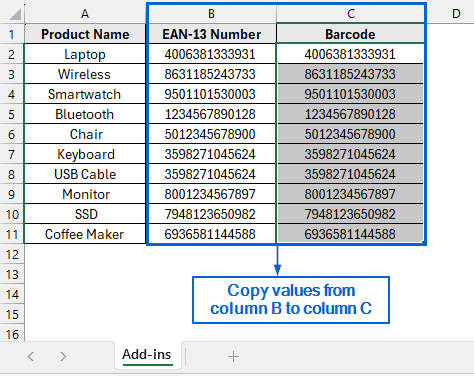
➤ Next, select cell C2 and from the Barcode Settings panel, choose EAN-13 as the barcode type, and click on Generate to create the barcode for that cell.
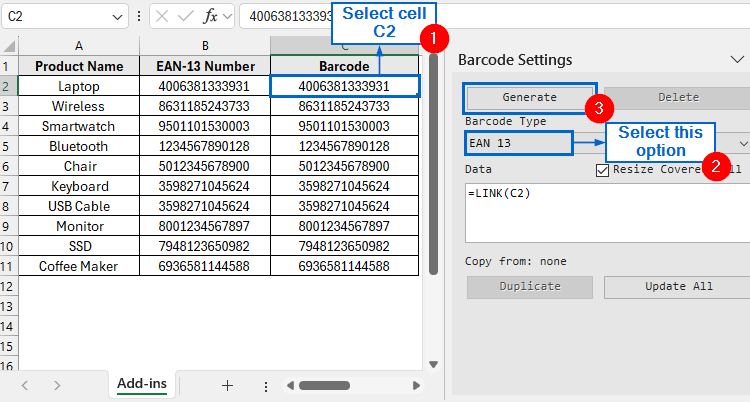
➤ Repeat the same steps for cells C3 through C11.
➤ The numeric codes from column B will now appear as scannable EAN-13 barcodes in column C.

Downloadable Resources
Get our practice workbook or necessary files that we have worked with to prepare this article.
Generate EAN 13 Barcode in Excel.xlsx
Frequently Asked Questions
Do I Need Internet Access to Use These Methods?
An active internet connection is only required for the IMAGE function and Add-ins methods, since they use online service to fetch barcode images. You can use the font method offline because it relies on locally installed EAN-13 font.
Which Method Is Best for Generating Barcodes in a Large Dataset?
If you are dealing with a large dataset and need to generate barcodes, the IMAGE function method would be the most efficient. By using IMAGE Function, you can create barcodes for each row using a single formula and then apply it across the entire range all at once.
Concluding Words
Knowing how to generate EAN-13 barcodes in an Excel dataset is crucial for effective product management, improving inventory tracking, and ensuring accurate labelling.
In this article, we have discussed three effective methods of generating EAN-13 barcodes in Excel, including using External Font, Image Function and Add-ins. Feel free to try out each method and select one that best aligns with your needs.