
Importing tables from websites to Excel datasets is often necessary for researchers, analysts, and professionals who regularly process online data. By using Excel’s built-in tools and features, we can easily perform this task.
Follow the steps below to import table from a website to your Excel dataset;
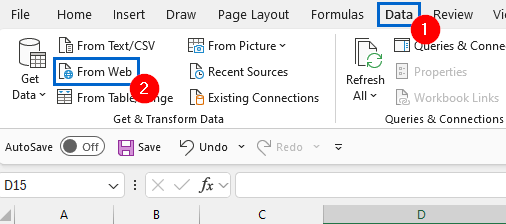
➤ Open the worksheet where you want to display the table, and from the main menu, navigate to Data >> From Web.
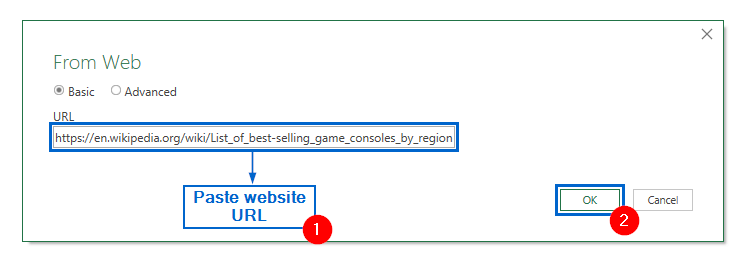
➤ Paste the link of the website containing the table into the From Web dialogue box and click OK.
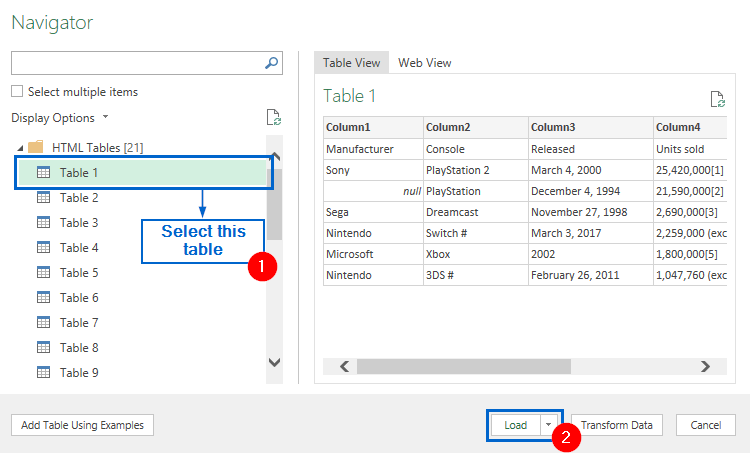
➤ Choose the table that you want to import, then press Load to import it into your dataset.

In this article, we will learn three effective methods of importing a table from a website to an Excel dataset.
Import Table Using the Data Tab
In the sample website link, we have a list of best-selling game consoles sorted by region. Using the Data Tab, we will import the table showing the best-selling consoles in Asia region into our dataset. The modified dataset will be stored in a separate “Data Tab” worksheet.

The Data Tab in Excel provides users with tools for connecting, importing, and managing data from various sources. By using this feature, we can directly import a table from a website into our dataset.
Steps:
➤ Head to the Data Tab worksheet, from the main menu navigate to Data >> From Web.
➤ In the From Web dialogue box, paste the website link into the URL field and click OK.
Note:
In this example, we used the following website: https://en.wikipedia.org/wiki/List_of_best-selling_game_consoles_by_region. However, you can use any valid link containing a table you want to import.
➤ Select Table 1 from the Navigator dialogue box and click on Load to import it into your dataset.
Note:
If the pasted URL contains multiple tables, you can preview them in the Navigator pane and select the ones you want to import.
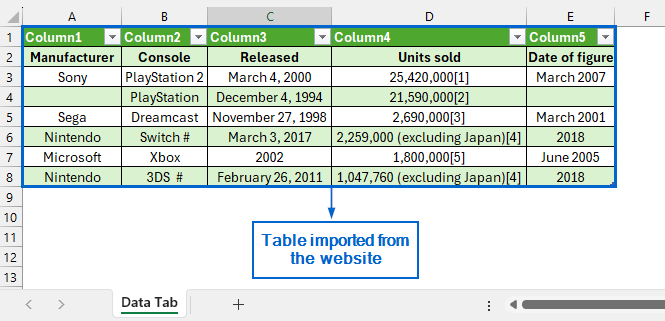
➤ The dataset should now display the table imported directly from the website.
Use VBA Editor to Automatically Import Table
The VBA Editor is a useful feature in Excel that allows users to write, edit, and run custom macros. It can help automate tasks such as importing tables from websites by creating scripts that fetch and insert data directly into worksheets, saving time and reducing manual effort.
Working with the same website, we will now use the VBA Editor to import a table from the webpage directly into Excel. The updated dataset will be stored in a separate “VBA Editor” worksheet.
Steps:
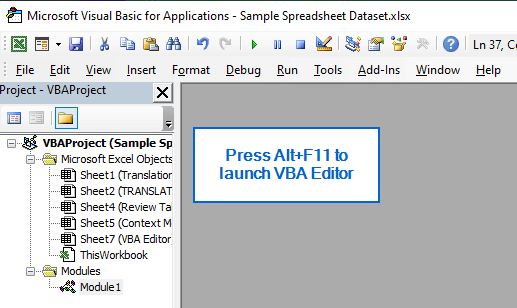
➤ Head to the VBA Editor worksheet, and press Alt + F11 to launch the VBA Editor window.
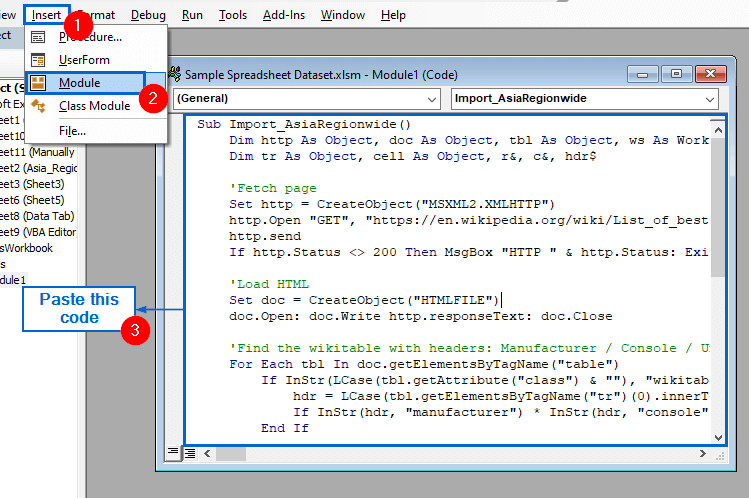
➤ Next, from the main menu, head to Insert >> Module and paste the following code:
Sub Import_AsiaRegionwide()
    Dim http As Object, doc As Object, tbl As Object, ws As Worksheet
    Dim tr As Object, cell As Object, r&, c&, hdr$
    'Fetch page
    Set http = CreateObject("MSXML2.XMLHTTP")
    http.Open "GET", "https://en.wikipedia.org/wiki/List_of_best-selling_game_consoles_by_region", False
    http.send
    If http.Status <> 200 Then MsgBox "HTTP " & http.Status: Exit Sub
    'Load HTML
    Set doc = CreateObject("HTMLFILE")
    doc.Open: doc.Write http.responseText: doc.Close
    'Find the wikitable with headers: Manufacturer / Console / Units sold
    For Each tbl In doc.getElementsByTagName("table")
        If InStr(LCase(tbl.getAttribute("class") & ""), "wikitable") > 0 Then
            hdr = LCase(tbl.getElementsByTagName("tr")(0).innerText)
            If InStr(hdr, "manufacturer") * InStr(hdr, "console") * InStr(hdr, "units sold") > 0 Then Exit For
        End If
    Next
    If tbl Is Nothing Then MsgBox "Target table not found.": Exit Sub
    'Prepare sheet
    On Error Resume Next: Set ws = Sheets("Asia_Regionwide"): On Error GoTo 0
    If ws Is Nothing Then Set ws = Sheets.Add: ws.Name = "VBA Editor" Else ws.Cells.Clear
    r = 1
    For Each tr In tbl.getElementsByTagName("tr")
        c = 1
        For Each cell In tr.Children
            ws.Cells(r, c).Value = Application.Trim(Replace(cell.innerText, vbLf, " "))
            c = c + 1
        Next cell
        If c > 1 Then r = r + 1
    Next tr
    ws.Columns.AutoFit
    MsgBox "Done!"
End Sub
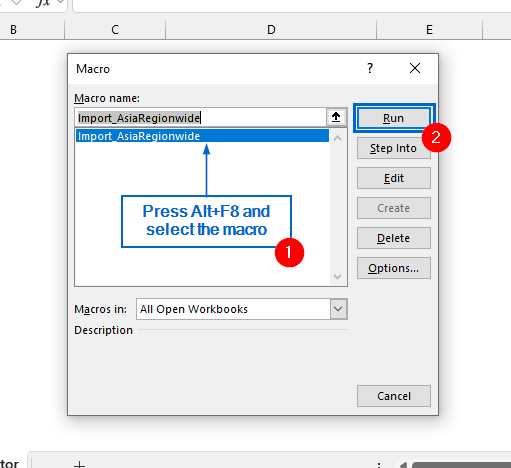
➤ Close the VBA editor, press Alt + F8 , select Import_AsiaRegionwide macro from the list, and click Run.
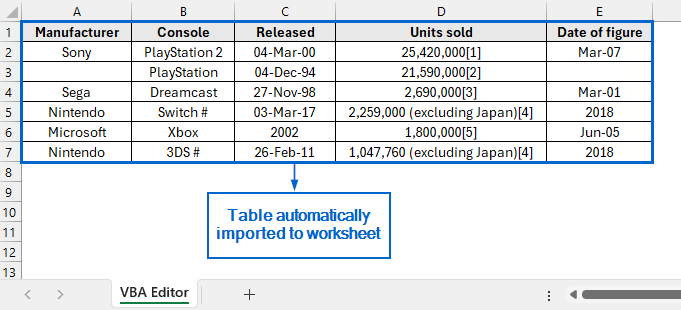
➤ The table should now be automatically imported into the VBA Editor worksheet.
Manually Import Table from the Website
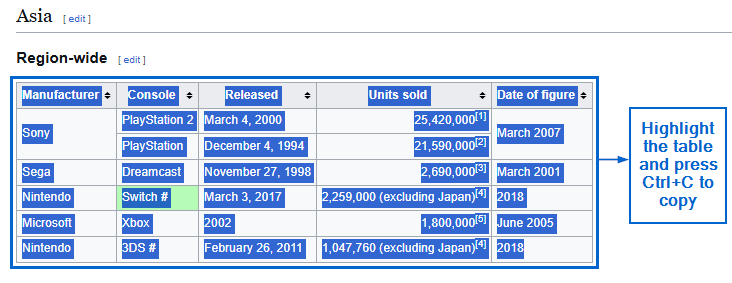
If you don’t want to use any of the above methods and prefer a simpler approach, you can just manually copy the table from website and paste it directly into the Excel worksheet.
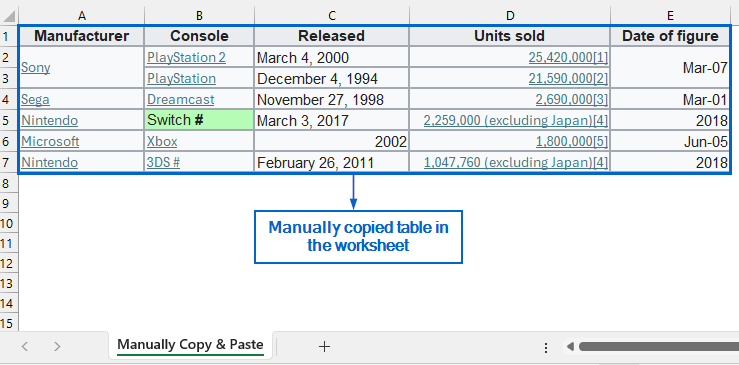
Working again with the same website, we will now import the table into our dataset. We will display it in a separate “Manually Copy & Paste” worksheet.
Steps:
➤ Go to the website and manually copy the table by pressing Ctrl + C .
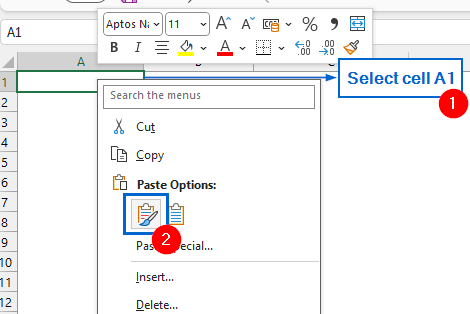
➤ Then, go to the “Manually Copy & Paste” worksheet, select cell A1 and press Ctrl + V to paste the table.
Note:
Depending on the website, manually copying and pasting might not transfer data accurately. You may need to use Paste Special tool to retain only the raw data.
➤ The copied table should now be visible in your Excel worksheet.
Downloadable Resources
Get our practice workbook or necessary files that we have worked with to prepare this article.
Import Table from Website to Excel.xlsx
Frequently Asked Questions
Which is the Best Method for Importing Large Tables?
For importing large tables into an Excel Dataset, the Data Tab (From Web) method would be the most efficient. It allows users to directly connect to the source website and import the desired table, with the added advantage of automatically updating the Excel table whenever the source data changes.
Is there any Limit on the Size of Table I Can Import?
No, there is no strict limit to the size of a table you can import into Excel. However, importing very large tables may affect performance, causing the dataset to load slowly or appear laggy.
Concluding Words
Knowing how to import tables from a website to an Excel dataset is crucial for efficient data analysis and streamlining workflow. In this article, we have discussed three effective methods of importing table from website to Excel, including using the Data Tab, VBA Editor, and Manually copy pasting. Feel free to try out each method and select one that best aligns with your needs.