When Excel shows the “Constant Expression Required” error in VBA, it usually happens when you try to assign a constant using variables or arrays instead of fixed values. This compile error stops your macro from running and shows the compile error message.
In this article, we will walk you through why VBA shows the “Constant Expression Required” error and how to fix it, whether it’s caused by initializing constants with variables, setting static array sizes with non-literal values, using arrays in optional parameters, or using expressions that VBA cannot evaluate at compile time. By following these steps, you can ensure your code runs correctly and shows the intended results.
Steps to fix the “Constant Expression Required” error caused by using variables in constants:
➤ Open the VBA editor and locate the code showing the error
➤ Check if any constant is assigned using variables, arrays, or expressions
➤ Replace it with a fixed literal value (for instance, Const z As Integer = 10)
➤ Run the code again, and it will work without errors

Initialize Constants Properly
The “Constant Expression Required” error in VBA occurs when you try to assign a value to a constant that VBA cannot calculate at compile time. In simple words, VBA constants must be set to fixed values, not formulas or other variables. If you try to use a variable or an expression to set a constant, VBA will show this error. To fix the error, you should always initialize constants with fixed literal values, not variables or arrays.
Here is a sample dataset that we will use to demonstrate the method.
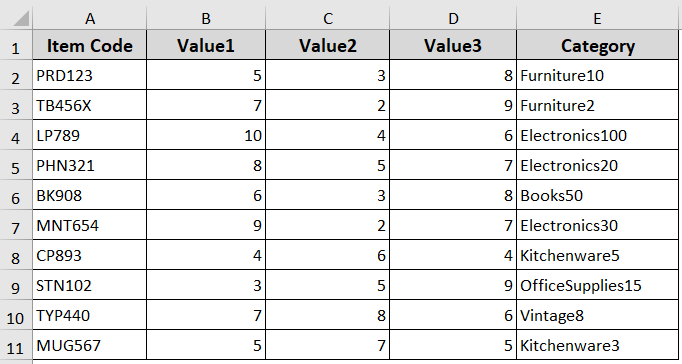
Steps:
➤ Open the VBA editor.
➤ Insert the following VBA code in the VBA module.
Sub ConstantExpressionError()
    Dim x As Integer
    Dim y As Integer
    Const z As Integer = x + y 'Error: Constant expression required
End Sub
➤ Run the code, and Excel shows “Constant expression required”. That’s because
Here,
➥ z is a constant, but we are trying to assign it to x + y.
➥ x and y are variables from the dataset, which VBA cannot use a constants.

➤ Add the literal value to fix the error in the code.
Sub ConstantExpressionFixed()
    Const z As Integer = 10 'Fixed: constant initialized with a fixed number
    Dim x As Integer
    Dim y As Integer
    ' Example: take first row values from the dataset
    x = 5  ' Value1 from Item A
    y = 3  ' Value2 from Item A
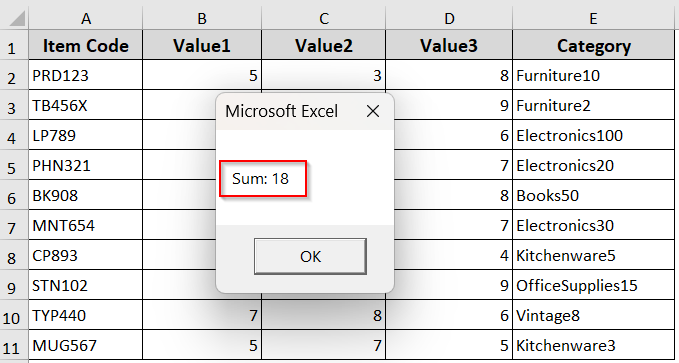
    MsgBox "Sum: " & (x + y + z)
End Sub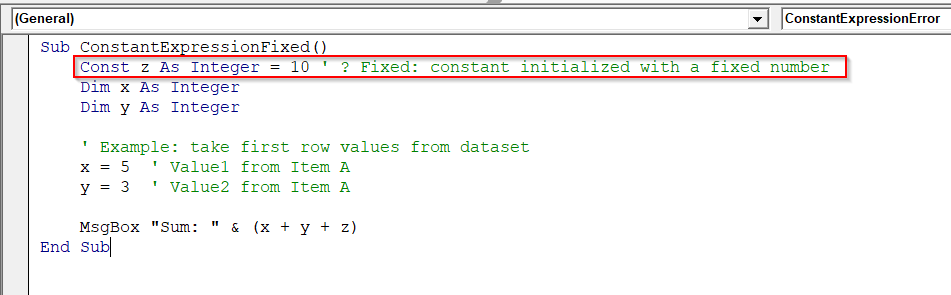
➤ Now the code will run properly without showing the error as z is now a fixed constant (10), and x and y are variables having values from the dataset.
Use Redim for Dynamic Arrays Instead of Static Arrays
In VBA, static arrays must have a fixed size that doesn’t change. When you try to set the size of a static array using a variable, the “Constant Expression Required” error occurs.
So, if you want the array size to depend on a number or calculation, you need a dynamic array. You can use ReDim to set or change the size at any time with dynamic arrays.
Steps:
➤ For example, insert the following VBA code in the VBA module.
Sub StaticArrayError()
    Dim size As Integer
    size = 10
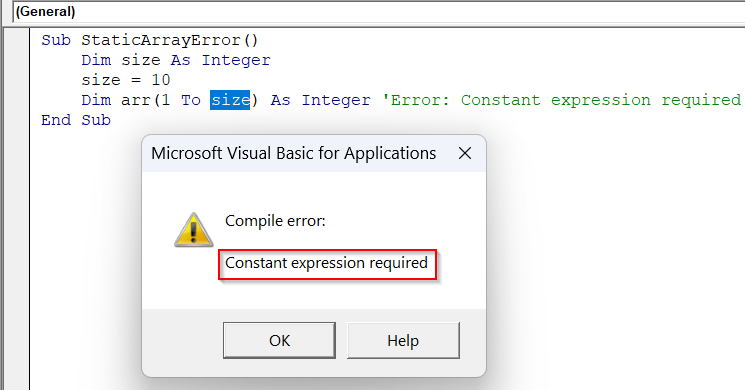
    Dim arr(1 To size) As Integer 'Error: Constant expression required
End Sub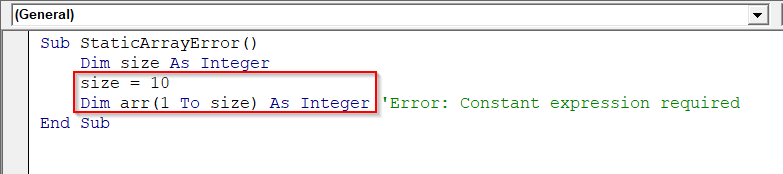
➤ If you run the code, Excel will show the error ‘Constant expression required’. That’s because here, arr is a static array, but its size uses a variable.
➤ Use a dynamic array to fix the error.
Sub DynamicArrayFixed()
    Dim size As Integer
    size = 10
    Dim arr() As Integer  ' Declare a dynamic array
    ReDim arr(1 To size)  ' Resize array using ReDim
    ' Fill array with Value1 from dataset
    arr(1) = 5
    arr(2) = 7
    arr(3) = 10
    ' ... continue as needed
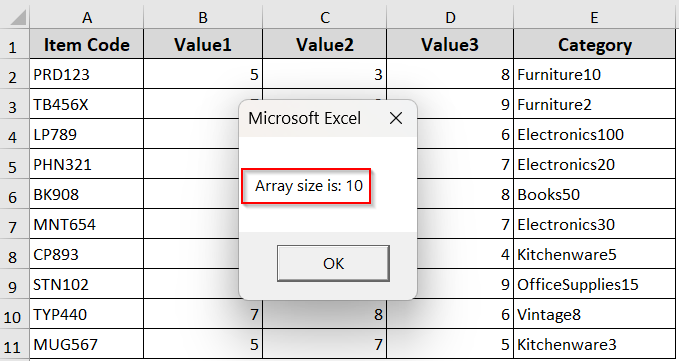
    MsgBox "Array size is: " & UBound(arr)
End Sub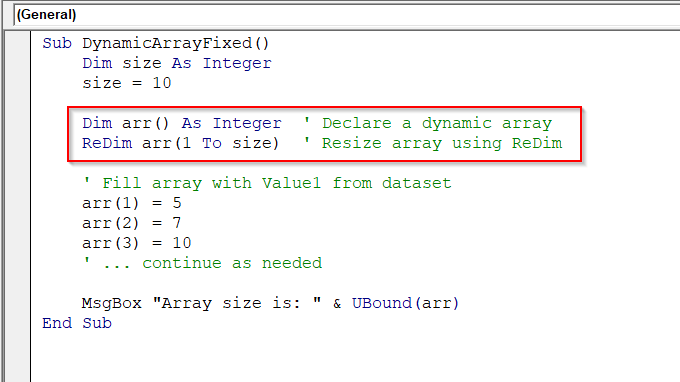
➤ Now the code will work properly without showing an error, as arr() is now a dynamic array. That’s why the VBA allows resizing with ReDim.
Avoid Array Initialization in Optional Parameters
In VBA, you cannot assign a non-constant value as the default for an optional parameter. Such as an array. If you do so, it often triggers the “Constant Expression Required” error. That’s because array initialization is not a constant expression.
Steps:
➤ For example, insert the following VBA code in the module.
Option Explicit
' Module-level variable (not a constant)
Private defaultVals As Variant
Sub InitDefaults()
    defaultVals = Array(5, 3, 8) ' Example: values from PRD123
End Sub
' This line causes a compile error:
' Compile error: Constant expression required
Sub OptionalArrayError(Optional arr As Variant = defaultVals)
    Dim i As Long
    For i = LBound(arr) To UBound(arr)
        Debug.Print arr(i)
    Next i
End Sub
➤ Run the code, and it will show the error. That’s because
Here,
➥ defaultVals is a variable, not a literal constant.
➥ VBA must evaluate optional default values at compile time.

To fix the error, you can follow one of the three solutions from the following.
Solution 1: Use ParamArray instead of Optional
ParamArray allows you to pass a variable number of arguments as an array. This method works perfectly when you want to process multiple values.
You can use ParamArray to accept a variable number of arguments. Here, ParamArray collects all arguments into values() at runtime. So it does not require any default value.
Sub ParamArrayFixed(ParamArray values() As Variant)
    Dim i As Long
    Dim total As Double
    ' If no values passed, exit with message
    If UBound(values) < LBound(values) Then
        MsgBox "No values passed."
        Exit Sub
    End If
    For i = LBound(values) To UBound(values)
        Debug.Print values(i)     ' Print each value
        total = total + CDbl(values(i))
    Next i
    MsgBox "Sum: " & total
End Sub
➤ Here is an example run using our dataset
➤ Insert the following VBA code in the VBA editor.
Sub TestParamArray()
    ' PRD123 -> Value1=5, Value2=3, Value3=8  => Sum = 16
    Call ParamArrayFixed(5, 3, 8)
    ' LP789 -> 10, 4, 6 => Sum = 20
    Call ParamArrayFixed(10, 4, 6)
    ' MUG567 -> 5, 7, 5 => Sum = 17
    Call ParamArrayFixed(5, 7, 5)
End Sub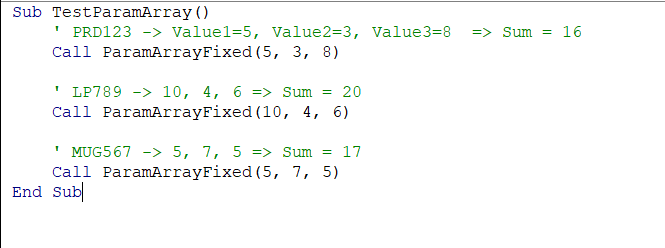
➤ Run the code.
➤ Press Ctrl + G , and the Immediate Window shows each passed value.

Solution 2: Use Nothing as the Default and Initialize in the Method Body
As mentioned above, in VBA, you cannot assign an array as the default value for an optional parameter. You can fix this by setting the default to Nothing and initializing the array inside the procedure. The Optional parameter defaults to Nothing.
Sub OptionalArrayFixed(Optional arr As Variant = Nothing)
    Dim i As Long
    Dim total As Double
    ' If arr was not provided, initialize with defaults (PRD123 values: 5, 3, 8)
    If IsMissing(arr) Or IsEmpty(arr) Then
        arr = Array(5, 3, 8)
    End If
    For i = LBound(arr) To UBound(arr)
        Debug.Print arr(i)
        total = total + CDbl(arr(i))
    Next i
    MsgBox "Sum: " & total
End Sub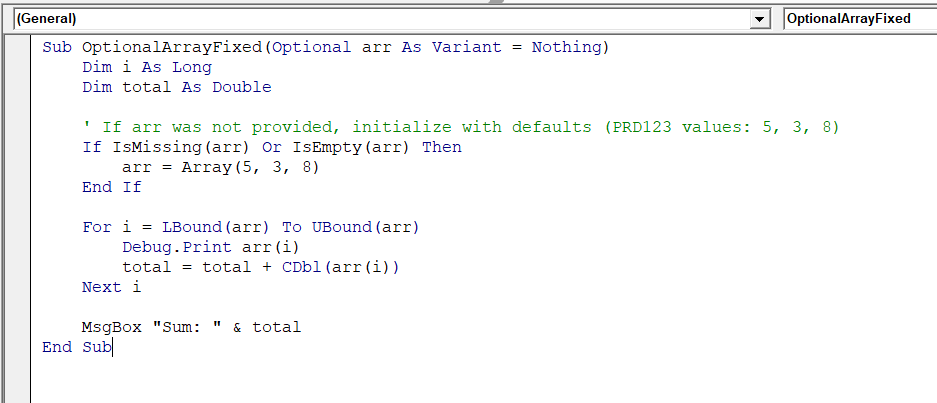
➤ Here is an example run using our dataset
➤ Insert the following VBA code in the VBA editor.
Public Sub OptionalArrayNothing(Optional arr As Variant)
    Dim i As Long
    Dim total As Double
    ' If no array is passed, initialize with default dataset values (PRD123)
    If IsMissing(arr) Or IsEmpty(arr) Then
        arr = Array(5, 3, 8)  ' Value1, Value2, Value3 for PRD123
    End If
    ' Loop through the array to calculate the sum
    For i = LBound(arr) To UBound(arr)
        total = total + CDbl(arr(i))
    Next i
    MsgBox "Sum: " & total
End Sub
Sub TestOptionalArrayNothing()
    ' Case 1: Default values (PRD123 -> 5, 3, 8)
    OptionalArrayNothing
    ' Case 2: Custom values (LP789 -> 10, 4, 6)
    OptionalArrayNothing Array(10, 4, 6)
    ' Case 3: Custom values (MUG567 -> 5, 7, 5)
    OptionalArrayNothing Array(5, 7, 5)
End Sub
➤ Run the code, and now the code will show the results.

Solution 3: Provide An Overload Without Any Parameter
Sometimes, instead of forcing an Optional parameter with a default, you can create a separate overloaded procedure without that parameter. This way, one version sets defaults, and the other accepts user input.
Here, we create two separate procedures:
➥ One version takes no parameter and sets defaults internally.
➥ Another version accepts an array passed by the caller.
' Overload 1: No parameters → defaults (TB456X -> 7, 2, 9)
Sub ProcessValuesDefault()
    Dim defaultArr As Variant
    defaultArr = Array(7, 2, 9)
    Call ProcessValuesWithArray(defaultArr)
End Sub
' Overload 2: Accepts array as input
Sub ProcessValuesWithArray(arr As Variant)
    Dim i As Long
    Dim total As Double
    For i = LBound(arr) To UBound(arr)
        total = total + arr(i)
    Next i
    MsgBox "Total: " & total
End Sub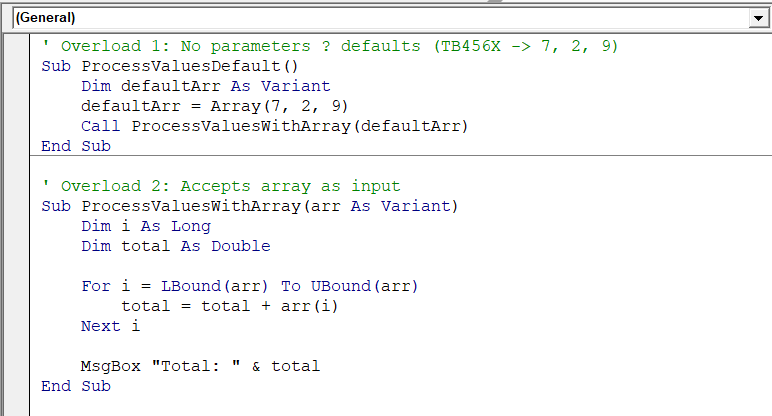
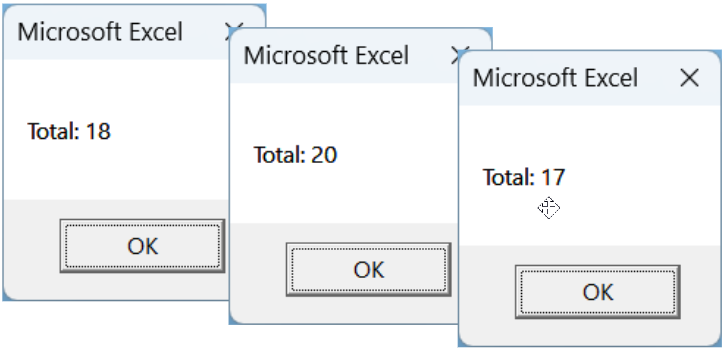
➤ Here is an example run using our dataset
Sub TestOverload()
    ' Case 1: Use defaults (TB456X -> 7, 2, 9)
    Call ProcessValuesDefault
    ' Case 2: Pass LP789 values (10, 4, 6)
    Call ProcessValuesWithArray(Array(10, 4, 6))
    ' Case 3: Pass BK908 values (6, 3, 8)
    Call ProcessValuesWithArray(Array(6, 3, 8))
End Sub
➤ Run the code, and now the code will show the results.
Downloadable Resources
Get our practice workbook or necessary files that we have worked with to prepare this article.
Constant Expression Required Error VBA.xlsx
Frequently Asked Questions
What is a constant expression?
A constant expression in VBA is a value that is fixed and determined at compile time. It does not change during code execution and cannot depend on variables or arrays. For example, Const x As Integer = 10 is valid because 10 is a literal constant. However, Const y As Integer = x + 5 is invalid since it tries to use another variable in the constant definition.
How to set a constant in VBA?
You set a constant in VBA using the Const keyword, followed by its data type and a fixed literal value. For example, Const TaxRate As Double = 0.15. It assigns a permanent value of 0.15 to TaxRate, which cannot change during the program.
How do I run VBA code automatically?
You can run VBA code automatically in Excel by using event procedures. Event procedures trigger code when specific actions occur. For example
Private Sub Workbook_Open()
    MsgBox "Welcome!"
End Sub
This code runs automatically when the workbook opens.
Wrapping Up
The “Constant Expression Required” error in VBA usually occurs when you initialize constants with variables, set static array sizes using non-literal values, assign arrays as default optional parameters, or use expressions that VBA cannot check at compile time.
Always initialize constants with fixed literal values, use dynamic arrays with ReDim instead of static arrays with variable sizes, and handle optional arrays properly with ParamArray, Nothing defaults, or overloaded procedures. These steps ensure your VBA code runs properly without compile errors and shows the correct results.