
In today’s collaborative work, multiple users can edit a single workbook simultaneously. To ensure transparency and accountability, we need to check who made the edits in Excel online.
For example, as a manager, you might assign an employee to update the product inventory sheet hourly and later need to verify the edits. Excel Online offers efficient ways to check the edit history easily. Here, we have discussed two methods. The Show Changes option checks cell-level edits, and the Version History provides a snapshot of a workbook that you can restore if needed.
➤ First, you need to enter the web version of Excel and upload your Excel file.
➤ Or upload your Excel file to OneDrive/SharePoint (no subscription required).
➤ Or turn on AutoSave on the workbook from the desktop app if you have a Microsoft 365 subscription.
➤ Go to Review tab >> Changes and History ribbon group >> Show Changes option.
➤ Soon, the Changes pane will appear on the right side.
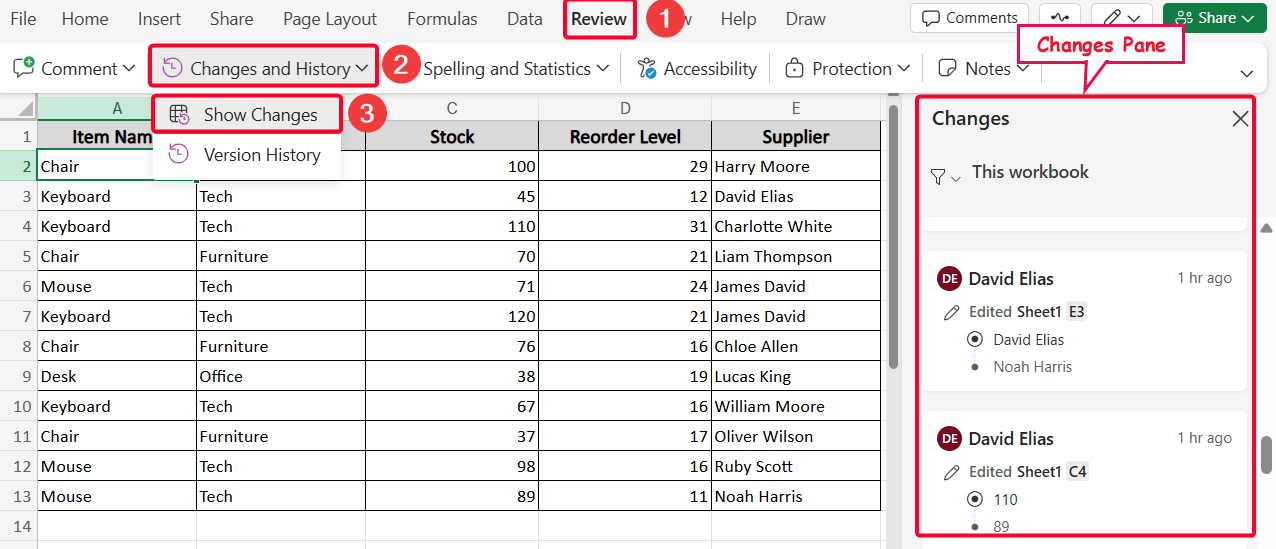
This article focuses on the process of checking cell-based edit history using the Show Changes option and Version History for full summaries and restores
Use the Show Changes Feature to Check Individual Edits
The Show Changes feature is useful when you need cell-specific edit history to find the target edits. You can easily access this feature either from the Review tab or the Context Menu. Before going to the main task, let’s say I have the “Inventory and Supplier Management” file on Excel Online, where Sheet1 (inventory) and Sheet2 (supplier delivery performance) exist.
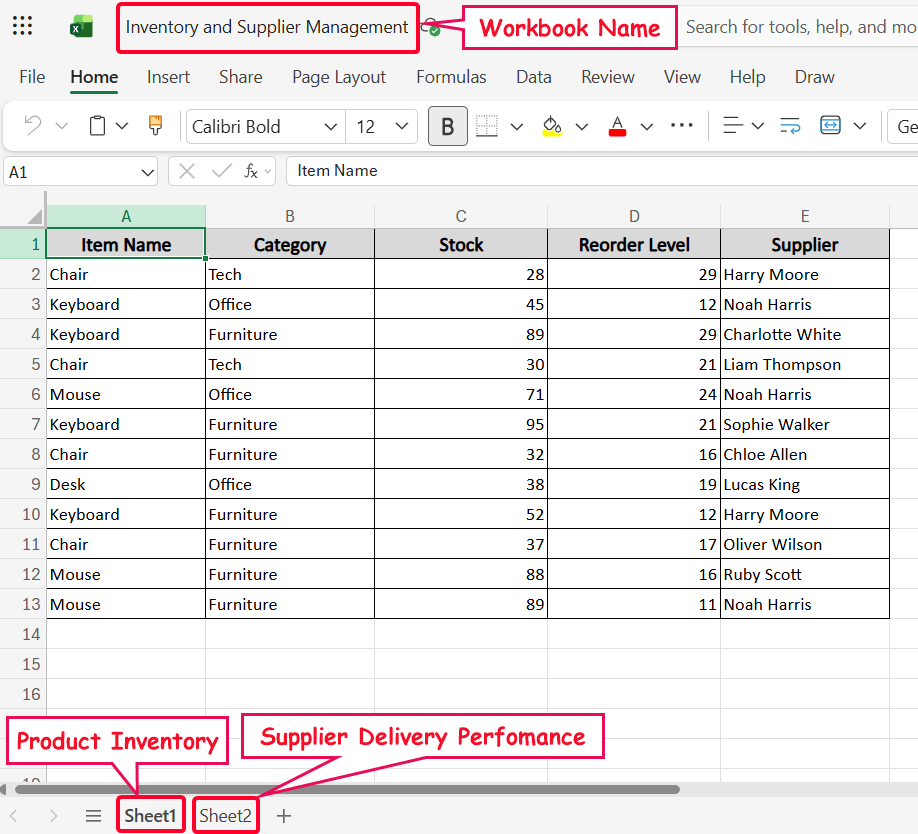
Note:
To work on it in Excel Online, either you have to upload to excel.cloud.microsoft or turn on the AutoSave mode in the desktop Excel if you have a Microsoft 365 subscription, or upload your Excel file to OneDrive/SharePoint. After uploading it, share the link with users to make their edits. Remember, Excel Online is free, but to turn on the AutoSave option, you need the Microsoft 365 version.
Now I want to check the edit history in Excel Online.
Steps:
➤ Go to the Review tab >> Changes and History ribbon group >> pick the Show Changes option from the drop-down menu.
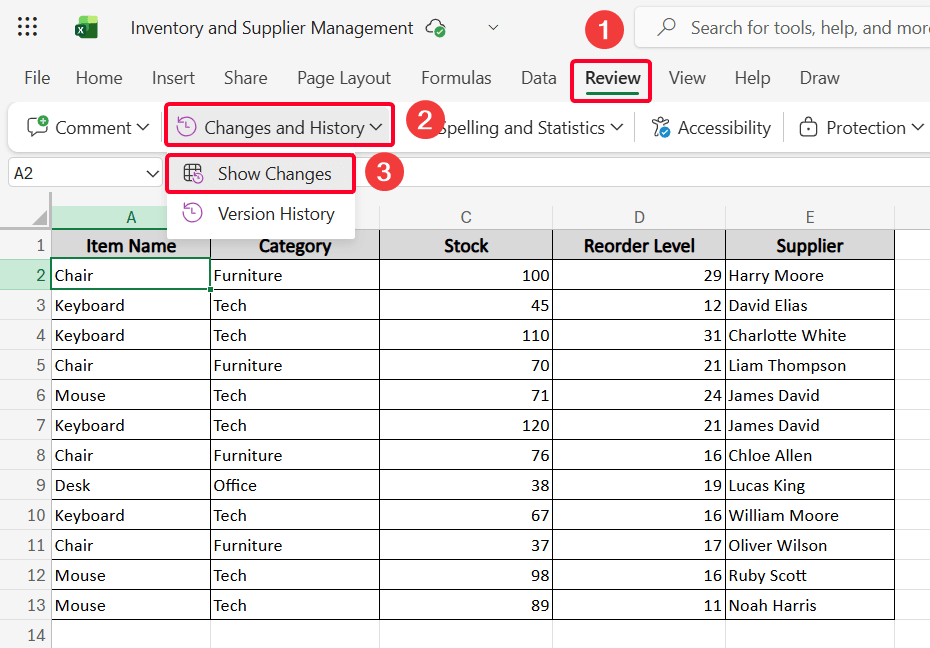
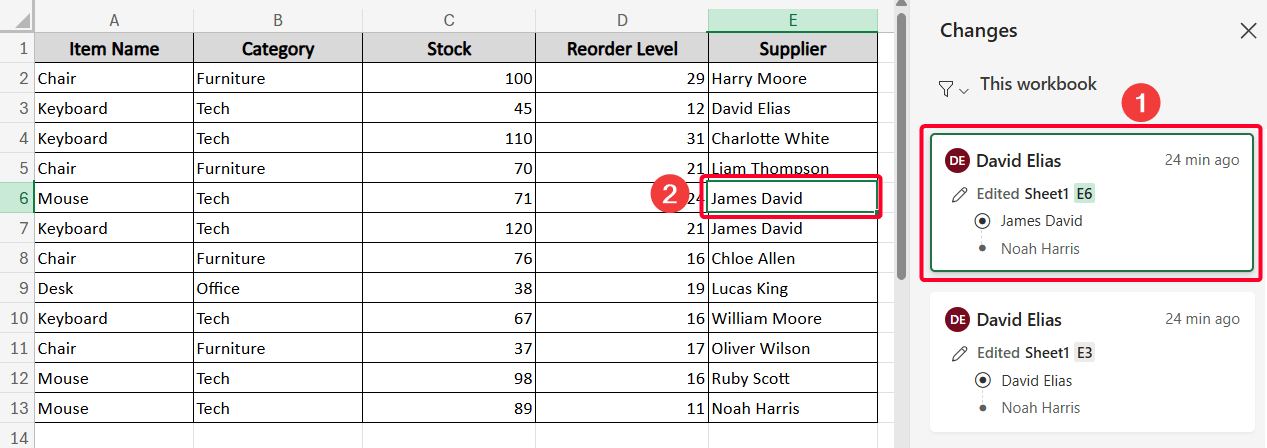
Soon, you’ll see the Changes pane on the right. The following figure shows a user editing (from “Noah Harris” to “James David” at Sheet1 E6) the shared workbook.
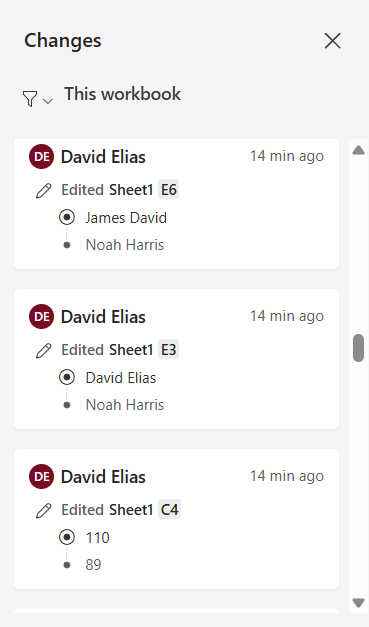
➤ To navigate directly to a cell that has been edited, select the corresponding edit entry within the Changes pane.
Again, if you only want edits for a particular area:
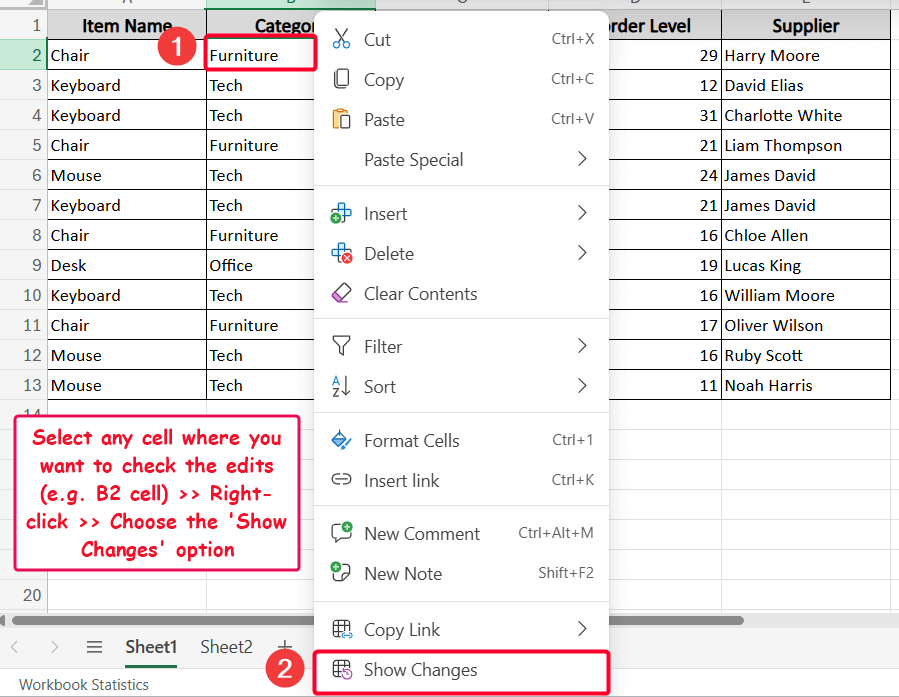
➤ Select the cell where you want to check the edits (e.g. B2 cell).
➤ Right-click and choose the Show Changes option from the context menu.
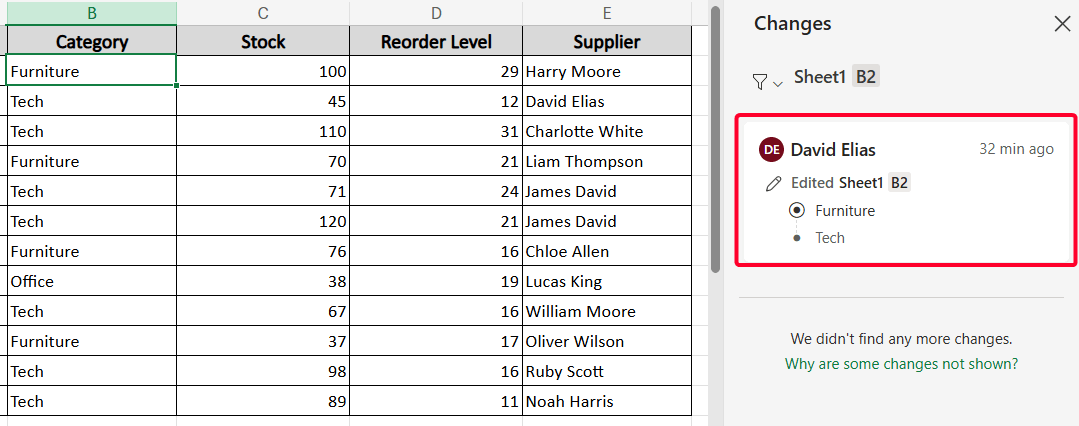
➤ Then you’ll see the edit of a particular cell in the Changes pane.
Apply the Version History Feature to Check Snapshot of All Edits
This method provides a snapshot of all edits rather than a specific cell. Also, you can restore a version if needed. To do these, you can use the Version History feature available in Excel Online. This option could be accessed from either the Review tab or the File tab.
Steps:
➤ First, go to the Review tab >> Changes and History ribbon group >> choose the Version History option.
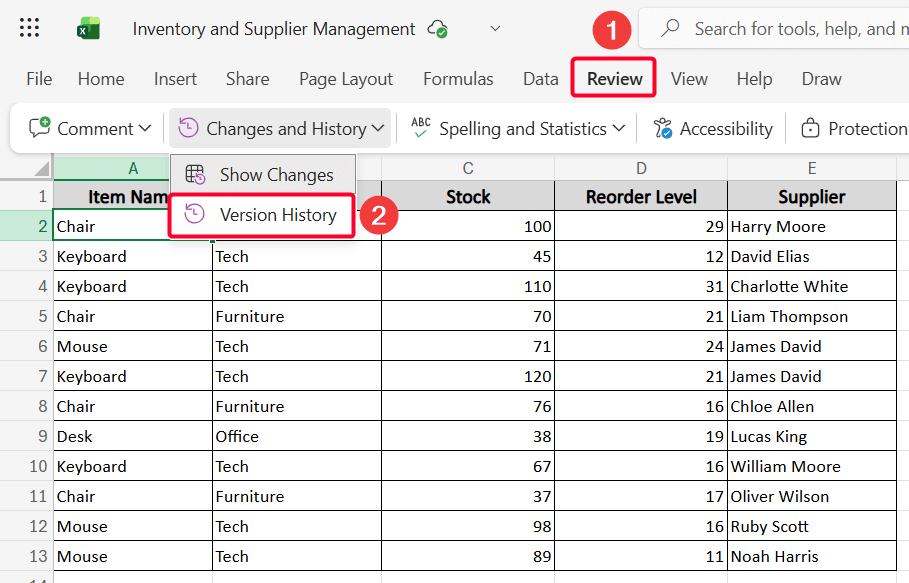
➤ Alternatively, go to the File tab >> click on the Version History option.
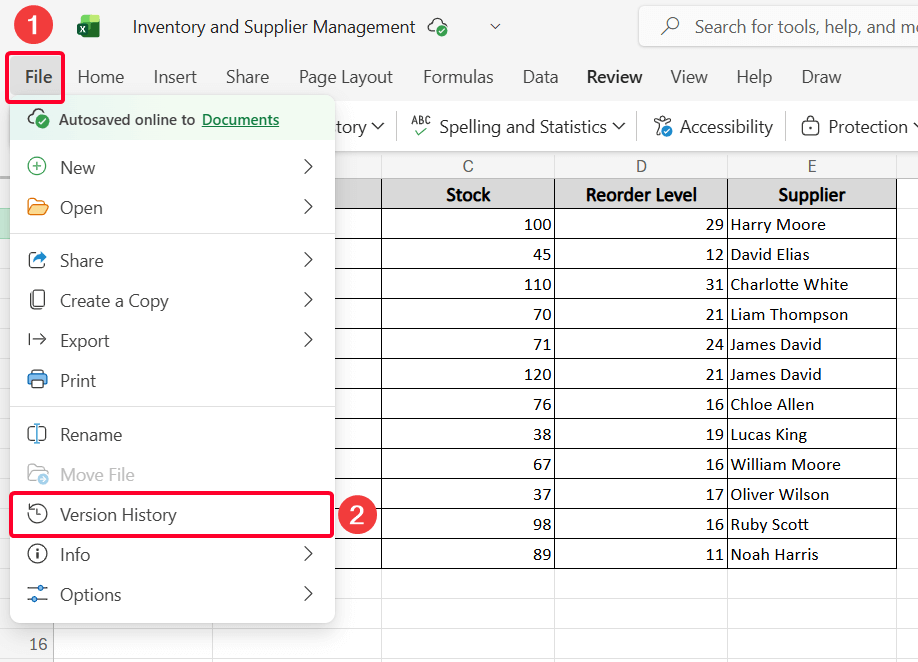
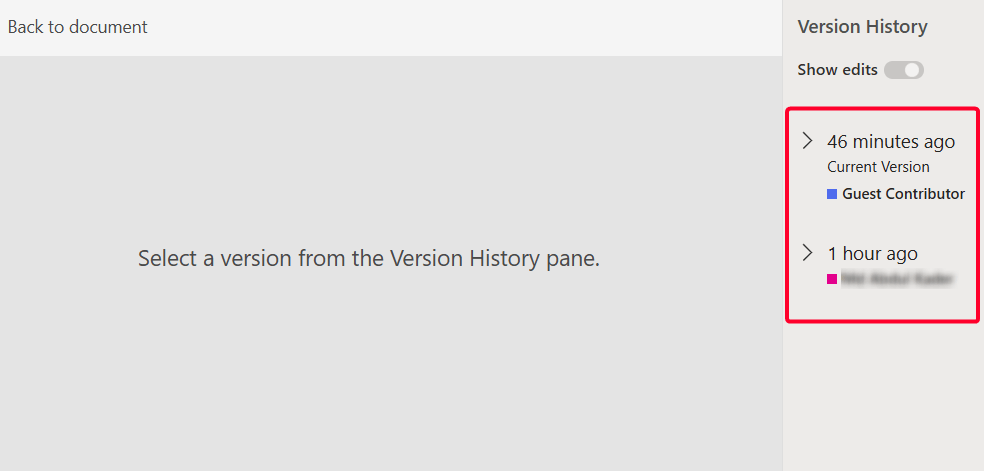
➤ Then a new window will open and display available versions. You can pick a specific version and restore it from the versions.
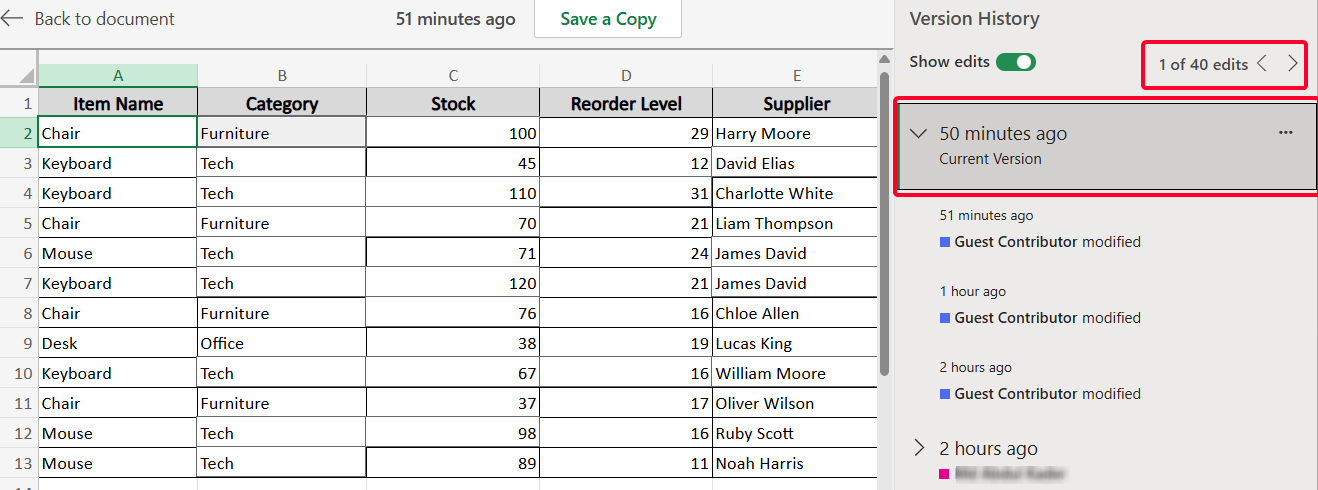
➤ Another thing is that if you click on any version, you’ll see the summary where changes have been made. From the versions, you can save a copy of a version. You also have the option to go back to the document.
Note:
Only users who have edit or view access to the workbook in OneDrive or SharePoint can see version history. View-only users can’t make changes or restore versions.
Frequently Asked Questions
How to Filter Edits in the Changes Pane?
When you have many edits in the Changes pane, you can filter the edit history by a particular cell range, sheet, and date (from the newest to oldest e.g. last 24 hours, last 180 days)
How to Reset Edit History in Excel Online?
You can clear the edit history from the Changes pane if needed. To do this, go to the File tab >> Options >> Reset Changes Pane.
Can I Restore Edits from the Changes Pane?
No, you cannot restore specific edits from the Changes pane. You can only edit the workbook or restore full previous versions from Version History.
What Types of Changes Are Not Found by Show Changes?
Some changes are currently not shown in the Show Changes pane, including formatting changes, PivotTable operations, and edits to charts, shapes, or other objects.
Wrapping Up
This is how you can check edit history in Excel online to make the editing interactive and more accountable. We hope that you have enjoyed the article. Feel free to download the practice workbook and share your thoughts in the comments!