
A core part of the financial analysis of a company is the operating cash flow. Operating cash flow includes the net income, non-cash expenses, and changes in working capital. Any cost or income that is not part of the main activities of a company is not included in the operating cash flow. By subtracting the cash paid as part of the core business operations from the direct income, the operating cash flow can be calculated. In this article, we will learn how to calculate the operating cash flow in Excel.
➤ Use the following formula to calculate the operating cash flow in Excel:
=B12-B13+B10
➤ Replace B12 with the EBIT, B13 with the tax expense, and B10 with the depreciation expense.
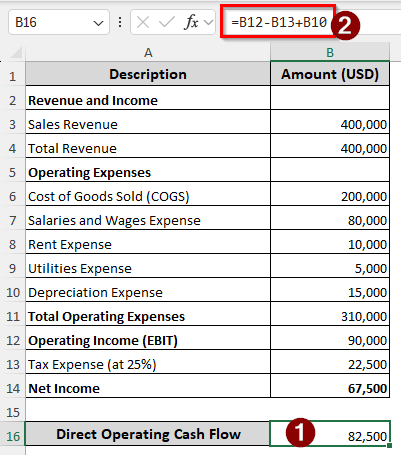
There are multiple methods of calculating the operating cash flow in Excel. In this article, we will learn all of them. Therefore, stick with us to gain a proper knowledge of operating cash flow.
What is the Operating Cash Flow?
In the income statement of a business, the operating income is the amount of profit/loss that is acquired by subtracting the operating expenses from the gross income. Anything that is not directly related to business isn’t included in the operating income. The operating cash flow is similar, but it works with cash only. There are two methods of calculating the operating cash flow.
Most businesses use the indirect method of calculating OCF because businesses use dedicated accounting software to prepare the financial statement, and it is easy to retrieve the net income and balance sheet changes from the program. In this method, non-cash expenses that were deducted before are added, and the difference between the increases of current assets and liabilities is included as well. In the direct method, the cash paid is subtracted from the cash received directly.
Indirect Method of Calculating Operating Cash Flow in Excel
In the indirect method of operating cash flow, companies will usually import the net income and the changes in working capital directly from the accounting software. However, we are going to do this manually for your convenience. We have the income statement and the comparative balance sheet for the beginning and the end of the year. We will use this data to calculate the operating cash flow in Excel.
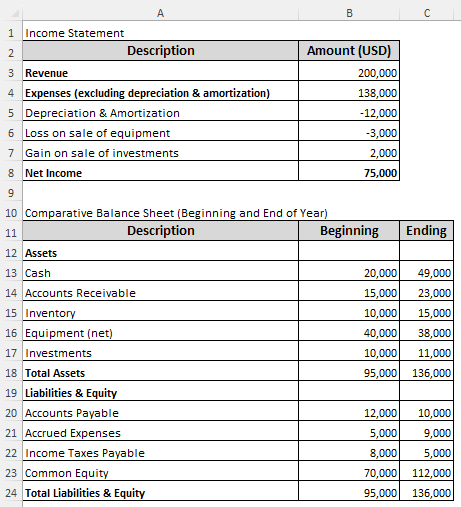
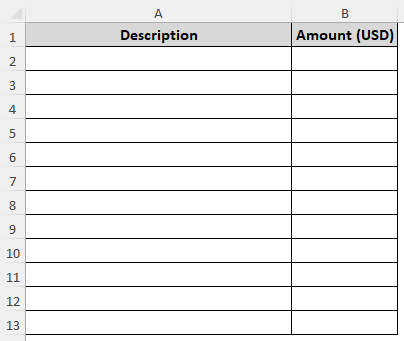
➤ Create a table for operating cash flow calculation with Description and Amount (USD) columns.
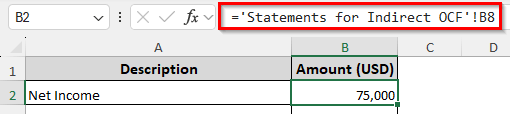
➤ First, import the Net Income from the Income Statement using the following formula in the B2 cell:
='Statements for Indirect OCF'!B8
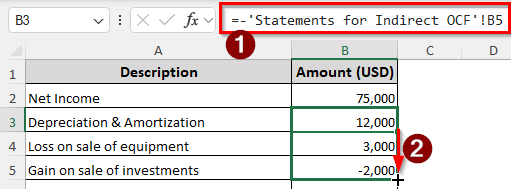
➤ Import other non-cash adjustments, but put a minus (–) sign before that as the subtraction will be added here, and additions will be subtracted from the incomes.
➤ Insert the following formula in the B3 cell and autofill three cells:
=-'Statements for Indirect OCF'!B5
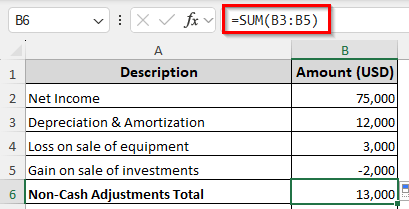
➤ Calculate the non-cash adjustments total using the following formula:
=SUM(B3:B5)
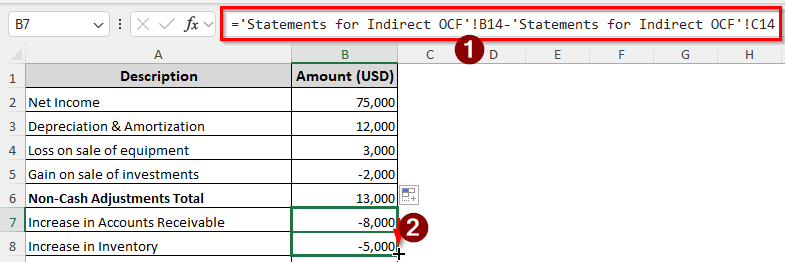
➤ Import the difference between accounts receivable using the following formula, and autofill for inventory as well:
='Statements for Indirect OCF'!B14-'Statements for Indirect OCF'!C14
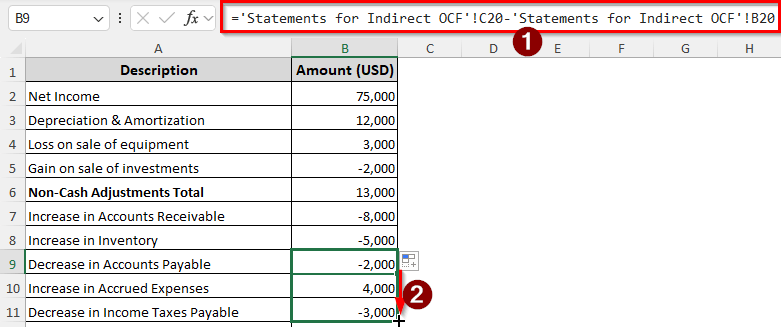
➤ Insert the following formula in the B9 cell and autofill till B11:
='Statements for Indirect OCF'!C20-'Statements for Indirect OCF'!B20
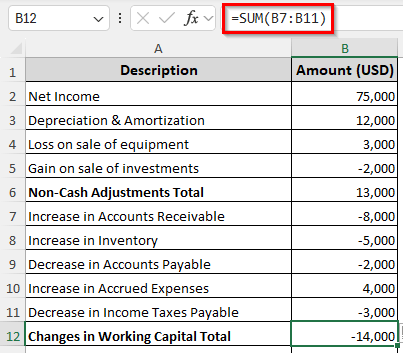
➤ Add the changes in working capital using the following formula in the B12 cell:
=SUM(B7:B11)
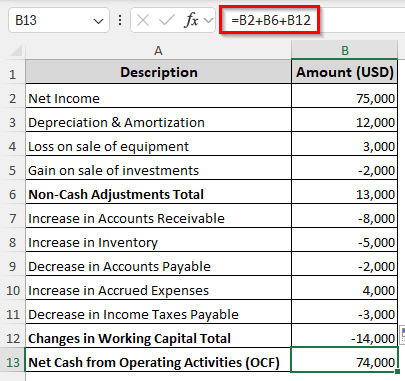
➤ Finally, calculate the operating cash flow using the following formula in the B13 cell:
=B2+B6+B12
Preparing a Direct Method Operating Cash Flow Sheet in Excel
A full cash flow sheet helps visualize the cash flows, which might be required for audit purposes. We have the income statement here to calculate the operating cash flow:
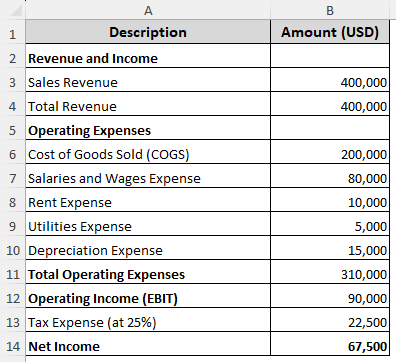
➤ Create a table for the operating cash flow calculation, like the following:
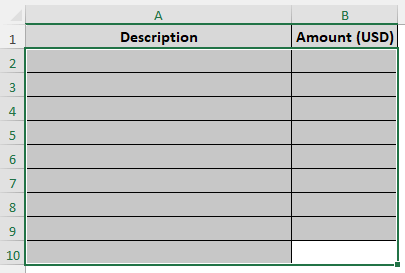
➤ First, as the only cash inflow, enter the sales revenue:
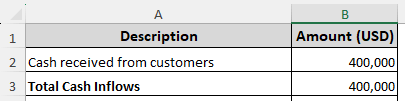
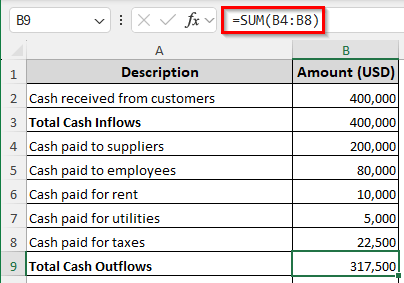
➤ For the cash outflows, import the supplier payment, employee salaries, rent cost, utilities cost, and taxes.
➤ Add up the cash outflows using the following formula:
=SUM(B4:B8)
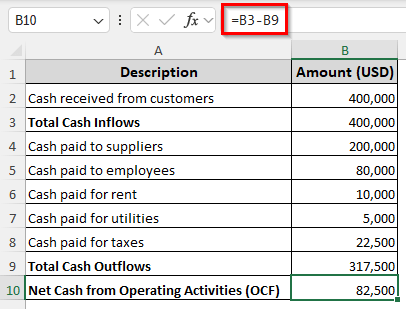
➤ Finally, calculate the operating cash flow using the following formula:
=B3-B9
Computing Direct Operating Cash Flow by Formula in Excel
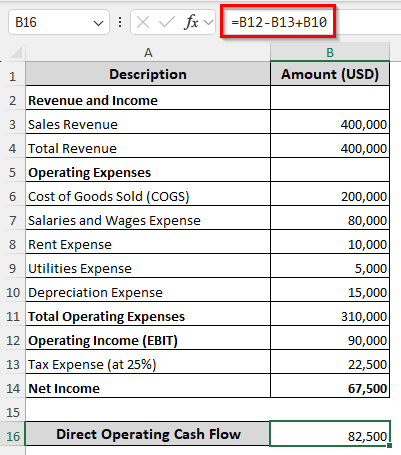
The formula for calculating the operating cash flow directly is EBIT – Tax Expense + Depreciation. In the previous method, we prepared a full operating cash flow statement to calculate the operating cash flow so that you are able to learn the process. This time, we will do it with a single line of formula.
➤ In the income statement sheet, insert the following formula to calculate the operating cash flow directly:
=B12-B13+B10
Downloadable Resources
Get our practice workbook or necessary files that we have worked with to prepare this article.
Frequently Asked Questions
What are the 3 types of cash flow?
The three types of cash flows are operating cash flow, financing cash flow, and investing cash flow. This is according to the US financial statement guide (ASC-230).
What’s a good operating cash flow ratio?
If the operating cash flow ratio is 1.0, it is considered a good enough cash flow. If it’s higher than 1.0, that means you have liquid cash lying around. If it’s less than 1.0, it is a matter of concern.
How to calculate cash flow manually?
For any kind of cash flow, including operating cash flow, you can use the following formula:
=A1-B1
Here, A1 contains the total cash inflows, and B1 contains the total cash outflows.
What is OCF to EBITDA?
EBITDA is the earnings before profit, taxes, depreciation, and amortization. OCF is the operating cash flow. The difference between these two is that the operating cash flow includes profit and taxes, but EBITDA does not.
Can ChatGPT create a cash flow statement?
Yes, ChatGPT can create a cash flow statement. However, you should check the results manually because AI is prone to hallucinating. You don’t want the hallucination to affect your taxes or audit.
Wrapping Up
We have learned how to calculate operating cash flow in Excel from this article. We hope that we were able to make you understand operating cash flow inside out. Excel makes it easier to calculate financial metrics, and that applies to operating cash flow as well. Don’t forget to leave a comment below with your opinion regarding the methods used here, and we will see you in another tutorial soon.