
If you are running a large-scale business, you probably have sales representatives to push your product to the market. To motivate salespeople, a common tactic is to provide them with commissions for the products they sell. There are several ways the sales commission is calculated, and each has its merits and demerits. In this article, we will learn how to calculate sales commissions in Excel using all possible methods.
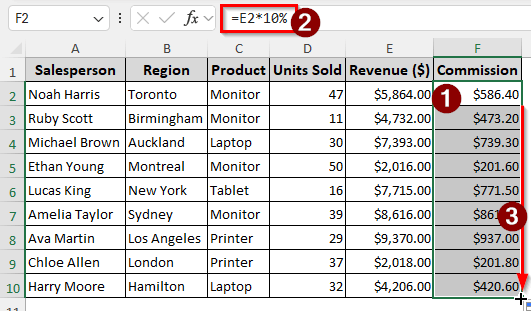
➤ Use the following formula to calculate the sales commission:
=E2*10%
➤ Replace E2 with the revenue earned by the particular salesperson, and 10% with the commission rate.
➤ Autofill for other salespeople in the same table.
Unless your company sells only one product, calculating sales commission might not be as easy as that method. Not to worry, as we will discuss additional methods for calculating sales commissions while considering other factors using complex formulas. Read the methods below carefully to learn how to calculate sales commission in Excel.
Using a Flat Rate for Sales Commission in Excel
The most straightforward way to calculate a sales commission is to use a flat rate. In this case, the company considers a rate, such as 10%, that it will provide as a commission to the salesperson. Here, we have a table listing the names of some salespeople, their respective regions, products, the number of units they sold, and the revenue they generated. We will calculate the sales commission using this information.
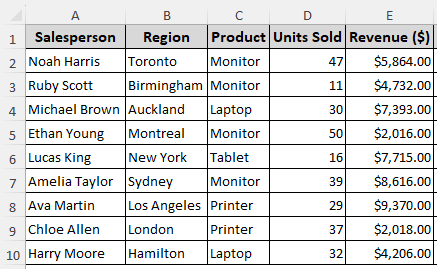
➤ Add another column for commission amount.
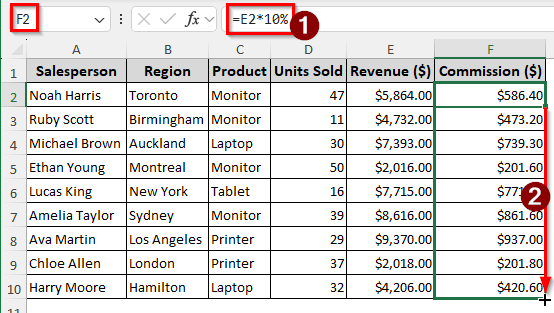
➤ Enter the following formula in the F2 cell, and autofill the column.
=E2*10%
Making Use of Tiered Flat Rates to Calculate Sales Commission
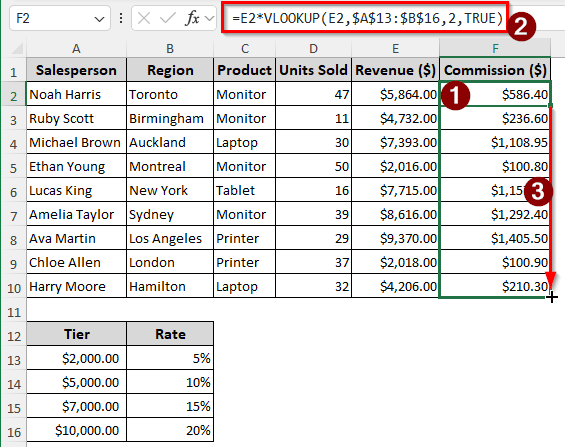
In some cases, companies use sales commissions based on tiers. Below is a table that outlines revenue tiers. Once a salesperson reaches a tier, they receive a higher rate based on that tier. Let’s calculate their sales commission.
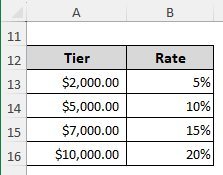
➤ Use the following formula to calculate the commission, then autofill the column:
=E2*VLOOKUP(E2,$A$13:$B$16,2,TRUE)
Measuring Progressive Tiered Sales Commission
A better option than using regular tiers is using progressive tiers. For example, a company might offer 5% for the first $2,000 in sales, 10% for sales between $2,000 and $5,000, and 20% for the remainder of the sales. We have a table here with those exact values, and we will calculate the commission using that table.
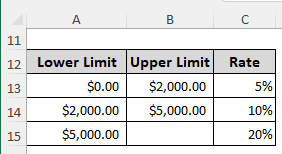
➤ Use the following formula in the F2 cell, and autofill till F10:
=MIN(E2,$B$13)*$C$13 + MAX(0, MIN(E2-$A$14,$B$14-$A$14))*$C$14 + MAX(0, E2-$A$15)*$C$15
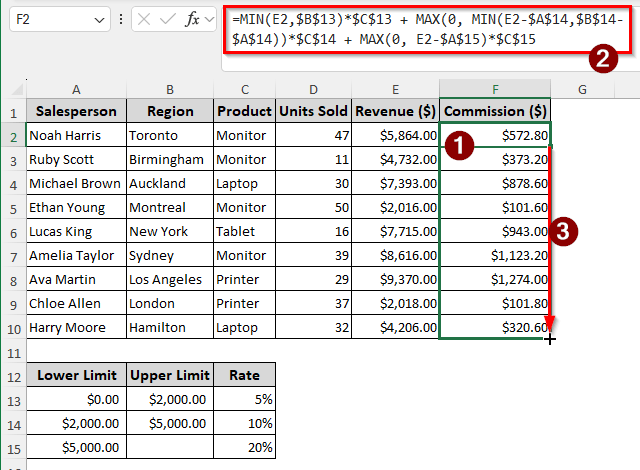
The second part, MAX(0, MIN(E2-$A$14,$B$14-$A$14))*$C$14, does the same, but the smaller value is compared from the second upper limit minus the second lower limit, and the difference between the lower limit versus the rest of E2.
Then, the second part also ensures that the value is not negative because if it is, then the tier was completed in the first part, and we can enter 0 instead. The third part, MAX(0, E2-$A$15)*$C$15, has similar functionalities to the second part, but for the third tier.
Calculating Sales Commission Based on Product Category
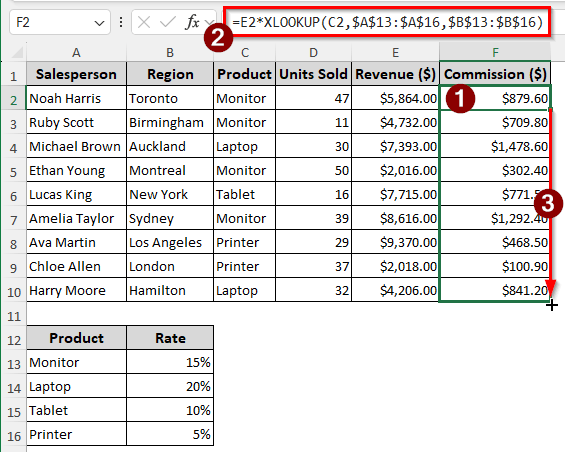
It is very common to use product categories to determine sales commissions. Different products have different margins, so it is normal to have different commission rates. We have a table here with the product-wise rates, and we will use this for the commission rate. Note that you can also use this method for region-wise rates.
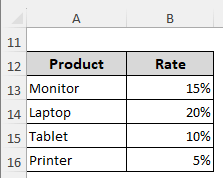
➤ Insert the following formula in the F2 cell, and autofill the rest of the rows:
=E2*XLOOKUP(C2,$A$13:$A$16,$B$13:$B$16)
Downloadable Resources
Get our practice workbook or necessary files that we have worked with to prepare this article.
Frequently Asked Questions
What is a commission calculator?
Sometimes, businesses purchase or develop their own dedicated programs to calculate commissions for their salespeople. These programs offer greater customizability and an intuitive interface for HR professionals working in payroll.
Is 20% commission a lot?
It depends on the industry or product in question. The commission rate is usually 5%-20% for most companies. Software products, real estate, and cars typically have higher commission rates, while retail products with lower value offer lower commissions.
What is a commission split?
In bigger business deals, multiple salespeople might be involved. In that case, the company divides the commission among all the people who contributed towards closing the deal. The commission can be split depending on the employee’s position or their contribution to closing the deal.
What is 3% commission?
3% commission means that when the salesperson makes a sale, they earn 3% of the revenue. For example, if someone sells a product worth $100, they will earn $3. To calculate this commission, we can use the following formula in Excel:
=A1*3%
Here, A1 contains the product price.
What is a good commission rate for sales?
Research the commission rate in relation to the product type, industry, and location. Sales commissions vary depending on several criteria; it is not possible to define an optimal commission rate without considering these variables. It can go from 5% to 100%, all depending on the variables.
Wrapping Up
In this article, we have learned how to calculate sales commission in Excel. We have explored multiple methods to ensure that if your company uses different criteria for commissions, you can select the one that suits your needs. You can even download the Excel file and use it as a template, simply replacing the values, and you are done. Stay tuned for the following Excel tutorial.