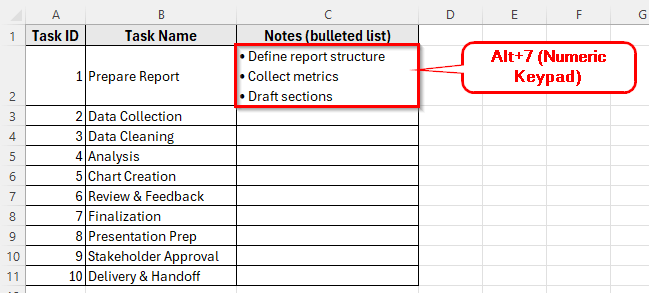
Excel does not have a built-in feature to create bulleted lists like Microsoft Word. Still, you can easily make bullet points in Excel using different techniques. Adding bullets helps organize information, make notes look cleaner, and improve readability.
In this article, you will learn several simple ways to insert bullet points in Excel using shortcuts, symbols, formulas, and formatting options.
Here is how to make a bulleted list in Excel:
➤ Click on the cell where you want to add a bullet point. For example, select cell C2.
➤ Press and hold the Alt key, then press 7 on the numeric keypad. This will insert a solid bullet symbol (•).
➤ After the bullet, type a space and then your text.
➤ To add another bullet in the same cell, press Alt + Enter to move to a new line inside the cell. Then press Alt + 7 again and type your next line of text.
➤ When you’re done, press Enter.
Using Keyboard Shortcut to Insert Bullet Points
In the following dataset, we have a list of project tasks. Column A shows the Task ID, Column B contains the Task Name, and Column C is empty, where we’ll create bulleted notes for each task.
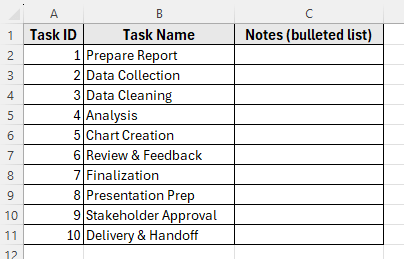
We’ll use this dataset to demonstrate different ways to make a bulleted list in Excel.
The quickest way to make a bulleted list in Excel is by using a keyboard shortcut. This method works best if your keyboard has a numeric keypad. You can insert a bullet symbol inside any cell and then type your text next to it. It is simple and perfect for creating short lists or adding single-line bullets.
Here’s how to do it:
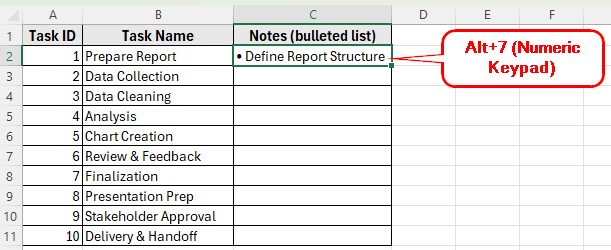
➤ Click on the cell where you want to add a bullet point. For example, select cell C2.
➤ Press and hold the Alt key, then press 7 on the numeric keypad. This will insert a solid bullet symbol (•).
➤ After the bullet, type a space and then your text.
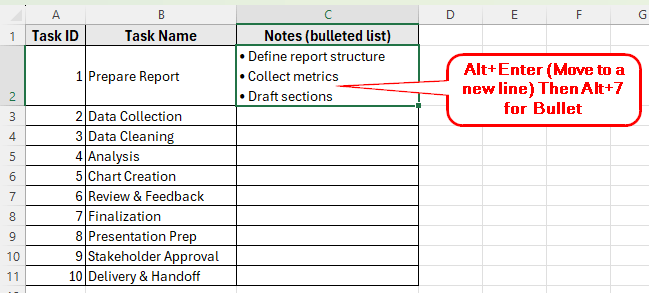
➤ To add another bullet in the same cell, press Alt + Enter to move to a new line inside the cell. Then press Alt + 7 again and type your next line of text.
➤ When you’re done, press Enter.
Using the CHAR Function to Add Bullet Points
Another easy way to create a bulleted list in Excel is by using the CHAR function. This function can display special symbols in cells using their character code. You can combine the CHAR function with your text to show bullet points inside a cell.
Here’s how to do it:
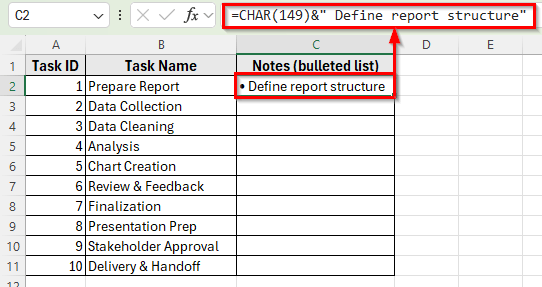
➤ Click on cell C2 in your worksheet.
➤ Type the following formula in the formula bar:
=CHAR(149)&" Define report structure"
➤ Press Enter. Excel will display a bullet followed by your text, like this:
- Define report structure
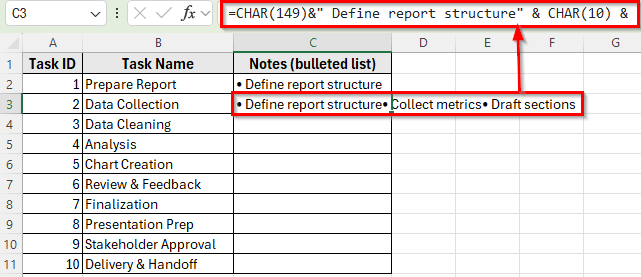
➤ To make a multi-line bulleted list in one cell, you can add line breaks using CHAR(10) between each bullet. Type the following formula in cell C3:
=CHAR(149)&" Define report structure" & CHAR(10) & CHAR(149)&" Collect metrics" & CHAR(10) & CHAR(149)&" Draft sections"
➤ Press Enter.
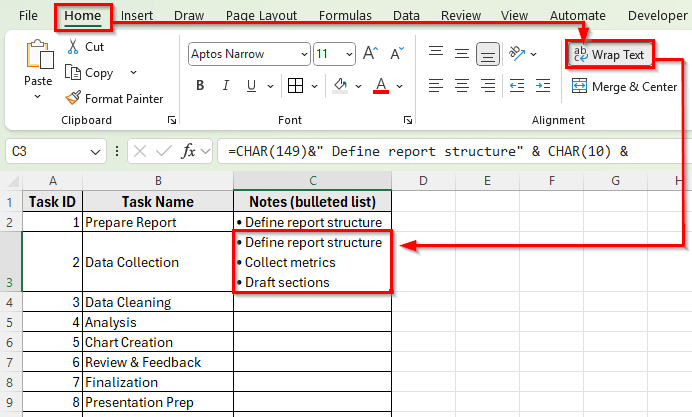
➤ Next, go to the Home tab and click Wrap Text so all bullet lines appear properly inside the cell.
Using the Symbol Option to Insert Bullet Points
You can also insert bullet points in Excel using the Symbol option on the Ribbon. This method allows you to choose from a wide variety of bullet styles and is useful if you want a specific type of symbol.
Here’s how to do it:
➤ Click on the cell where you want to insert the bullet point. For example, select cell C2.
➤ Go to the Insert tab on the Ribbon and click Symbol on the right side.
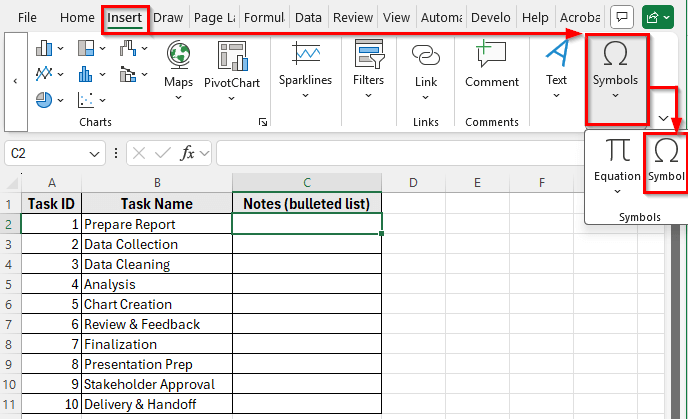
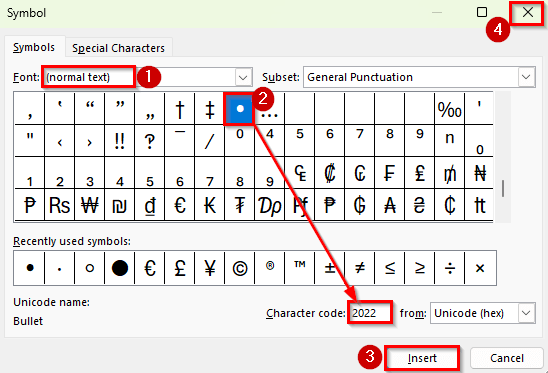
➤ In the Symbol dialog box, set the Font to Normal Text.
➤ Scroll through the list until you find the bullet symbol (•). You can also use the Character code 2022 for a standard bullet.
➤ Click Insert, then click Close to exit the dialog box.
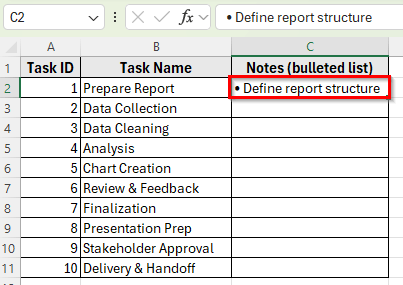
➤ Type a space after the bullet and enter your text.
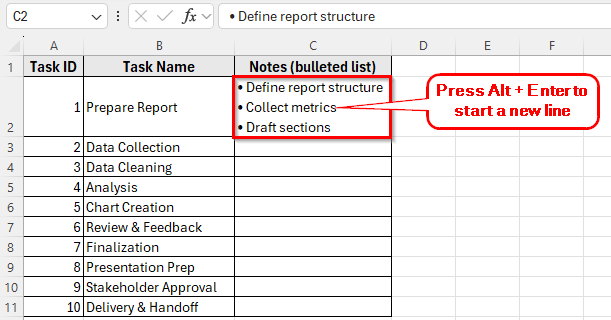
➤ To add another bullet in the same cell, press Alt + Enter to start a new line, then repeat the same steps or copy the bullet symbol.
➤ Press Enter when finished.
Using Custom Number Formatting to Add Bullet Points
You can use Custom Number Formatting to automatically display a bullet before any text you type in a cell. This method is very effective when you want each item in a column to start with a bullet symbol without typing it manually every time.
Here’s how to do it:
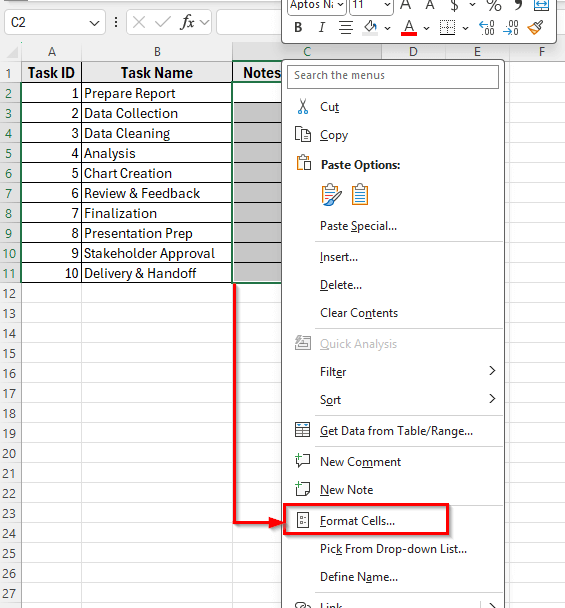
➤ Select the cells where you want to add bullet points. For example, highlight the range C2:C11.
➤ Right-click the selection and choose Format Cells.
➤ In the Format Cells dialog box, go to the Number tab and click Custom.
➤ In the Type field, enter the following format:
- @
➤ Click OK to apply the format.
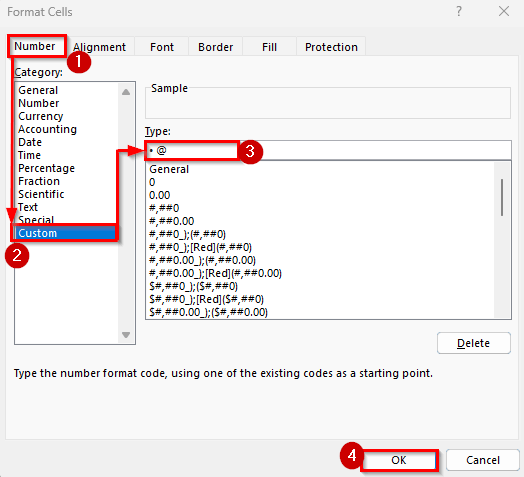
➤ Now type any text inside the formatted cells. Each entry will automatically begin with a bullet symbol.
➤ If you type Define report structure in cell C2 and press Enter, Excel will display it as:
- Define report structure
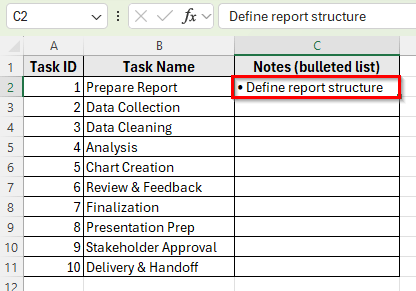
➤ Now, whenever you type any text in the selected range C2:C11, Excel will automatically add a bullet point when you press Enter.
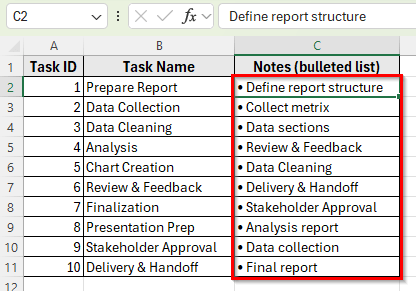
Note:
This method works best when you want to create single-line bullet points across several cells.
Using Text Boxes or SmartArt to Create Bulleted Lists
If you want your bulleted list to look more visually appealing, you can use Text Boxes or SmartArt instead of typing bullets inside regular cells. These tools allow you to design a list that looks professional and stands out in reports or dashboards.
Here’s how to do it:
Using a Text Box to Create Bulleted Lists
➤ Go to the Insert tab and click the Text Box.
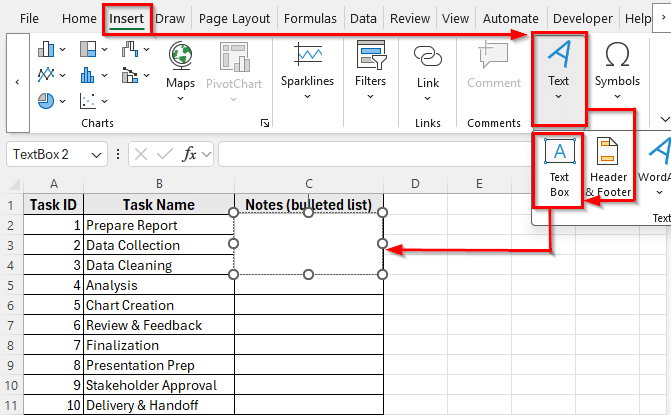
➤ Draw a text box anywhere on your worksheet.
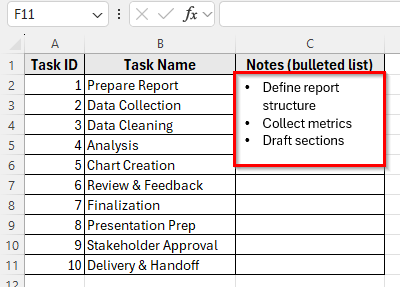
➤ Click inside the box and start typing your list.
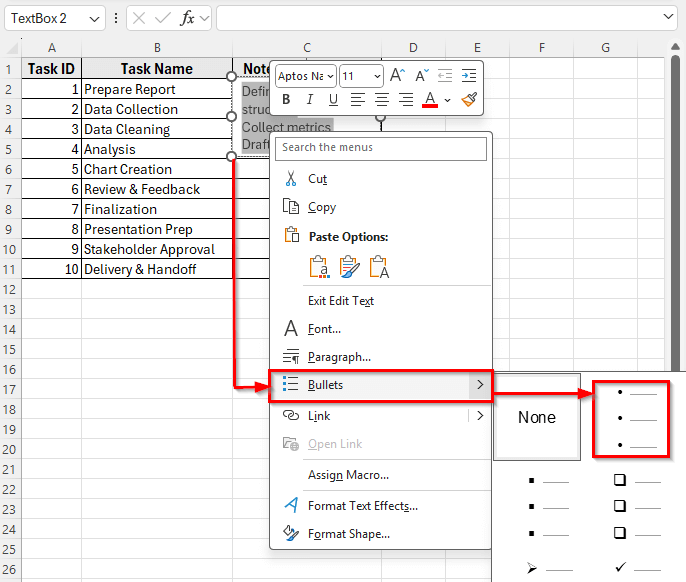
➤ To add bullet points, right-click inside the box and select Bullets.
➤ Choose your preferred bullet style.
➤ Adjust the size and position of the text box as needed.
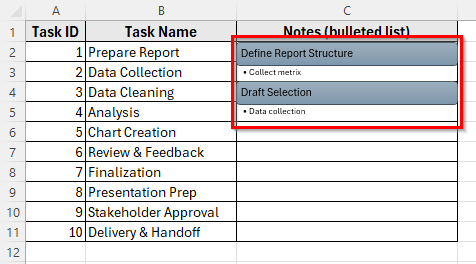
Using SmartArt to Create Bulleted Lists
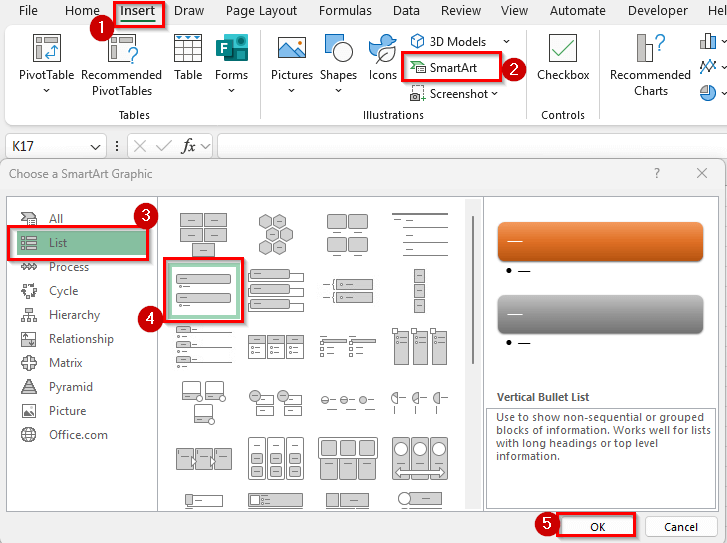
➤ Go to the Insert tab and click SmartArt.
➤ In the dialog box, select List from the left panel.
➤ Choose a layout, such as Vertical Bullet List, and click OK.
➤ Click inside each text placeholder and enter your points.
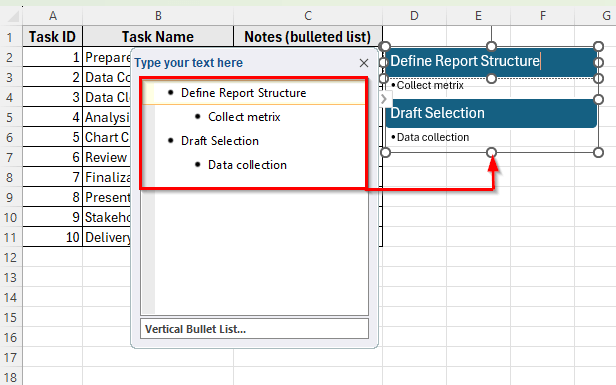
➤ SmartArt automatically formats your list with bullets and gives you more design options, such as colors, shapes, and icons.
Frequently Asked Questions
How do I insert multiple bullet points in one cell in Excel?
You can press Alt + Enter to start a new line within the same cell. Then use Alt + 7 or the CHAR(149) formula for each new line. Make sure Wrap Text is turned on so all bullet points are visible.
Why does my bullet formula show all text in one line?
That happens when Wrap Text is turned off. After using a formula, enable Wrap Text from the Home tab to display each bullet on a new line.
How do I add sub-bullets or indents in Excel?
Excel does not support sub-bullets directly. You can create the effect by adding spaces before the second-level bullet or by using separate columns for indentation.
Can I apply bullet formatting automatically to many cells?
Yes. Use the Custom Number Formatting method and apply it to a cell range. Each cell will display a bullet automatically before the text you enter.
Wrapping Up
Creating a bulleted list in Excel helps you organize information clearly and make your data more readable. Although Excel does not have a built-in bullet feature like Word, you can still add bullet points using shortcuts, symbols, formulas, or custom formatting.
Each method offers an easy way to improve the appearance of your worksheet. Try these techniques to make your lists look tidy, professional, and easy to follow.