
Counting non-blank cells with conditions is a common requirement in Excel for accurate data analysis and reporting. Whether you’re tracking completed entries, filtering active records, or generating conditional summaries, knowing how to count only the filled cells can help ensure accurate results.
By using Excel’s built-in tools and functions, we can easily perform this operation. With functions like COUNTIFS, users can count non-empty cells that meet one or more criteria without the need for time-consuming manual checks. This method is particularly useful for tasks such as managing reports, dashboards, and data validation, where precision and efficiency are essential.
Follow the steps below to count non-blank cells with conditions in your Excel dataset.
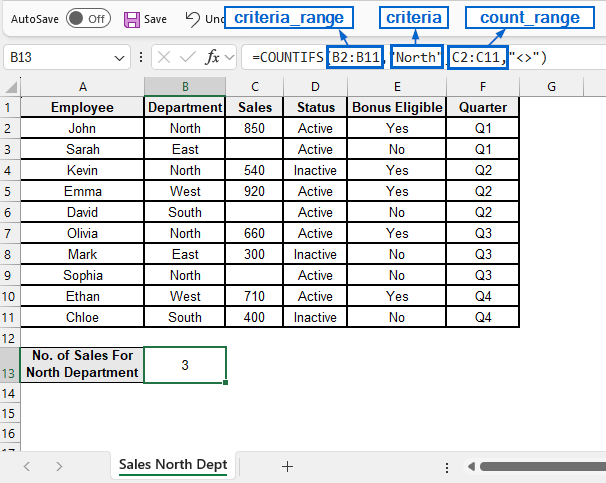
➤ In your dataset, select the cell where you want to display the result and put the following formula:
=COUNTIFS(criteria_range, criteria, count_range, “<>”)
➤ Replace “criteria_range” with the range of cells you want to check for the condition.
➤ Replace “criteria” with the specific condition you are looking for within the “criteria_range”.
➤ Replace “count_range” with the range of cells where you want to count the non-blank entries.
In this article, we will learn how to count non-blank cells with conditions in Excel with two practical methods.
Count Non-Blank Cells with Two Conditions Using COUNTIFS
In the sample dataset, we have a worksheet called Sales Data containing information about Employee names, Department, Status, Bonus Eligibility, Quarter and Sales with a few random blank cells.
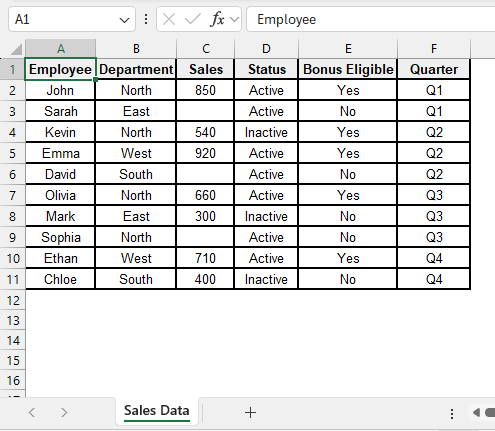
By using the COUNTIFS function, we will now count non-blank cells with conditions by calculating the number of sales made in the North department. The updated dataset will be stored in a separate “Sales North Dept” worksheet.
The COUNTIFS function is an important Excel tool used to count the number of cells that meet multiple criteria across one or more ranges.
Steps:
➤ Open the Sales North Dept worksheet and in cell B13, put the following formula:
=COUNTIFS(B2:B11,"North",C2:C11,"<>")
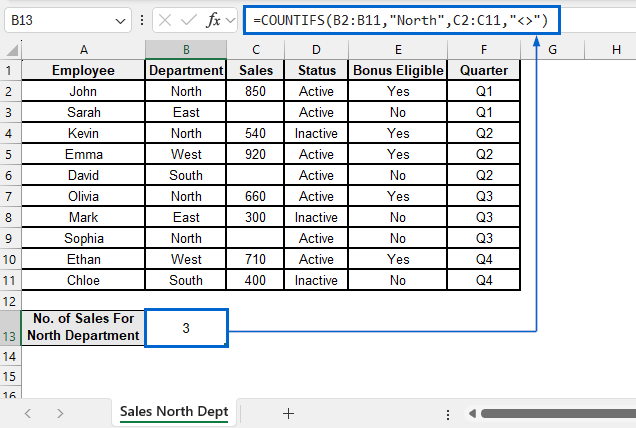
➧ B2:B11 is the first range where Excel checks for the specified condition.
➧ “North” is the condition for the first range, where only cells with the value "North" in B2:B11 are considered.
➧ C2:C11 is the second range that Excel evaluates for non-empty cells.
➧ “<>” is the condition for the second range, counting cells that are not blank.
➧ COUNTIFS() counts the number of rows where both conditions are met.
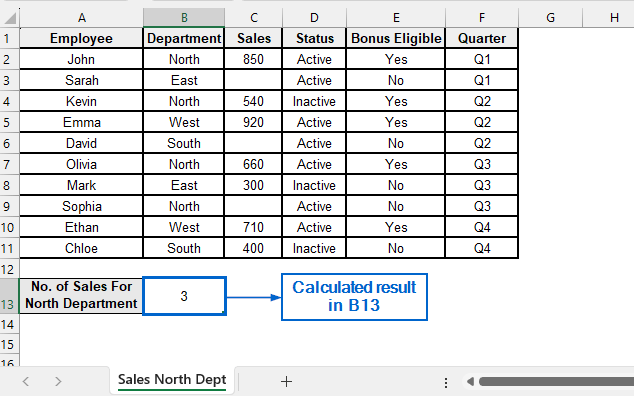
➤ Cell B13 should now display the number of sales made by the north department.
Count Non-Blank Cells with Three Conditions Using COUNTIFS
Unlike the previous method, which used two conditions, this time we will count non-blank cells in Excel with three conditions.
Using the COUNTIFS function and working with the same dataset, we will now calculate the number of sales made by the active employees in the north department and display the modified dataset in a separate “Active Employees North Dept” worksheet.
Steps:
➤ Open the Active Employees North Dept worksheet and in cell B13, put the following formula:
=COUNTIFS(B2:B11,"North",D2:D11, "Active", C2:C11,"<>")
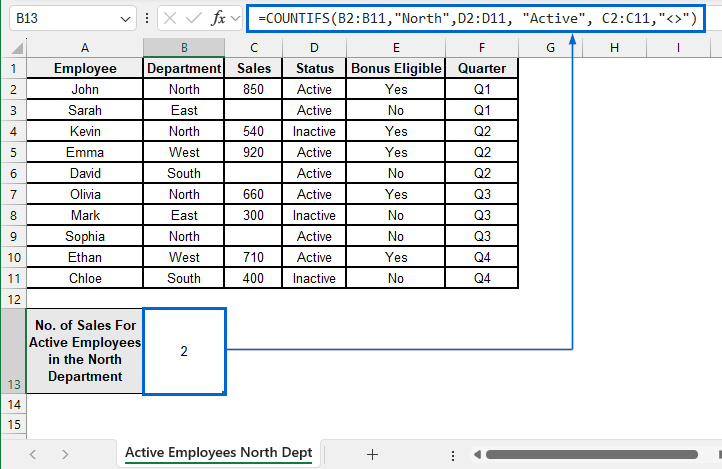
➧ B2:B11 is the first range where Excel checks for the first condition.
➧ "North" is the condition for the first range, counting only rows where the value in B2:B11 is "North".
➧ D2:D11 is the second range where Excel evaluates the second condition.
➧ "Active" is the condition for the second range, counting only rows where D2:D11 equals "Active".
➧ C2:C11 is the third range that Excel checks for non-empty cells.
➧ "<>" is the condition for the third range, counting only cells in C2:C11 that are not blank.
➧ COUNTIFS() finally counts the number of rows where all three conditions are met.
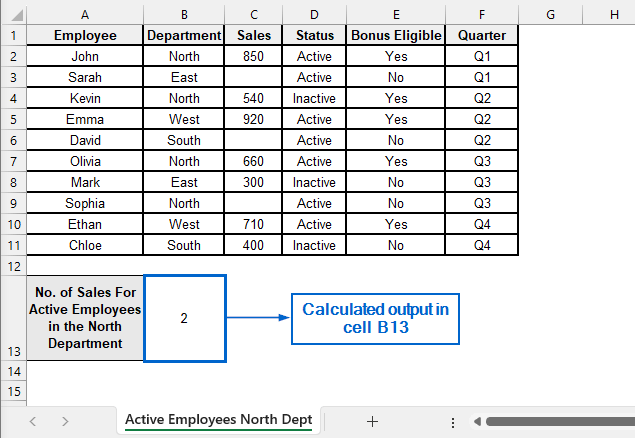
➤ The number of Sales made by the active employees of the north department should now be displayed in cell B13.
Downloadable Resources
Get our practice workbook or necessary files that we have worked with to prepare this article.
Count Non-Blank Cells with Condition.xlsx
Frequently Asked Questions
Why Is My COUNTIFS Formula Returning Zero?
Your formula may return zero if there are incorrect cell references, extra spaces, or mismatched data types. To fix this, double-check your cell references, ensure the data types match, and remove any leading or trailing spaces.
How do I Count Blank Cells Instead of Non-Blank Cells
To count blank cells instead of non-blank cells, you have to replace “<>” with “=” in your formula. Use the formula below to count non-blank cells:
=COUNTIFS(B2:B11,"North",C2:C11,"=")
Can I Combine COUNTIFS with Other Functions?
Yes, COUNTIFS can be combined with other functions like IF, SUM, or AVERAGE to create more flexible formulas for analyzing non-blank cells under multiple conditions.
Is the COUNTIFS Function Case Sensitive?
No, the COUNTIFS function in Excel is not case sensitive. If you need a case-sensitive count, you can combine COUNTIFS with the EXACT function inside an ARRAY or SUMPRODUCT formula.
Concluding Words
Knowing how to count non-blank cells with conditions in Excel is crucial for analyzing datasets accurately and making informed decisions based on specific criteria.
In this article, we have explained two effective methods on how to count non-blank cells with conditions in Excel, including using COUNTIFS to count non-blank cells with two and three conditions. Feel free to try both methods and choose one that best meets your needs.