
Excel Pro Tips
How to Create a Drop-Down List from a Table in Excel
Learn how to create a drop-down list from a table in Excel using dynamic ranges, named ranges, and UNIQUE for auto-updating lists.
Read article

Tasmia Rahim holds a B.Sc in Electrical Engineering with a focus on automation and embedded systems, supporting logic-driven spreadsheet workflows. With 2 years of Excel and Google Sheets experience, she works with conditional formatting and basic automation. She is interested in using macros and ActiveX controls to simplify Excel tasks and improve usability.
Articles by Tasmia Rahim are developed under the guidance of ExcelInsider’s core training program and are technically reviewed by Nehad Ulfat, lead spreadsheet consultant, to ensure accuracy and user-centric value.
Learn how to create a drop-down list from a table in Excel using dynamic ranges, named ranges, and UNIQUE for auto-updating lists.
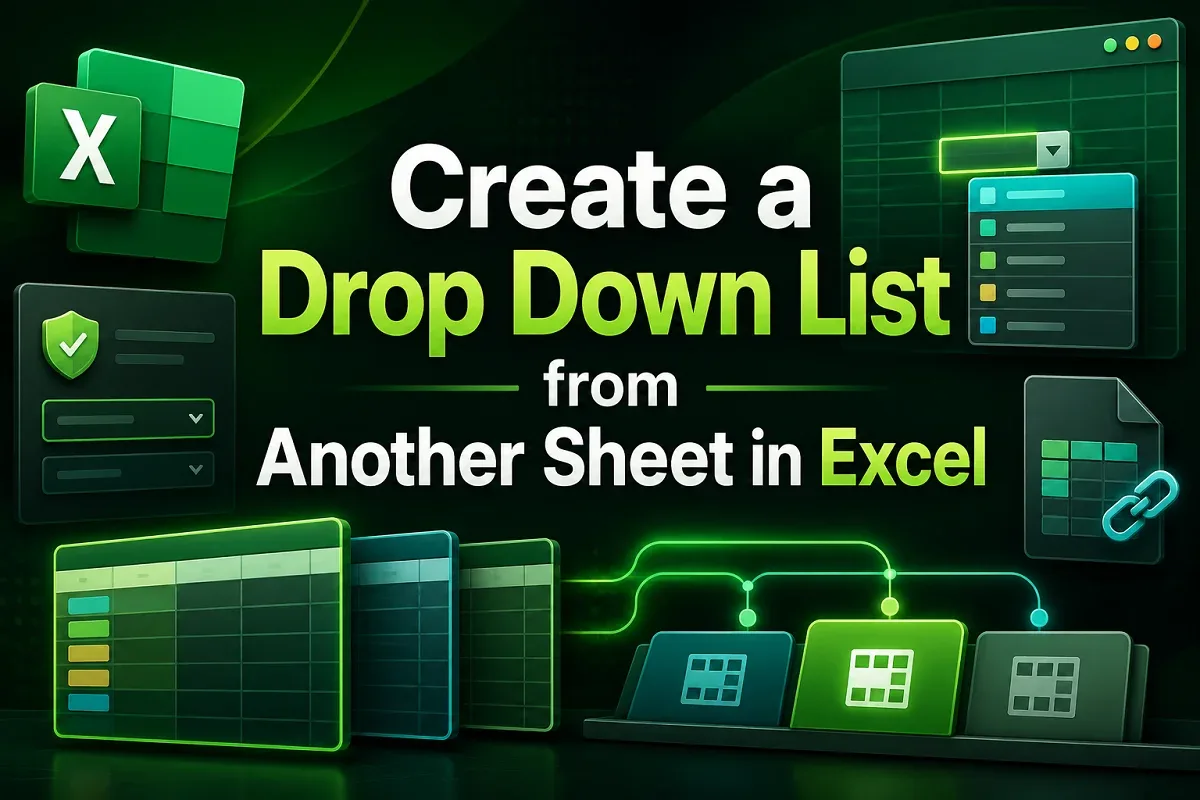
Create a drop-down list in Excel from another sheet using direct references, named ranges, tables, dynamic ranges, or unique spill lists.

Group similar items in Excel using sorting, PivotTables, Subtotal, formulas, GROUPBY, or UNIQUE function for organized, summarized data.

Automatically transfer data between Excel worksheets using cell references, named ranges, VBA, or Power Query for seamless syncing.

Reference another Excel workbook without opening it using external references, Power Query, and refreshing links efficiently.

Learn how to extract URLs from hyperlinks in Excel using VBA, display web addresses in formulas, or manually via the Edit Hyperlink dialog.

Learn how to break links in Excel and keep values using copy-paste, Find and Replace, Edit Links dialog, or VBA for clean data.

Create a filtering search box in Excel using FILTER, drop-down AutoFilter, slicers, ActiveX TextBox, and multi-column search formulas.
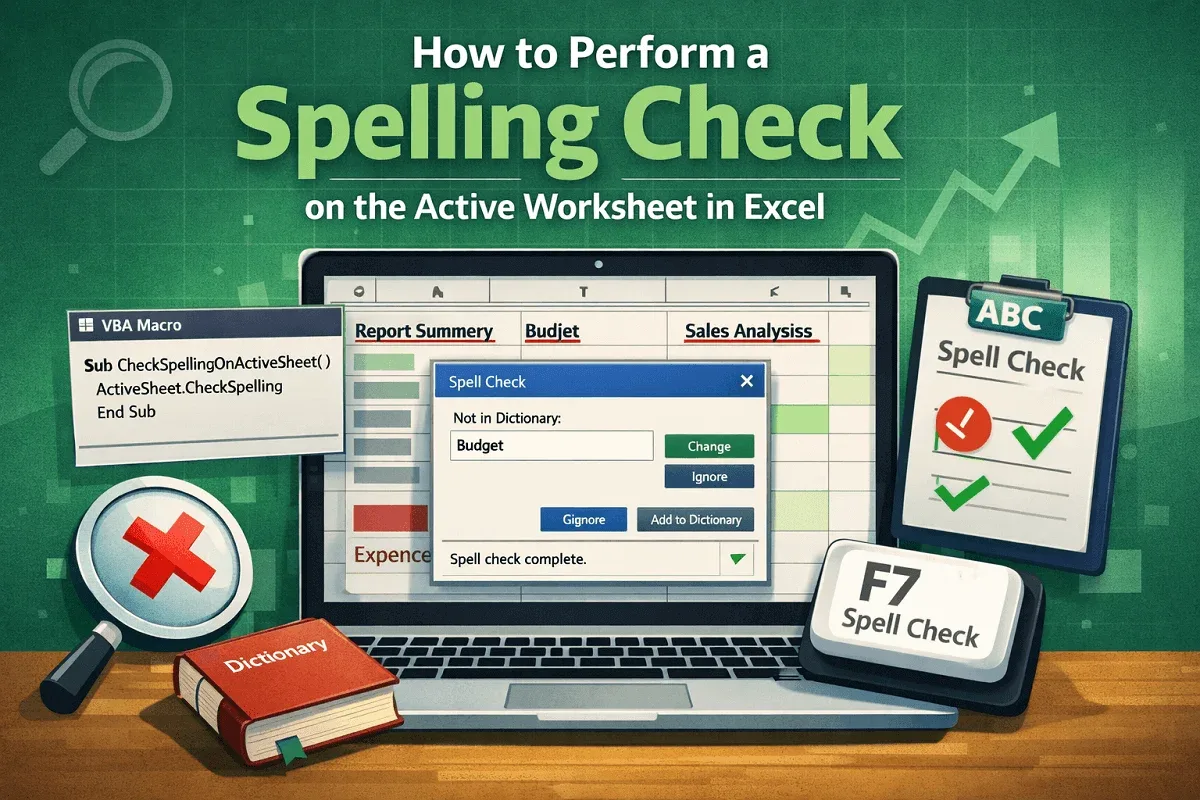
Perform a spelling check on the active Excel sheet using F7, VBA, or by targeting specific ranges and formulas for error-free data.

Convert multiple rows to columns in Excel using Paste Special, the TRANSPOSE function, Power Query, or VBA for quick and easy results.
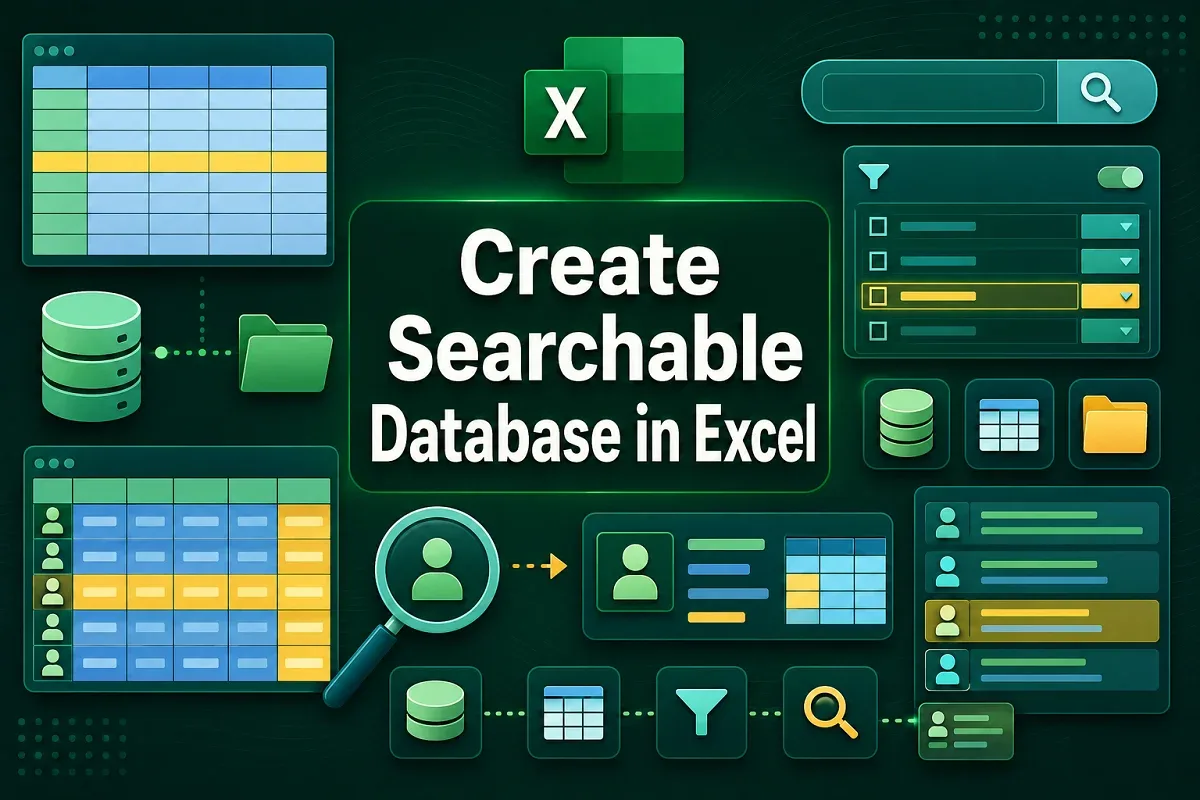
Create a searchable database in Excel using filters, dynamic search boxes, drop-down lists with VLOOKUP, and conditional formatting.
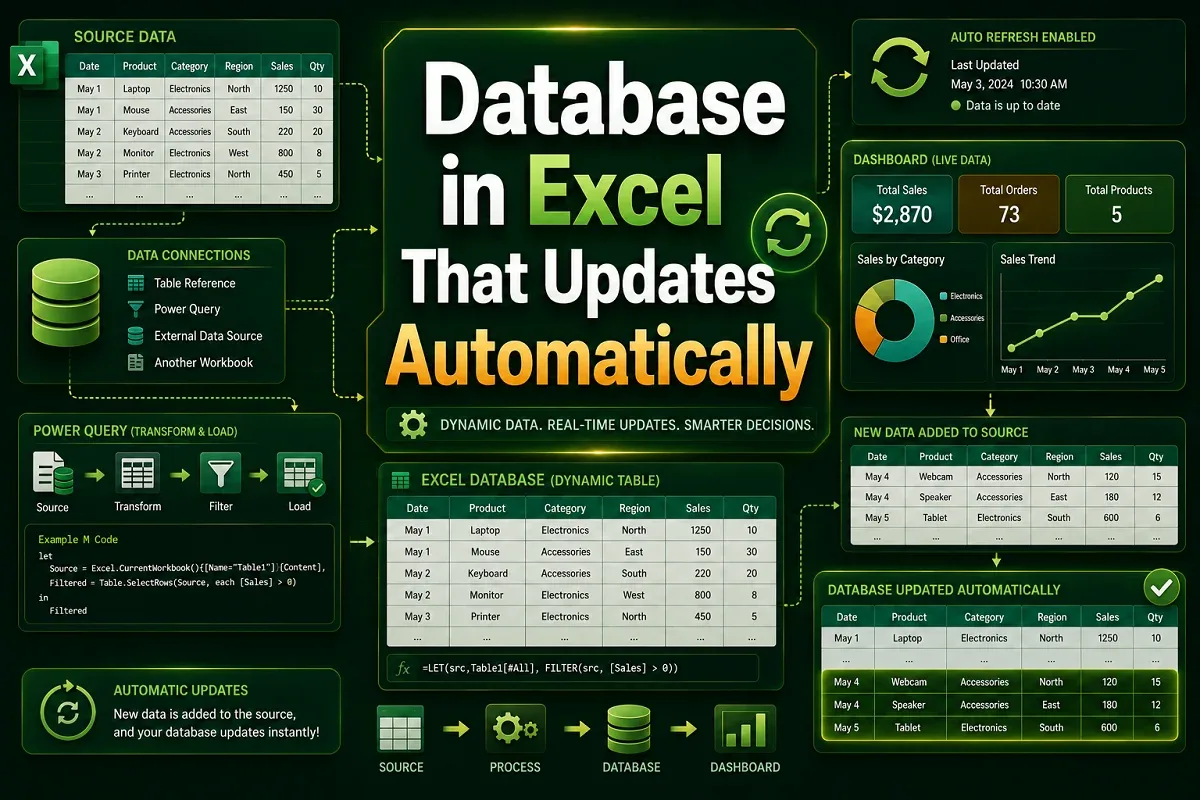
Create an auto-updating database in Excel using tables, dynamic ranges, PivotTables, Power Query, and VBA for seamless data updates.