
Excel Pro Tips
How to Automatically Send Email Based on Date from Excel
Learn how to automatically send emails from Excel based on specific dates using VBA and the Workbook Open event to trigger the process.
Read article

Tasmia Rahim holds a B.Sc in Electrical Engineering with a focus on automation and embedded systems, supporting logic-driven spreadsheet workflows. With 2 years of Excel and Google Sheets experience, she works with conditional formatting and basic automation. She is interested in using macros and ActiveX controls to simplify Excel tasks and improve usability.
Articles by Tasmia Rahim are developed under the guidance of ExcelInsider’s core training program and are technically reviewed by Nehad Ulfat, lead spreadsheet consultant, to ensure accuracy and user-centric value.
Learn how to automatically send emails from Excel based on specific dates using VBA and the Workbook Open event to trigger the process.
Learn how to create mailing labels in Excel using Word Mail Merge, VBA automation, or cell formatting for customized label designs.
Learn how to create a mailing list in Excel by setting up structure, entering valid contact data, organizing, sorting and exporting the list.

Learn how to perform mail merge without Word using Excel formulas, VBA macros, CSV exports, and tools like the Mailmeteor add-in.
Discover how to pull data from another sheet in Excel using VLOOKUP, INDEX & MATCH, FILTER, XLOOKUP, and Power Query based on criteria.
Learn how to extract month and day from a date in Excel using functions like MONTH, DAY, TEXT, CHOOSE, SWITCH, and Power Query.
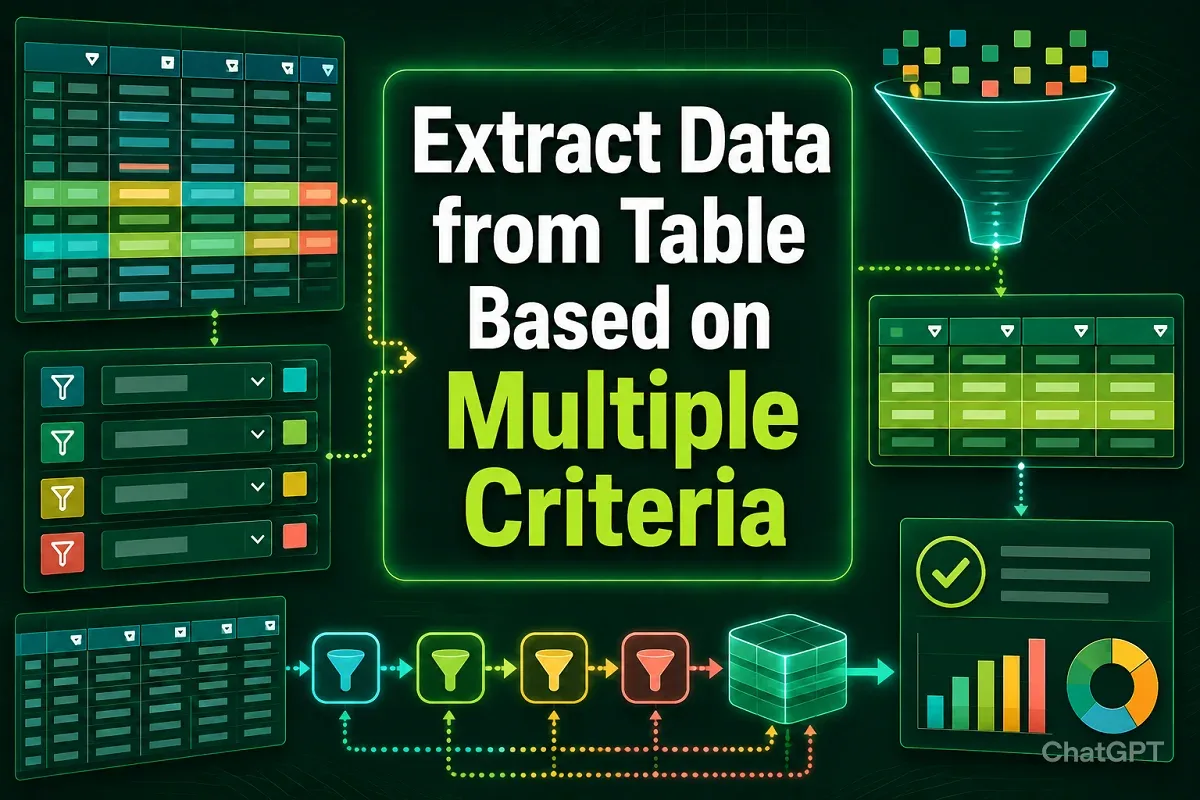
Learn multiple ways to extract data from a table in Excel using FILTER, SUMIFS, XLOOKUP, Power Query, and advanced formulas.

Learn how to use data validation with custom multiple criteria in Excel using AND/OR logic, COUNTIF, date rules, named ranges and lists.
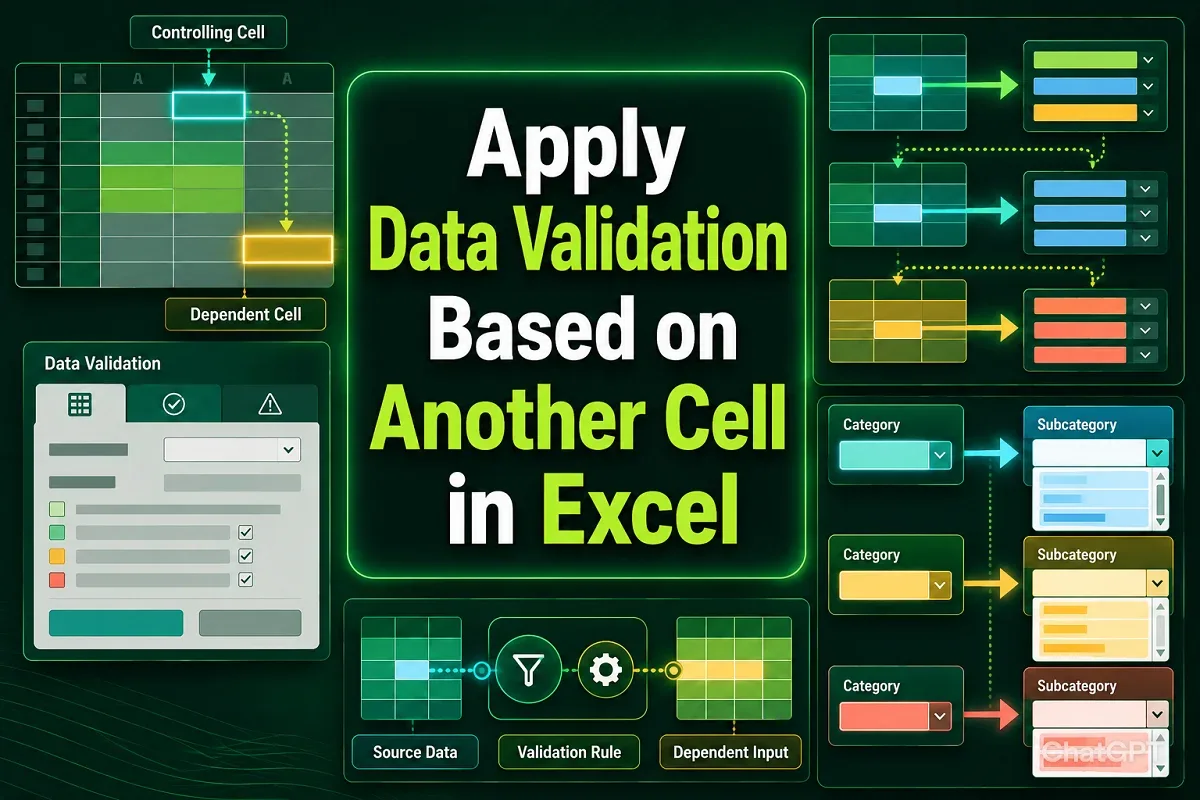
Learn how to apply data validation in Excel based on another cell using dependent drop-downs, IF formulas, custom rules, and VBA automation.

Learn how to circle invalid data in Excel using Data Validation, input messages, error alerts, conditional formatting, and helper columns.
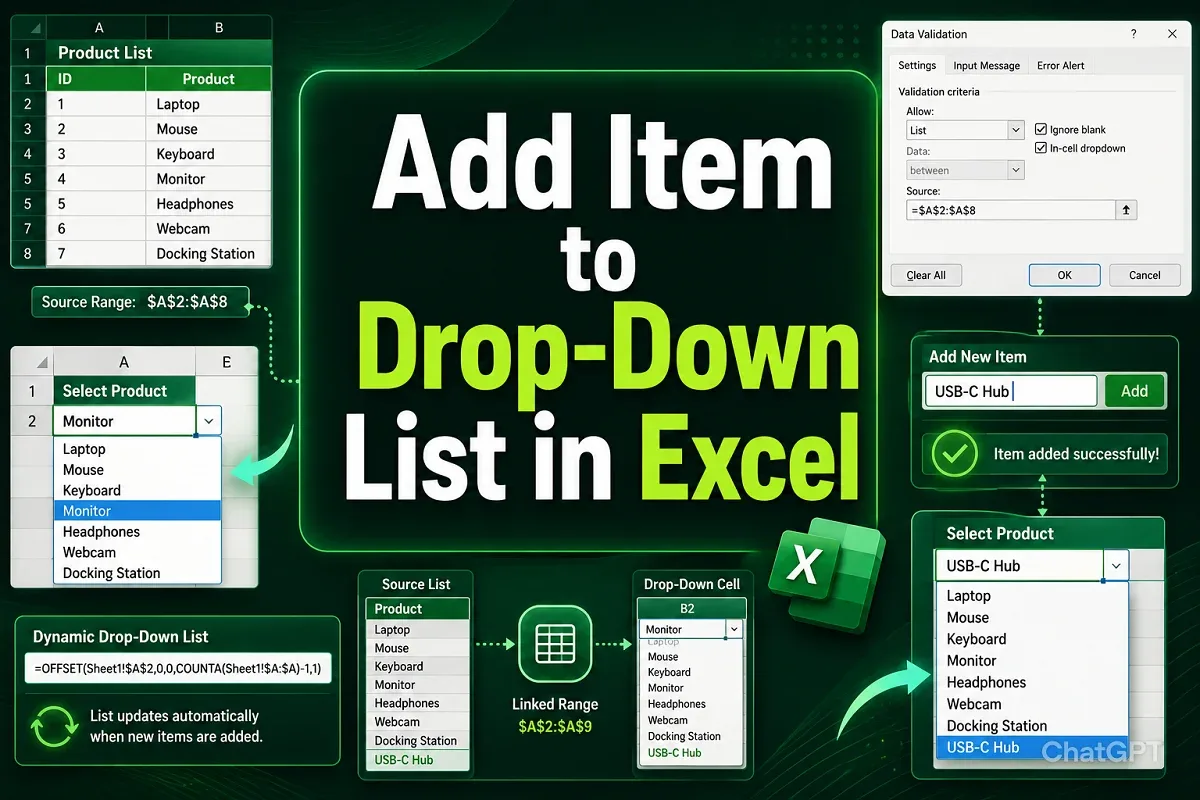
Learn how to add items to a drop-down list in Excel by editing sources, using tables, extending named ranges, OFFSET, and UNIQUE formulas.
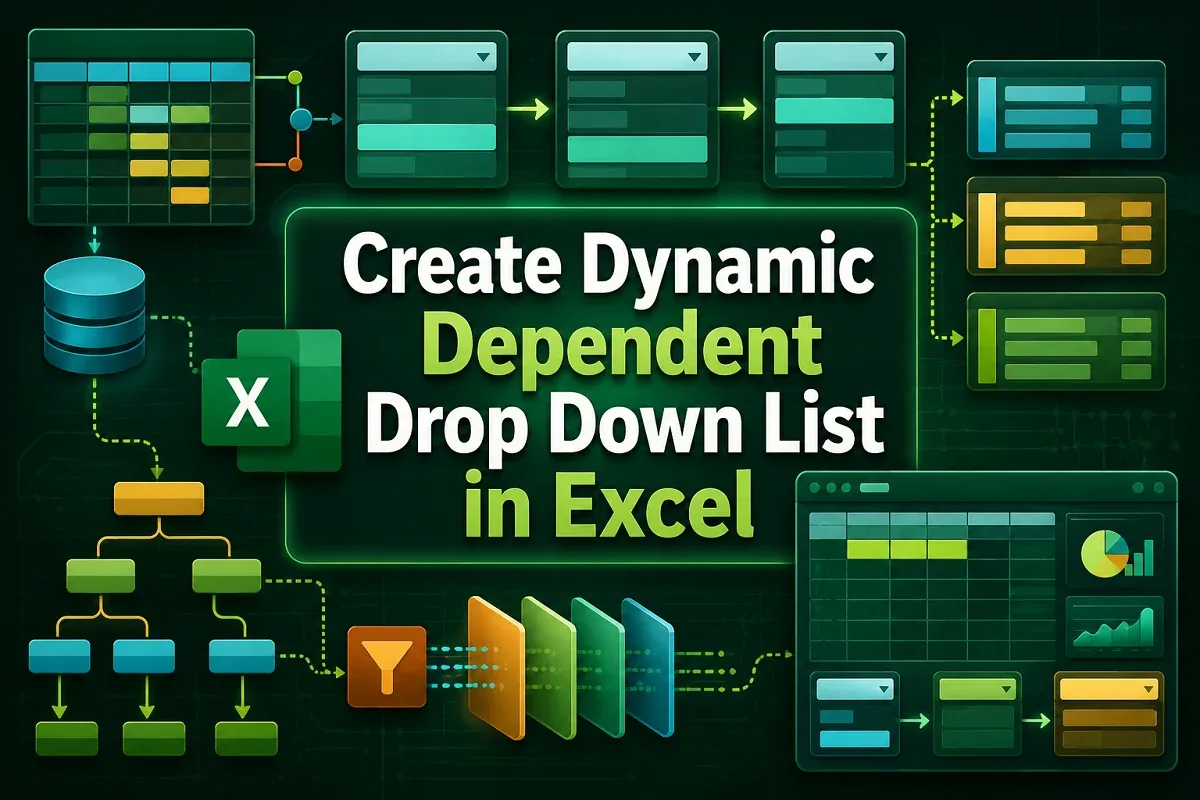
Learn how to create a dynamic dependent drop-down list in Excel using named ranges, INDIRECT, XLOOKUP, and auto-updating, sorted lists.