Working with Excel often involves managing hyperlinks embedded in cells. These hyperlinks usually display friendly text but link to web addresses or files behind the scenes. Sometimes, you need to extract the actual URL from a hyperlink for analysis, sharing, or cleaning up your data.
This article walks you through multiple ways to extract URLs from hyperlinks in Excel, whether you want to use formulas, VBA, or a simple keyboard shortcut. By the end, you’ll have easy, practical methods for grabbing URLs quickly and accurately.
Steps to extract URL from Hyperlink using keyboard shortcut in Excel:
➤ Select a cell such as B2 and press Ctrl + K on your keyboard to open Edit Hyperlink dialog box.
➤ The Address box below displays the URL. Copy it manually using Ctrl + C .
➤ Click Cancel or Close after copying.
➤ Use Ctrl + V to paste in the URL column.
➤ Repeat the same steps for the rest of the dataset.

Extract URLs Using VBA Function (Works for All Hyperlink Types)
If you’re dealing with hyperlinks that were added manually (not with formulas), Excel doesn’t provide a built-in function to pull out the URL. However, using a short VBA snippet, you can create a custom formula called a User Defined Function (UDF) that extracts the hyperlink address from any cell. This method is perfect for users comfortable with VBA and looking for an automated way to process many links at once.
Steps:
➤ Press Alt + F11 to open the VBA editor.
➤ Click Insert >> Module.
➤ Paste this VBA code:
Function GetURL(cell As Range) As String
    On Error Resume Next
    GetURL = cell.Hyperlinks(1).Address
End Function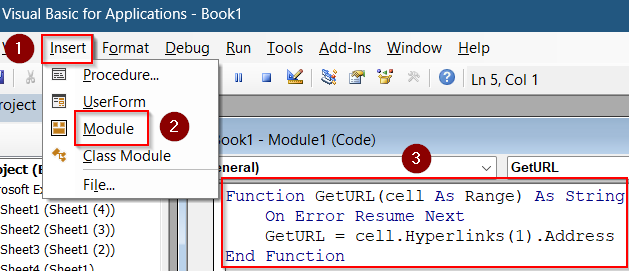
➤ Close the VBA editor by clicking the X or pressing Alt + Q .
➤ Back in your worksheet, if your hyperlink is in cell B2, enter this formula in C2:
=GetURL(B2)
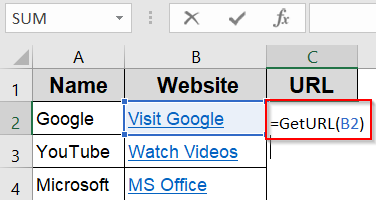
➤ Press Enter and the formula will display the URL from the hyperlink in A2.
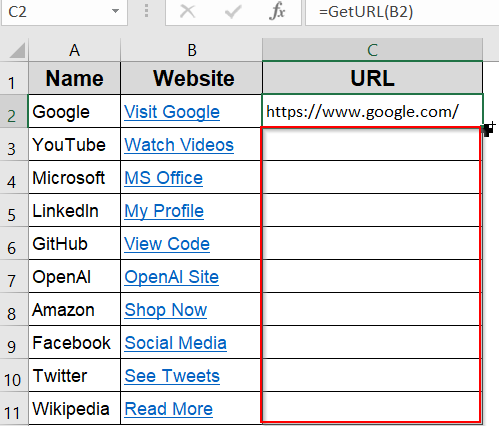
➤ Drag the formula down to extract URLs from other cells with hyperlinks.
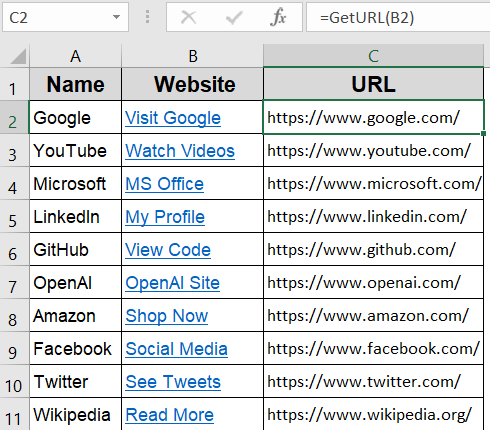
Your final output is now ready.
Display Web Address Inside a HYPERLINK Function
This method is useful only when hyperlinks were created using Excel’s built-in HYPERLINK function. These are common when links are auto-generated or manually added using formulas. You’ll use a combination of FORMULATEXT, MID, and FIND to extract the actual link from the formula string
Steps:
➤ Assume the hyperlink formula is in cell B2 like
=HYPERLINK(“https://www.google.com”, “Google”).
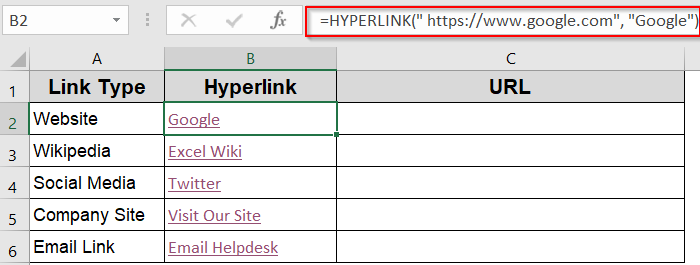
➤ Use this formula to extract the URL:
=TRIM(MID(FORMULATEXT(B2), FIND(“”””, FORMULATEXT(B2)) + 1, FIND(“,”, FORMULATEXT(B2)) – FIND(“”””, FORMULATEXT(B2)) – 2))
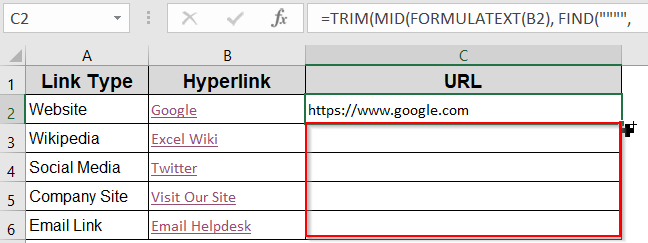
➤ Drag down the formula using the AutoFill handle.
➤ This extracts the URL part inside the HYPERLINK formula.
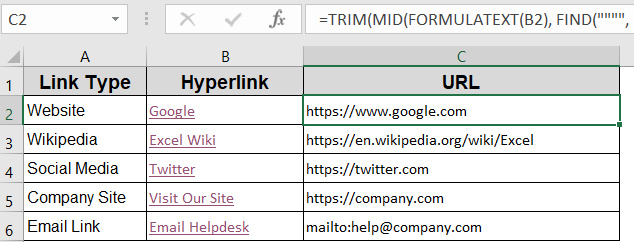
Note:
This method doesn’t work for hyperlinks inserted manually via Insert >> Hyperlink or those linking to files.
Manually Copy URLs via Edit Hyperlink Dialog
When you only need to extract a few links and don’t want to deal with VBA or formulas, this manual method is quick and easy. Excel allows you to view and copy hyperlink addresses through the Edit Hyperlink dialog box. You can access this dialog in several ways using right-click, ribbon menu, or keyboard shortcut.
Steps:
➤ Select a cell such as B2 and press Ctrl + K on your keyboard to open Edit Hyperlink dialog box.
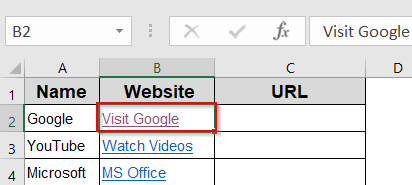
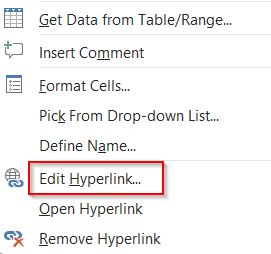
➤ Alternatively, you can right-click the cell containing the hyperlink and select Edit Hyperlink.
➤ You can also access Edit Hyperlink from Insert tab >> Links on the ribbon.
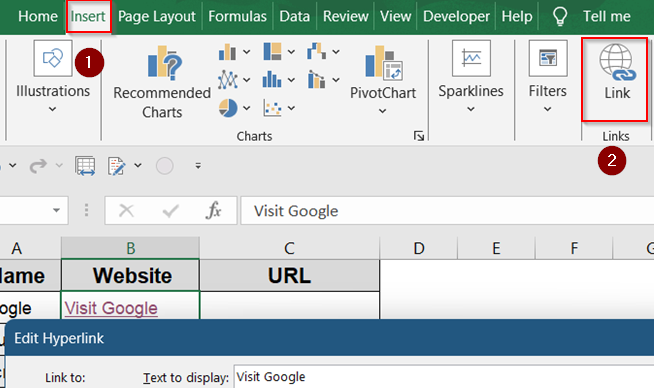
➤ The Address box below displays the URL. Copy it manually using Ctrl + C .
➤ Cancel or Close after copying.

➤ Use Ctrl + V to paste in the URL column.
➤ Repeat the same steps for the rest of the rows.
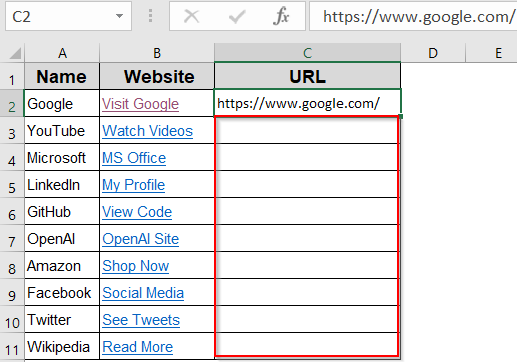
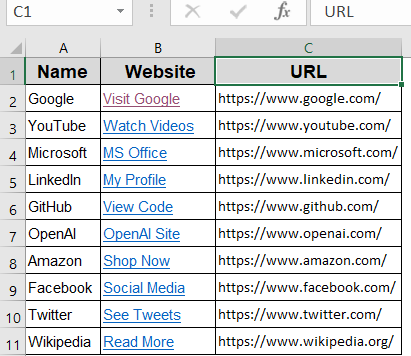
Now you have your URLs extracted from your hyperlink.
Downloadable Resources
Get our practice workbook or necessary files that we have worked with to prepare this article.
Extract URL from Hyperlink.xlsx
Frequently Asked Questions
Can I extract URLs from all sheets at once?
Yes. Use VBA to loop through all worksheets and pull hyperlink URLs into a single summary sheet automatically, saving time and manual effort.
Do formulas work for hyperlinks to files or emails?
No. Formulas only work with web links made using the HYPERLINK function. For file paths or mailto links, use VBA to extract them properly.
Is there a built-in Excel function to extract URLs?
No. Excel doesn’t offer a built-in function for this. You’ll need to use VBA or Power Query for accurate and flexible URL extraction.
Wrapping Up
In this tutorial, we learned several effective ways to extract URLs from hyperlinks in Excel using VBA function for extracting URLs from embedded links, formulas for hyperlinks created with the HYPERLINK function, and manually retrieving URLs using the Edit Hyperlink dialog box. Each approach has its own advantages depending on your data size and technical comfort level. Feel free to download the practice file and share your feedback.