Excel Functions & Formulas
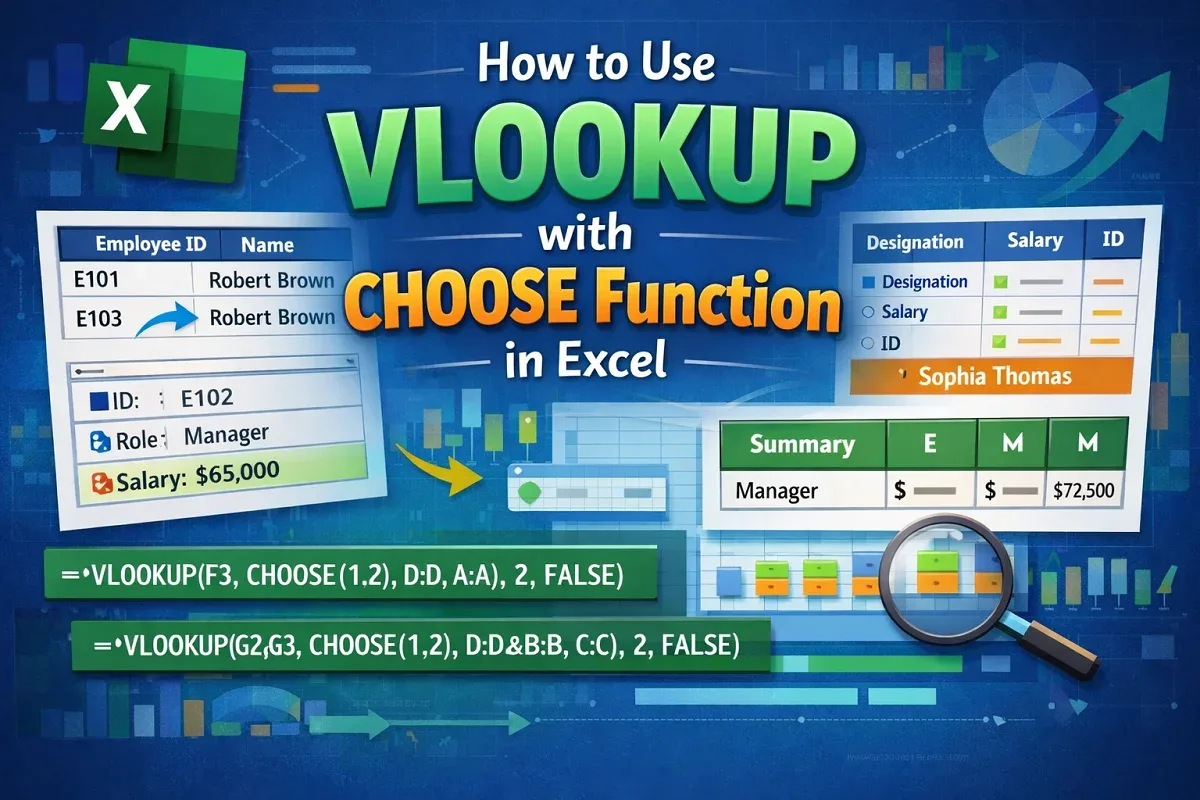
How to Use VLOOKUP with CHOOSE Function in Excel
Learn how to use the VLOOKUP with CHOOSE function in Excel to handle single, multiple, and complex lookup criteria efficiently.
Read article


Atkeya Fariha specializes in data management, analysis, formulas, automation, and integration. She has contributed to research, creative projects, and worked as a data analyst. She is passionate about data analysis, finance management, and project management using spreadsheets.
Articles by Atkeya Fariha are developed under the guidance of ExcelInsider’s core training program and are technically reviewed by Nehad Ulfat, lead spreadsheet consultant, to ensure accuracy and user-centric value.
Learn how to use the VLOOKUP with CHOOSE function in Excel to handle single, multiple, and complex lookup criteria efficiently.

Learn how to VLOOKUP multiple values in one cell using TEXTJOIN, FILTER, UNIQUE, and VBA codes—both with and without duplicates.
Learn how to VLOOKUP with multiple criteria across different Excel sheets using INDEX-MATCH, XLOOKUP, and FILTER functions.

Learn how to VLOOKUP the second match value in Excel with or without a helper column using advanced formulas like INDEX, SMALL, and FILTER.

Learn how to use VLOOKUP in Excel to return all matches, with methods like FILTER, Advanced Filter, and Power Query tools.

Learn how to combine VLOOKUP with COUNTIF in Excel to count occurrences accurately using absolute references for better results.
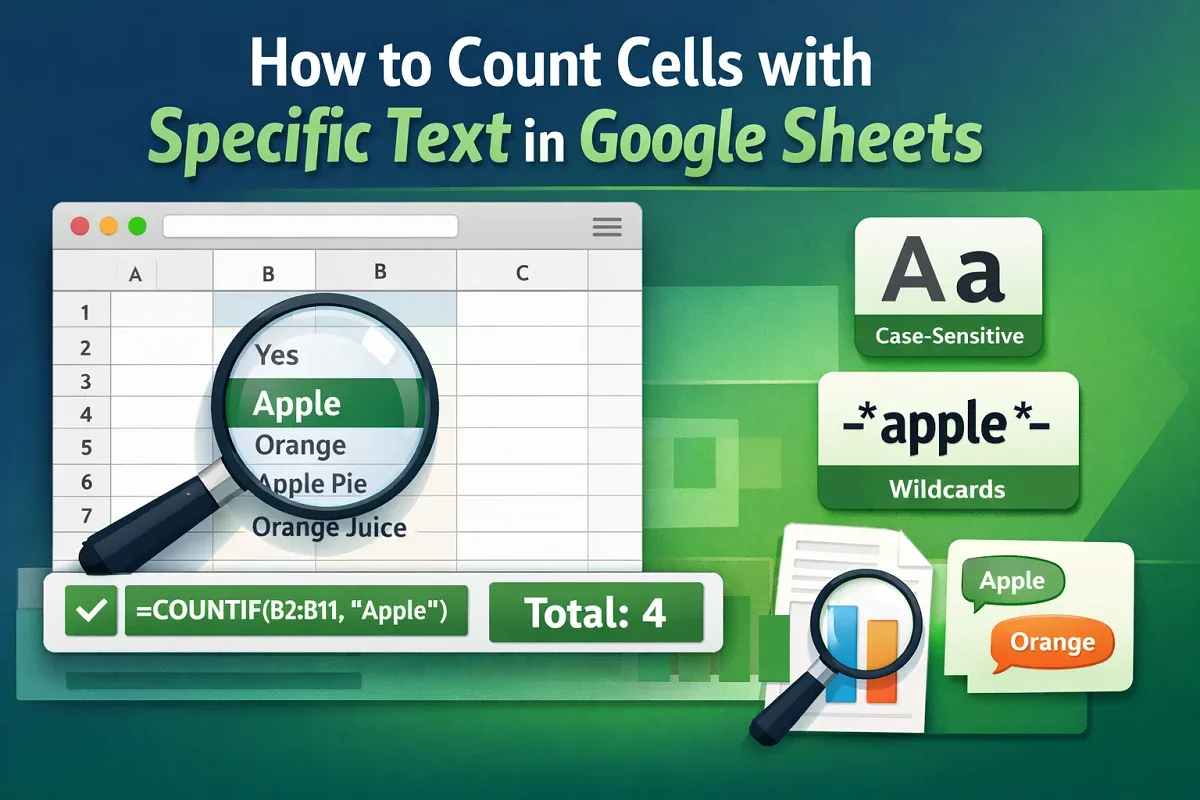
Learn how to count cells with specific text in Google Sheets using COUNTIF, case-sensitive formulas, multiple criteria, FILTER & REGEXMATCH.
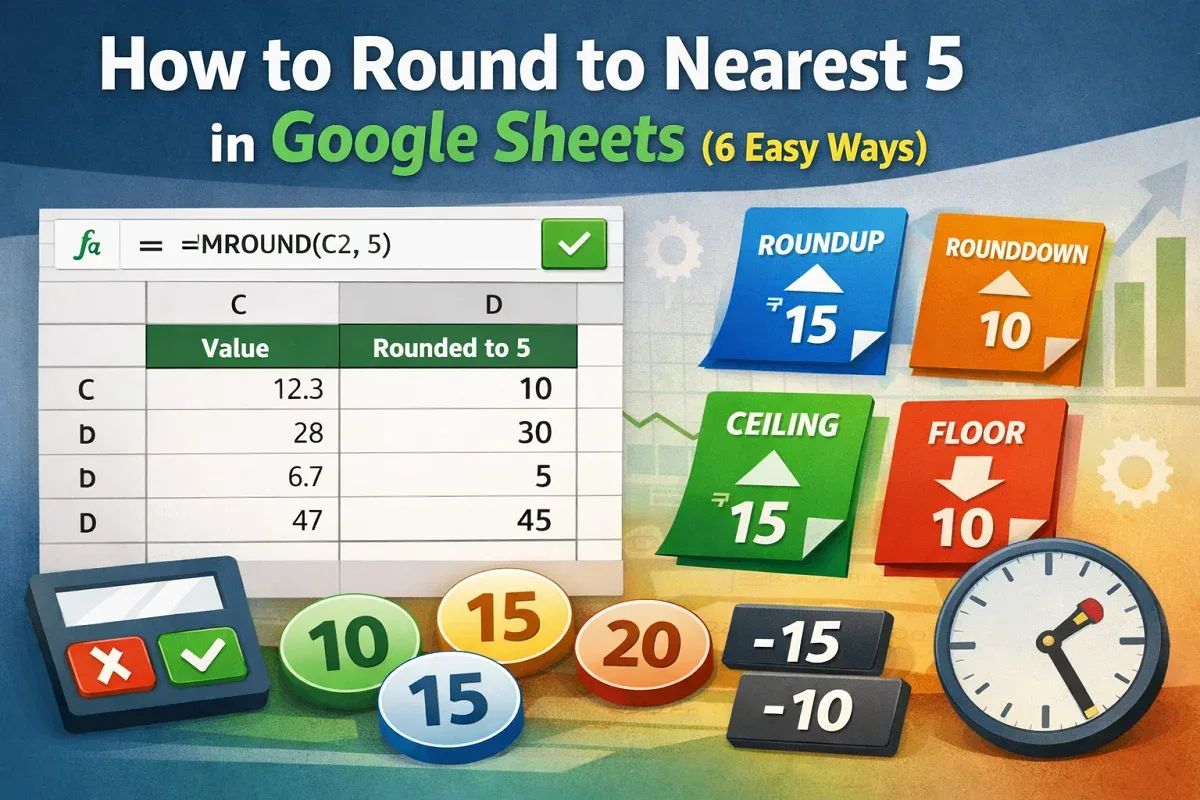
Learn how to round to the nearest 5 in Google Sheets using MROUND, ROUNDUP, ROUNDDOWN, CEILING, FLOOR, and tips for handling negatives.

Learn how to sort tabs in Excel by drag-and-drop, VBA, or alphabetically in A-Z or Z-A order, while keeping specific sheets in place.

Learn how to sort alphabetically in Excel while keeping rows together using the Sort tool, SORT function or filters for proper organization.
Learn how to return 0 if cells are blank in Excel using IF, ISBLANK, Go To Special, or Find & Replace for quick data cleanup.

Learn how to convert numbers to words in Excel for Peso using VBA macro code, along with essential formatting tips for accurate results.