Excel VBA
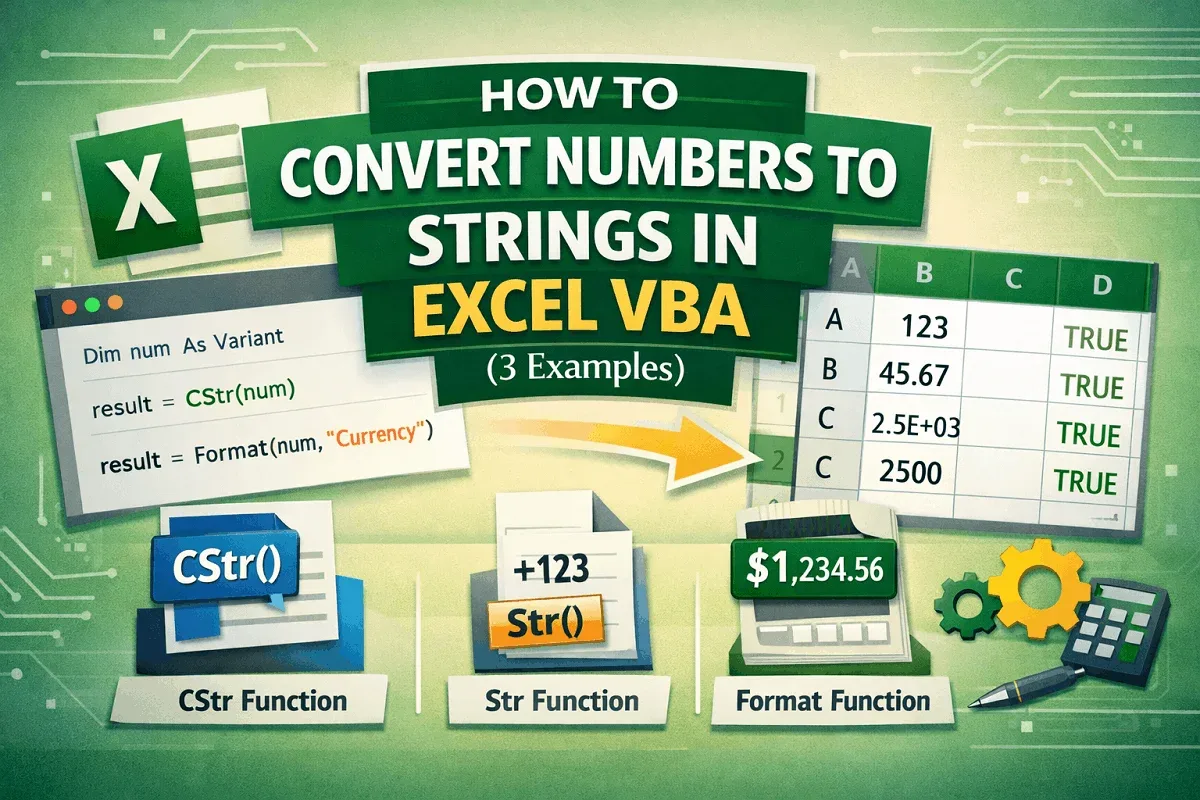
How to Convert Numbers to Strings in Excel VBA (3 Examples)
Learn how to convert numbers to strings in Excel VBA using CStr, Str, and Format functions for flexible and accurate data formatting.
Read article


Mohammed Shafin Arshad is a Computer Science student and cybersecurity enthusiast in Malaysia with 6 years of Excel and Google Sheets experience. He specializes in VBA, macro automation, and SaaS-focused workflow guides. His background includes university data science projects, and he enjoys using macros to solve complex spreadsheet problems.
Articles by Mohammed Shafin Arshad are developed under the guidance of ExcelInsider’s core training program and are technically reviewed by Nehad Ulfat, lead spreadsheet consultant, to ensure accuracy and user-centric value.
Learn how to convert numbers to strings in Excel VBA using CStr, Str, and Format functions for flexible and accurate data formatting.
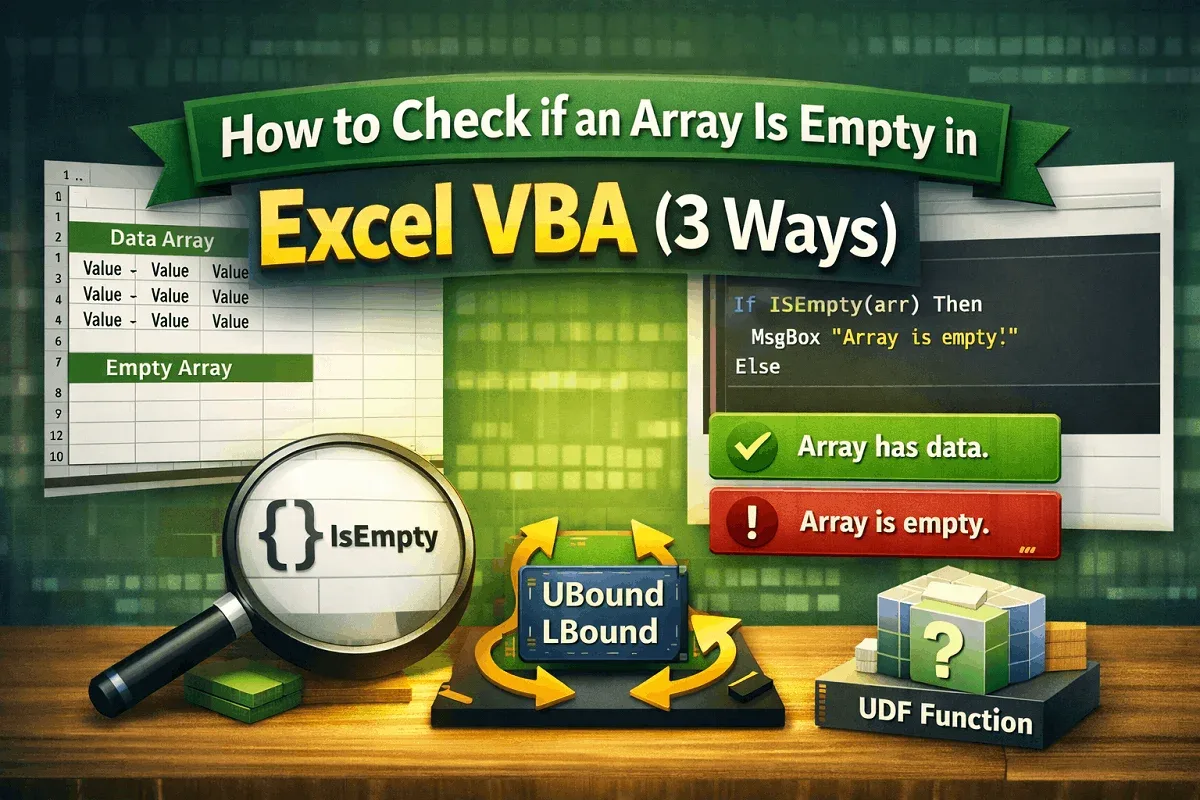
Learn how to check if an array is empty in Excel VBA using IsEmpty, Join for string arrays, and custom functions with UBound and LBound.
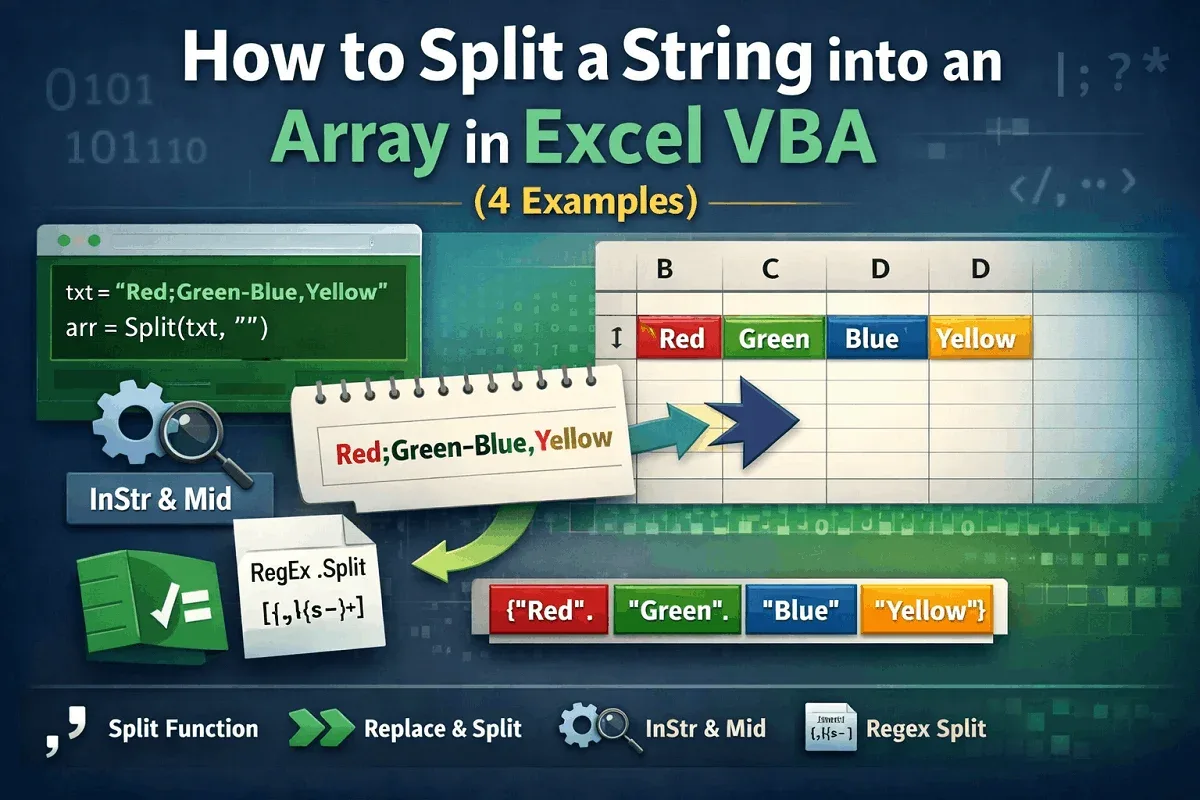
Learn how to split a string into an array in Excel VBA using Split, Replace, InStr with Mid, and Regex for handling delimiters & patterns.
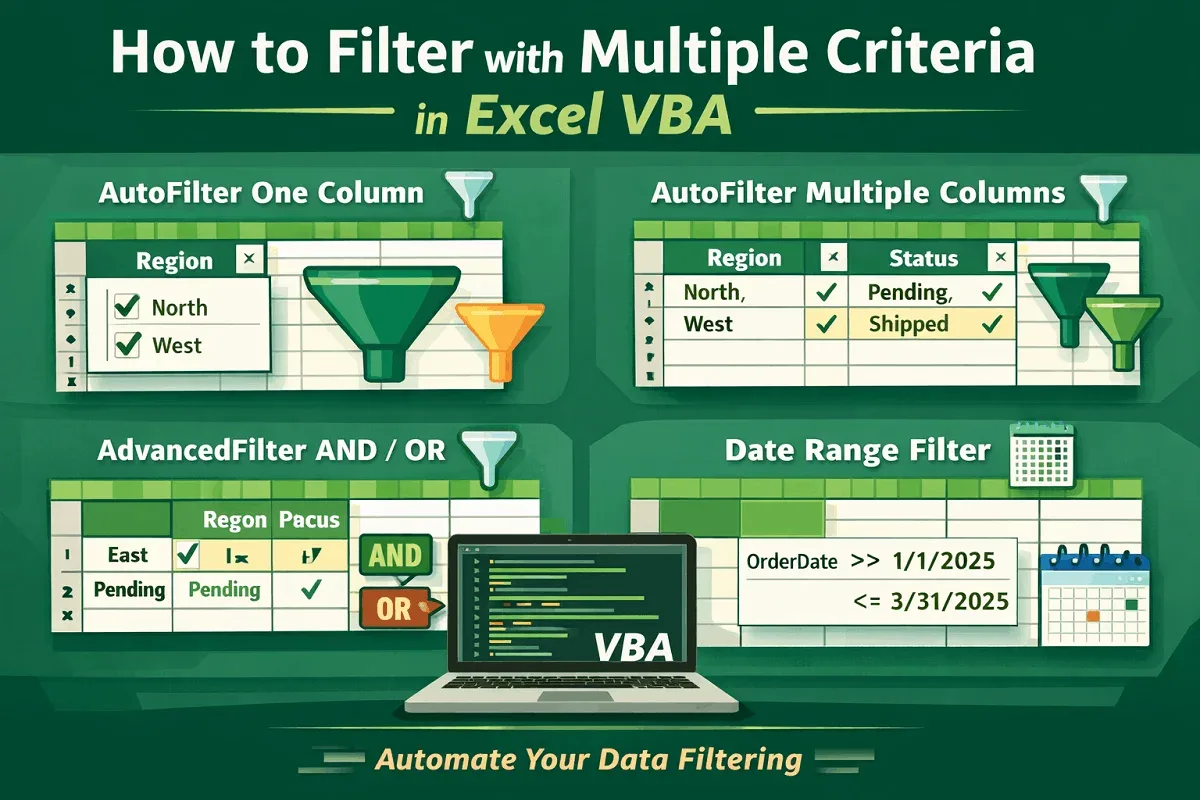
Learn how to filter data with multiple criteria in Excel VBA using AutoFilter, AdvancedFilter, and logic-based filtering across ranges.
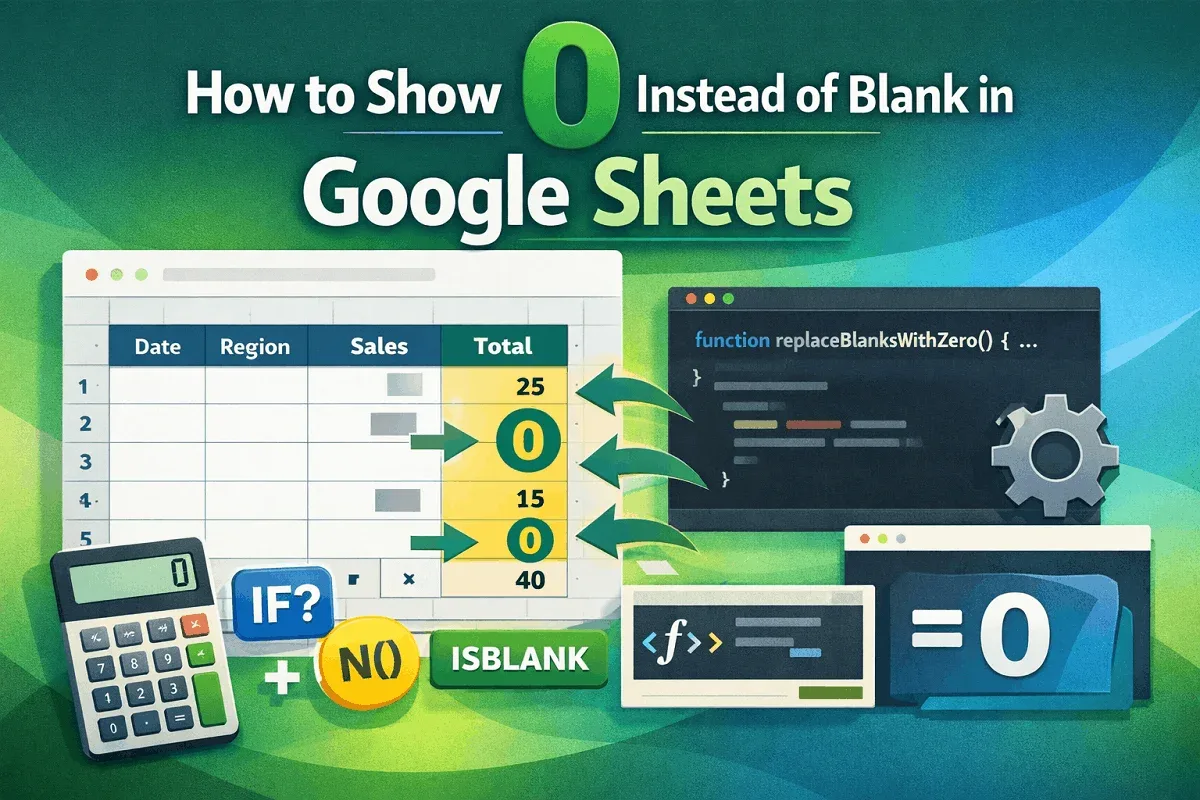
Learn how to show 0 instead of blank in Google Sheets using IF, IFERROR, ISBLANK, ARRAYFORMULA, N function, or Apps Script for full control.
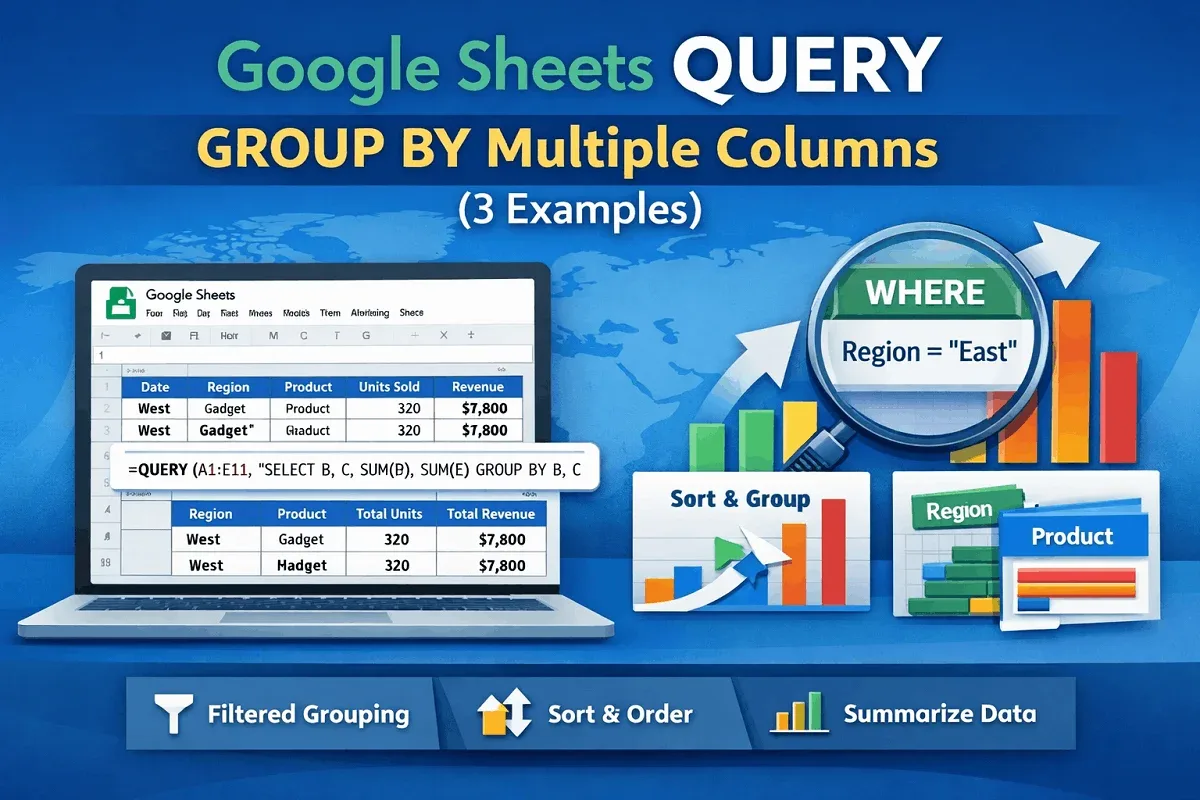
Group data by multiple columns in Google Sheets using the QUERY function. Learn to filter with WHERE and sort results for better insights.
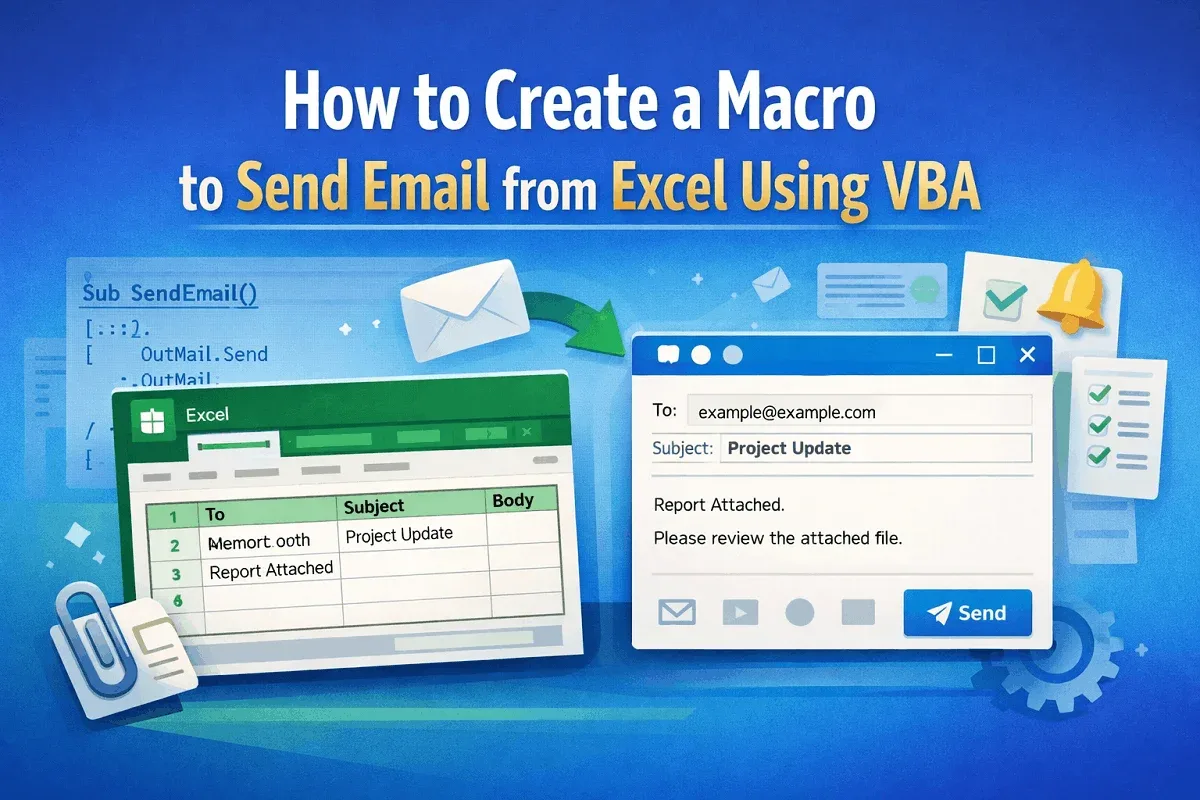
Learn how to create a macro in Excel using VBA to send emails via Outlook, preview messages, and automate emails based on cell values.
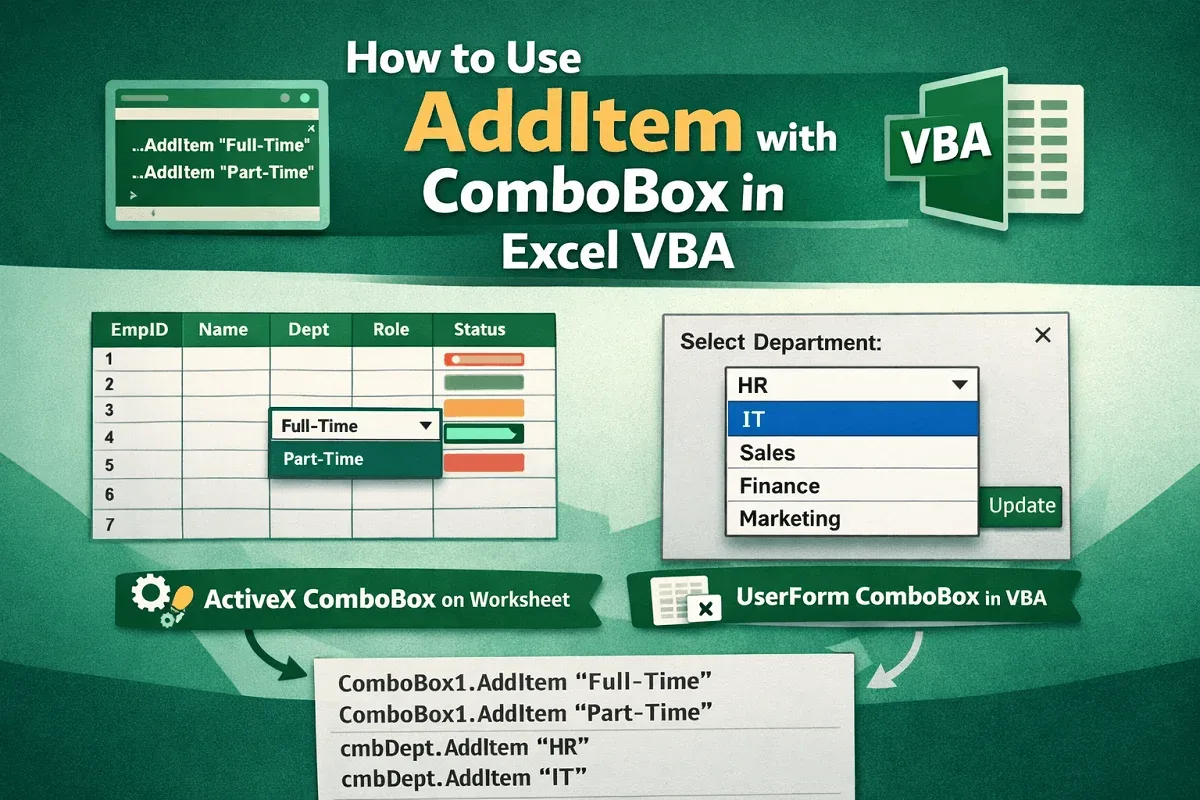
Learn to use AddItem in Excel VBA to add items to ActiveX ComboBoxes on worksheets and populate UserForm ComboBoxes efficiently with code.
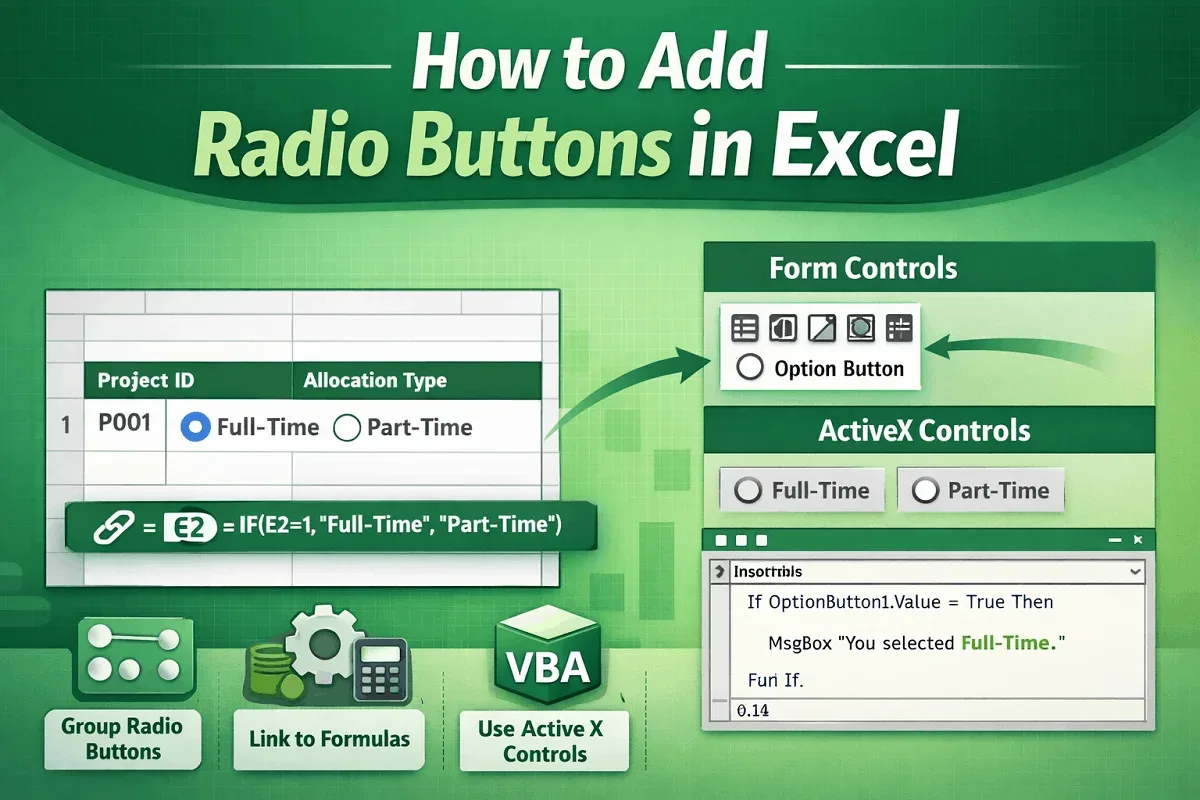
Add radio buttons in Excel, group them for exclusive choices, link to formulas, and enhance functionality with Form and ActiveX controls.
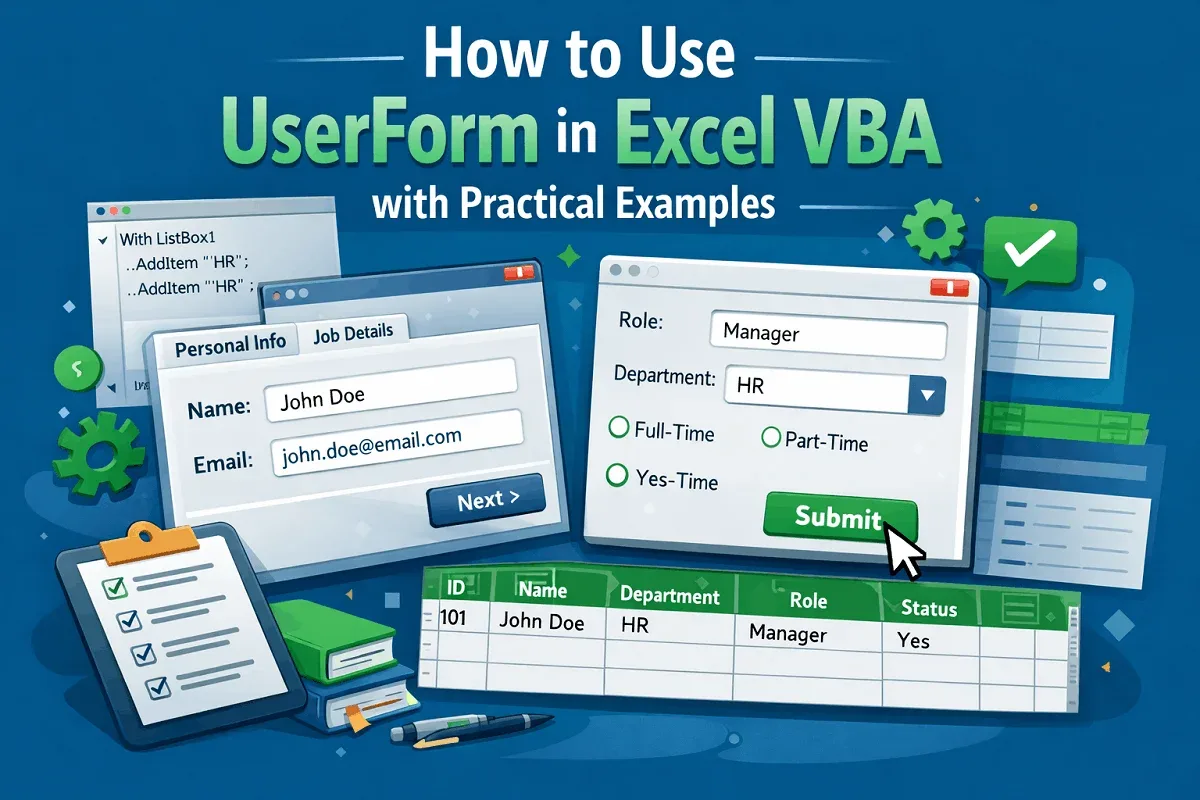
Learn to create and use Excel VBA UserForms with practical examples, from simple inputs to multi-page forms with pre-populated controls.
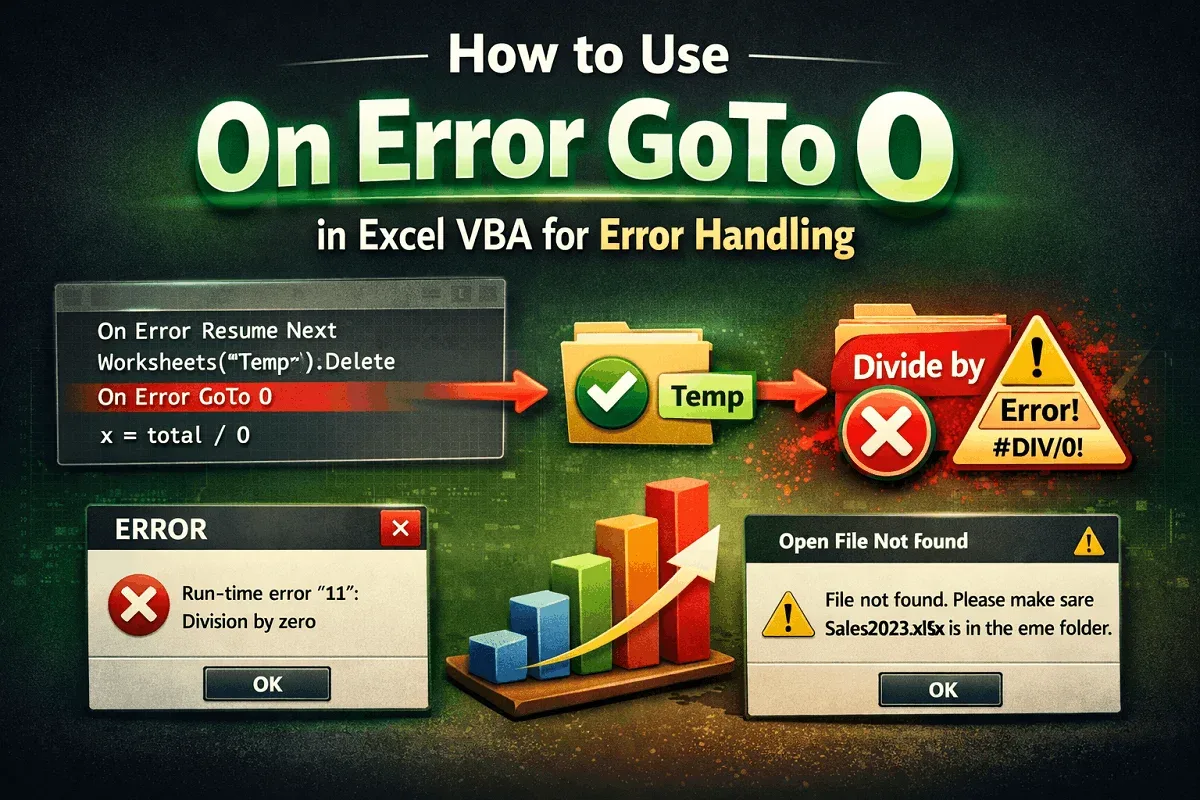
Learn how to use On Error GoTo 0 in Excel VBA to restore default error handling after skipping expected errors like missing sheets or files.
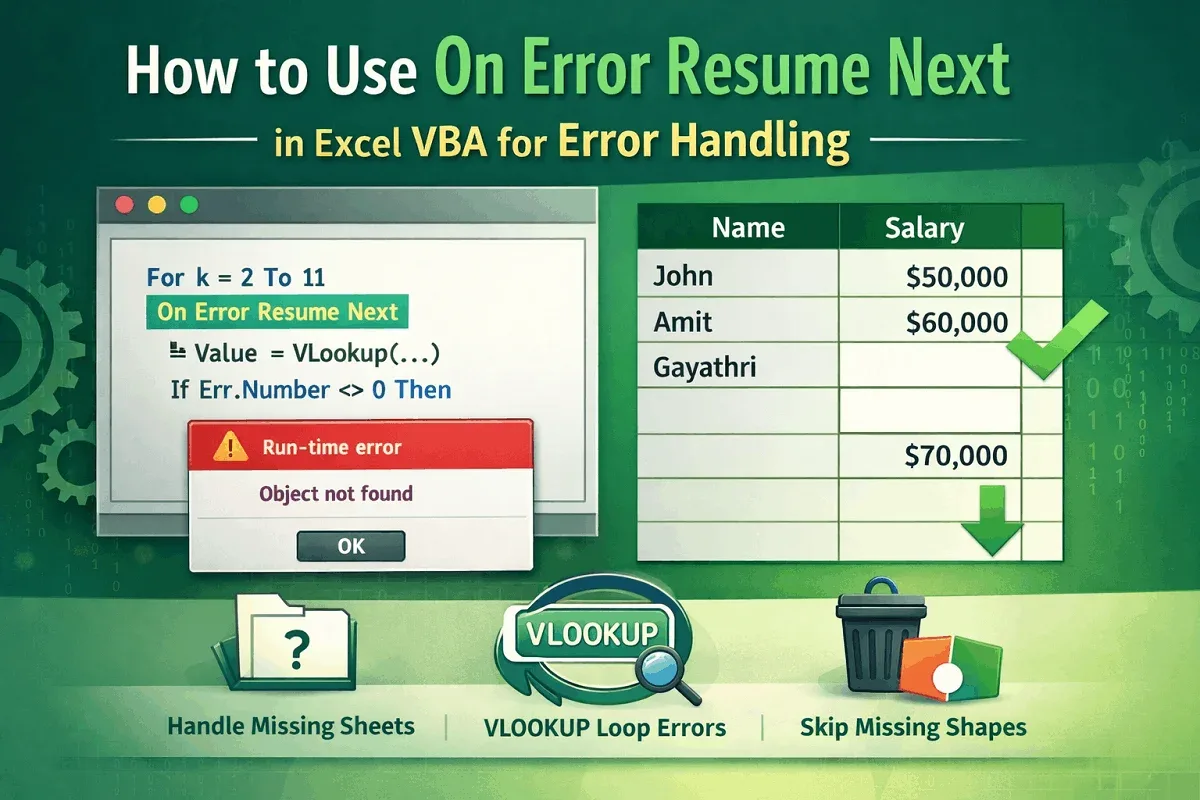
Use On Error Resume Next in Excel VBA to handle missing shapes, detect absent sheets, and manage errors in VLOOKUP loops efficiently.