Advanced Excel
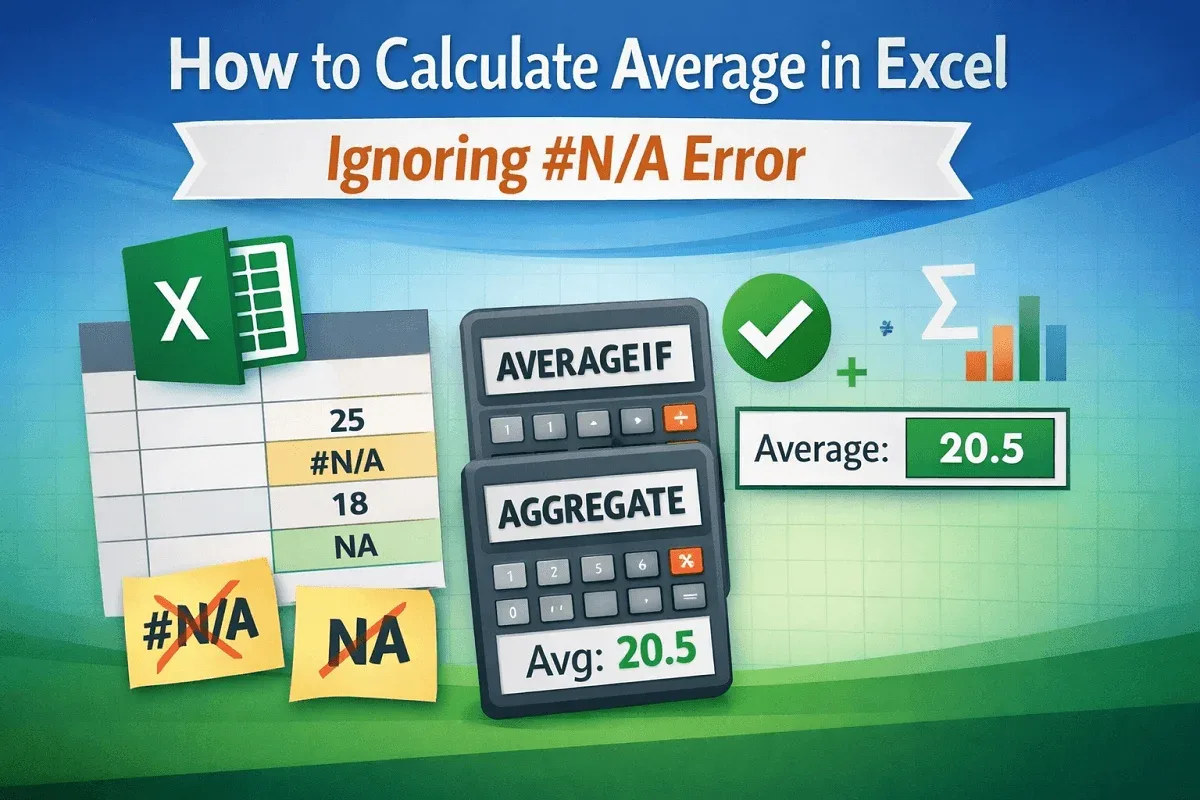
How to Calculate Average in Excel Ignoring #N/A Error
Learn how to calculate average in Excel while ignoring #N/A errors using AVERAGEIF or AGGREGATE to get accurate results without disruptions.
Read article


Upama Chowdhury holds a BSc in Statistics from Shahjalal University of Science & Technology, giving her a strong foundation in data analysis and spreadsheet logic. With eight years of experience, she works with advanced formulas, PivotTables, Power Query, dashboards, and automation using VBA and Google Apps Script. She has built interactive dashboards, automated workflows, and organized complex datasets into analysis-ready formats. She enjoys creating efficient, formula-driven solutions and practical spreadsheet tools.
Articles by Upama Chowdhury are developed under the guidance of ExcelInsider’s core training program and are technically reviewed by Nehad Ulfat, lead spreadsheet consultant, to ensure accuracy and user-centric value.
Learn how to calculate average in Excel while ignoring #N/A errors using AVERAGEIF or AGGREGATE to get accurate results without disruptions.
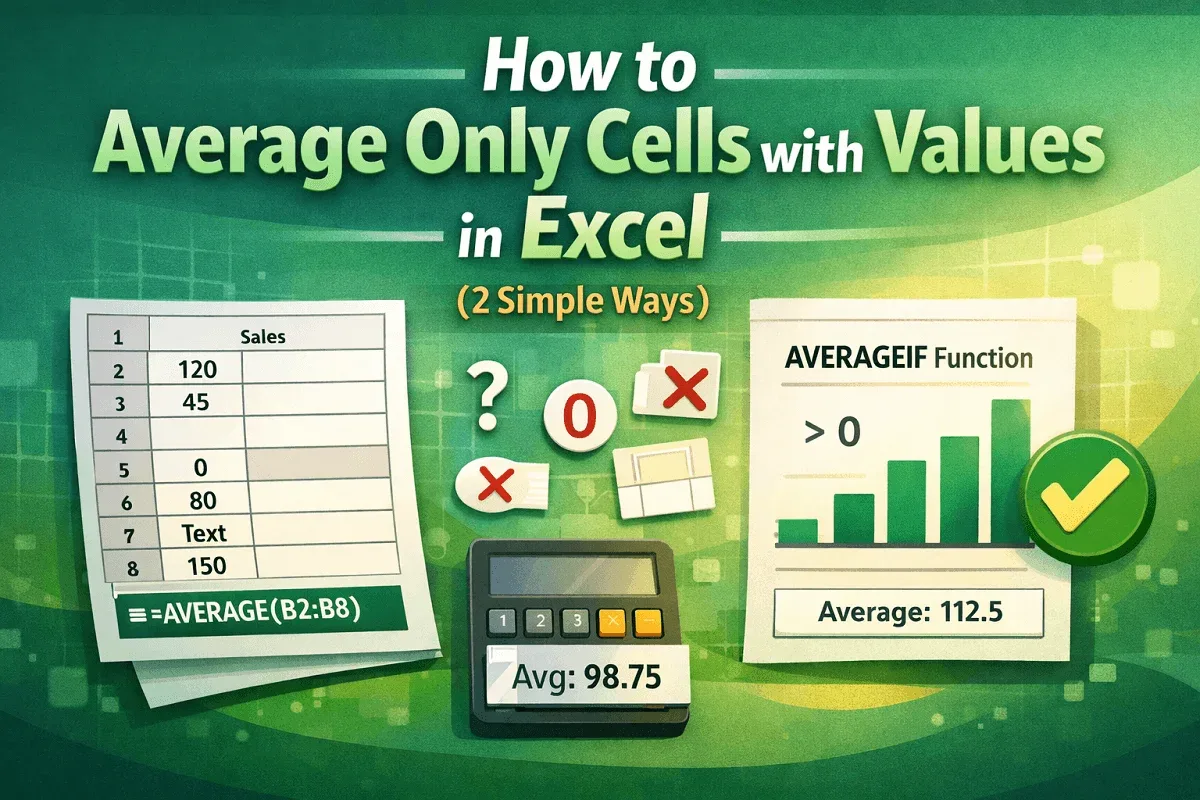
Learn how to average only cells with values in Excel using the AVERAGE function or AVERAGEIF to ignore blanks and calculate accurate results.
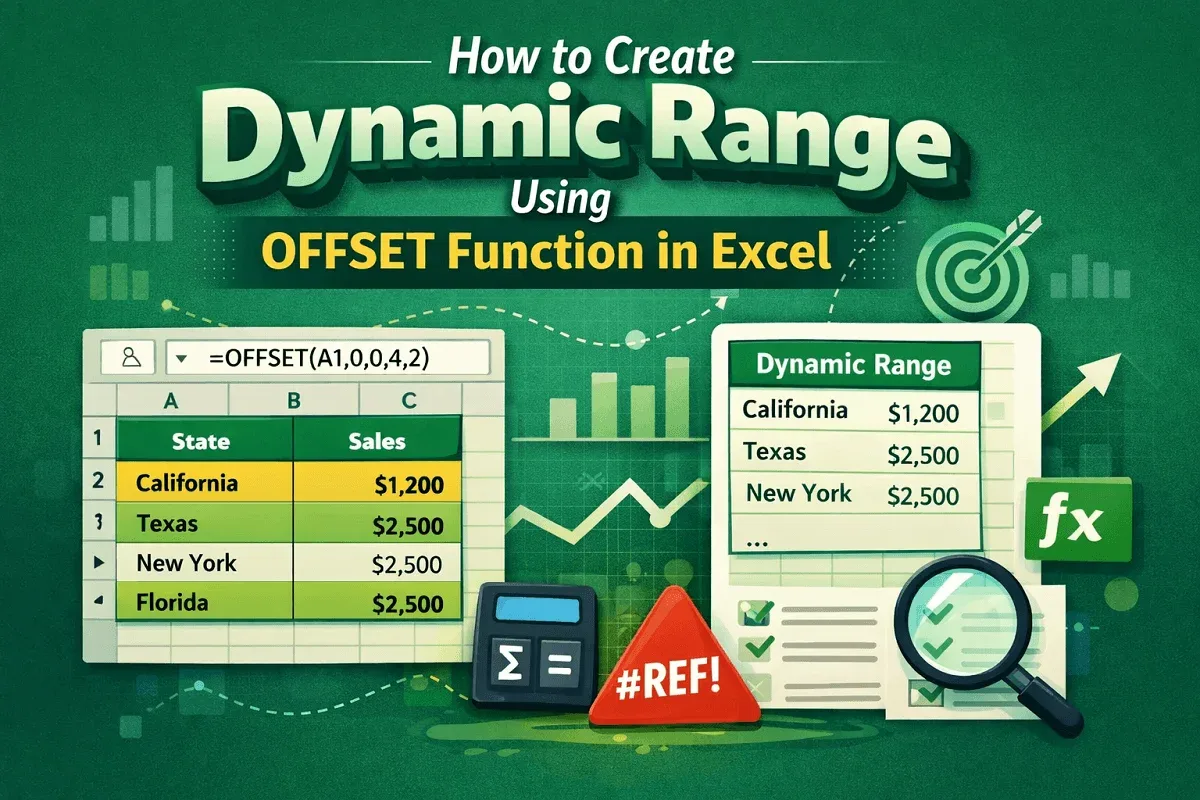
Learn how to create a dynamic range in Excel using the OFFSET function, or combine OFFSET with COUNTA for flexible and automated ranges.

Learn how to create a combo chart in Google Sheets using the Chart Editor, then customize it for clear visualization of multiple data types.

Learn how to calculate months between two dates in Google Sheets using DATEDIF, fractional month formulas, ARRAYFORMULA, and day differences.

Learn how to round up to the nearest 10 in Google Sheets using the ROUNDUP or CEILING function for quick and accurate number adjustments.
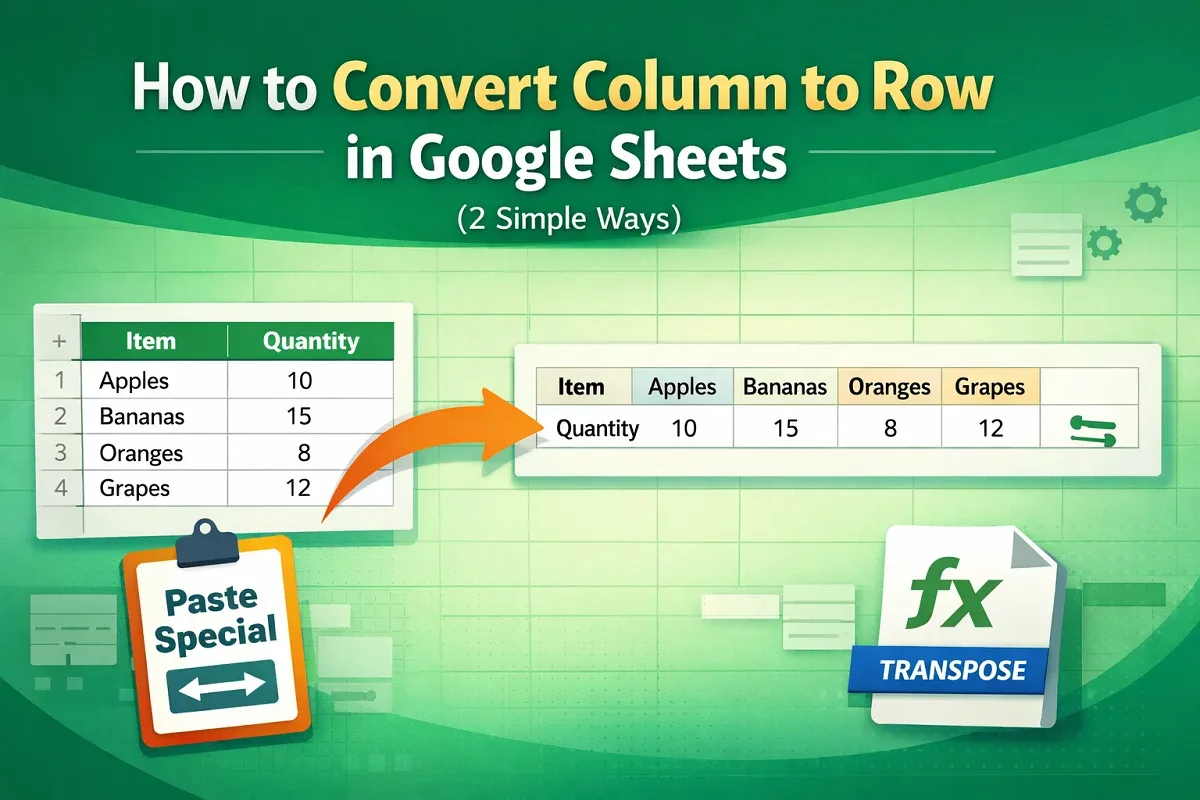
Learn how to convert columns to rows in Google Sheets using the Paste Special option or the TRANSPOSE function for quick data rearrangement.

Learn how to label a legend in Google Sheets by creating a chart, adding legend labels, and customizing them for better data visualization.

Learn how to merge rows in Google Sheets using the menu option, TEXTJOIN function, or CONCATENATE for quick and efficient data combining.
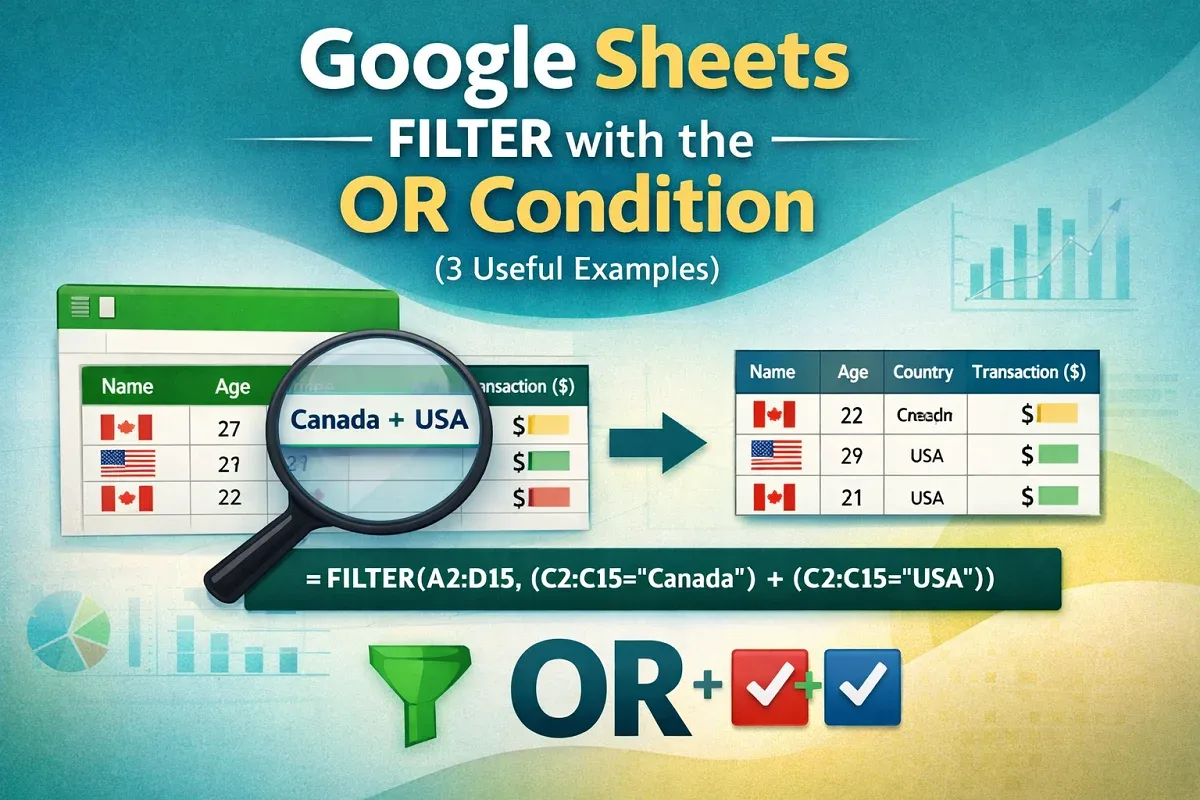
Learn how to use the FILTER function with the OR condition in Google Sheets to filter data across columns and handle multiple criteria easily.
Learn how to extract numbers from a string in Google Sheets using REGEXEXTRACT, ARRAYFORMULA, SPLIT function, and Power Tools add-on.
Learn how to find duplicates in two columns in Google Sheets using Conditional Formatting, COUNTIF, and the Filter function for detection.