
A hyperlink in Excel is a clickable link that directs users to a webpage, file, email address, or another location in the same workbook. Hyperlinks are often used for quick navigation and referencing external data sources. We often need to copy Hyperlinks in Excel from one place to another. We can do that very easily.
➤ Right-click on the cell containing the hyperlink.
➤ To copy Hyperlinks, press keyboard shortcut Ctrl + C
➤ Select any other destination cell and press Ctrl + V to paste the hyperlink there.
In this article, we will show how to copy hyperlinks in Excel using the Edit Hyperlink Window and Keyboard shortcuts.
Using Keyboard Shortcut to Copy Hyperlink in Excel
We can use a simple keyboard shortcut to copy a Hyperlink in Excel and then paste it directly into other cells. It lets us copy the clickable hyperlink from one cell to another.
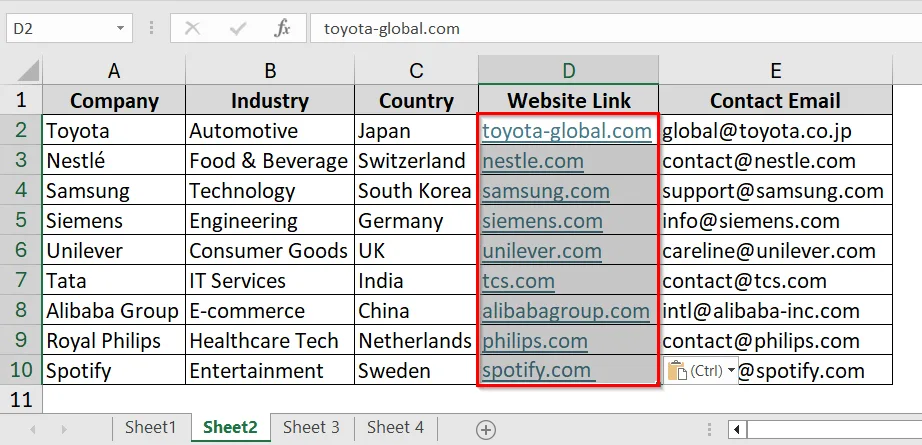
We have taken a dataset that has some direct links to its official website. We will directly copy all the hyperlinks and paste them into another column in another sheet.
Steps:
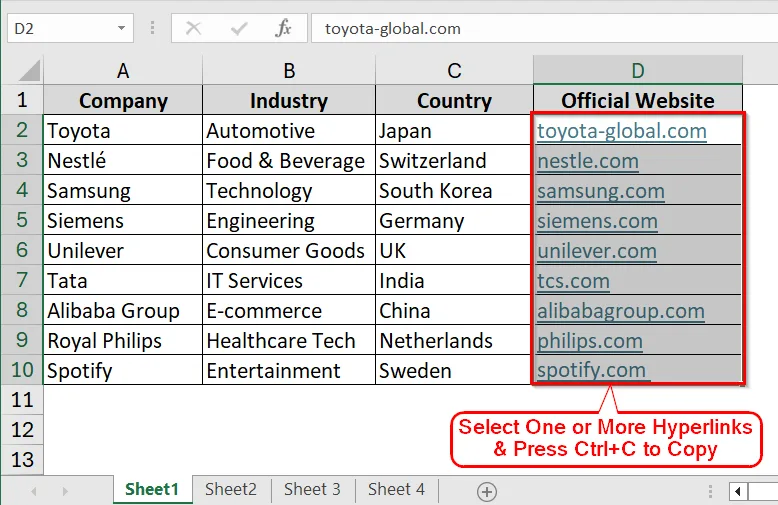
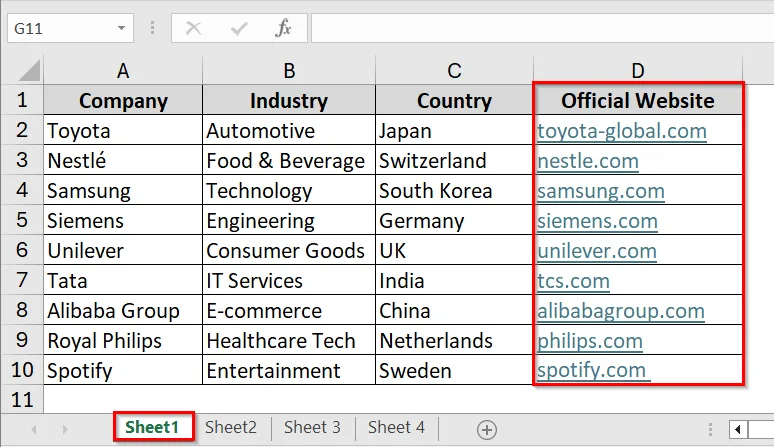
➤ In Sheet1, we have Hyperlinks in Column D that we want to copy.
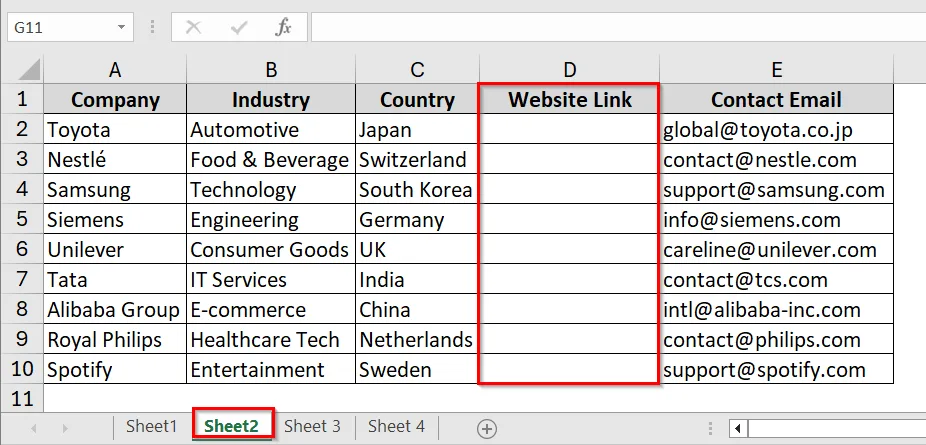
➤ We have taken Sheet2, which has a blank Column (Column D) where we will paste the copied hyperlinks.
➤ Select all the cells that contain hyperlinks (In Sheet1)
➤ Press Ctrl + C keyboard shortcut to Copy.
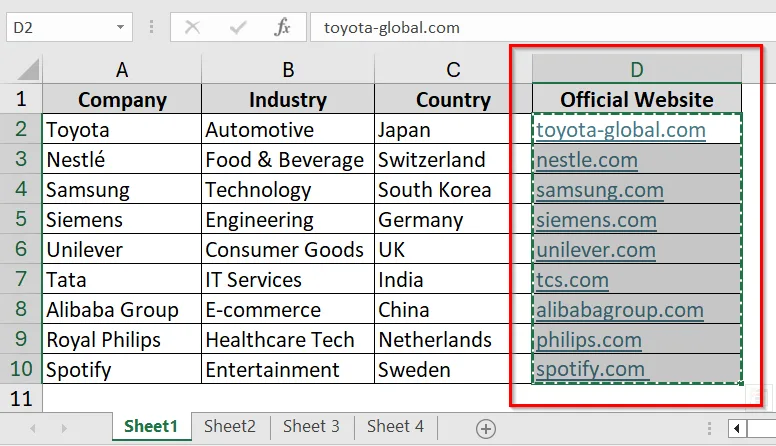
➤ Go to Sheet2, select cell D2 and then press Ctrl + V to Paste. All the copied hyperlinks will appear here.
Using the Edit Hyperlink Window to Copy a Hyperlink in Excel
In Excel, hyperlinks can be copied from one cell and reused in another without manually retyping the URL.
We have a dataset where we want to copy some website link from one column and paste it into another column in another sheet. We will use the Edit Hyperlink Window to copy each hyperlink, as the visual text only shows general names (Not direct links).
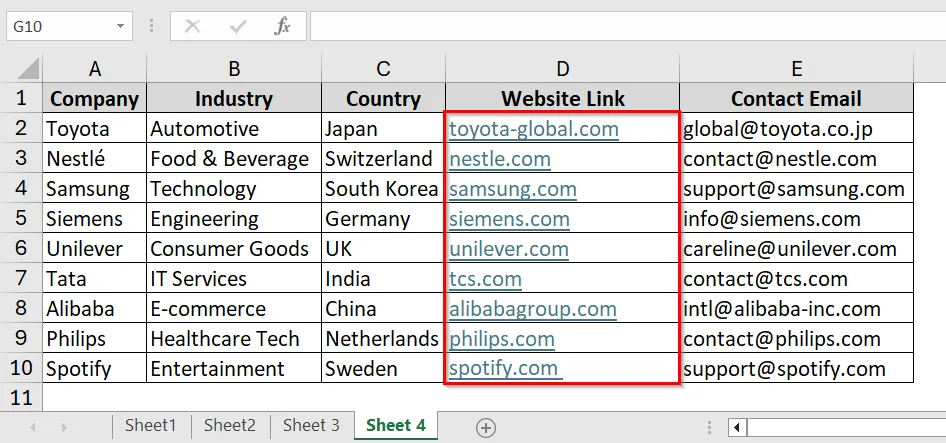
➤ In our dataset, we have Sheet 3, which contains Company Name in Column A, Industry in Column B, Country in Column C, and Official Website(Hyperlink) in Column D. We want to copy the Hyperlinks from Column D of Sheet 3 and paste them into a blank column in Sheet 4.
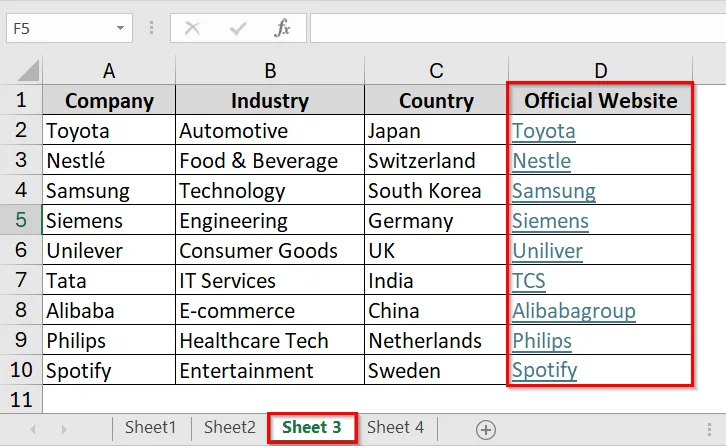
➤ Click on cell D2 in Sheet 3.
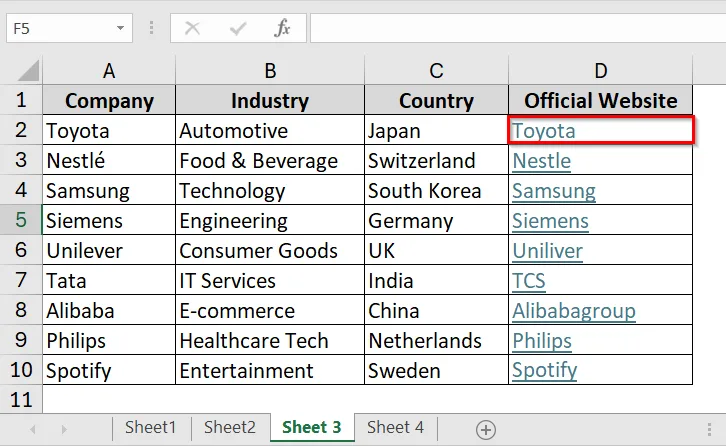
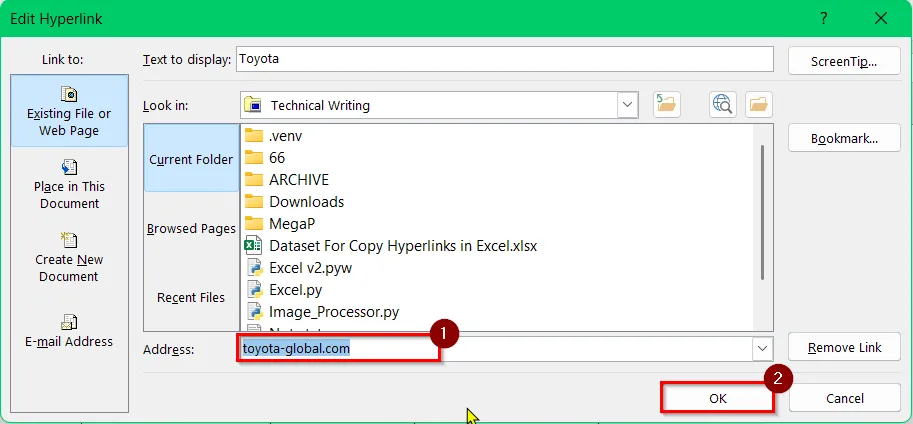
➤ Press keyboard shortcut Ctrl + K to open the “Edit Hyperlink” window.
➤ Here, toyota-global.com is the Hyperlink. Copy it by pressing the keyboard shortcut Ctrl + C
➤ Click OK to close the window.
➤ Go to Sheet 4, where we have Column D, where we are going to paste the hyperlink.
➤ Click on cell D2
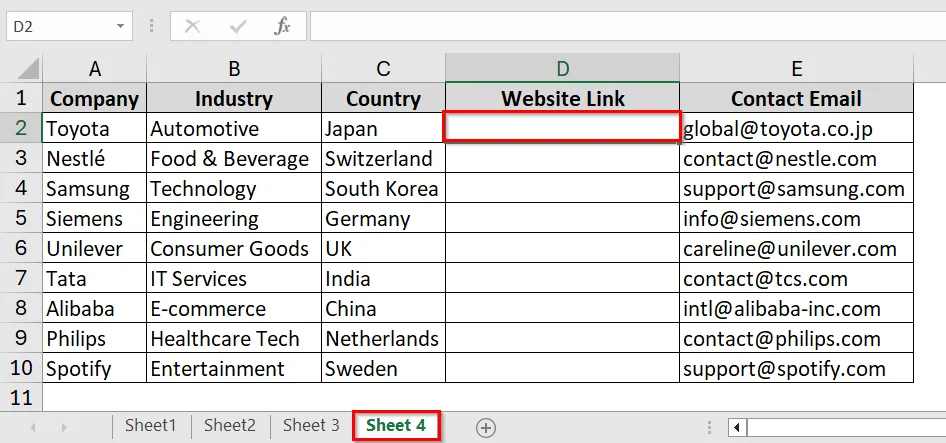
➤ Press Ctrl + V keyboard shortcut. The copied link will appear here.
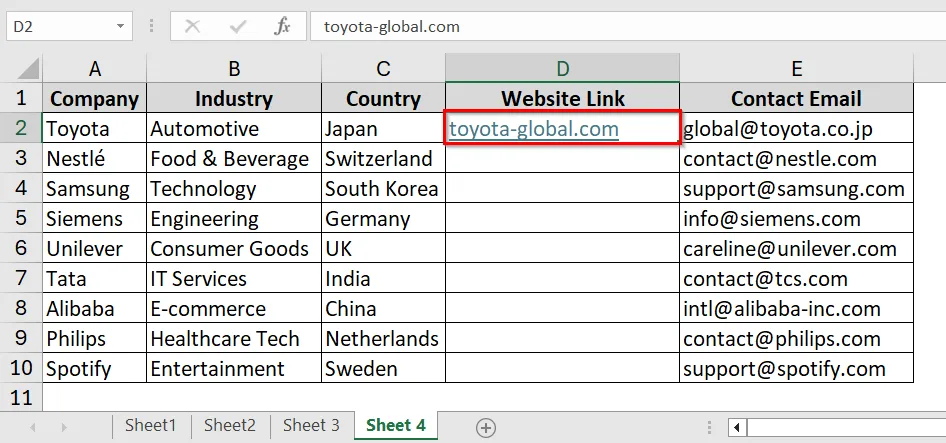
➤ Repeat the steps for the rest of the hyperlinks.
Converting URL Text into a Clickable Hyperlink in Excel
Sometimes we get links in Excel that are in text format. When we click on those link texts, they don’t navigate to the linked websites. We can make these non-clickable hyperlink texts into clickable hyperlinks easily. You can do this in two ways:
- Select the cell, press the keyboard shortcut Ctrl + K , and enter the web address.
- Using the formula: =HYPERLINK("URL","Display Text").
This will make plain text into a clickable Hyperlink. It will let you to quickly open the link directly from the spreadsheet.
Downloadable Resources
Get our practice workbook or necessary files that we have worked with to prepare this article.
Frequently Asked Questions
How do you copy and paste a hyperlink in Excel?
Right-click the cell → Select Copy Hyperlink → Paste it into the target cell. You can also use Ctrl + C and Ctrl + V if you want to keep the same link format.
What is the shortcut key for copying a hyperlink?
Simply use Ctrl + C on the cell if you want both text and the underlying hyperlink.
How do I copy and paste a hyperlink formula in Excel?
Copy the formula cell with Ctrl + C and paste using Ctrl + V . To keep the formula structure intact, use Paste Formulas from the paste options.
How do I select all hyperlinks?
Use the Find & Select tool from the Home tab, then choose Find, type http or https, and click Find All. This highlights all cells containing hyperlinks.
How do I combine all links into one?
You can concatenate multiple links into a single cell using formulas, but Excel doesn’t merge them into one clickable hyperlink. Instead, create a separate reference list.
How do I open multiple links at once in a sheet?
Excel doesn’t natively support opening multiple links simultaneously. However, with VBA (macro), you can loop through cells with hyperlinks and open them all at once.
Concluding Words
Copying a hyperlink in Excel is very easy. You can use the keyboard shortcut (Ctrl + C and Ctrl + V) or the Edit Hyperlink method to copy only the Hyperlink or URL. We have uploaded all the datasets used in this article so that you can download and practice on your own. Leave a comment below if you have any questions or troubles.