
Managing a workbook with many sheets can become confusing. Scrolling through tabs or searching for the right one takes time and slows down your work. A table of contents (TOC) solves this problem by creating a single sheet with links to all other tabs. This makes navigation much easier and keeps your workbook more organized.
In this guide, you’ll learn step by step how to create a table of contents for tabs in Excel using seven different methods, ranging from basic to advanced.
➤ Open your dataset in Excel and rename it as Table of Contents.
➤ Click on cell E2 and enter the following formula:
=HYPERLINK("#'Sales'!A1","Go to Sales Sheet")
➤ Press Enter. You will see a clickable text Go to Sales Sheet in cell E2.
➤ Drag the fill handle down and adjust each formula to match the sheet name in that row. For example:
=HYPERLINK("#'Inventory'!A1","Go to Inventory Sheet")
=HYPERLINK("#'Expenses'!A1","Go to Expenses Sheet")
➤ Once done, you’ll have a clickable list of all tabs, making it quick to jump to any sheet in the workbook.
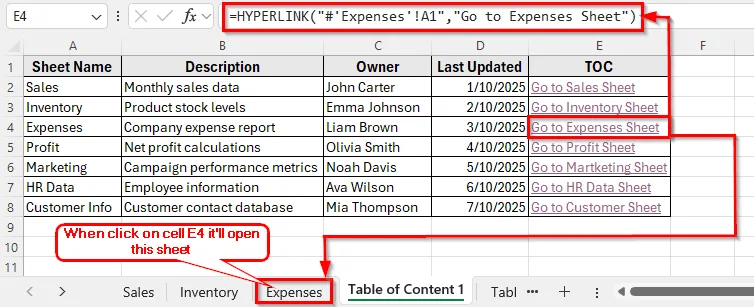
Using the HYPERLINK Function to Create a Table of Contents for Tabs in Excel
In the following workbook, we have several sheet names representing different departments and reports. Column A lists the Sheet Name, Column B shows the Description, Column C contains Owner Name, and Column D shows the Last Update. We will create a table of contents in Column E to navigate to any sheet quickly. Also, we have different sheets named Sales, Inventory, Expenses, etc. Each sheet contains data related to business performance.
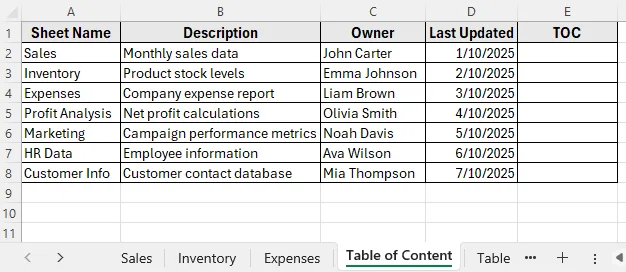
We’ll use this example dataset as a reference throughout the article.
The simplest way to create a table of contents is by using the HYPERLINK function. This method lets you manually build clickable links that take you directly to the target sheet.
Here’s how to do it:
➤ Open your dataset in Excel and rename it as Table of Contents.
➤ Click on cell E2 and enter the following formula:
=HYPERLINK("#'Sales'!A1","Go to Sales Sheet")➤ Press Enter. You will see a clickable text Go to Sales Sheet in cell E2.
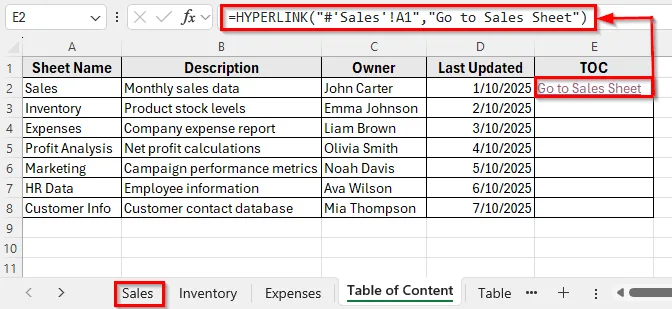
➤ Drag the fill handle down and adjust each formula to match the sheet name in that row. For example:
=HYPERLINK("#'Inventory'!A1","Go to Inventory Sheet")=HYPERLINK("#'Expenses'!A1","Go to Expenses Sheet")➤ Once done, you’ll have a clickable list of all tabs, making it quick to jump to any sheet in the workbook.
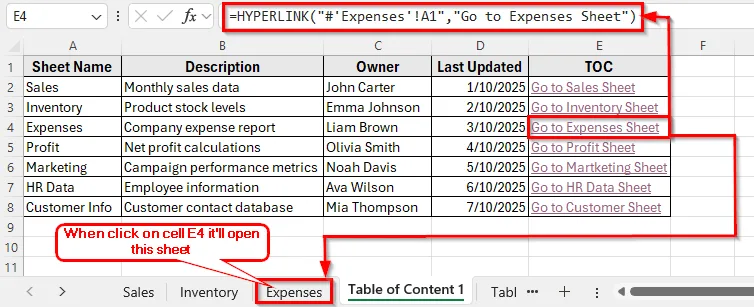
If you need a simple and manual solution, you can use Excel’s built-in context menu to create a quick table of contents. This method is ideal for smaller workbooks or for users who prefer a point-and-click method.
Here’s how to do it:
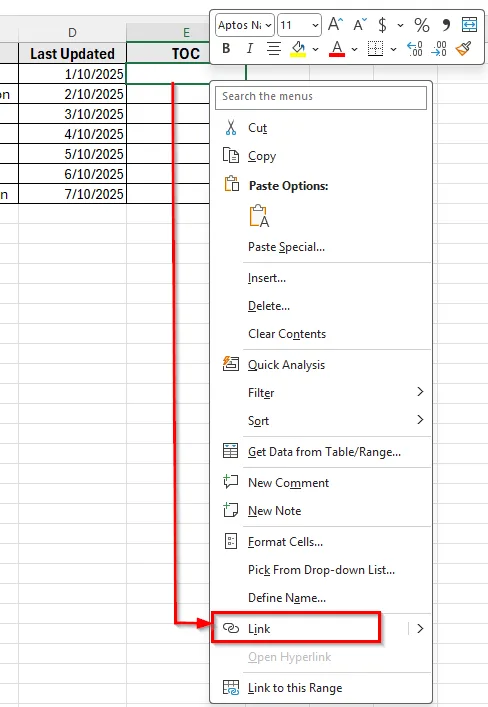
➤ Right-click on cell E2 to open the table context menu.
➤ Click on Link.
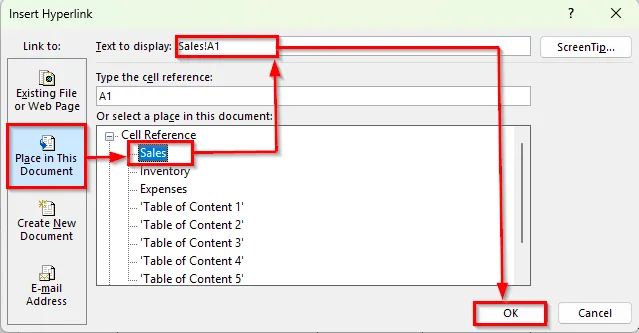
➤ In the dialog box, choose Place in This Document.
➤ Select the target sheet and cell. For example, Sales!A1.
➤ Click OK.
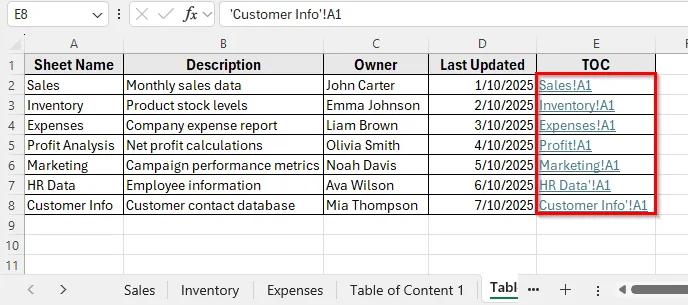
➤ Repeat the hyperlink creation for each sheet in the list. You will now have a clean list of all sheets with clickable links, created entirely using Excel’s built-in tools.
Using Power Query to Create Dynamic Table Of Content fo Tabs in Excel
If you want the table of contents to update automatically when new sheets are added, using Power Query is a more powerful solution. Instead of creating links manually, you can extract all sheet names dynamically and display them in one place.
Here’s how to do it:
Step 1: Create a Dynamic List Using Power Query
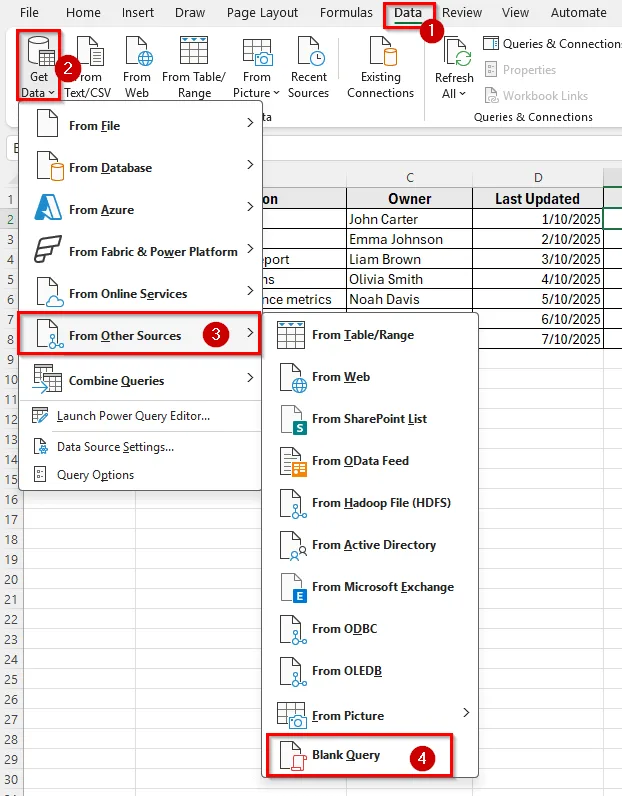
➤ Go to the Data tab in the ribbon.
➤ Click on Get Data >> From Other Sources >> Blank Query.
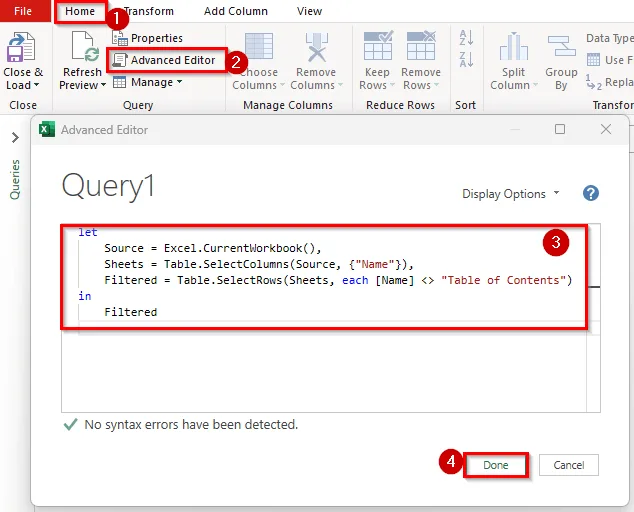
➤ In the Power Query Editor, click Advanced Editor from the Home tab.
➤ Replace the existing code with the following M code:
let
    Source = Excel.CurrentWorkbook(),
    Sheets = Table.SelectColumns(Source, {"Name"}),
    Filtered = Table.SelectRows(Sheets, each [Name] <> "Table of Contents")
in
    Filtered
➤ Click Done.
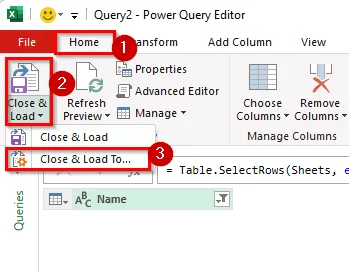
➤ Click Close & Load >> Close & Load To… and choose where to place the data in your Table of Contents sheet.
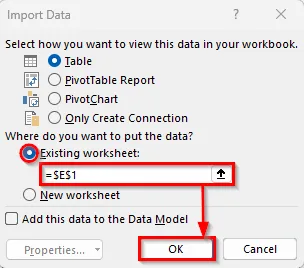
➤ Next, check the Existing worksheet and type the cell no such as E1. Click Ok.
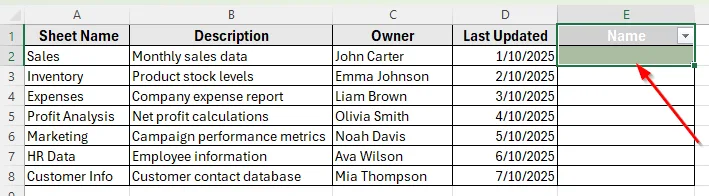
➤ You will now see a blank column labeled Name which is automatically displayed in your TOC sheet.
Step 2: Adding Hyperlinks to the Dynamic List
Since Power Query only returns text, you can add clickable links with a formula next to the list:
➤ Suppose your sheet names are in column A and they are starting from A2. In cell E2, enter:
=HYPERLINK("#'" & A2 & "'!A1", "Go to " & A2)➤ Press Enter.
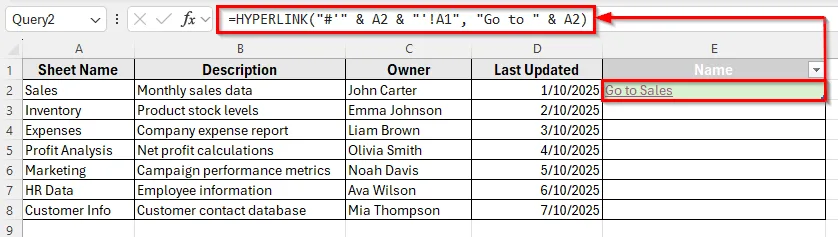
➤ Now, drag the formula down. Now each sheet name becomes a clickable link that jumps directly to the corresponding sheet.
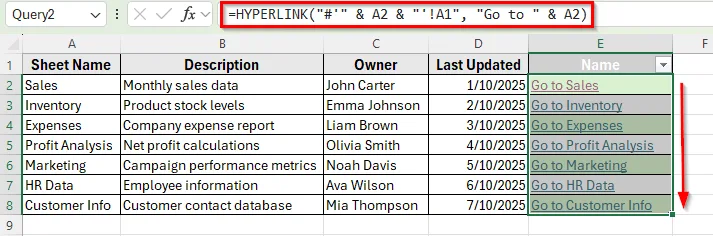
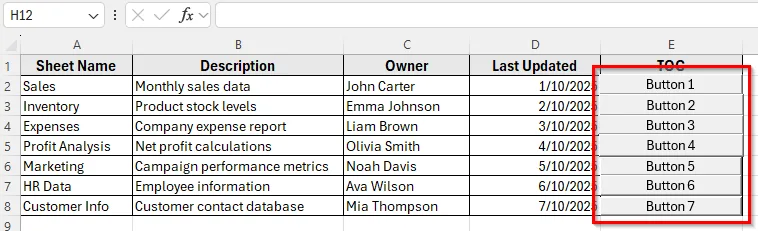
If you want a more interactive and visually appealing way to navigate your workbook, you can use buttons instead of plain text links. Each button can be linked to a different sheet, turning your table of contents into a simple navigation dashboard.
Here’s how to do it:
➤ In the Table of Content sheet, go to the Developer tab and click Insert >> Button (From Control).
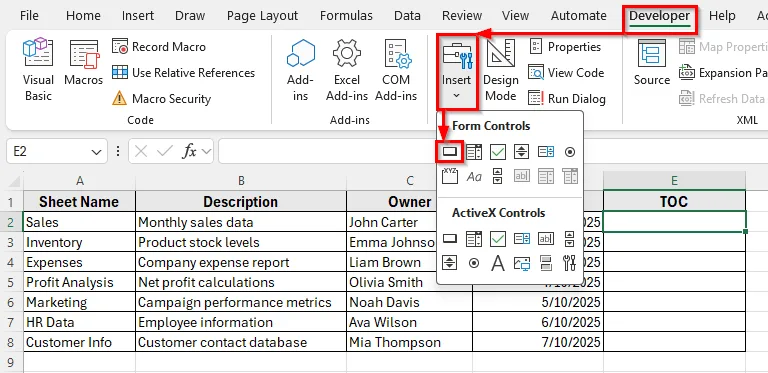
➤ Draw a button in any empty cell area of your sheet.
➤ Once you release the mouse, the Assign Macro dialog box will appear.
➤ Select the button you created and click New.
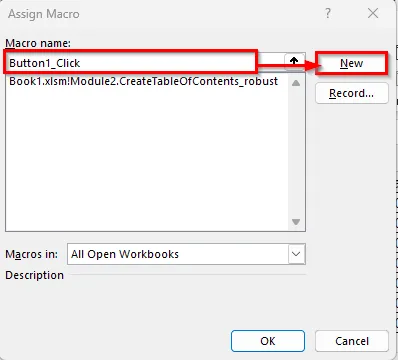
➤ In the Microsoft Visual Basic window type this following code:
Sub Button1_Click()
ThisWorkbook.Sheets("Sales").Activate
End Sub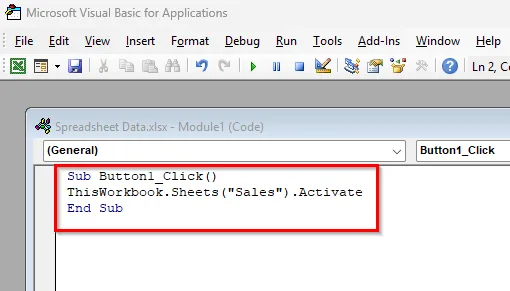
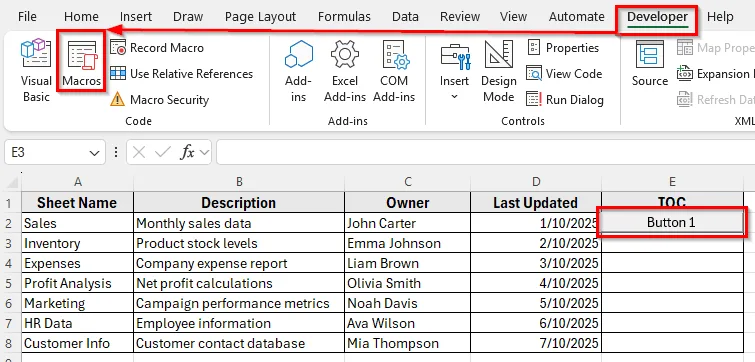
➤ Now go back to the sheet, click Developer >> Macro to assign your macro in the button.
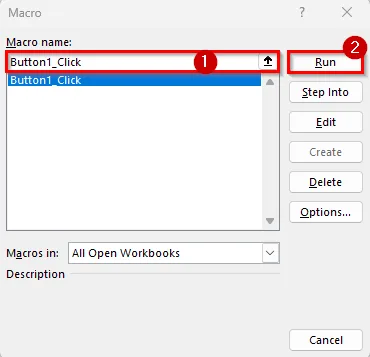
➤ Choose the macro you created such as Button1_Click and click Run.
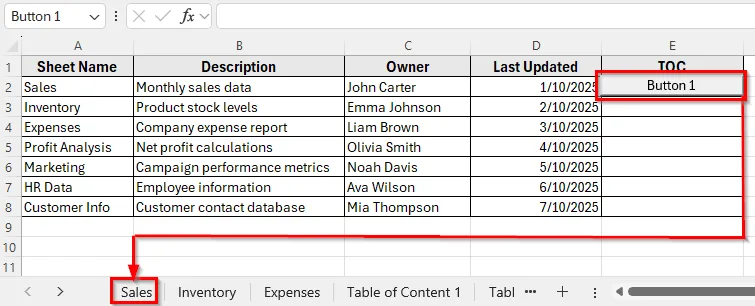
➤ Now, whenever you click this button, Excel will instantly run the macro and create or refresh the Table of Contents for all sheets in the workbook.
➤ Repeat the same steps to create separate buttons for the rest of the sheet names.
Applying Excel VBA Code to Create Table of Contents for Tabs
Using VBA is a powerful way to automatically generate a table of contents. This method is ideal for workbooks with many sheets or when you want a fully automated solution that can be refreshed anytime.
Here’s how to do it:
➤ Press Alt + F11 to open the VBA editor.
➤ In the editor, go to Insert >> Module. This will create a new blank module.
➤ Copy and paste the following code into the module:
Sub CreateTableOfContents()
    Dim ws As Worksheet
    Dim toc As Worksheet
    Dim i As Integer
    ' Delete existing TOC sheet if exists
    On Error Resume Next
    Set toc = Worksheets("Table of Contents")
    If Not toc Is Nothing Then toc.Delete
    On Error GoTo 0
    ' Add new TOC sheet
    Set toc = Worksheets.Add
    toc.Name = "Table of Contents"
    ' Add headers
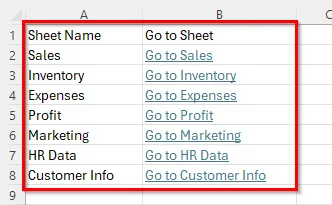
    toc.Range("A1").Value = "Sheet Name"
    toc.Range("B1").Value = "Go to Sheet"
    i = 2
    ' Loop through each sheet and create hyperlinks
    For Each ws In ThisWorkbook.Sheets
        If ws.Name <> toc.Name Then
            toc.Cells(i, 1).Value = ws.Name
            toc.Hyperlinks.Add Anchor:=toc.Cells(i, 2), _
                Address:="", SubAddress:="'" & ws.Name & "'!A1", _
                TextToDisplay:="Go to " & ws.Name
            i = i + 1
        End If
    Next ws
    ' Autofit columns
    toc.Columns("A:B").AutoFit
End Sub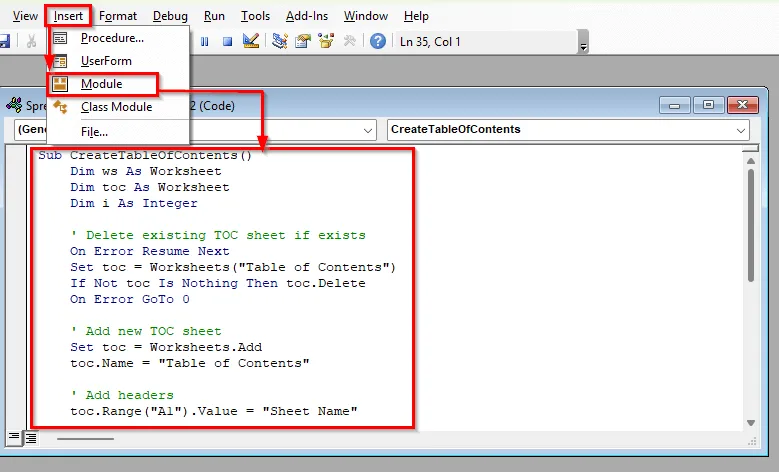
➤ Close the VBA editor and go back to your Table of content sheet.
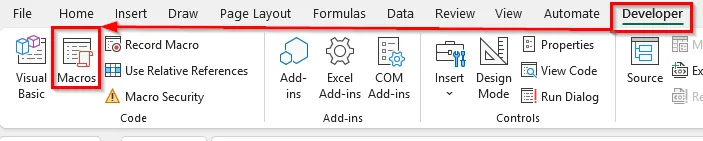
➤ Go to the Developer tab and click Macro.
➤ A new sheet named CreateTableofContents will be created. Select and Run.
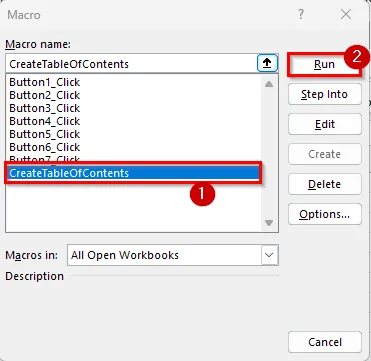
➤ A new Table of Content sheet will be created where each sheet name will appear in column A, and column B will contain clickable links to each sheet.
Downloadable Resources
Get our practice workbook or necessary files that we have worked with to prepare this article.
Table of Contents for Tabs.xlsx
Frequently Asked Questions
How do I create a table of contents for tabs in Excel quickly?
The fastest method is to use the HYPERLINK function. List all your sheet names in one sheet and use a formula like =HYPERLINK("#'Sales'!A1","Go to Sales Sheet") to create clickable links. This method is simple and works in all Excel versions.
Can I make the table of contents update automatically when I add new sheets?
Yes. You can use Power Query or VBA to generate a dynamic list of sheet names. Refreshing the query or recalculating the formula will update the list whenever new sheets are added.
Yes. buttons can be linked to sheets assigning the Macro code from the Developer tab. This makes your TOC more visual and easier to navigate, especially if you’re building dashboards or interactive reports.
Wrapping Up
Creating a table of contents in Excel makes it easier to navigate workbooks with many sheets. It helps you find the right tab quickly and keeps your data more organized. You can build it with formulas, buttons, Power Query, or VBA depending on how much control and automation you need.
Once you set it up, your workbook becomes easier to use, and moving between sheets takes only a single click.