Excel Pro Tips
How to Create a Drop-Down List from Another Sheet in Excel
Create a drop-down list in Excel from another sheet using direct references, named ranges, tables, dynamic ranges, or unique spill lists.
Read article

11 lessons in order
Create a drop-down list in Excel from another sheet using direct references, named ranges, tables, dynamic ranges, or unique spill lists.

Learn how to create a drop-down list from a table in Excel using dynamic ranges, named ranges, and UNIQUE for auto-updating lists.

Learn how to create a dynamic dependent drop-down list in Excel using named ranges, INDIRECT, XLOOKUP, and auto-updating, sorted lists.
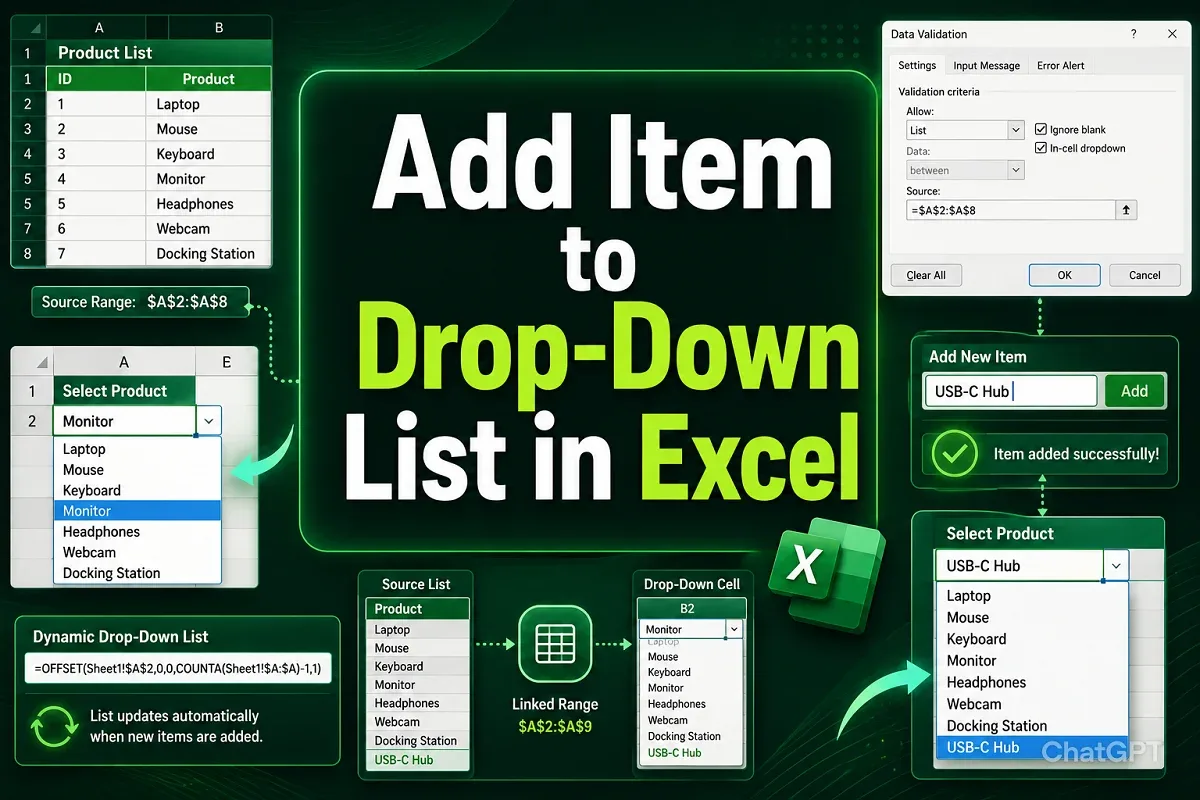
Learn how to add items to a drop-down list in Excel by editing sources, using tables, extending named ranges, OFFSET, and UNIQUE formulas.
Learn how to create a drop-down list in Excel that allows multiple selections using VBA, with easy step-by-step instructions.
Learn how to link a cell value with a drop-down list in Excel using VLOOKUP, INDEX-MATCH, SUMIF, INDIRECT, and FILTER functions.
Learn how to fix Excel drop-down lists not working with easy steps—resolve hidden arrows, blank cells, and validation issues fast.
Learn how to create conditional drop-down lists in Excel using IF statements, direct references, and named ranges for dynamic data.
Learn how to create Excel drop-down lists from ranges, make them dynamic, use filters, define named ranges, and automate with VBA.
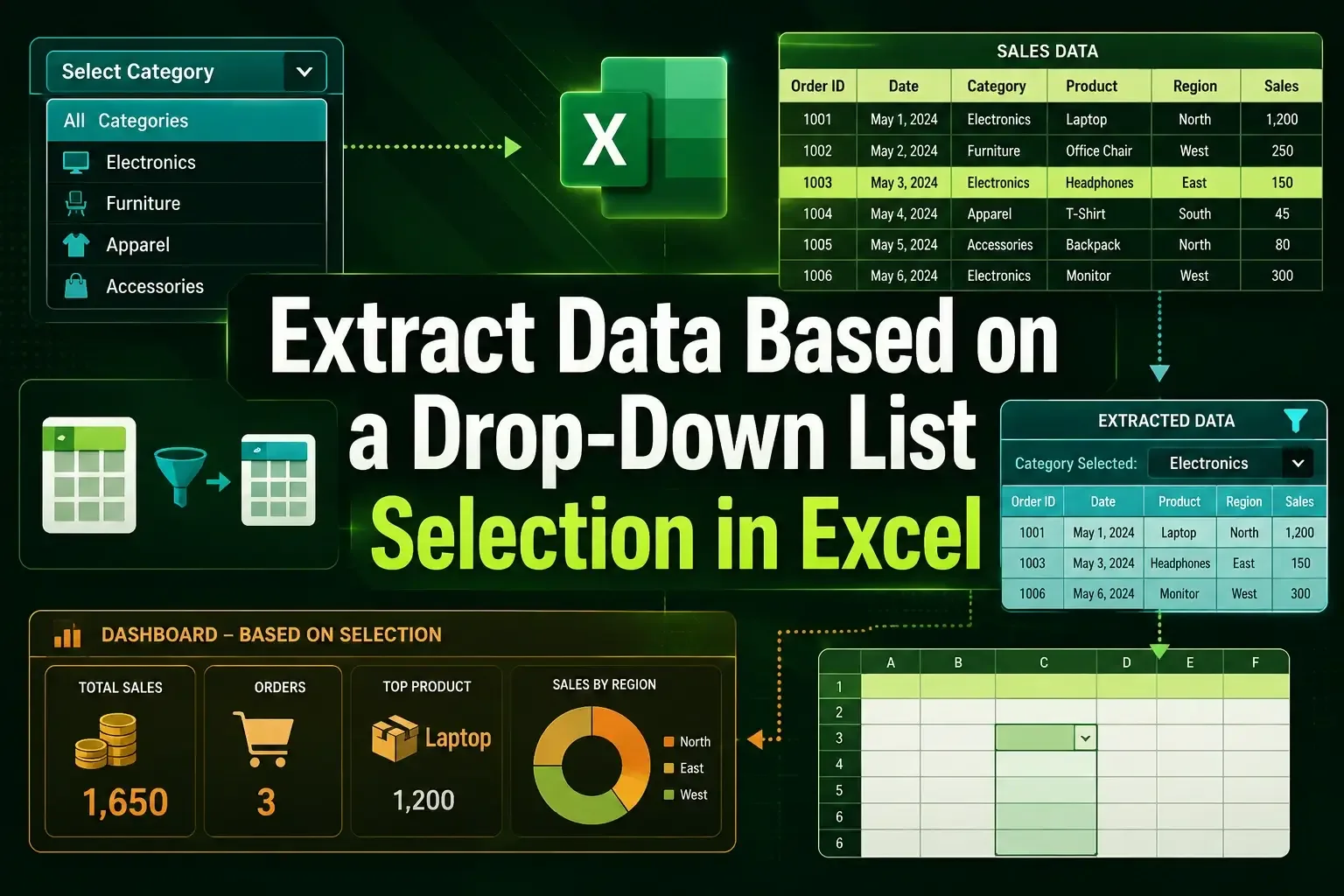
Learn how to extract data based on a drop-down list in Excel using FILTER, multiple criteria, and INDEX with helper columns.
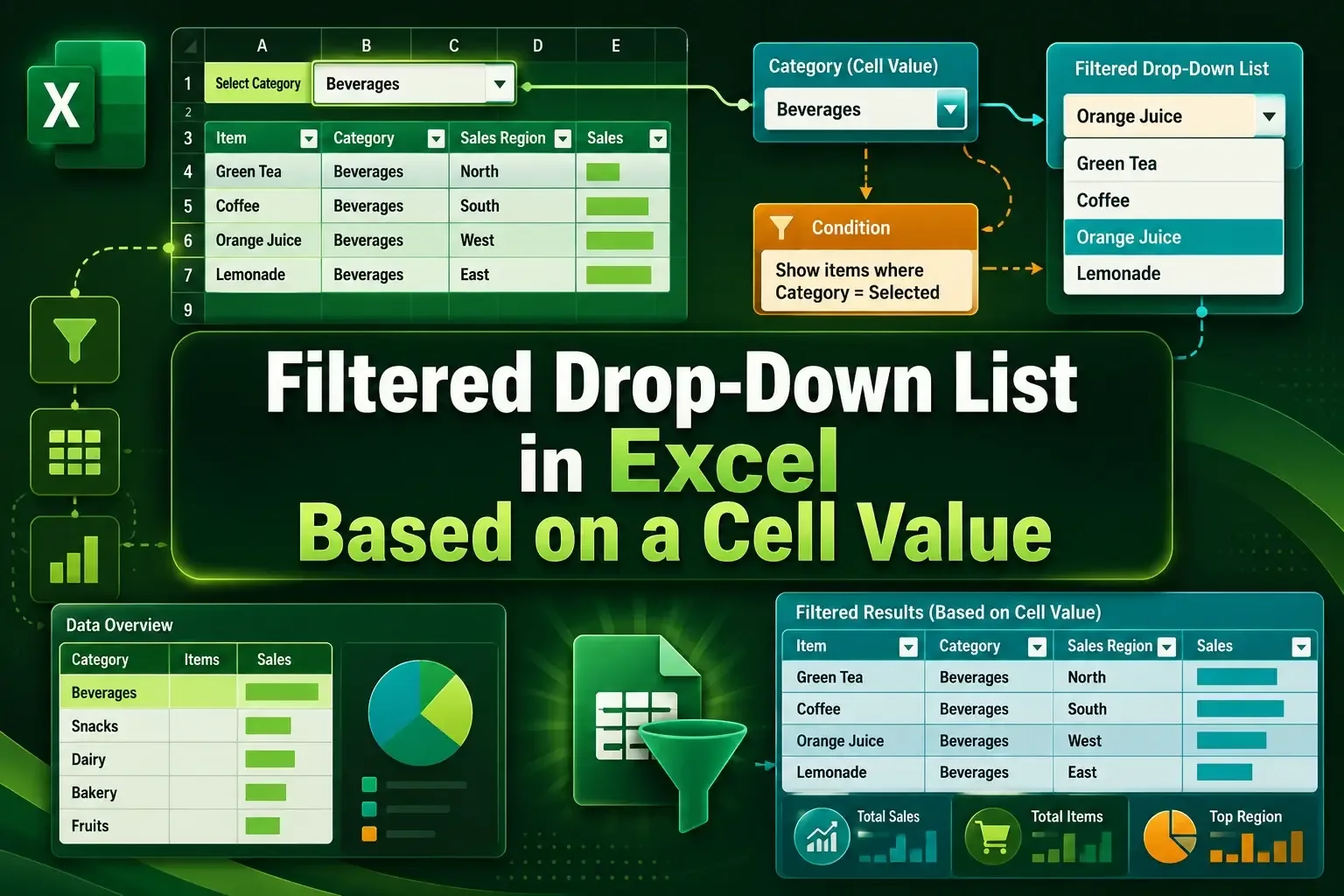
Learn how to create a filtered drop-down list in Excel using FILTER, UNIQUE, named ranges, and INDIRECT with step by step setup.