
Sometimes we run into circular reference errors when we try to perform calculations that refer back to their own cells, such as compound interest or goal seeking formulas. To solve this, we need to enable iterative calculation. This will allow Excel to repeat calculations until a specific condition is met. This feature is very and frequently used in financial models, engineering formulas, or academic projects that particularly rely on recursion.
To enable iterative calculation in Excel, follow these steps:
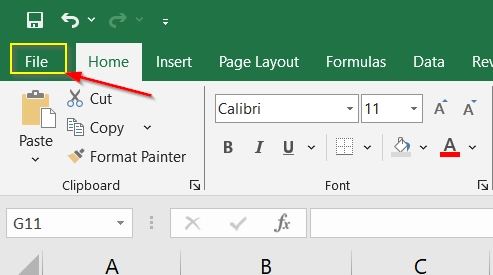
➤ Open Excel and go to File
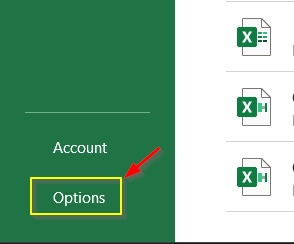
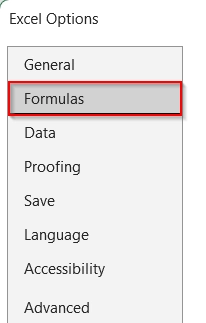
➤ Select Options > Formulas
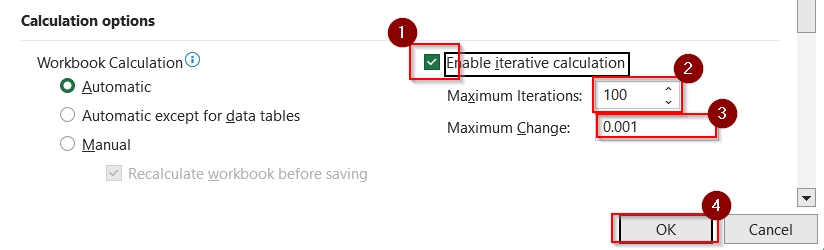
➤ Check the box labeled Enable iterative calculation and set the Maximum Iterations and Maximum Change as desired.
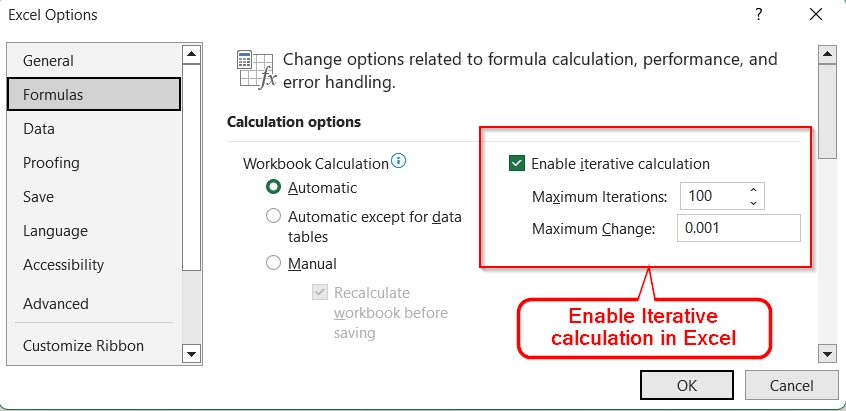
In this article, we will see how to enable iterative calculation in Excel in different versions. We will also explain some real life examples.
What is Iterative Calculation in Excel?
Iterative calculation is a process where Excel repeatedly recalculates a worksheet until it meets a specific numeric conditio. It’s used in circular reference scenarios, like when a cell’s formula depends on its own result. You can control the process by setting the maximum number of iterations and the smallest amount of acceptable change between results.
For Example: If you are calculating a loan with interest that changes based on remaining balance, iterative calculations allow Excel to “loop” through calculations to find the final balance.
How to Enable Iterative Calculation in Excel?
If you’re using a formula like =A1 + B1 in cell A1 (a circular reference), Excel will throw an error unless iterative calculation is enabled. With the setting on, Excel will resolve the loop over multiple rounds.
For Excel 2010, 2013, 2016, 2019, 2021 and Microsoft 365
Steps:
➤ Open Excel, then go to the File tab.
➤ Click on Options.
➤ In the Excel Options window, select the Formulas tab.
➤ Under Calculation options, check the box for Enable iterative calculation.
➤ Set the Maximum Iterations (how many times Excel should recalculate).
➤ Set the Maximum Change (minimum value difference between iterations).
➤ Click OK to apply.
For Excel 2007
➤ Click the Office Button > Excel Options > Formulas > Enable Iterative Calculation.
For Excel 2003 and Earlier
➤ Go to Tools > Options > Calculation tab > Check Iteration box.
For Excel on Mac
➤ Go to Excel menu > Preferences > Calculation > Check Use iterative calculation.
How to Implement Iterative Calculation in Excel Dataset
Using Iterative Calculation For Calculating Profit-Sharing Bonuses
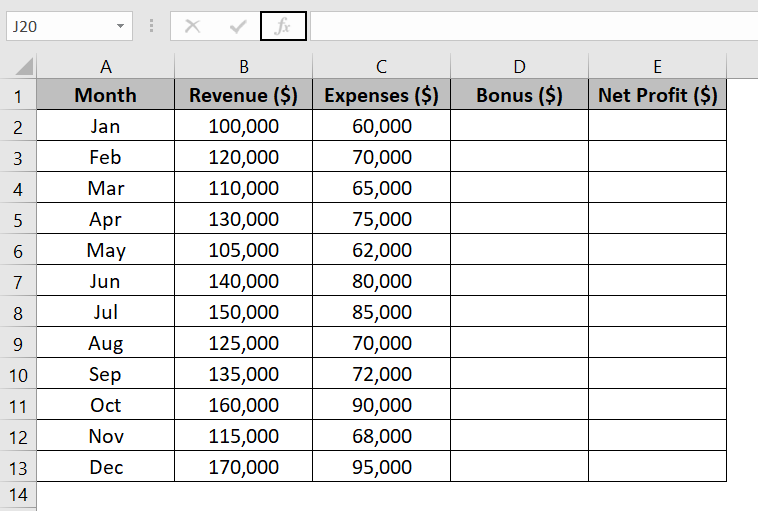
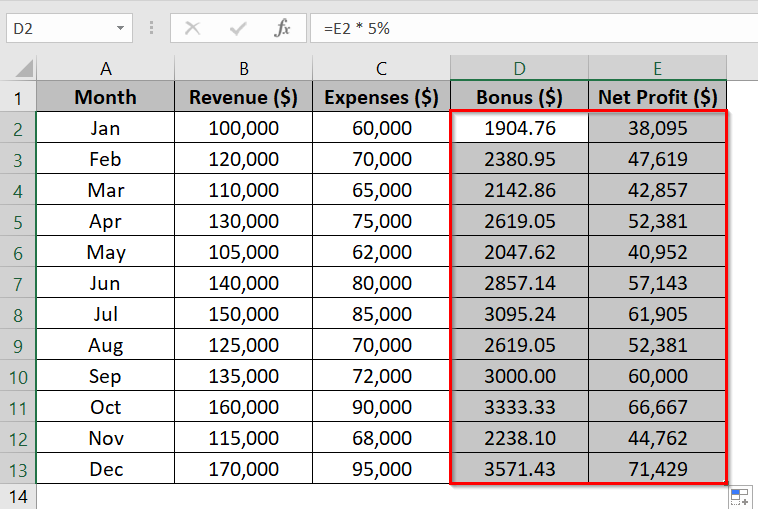
We have a dataset that tracks a company’s monthly gross revenue and operating expenses to calculate an employee profit-sharing bonus pool.
In this context, the 5% bonus is calculated based on the net profit, and the net profit itself is calculated only after deducting the bonus as an expense. This creates a circular reference that we will resolve with acumen using Excel’s iterative calculation.
Steps:
➤ Double-check if you have enabled Iterative Calculation in Excel following the earlier steps, ensuring Maximum Iterations is set to 100 and Maximum Change to 0.001.
➤ Now open up the excel dataset where you want to perform the iterative calculation. In our dataset, we got the Month, Revenue, and Expenses columns (Columns A, B, and C), with empty columns for the Bonus (Column D) and Net Profit (Column E) calculation.
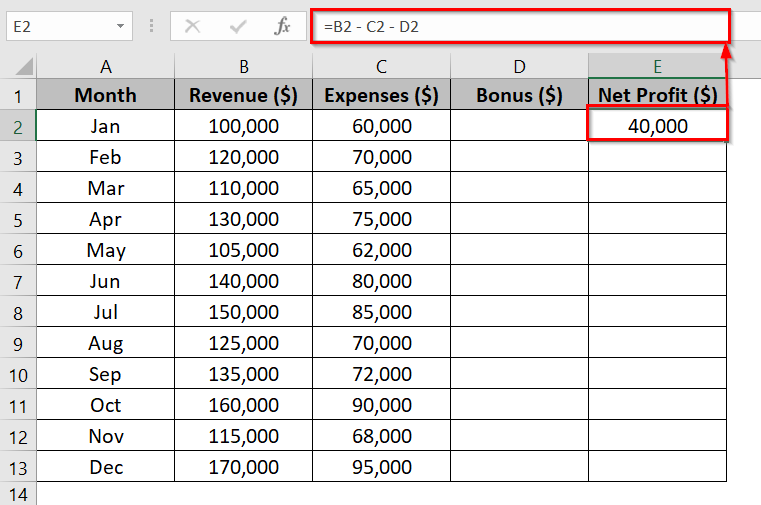
➤ In cell E2, type the following formula:
=B2 – C2 – D2
This formula will calculate the final net profit by subtracting the operating expenses (C2) and the yet-to-be-calculated bonus (D2) from the total revenue (B2).
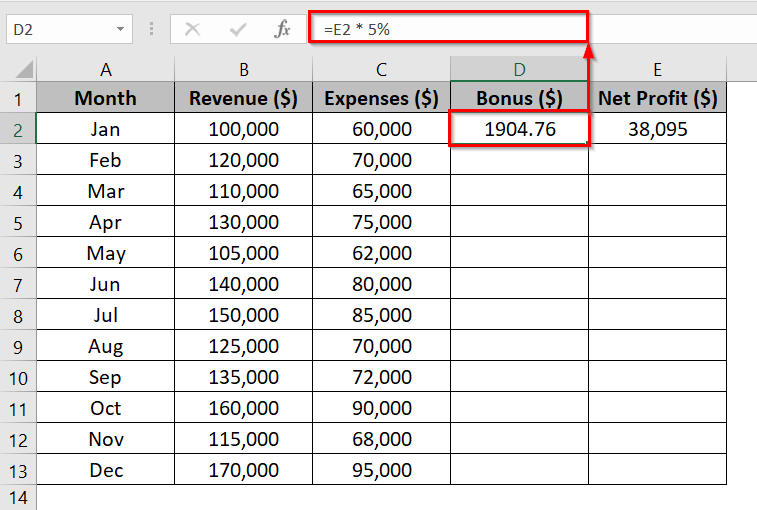
➤ Again, in cell D2, type the following formula:
=E2 * 5%
This creates the circular reference because the Bonus relies on the Net Profit, and the Net Profit relies on the Bonus.
What’s happening here? Due to the enabled iterative calculation setting, Excel loops through the math until it finds the balanced result.
➤ Select both cells D2 and E2, then click and drag the fill handle down to row 13. This calculates the iterative values across all months in the dataset.
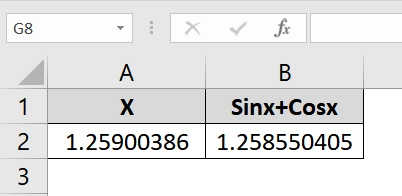
Applying Iterative Calculation To solve x = sin(x) + cos(x)
This method uses a circular reference to solve x = SIN(x) + COS(x) iteratively starting from a seed value. It’s ideal when you want a compact, clean solution without creating a full iterative table.
Steps:
➤ Enable Iterative Calculation in Excel following the earlier steps and where Maximum Iterations is 100 and Maximum Change to 0.001
➤ Open up the excel dataset where you want to perform the iterative calculation.
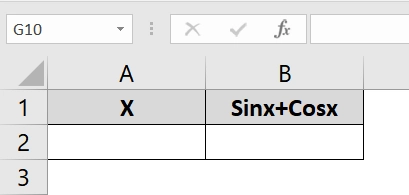
➤ In cell A2, type: 1
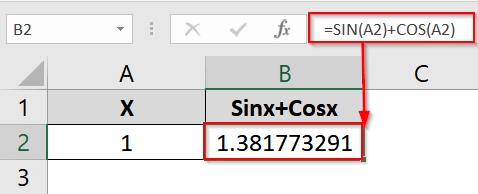
➤ In cell B2, enter the formula click Enter.
=SIN(A2)+COS(A2)
This formula calculates the value of Sinx+Cosx where the value of X is 1
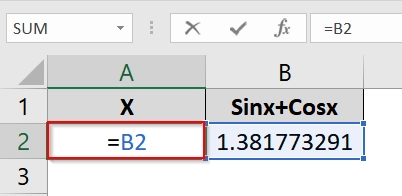
➤ In cell A2, Write: =B2
This will refer to the value of x is to the value of the Sinx+Cosx which will activate iterative calculation.
➤ Click Enter to see the result of the iterative calculation.
➤ It continues iterating until the value of X and SIN(X)+COS(X) are nearly the same (difference < 0.00001).
Note:
Initial value matters for convergence and iterative calculation.
Downloadable Resources
Get our practice workbook or necessary files that we have worked with to prepare this article.
Enable Iterative Calculation.xlsx
Frequently Asked Questions (FAQs)
Why is iterative calculation not working?
Iterative calculation may not work if the feature is not enabled or the circular reference is not properly configured. Also, check your Formula settings and ensure your formulas refer back correctly.
How do I fix iteration in Excel?
Go to File > Options > Formulas, and enable iterative calculation. Set reasonable limits for iteration count and change thresholds to avoid errors or infinite loops.
Why is my Excel calculation not working?
This could be due to iterative calculation being disabled, formula errors, or broken circular references. Make sure that all dependencies are correctly linked and check error messages.
Concluding Words
Iterative calculation is essential for solving circular references and running recursive models. I have discussed how to enable iterative calculation in excel and showed two example calculations using iterative calculation. The first calculation is done with steps while the second one is done instantly. You can choose whichever process fits with your needs.