Printing Avery labels directly from Excel is a convenient way to create professional mailing lists, product tags, or address labels. However, Excel alone doesn’t provide label templates and it’s best used to store and manage data efficiently before sending it to Word for formatting and printing. By connecting Excel with Word’s Mail Merge feature, you can seamlessly design and print perfectly aligned Avery labels without retyping your data.
In this article, you’ll learn two reliable ways to print Avery labels from Excel using Microsoft Word’s Mail Merge and another for printing single labels directly from Excel without Word. Let’s get started.
Steps to print avery labels from Excel:
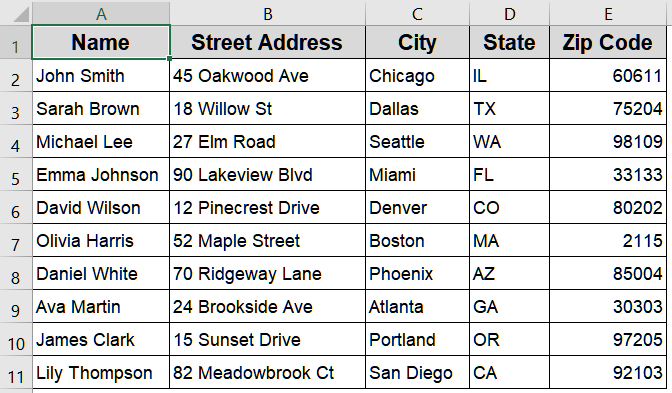
➤ Prepare your Excel sheet with headers like Name, Street Address, City, State, Zip. Save and close the file.
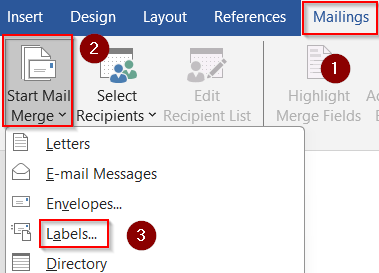
➤ Open Word >> Mailings tab >> Start Mail Merge >> Labels.
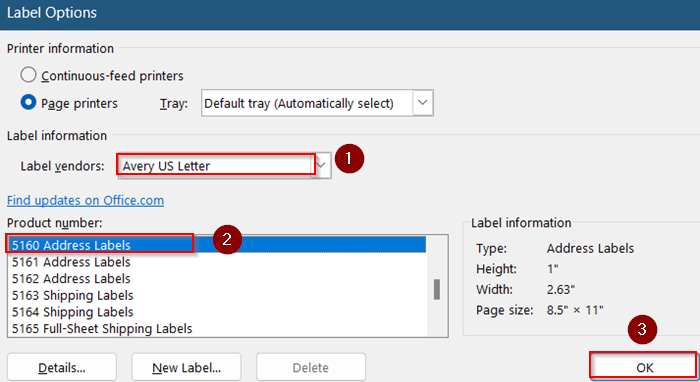
➤ Select Avery US Letter and choose your product number (e.g., 5160).
➤ Click Select Recipients >> Use an Existing List >> Browse and open your Excel file.
➤ Confirm the correct sheet and ensure headers are recognized.
➤ Insert merge fields (Name, Address, City, State, Zip) into the first label.
➤ Click Update All Labels to replicate formatting across the page.
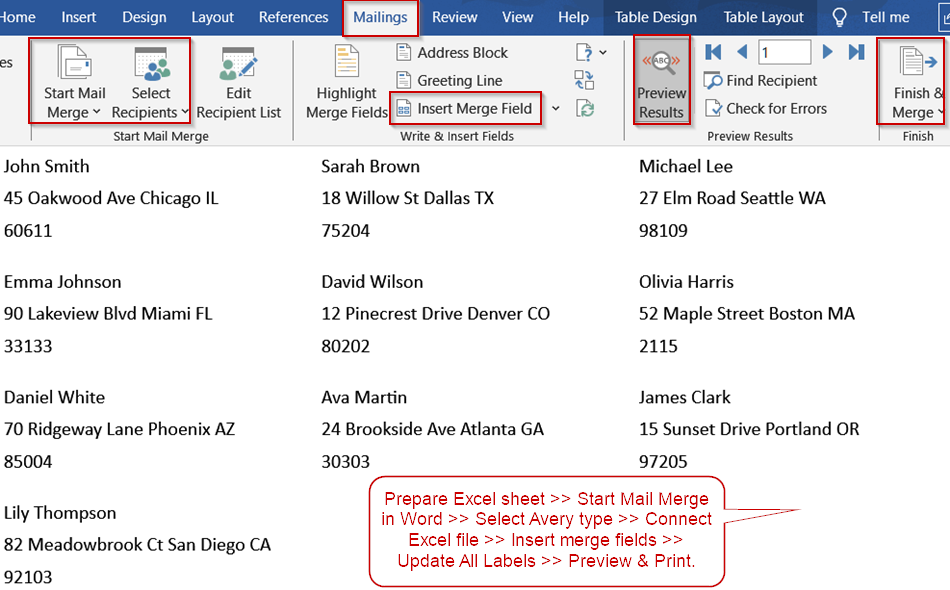
➤ Preview Results, then Finish & Merge >> Print Documents >> Choose All and print on Avery sheets.
Using Mail Merge to Print Avery Labels in Word from Excel
The most common and professional approach to printing Avery labels is through Mail Merge in Microsoft Word. This method connects your Excel data with Word, allowing you to create label templates that automatically populate each label with information from your spreadsheet. It’s ideal for bulk label printing such as mailing lists, event invites, or customer shipments.
Steps:
➤ Open your Excel sheet and ensure the dataset has column headers like Name, Address, City, State, Zip. Save and close the file before proceeding.
➤ Open a new blank Word document.
➤ Navigate to the Mailings tab >> click Start Mail Merge >> select Labels.
➤ In the Label Options dialog box, select Avery US Letter under Label Vendors.
➤ Choose your Avery Product Number (e.g., 5160 for standard address labels) and click OK.
➤ Now, click Select Recipients >> Choose Use an Existing List.
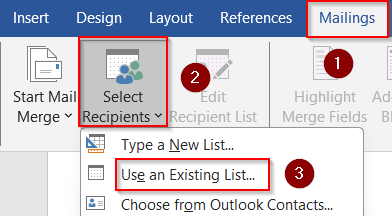
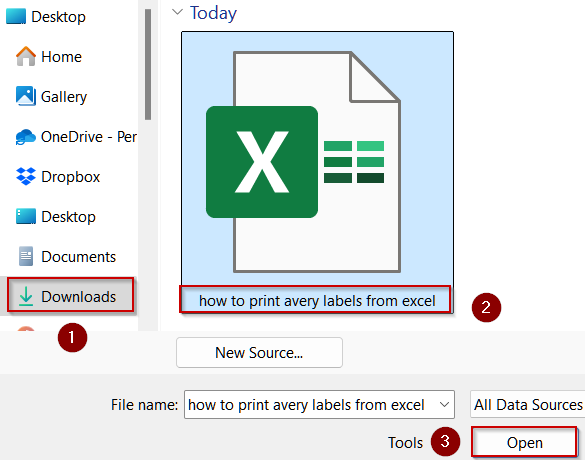
➤ Browse and open your Excel file.
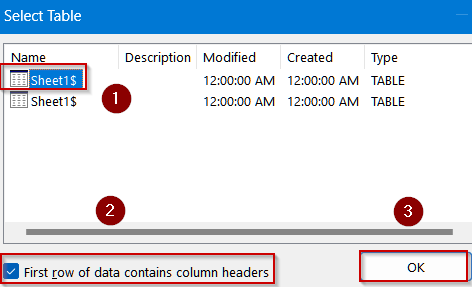
➤ Confirm the correct sheet name and ensure the box for “First row of data contains column headers” is checked.
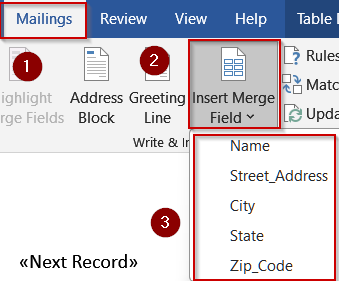
➤ Click on the first label in the Word template >> Select Insert Merge Field >> Choose Name, Street Address, City, State, and Zip Code. Arrange them in label format with spaces or line breaks.
➤ Select Update All Labels to apply the layout to the entire page.
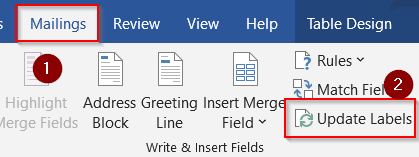
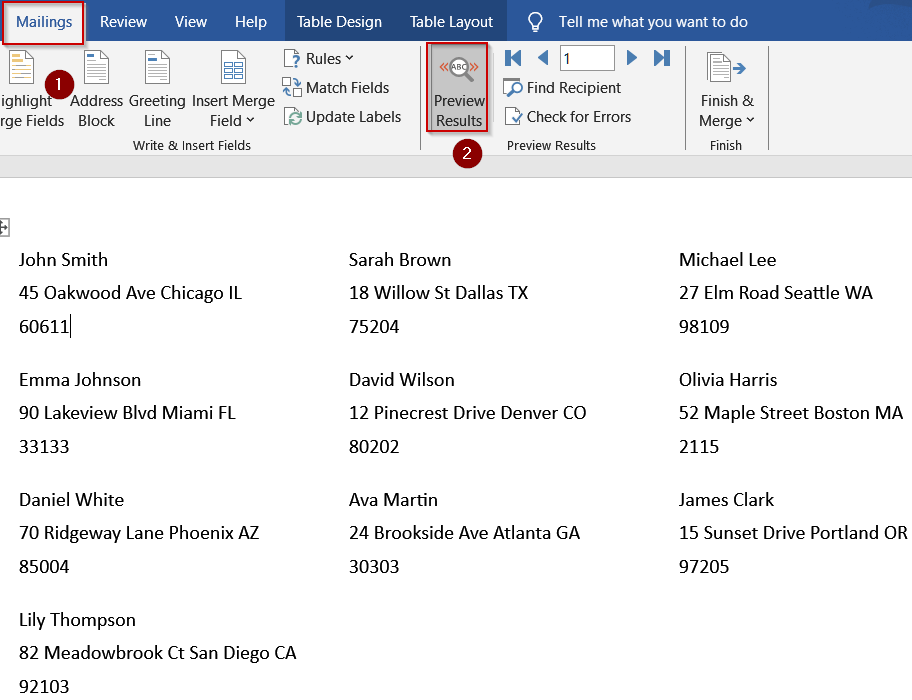
➤ Click Preview Results to see how your labels will appear.
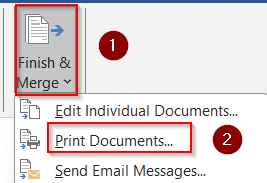
➤ Finally, click Finish & Merge >> Select Print Documents.
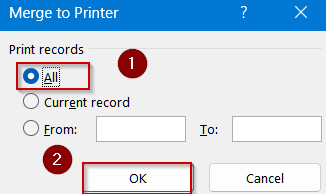
➤ Choose All and print your labels on Avery sheets and click OK.
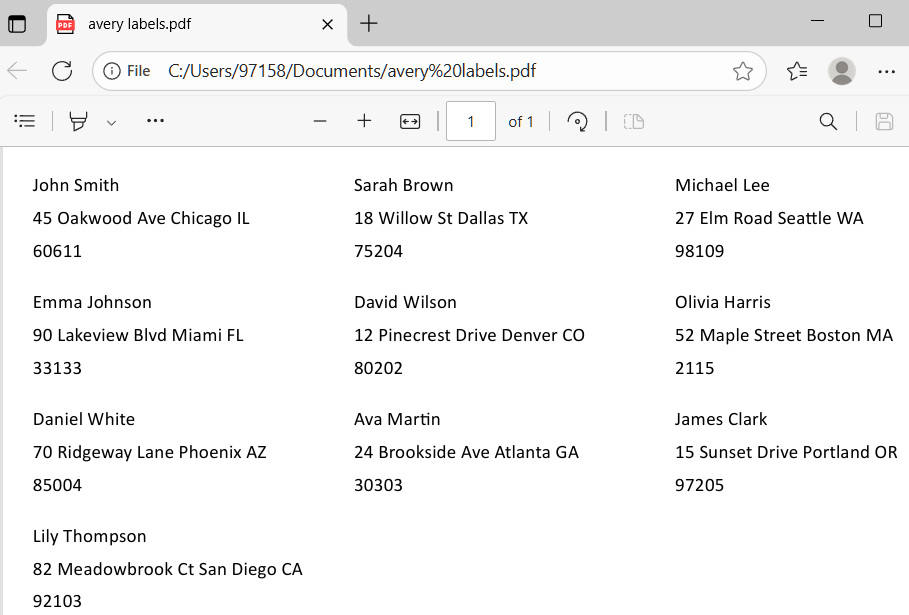
A PDF file will be saved on your computer for printing.
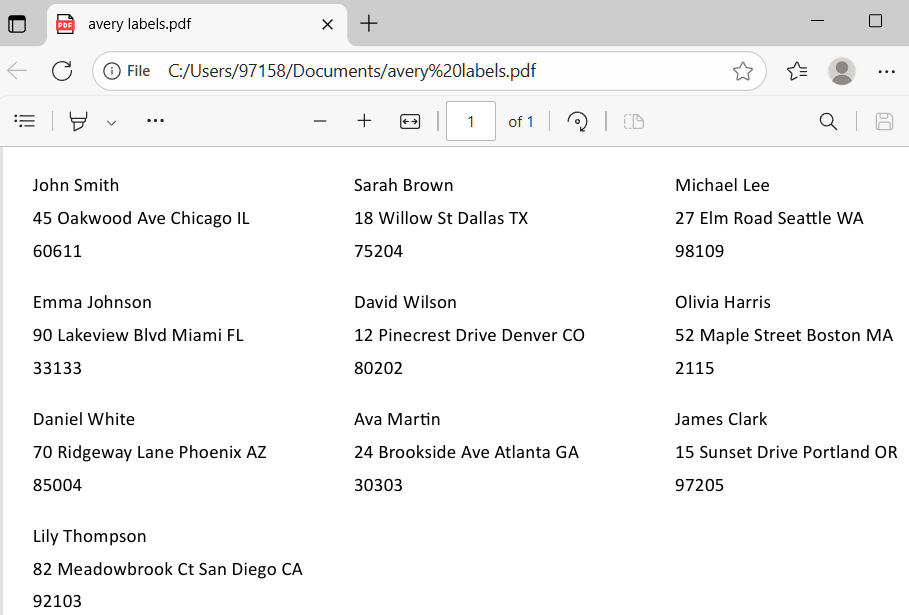
Automating Avery Label Printing from Excel Using VBA
When you need to print multiple Avery labels quickly and consistently, VBA can fully automate the process directly in Excel. This eliminates the need for Word’s Mail Merge and helps maintain control over layout, formatting, and print alignment. By running a VBA macro, Excel automatically arranges your dataset into properly sized label blocks and formats them to match Avery sheet dimensions. This method is ideal for printing address labels, name tags, or package labels in bulk using your Excel data.
Steps:
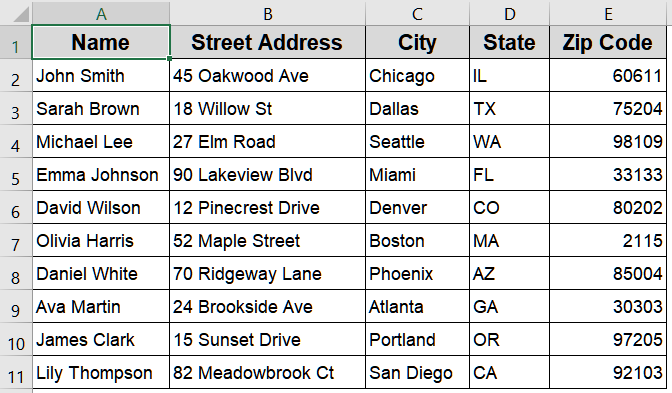
➤ Open your Excel workbook containing the label dataset. Ensure columns are titled Name, Street Address, City, State, and Zip Code.
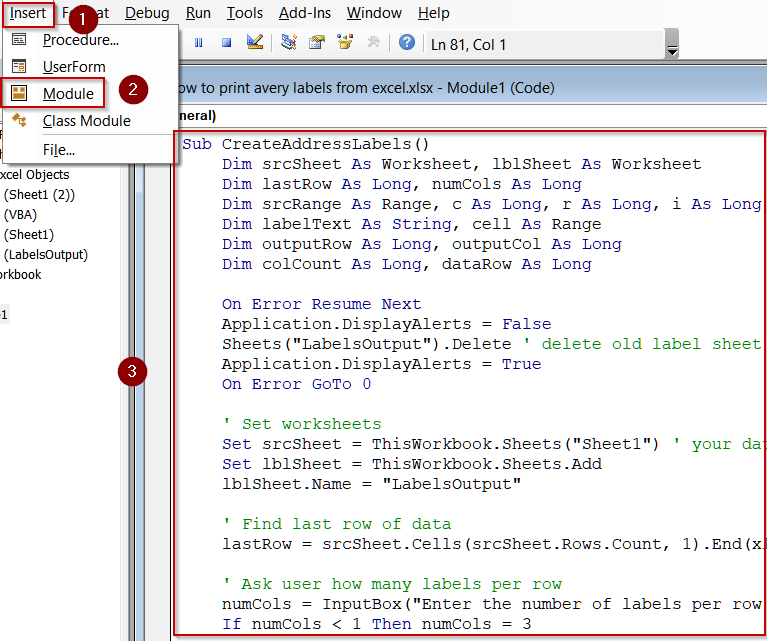
➤ Press Alt + F11 to open the VBA editor.
➤ Insert >> Module, then paste the following code:
Sub CreateAveryLabels()
    Dim ws As Worksheet
    Dim cell As Range
    Dim targetRow As Long
    Dim targetCol As Long
    Dim colCount As Integer
    Dim i As Integer
    Set ws = ActiveSheet
    targetRow = 1
    targetCol = 1
    ' Ask user for number of labels per row (columns)
    colCount = InputBox("Enter number of labels per row (e.g., 3 for Avery 5160):", "Label Layout", 3)
    ' Format cells for label layout
    ws.Cells.RowHeight = 75
    ws.Cells.ColumnWidth = 34
    ws.Cells.HorizontalAlignment = xlCenter
    ws.Cells.VerticalAlignment = xlCenter
    ws.Cells.WrapText = False
    ' Loop through dataset and arrange labels
    For i = 2 To ws.Cells(ws.Rows.Count, 1).End(xlUp).Row
        ws.Cells(targetRow, targetCol).Value = ws.Cells(i, 1).Value & vbCrLf & _
            ws.Cells(i, 2).Value & vbCrLf & _
            ws.Cells(i, 3).Value & ", " & ws.Cells(i, 4).Value & " " & ws.Cells(i, 5).Value
        targetCol = targetCol + 1
        ' Move to next row after reaching max columns
        If targetCol > colCount Then
            targetCol = 1
            targetRow = targetRow + 1
        End If
    Next i
    MsgBox "Labels formatted successfully. Ready to print!", vbInformation
End Sub
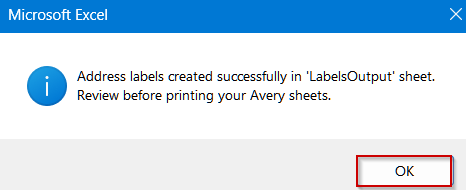
➤ Run the macro by pressing F5 key. You’ll see a pop-up confirmation.
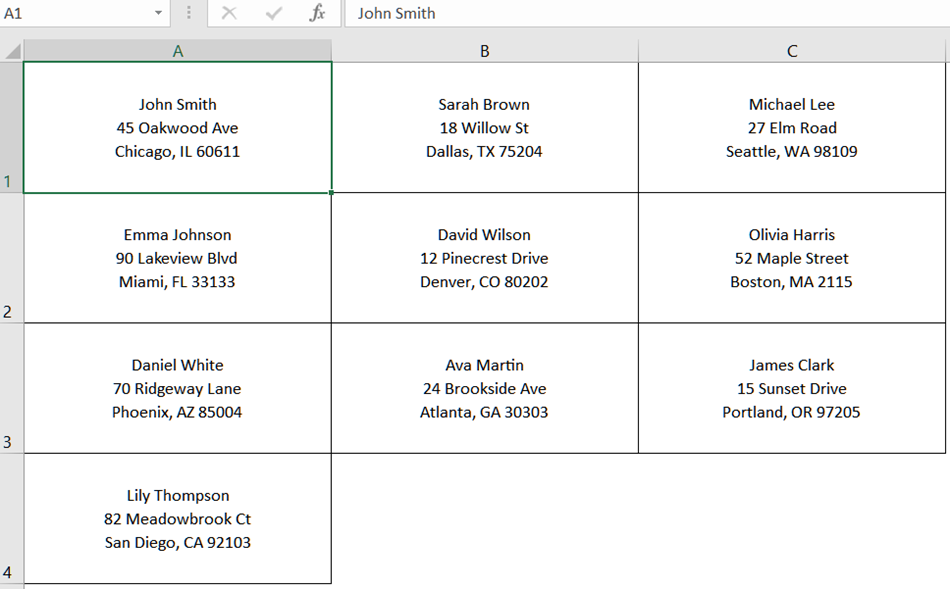
➤ Excel will automatically rearrange your dataset into multiple columns formatted as labels. Each cell block will include the Name, Address, City, State, and Zip Code neatly stacked.
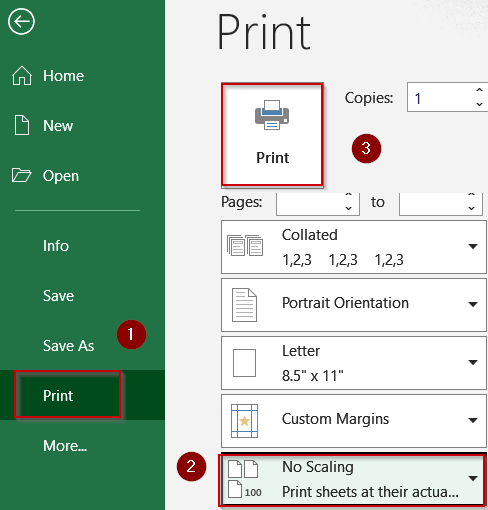
➤ Go to File >> Print, choose Actual Size to maintain label dimensions, and print directly onto Avery sheets (e.g., Avery 5160).
This manual approach is perfect for quick prints when you don’t need Word’s automation features.
Downloadable Resources
Get our practice workbook or necessary files that we have worked with to prepare this article.
Frequently Asked Questions
Can I print Avery labels from Excel without using Microsoft Word?
You can, but the process is manual. Excel doesn’t include Avery templates, so you must resize cells to match label dimensions and print carefully to avoid misalignment or formatting errors.
Why don’t my Avery labels align correctly when printed?
Misalignment happens when page scaling or margins differ from Avery’s preset template. Always select “No Scaling” in print settings and confirm the correct product number under the Label Options dialog before printing.
How do I insert a logo on Avery labels while printing from Excel?
Insert your logo within the Word Mail Merge label layout. Place the image in the first label, adjust its size, and click “Update All Labels” so every label includes the same logo.
Can Excel Online users print Avery labels?
Excel Online doesn’t support direct Mail Merge connections with Word. You must download the Excel file, open it in the desktop version of Excel, and then complete the Mail Merge in Word.
Is it possible to create barcode Avery labels using Excel data?
Yes, you can generate barcode or QR code labels by linking Excel data with a barcode font or using a Word add-in during Mail Merge. This allows automatic code creation for each entry.
Wrapping Up
In this tutorial, we covered how to print Avery labels from Excel using two practical approaches using Word’s Mail Merge feature for bulk label printing and directly from Excel for single labels. By preparing your dataset carefully and selecting the right Avery template, you can produce accurate, professional-looking labels for any purpose. Feel free to download the practice file and share your feedback.