Would you like to transfer your Excel data into Google Sheets for easier collaboration?
Google Sheets is the best space for collaboration with your team. Although importing Excel into Google Sheets is a prevalent task, sometimes you can find yourself in the middle of nowhere.
This article will explore simple methods for importing Excel files into Google Sheets. With the step-by-step explanation, you will be all set to import your data.
➤ The Copy-Paste method is the easiest one to import data from Excel to Google Sheets. However, it is not very efficient with large data.
➤ The built-in Import feature is the most commonly used method to import an Excel file in Google Sheets.
➤ If you store all the data in Drive, then opening your file directly in Google Sheets would be the quickest option.
Import Excel into Google Sheets Using the Built-in Feature
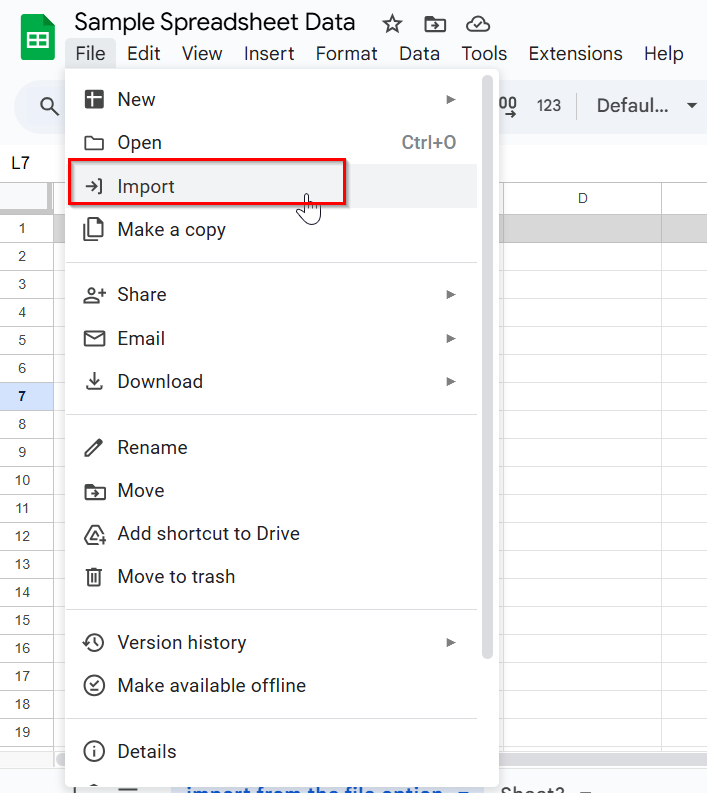
Using the built-in Import feature is the most common method for importing an Excel file into a Google Sheets. With just a few clicks, you can import the Excel file.
Let’s say we have an Excel file saved on our computer named ‘Customer Feedback,’ and we want to import it into Google Sheets. Here’s how you can do it:
Steps:
➤ Open Google Sheets.
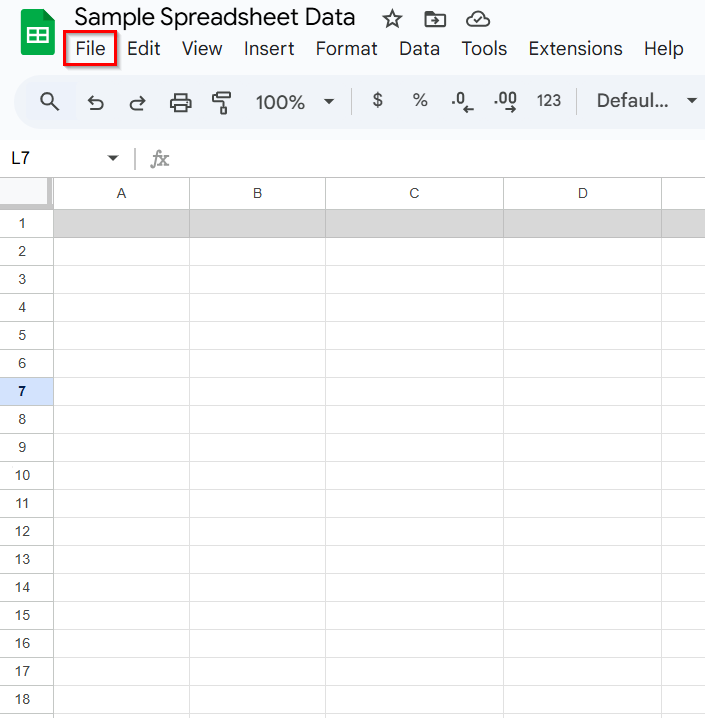
➤ In the top left corner, there’s an option named File. Click on the File option.
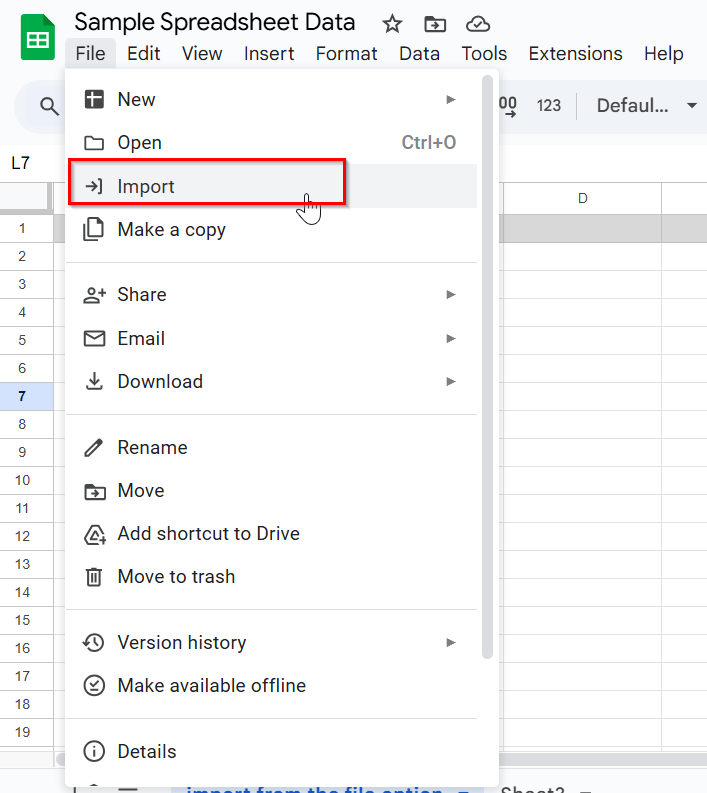
➤ Select Import from the drop-down.
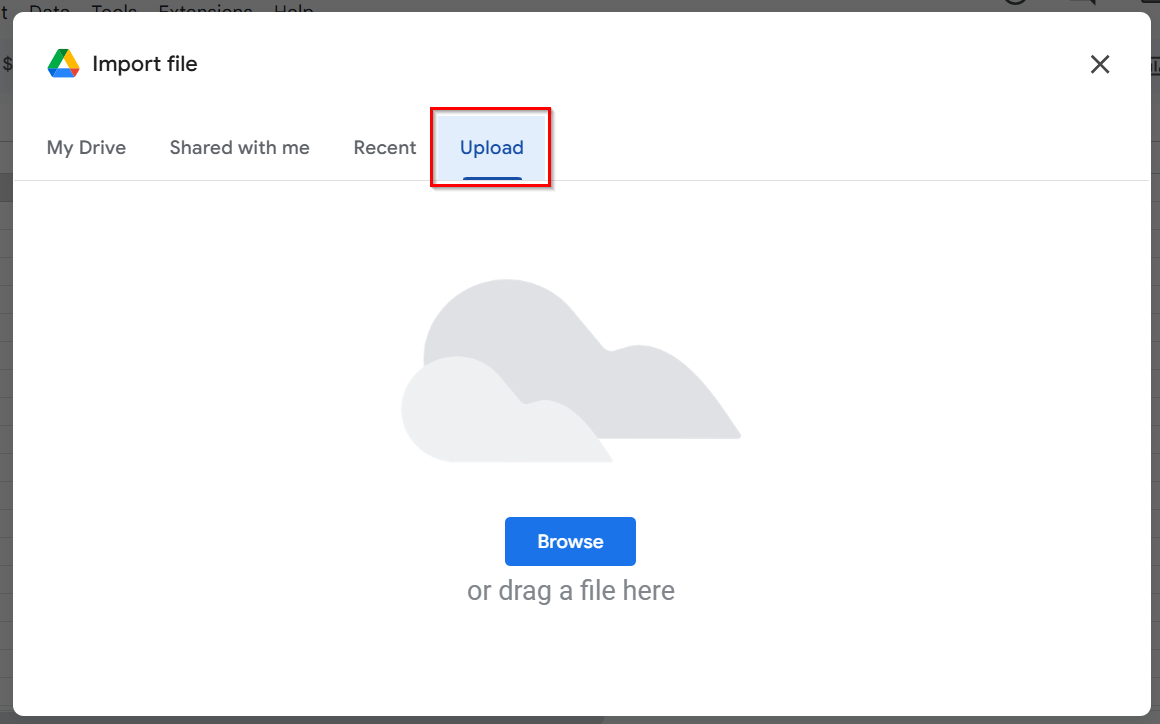
➤ In the Import file window, click on the Upload tab.
➤ Drag and drop your Excel file or click Browse to choose your file.
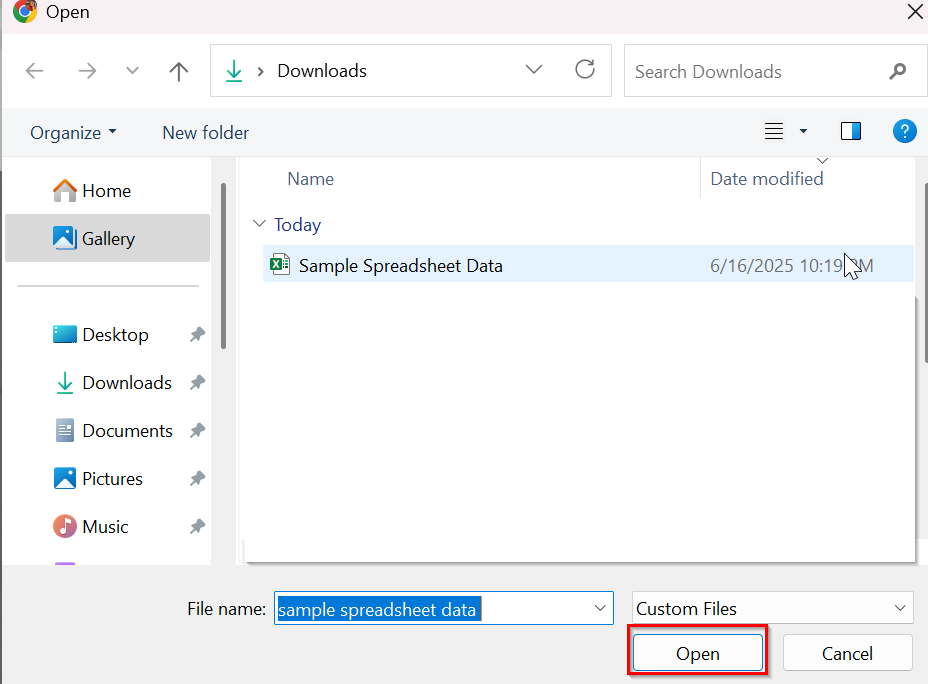
➤ Choose the file you want to import. Here, I have selected the Customer Feedback file because I want to import it into Google Sheets.
➤After selecting your desired file, simply click on Open
➤ Here, three options will appear,
Create a new spreadsheet (opens the Excel file as a new Google Sheets file), Insert new sheet(s) (adds the Excel file as a new sheet in the current Google Sheets file), and Replace spreadsheet (replaces the current Google Sheet with the Excel file).
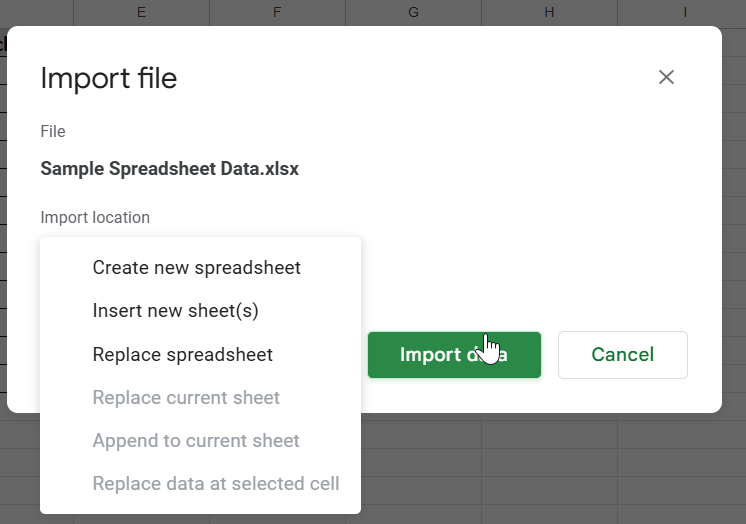
➤ Select any one of them as per your need. I have selected Replace Spreadsheet. Then click Import Data.
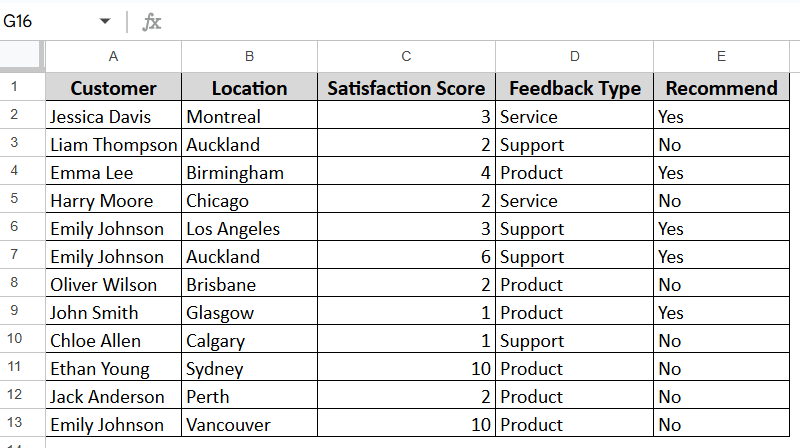
➤ With that, all the data from your Excel file will be imported into Google Sheets.
Directly Opening an Excel File into Google Sheets
If you store your files in Google Drive, then this method would be very simple and quick. You can very easily open your Excel files in Google Sheets just by uploading the Excel file to Google Drive. We will work with the same file, named ‘Customer Feedback’. Here’s how you can do it:
Steps:
➤ Go to Google Drive.
➤ Click New > Upload File
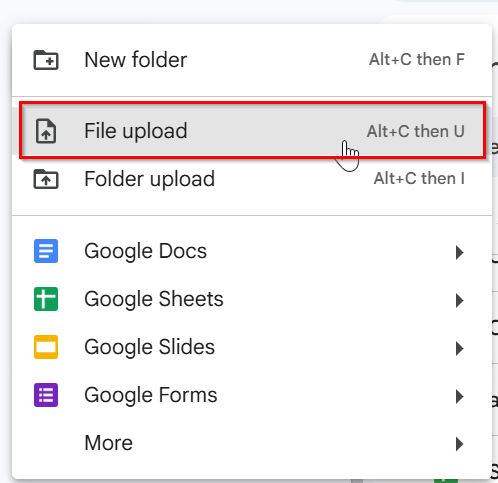
➤ Upload your desired file.
➤ Once your file is uploaded, right-click on the file or click on the three dots.
➤ You will see several options appear. Hover to Open with and then click Google Sheets.
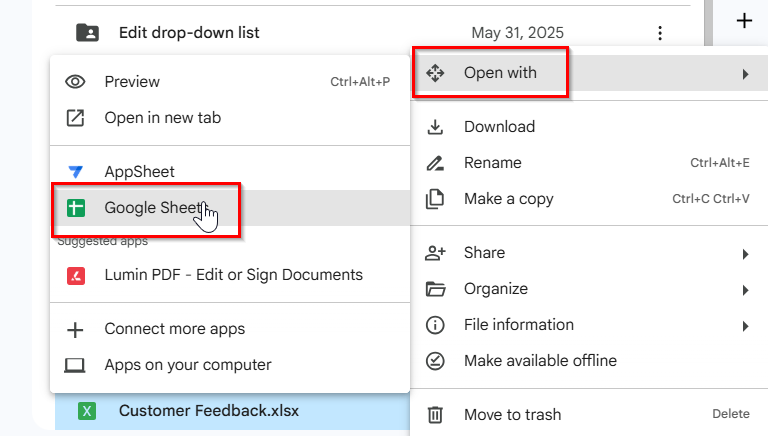
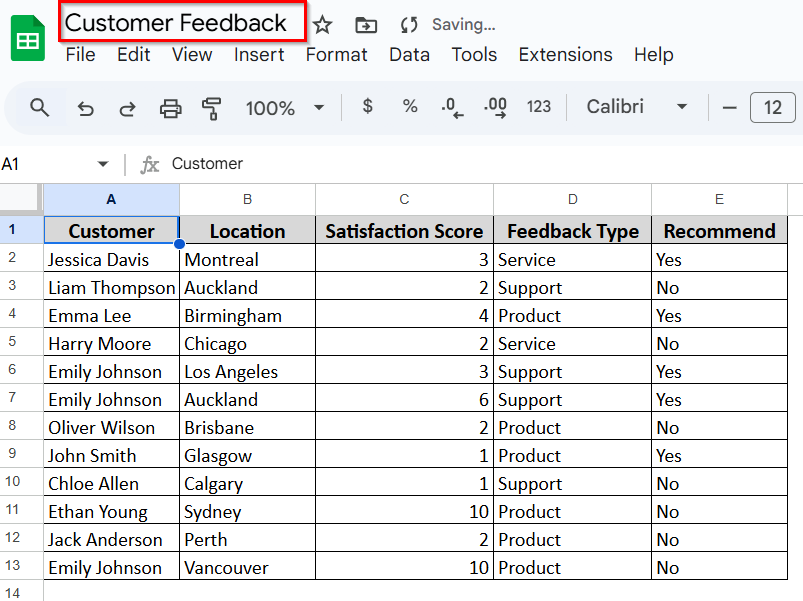
➤ Now you will see the Excel file open in Google Sheets.
However, there will be an .XLSX sign as this file is in the .xlsx format. You can keep working in this format, or you can convert it.
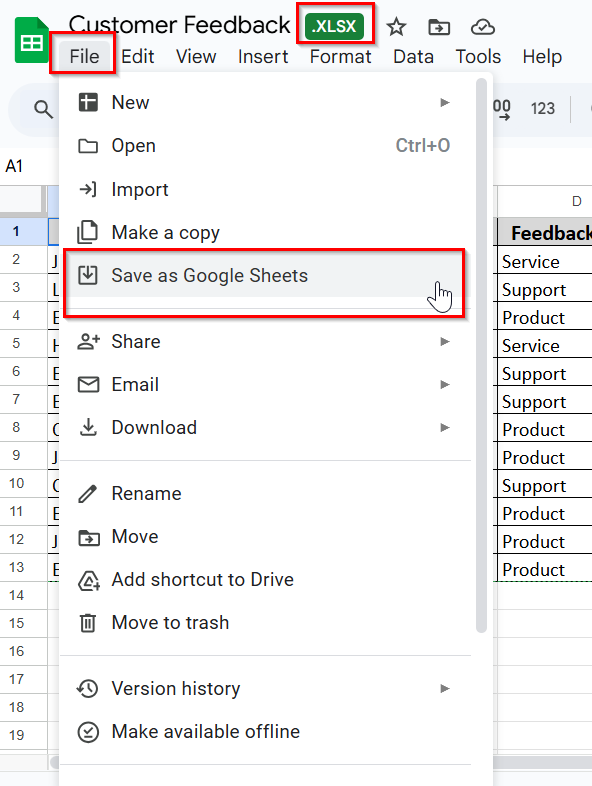
➤ From the File option, you can click on the ‘Save As Google Sheets’ and your Excel file will be saved as a Google Sheet. You will no longer see the .xlsx sign.
Import Excel into Google Sheets with the Copy-Paste Option
The copy-paste option is the quickest method when you have a small dataset. For this methods,
Steps:
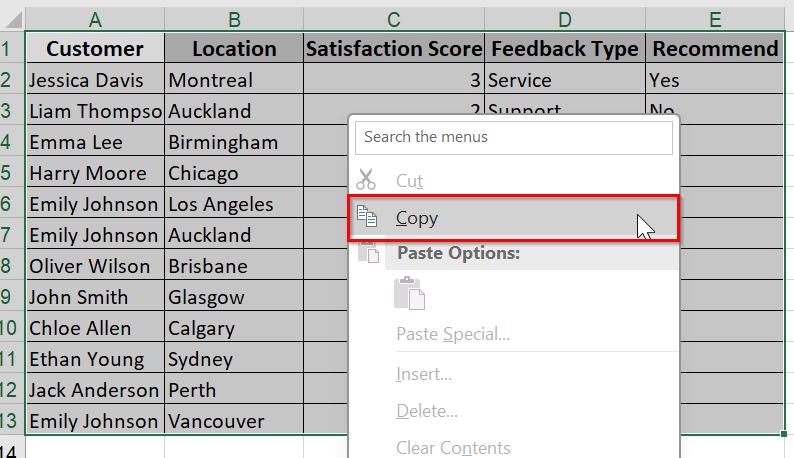
➤ You will need to open your Excel sheet and select all the data you have.
➤ Right click and choose Copy or Ctrl + C .
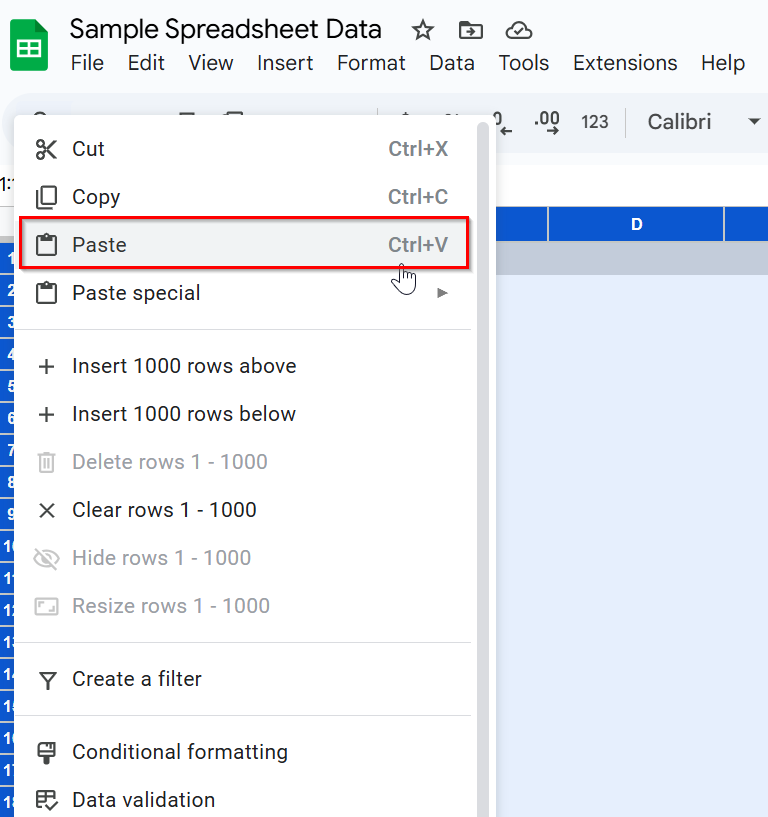
➤ Open a new Google Sheet from the Drive and paste your data into it.
This is a beginner-friendly way to import data from Excel to Google Sheets.
Practice Resources
Get our practice workbook or necessary files that we have worked with to prepare this article.
Import Excel into Google Sheets.xlsx
Frequently Asked Questions (FAQs)
Can I import an Excel file into Google Sheets without losing any formatting?
Yes, Google Sheets typically preserves the formatting, including bold text, cell colors, and number formatting, when importing an Excel file. However, some advanced Excel features (like complex formulas) may not always convert perfectly.
What file formats can I import into Google Sheets?
Google Sheets supports importing Excel files (.xls, .xlsx), CSV files, and tab-separated values (.tsv). You can also import text files and Google Sheets files from Google Drive.
Can I edit the imported Excel file in Google Sheets?
Once imported, you can freely edit the Excel data in Google Sheets. The imported file becomes fully editable, allowing you to add, modify, or delete data.
How do I share the imported Google Sheet with others?
Once your Excel file is imported into Google Sheets, click the Share button in the top-right corner of the sheet. You can then invite others via email or generate a shareable link with the desired access permissions (view, comment, or edit).
Concluding Words
Importing an Excel file into Google Sheets allows you to work with your team efficiently. Once imported, you can edit, share, and collaborate with others in real-time, making it much easier to manage your work from anywhere. This transition not only helps simplify your workflow but also makes data management and teamwork more efficient and accessible.
Go through the simple methods we have discussed and make your Google Sheets journey easier. Feel free ask any questions you have, we are always eager to hear from you.