When working with a large Excel worksheet, you often need to share or save individual sheets. Obviously, it will be very time-consuming and repetitive to save each worksheet manually. Excel VBA makes the task a lot easier by automating the saving of the worksheet as a new file.
In this article, we will guide you through three practical methods to save worksheets as new files using VBA. The methods include saving all sheets, saving only the active sheet, and saving sheets that match specific text.
➤ Insert the below VBA macro in the VBA editor.
Sub SaveActiveSheetAsNewFile()
    Dim ws As Worksheet
    Dim newWb As Workbook
    Dim filePath As String
    Set ws = ActiveSheet
    ws.Copy
    Set newWb = ActiveWorkbook
    filePath = ThisWorkbook.Path & "\" & ws.Name & "_Copy.xlsx"
    newWb.SaveAs Filename:=filePath, FileFormat:=xlOpenXMLWorkbook
    newWb.Close False
    MsgBox "Active sheet '" & ws.Name & "' saved as a new file at: " & filePath
End Sub
➤ Run the macro.
➤ The VBA will copy the selected sheet and save it to a new file in the same folder as your original Excel file.
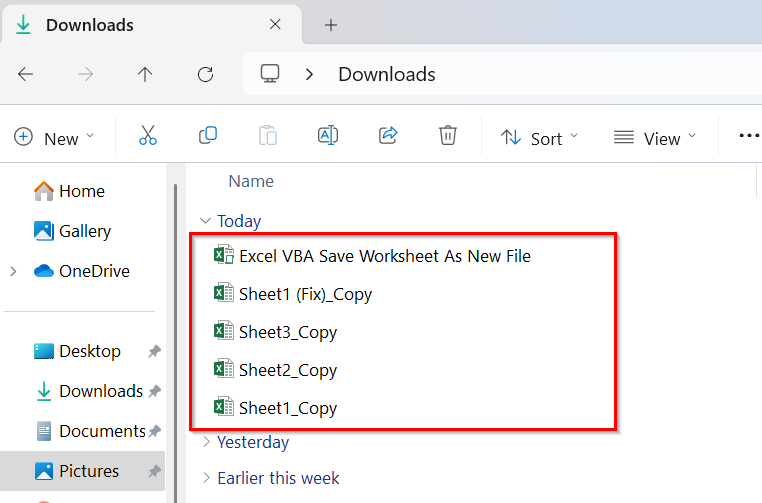
Save One/ Specific Worksheet as a New Excel File
In some cases, you may need to save or back up only one sheet instead of the whole workbook. This VBA code helps you quickly save your active sheet as a separate new file. The method is perfect when you need to save a specific sheet from a large workbook as a new file. The new file will be saved in the same folder as your original workbook once you run the code.
Here, we have a sample Excel workbook with 3 worksheets: Sheet1, Sheet2, and Sheet3. Each sheet contains the same dataset. Now we are going to save the worksheet as a new file with Excel VBA.
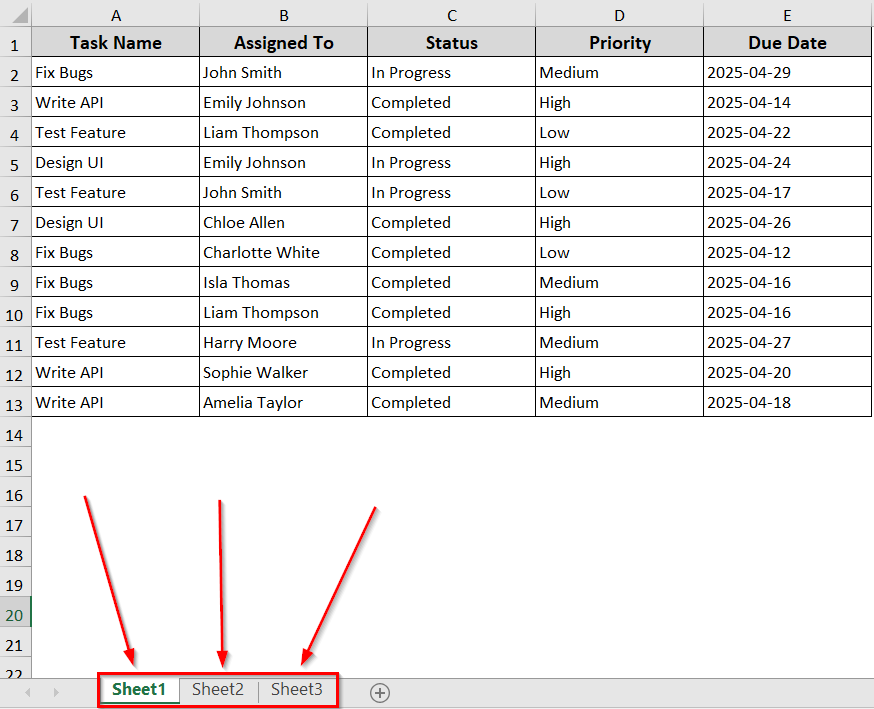
Steps:
➤ Open your Excel workbook and go to the specific sheet.
➤ Press Alt + F11 to open the VBA Editor.
➤ Go to the Insert >> Module.
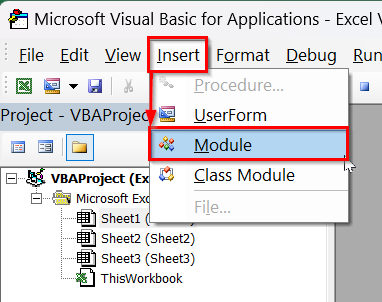
➤ In the new module, insert the below VBA code. You can just copy and paste it.
Sub SaveActiveSheetAsNewFile()
Dim ws As Worksheet
Dim newWb As Workbook
Dim filePath As String
Set ws = ActiveSheet
ws.Copy
Set newWb = ActiveWorkbook
filePath = ThisWorkbook.Path & "\" & ws.Name & "_Copy.xlsx"
newWb.SaveAs Filename:=filePath, FileFormat:=xlOpenXMLWorkbook
newWb.Close False
MsgBox "Active sheet '" & ws.Name & "' saved as a new file at: " & filePath
End Sub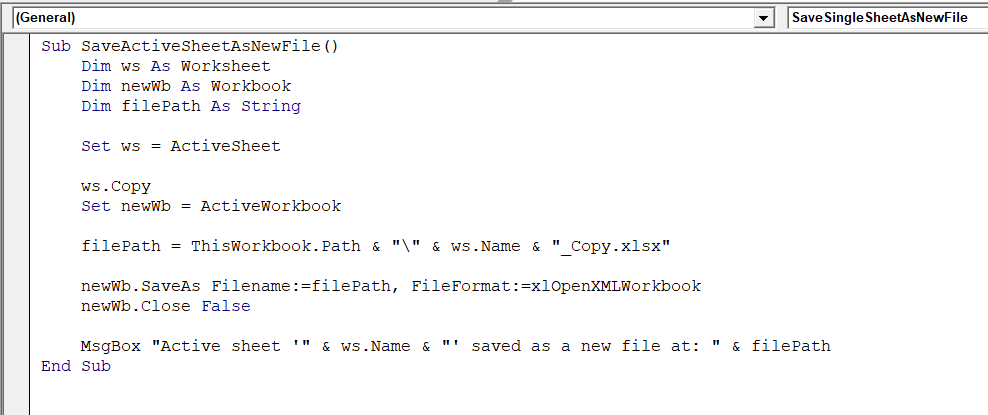
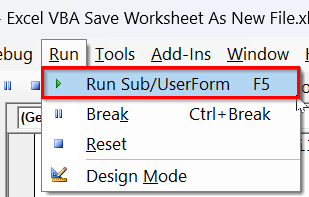
➤ Run the VBA code by selecting Run Sub/UserForm or just click F5 .
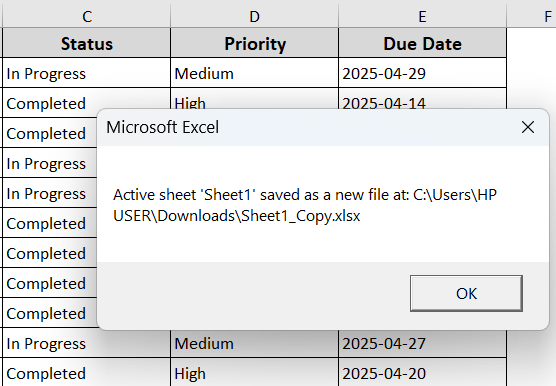
➤ Once you run the code, Excel will show a message box saying your sheet is saved.
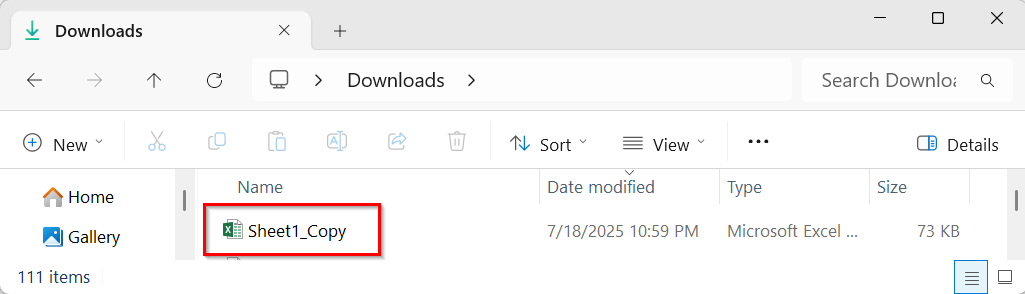
➤ Your selected sheet will be saved as a new Excel file in the same folder.
Save All Worksheets as a Separate Excel File
In case you want to split a whole workbook and save each sheet as a separate file, the following VBA method can help you out. It loops through all sheets and saves each one as a new Excel file in the same folder. As a result, you’ll have individual files named after each sheet.
Steps:
➤ Open your Excel workbook.
➤ Press Alt + F11 to open the VBA Editor.
➤ Go to Insert >> Module.
➤ Insert the following VBA code in the new module. You can just copy and paste it.
Sub SaveEachSheetAsFile()
Dim ws As Worksheet
Dim newWb As Workbook
Dim filePath As String
For Each ws In ThisWorkbook.Sheets
ws.Copy
Set newWb = ActiveWorkbook
filePath = ThisWorkbook.Path & "\" & ws.Name & "_Copy.xlsx"
newWb.SaveAs Filename:=filePath, FileFormat:=xlOpenXMLWorkbook
newWb.Close False
Next ws
MsgBox "All sheets have been saved as separate files."
End Sub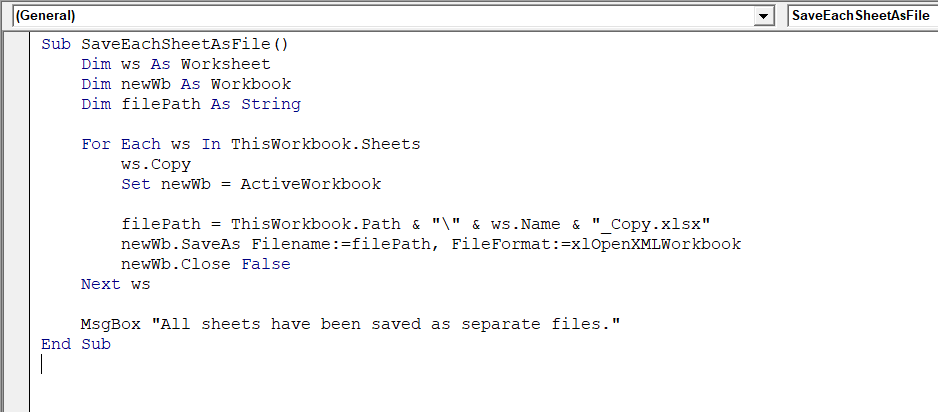
➤ Run the code.
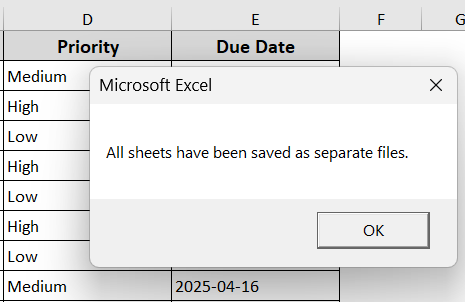
➤ Excel will show a message confirming that all files are saved.
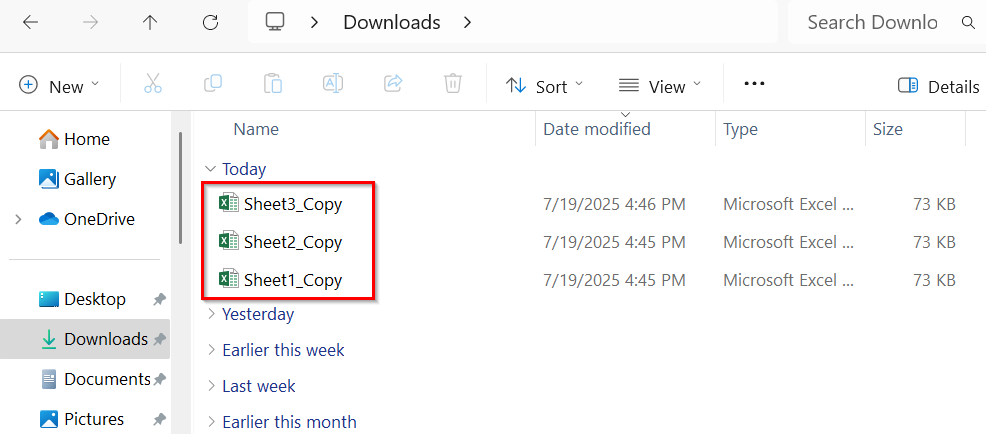
➤ You will also see each sheet to be saved individually in the same folder as your original workbook.
Save Only Worksheets with Specific Text/Word as Separate Files
When working with a large Excel workbook, sometimes you do not need to save every sheet as a new file. Instead, you may want to save only those that contain a specific word in the sheet name. This VBA code checks each sheet’s name and the matching ones as separate new Excel files. As a result, you will get
Steps:
➤ Press Alt + F11 to open the VBA Editor.
➤ Go to Insert >> Module.
➤ Insert the following VBA code in the new module. You can copy-paste the code.
But just change the keyword = “Fix” to the exact text or word you are searching for.
Sub SaveSheetsWithSpecificWord()
Dim ws As Worksheet
Dim newWb As Workbook
Dim keyword As String
Dim filePath As String
' Set the keyword to search in sheet names
keyword = "Fix" ' Change this to your desired word/phrase
' Loop through each worksheet
For Each ws In ThisWorkbook.Sheets
If InStr(1, ws.Name, keyword, vbTextCompare) > 0 Then
ws.Copy ' Copy the matching sheet to a new workbook
Set newWb = ActiveWorkbook
' Define the file path to save
filePath = ThisWorkbook.Path & "\" & ws.Name & "_Copy.xlsx"
' Save and close the new workbook
newWb.SaveAs Filename:=filePath, FileFormat:=xlOpenXMLWorkbook
newWb.Close SaveChanges:=False
End If
Next ws
MsgBox "Sheets with '" & keyword & "' in their names were saved successfully."
End Sub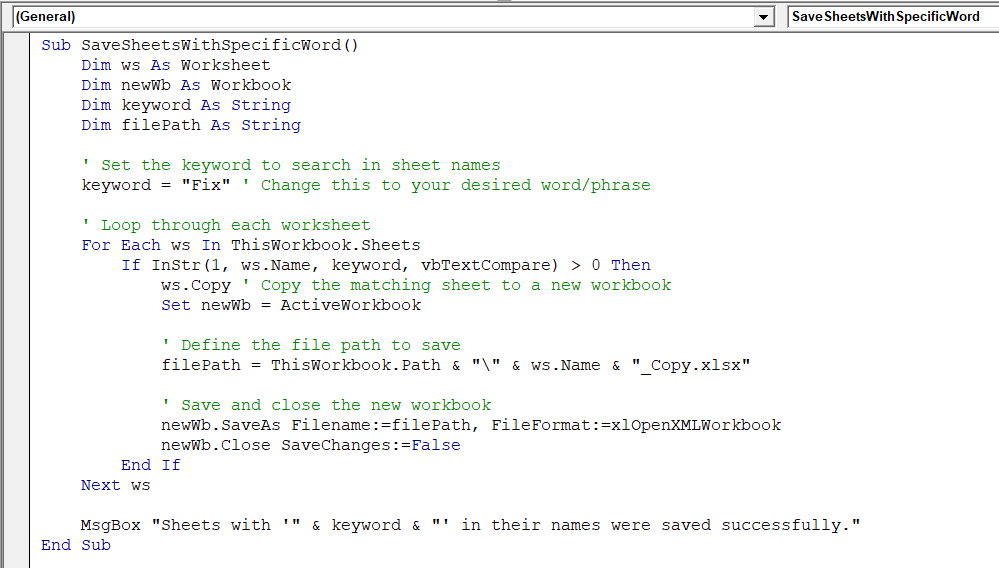
➤ Close the VBA editor.
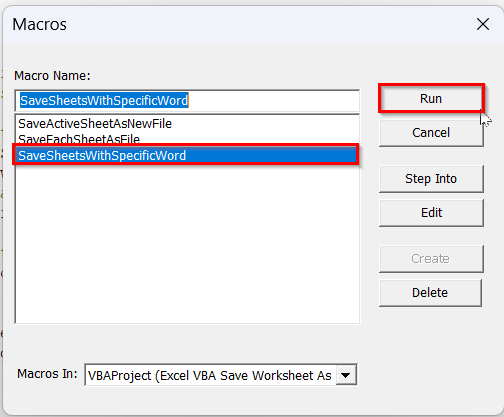
➤ Press Alt + F8 >> select SaveSheetsWithSpecificWord from the Macro name >> Click Run.
➤ Excel will show a message confirming the successful save.
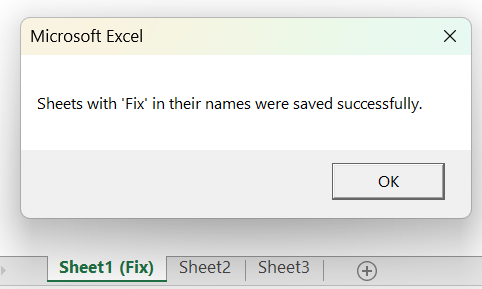
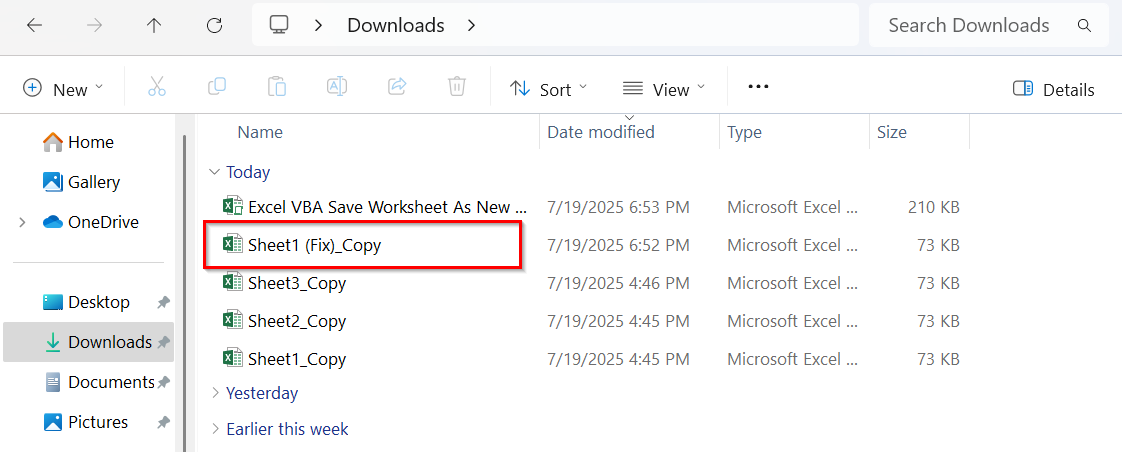
➤ You will have a new file of the sheets that has your specified words in their names.
Downloadable Resources
Get our practice workbook or necessary files that we have worked with to prepare this article.
Save Worksheet as New File with VBA.xlsx
Frequently Asked Questions
How do I export an Excel sheet to a new Excel File with VBA?
➤ Insert the following VBA code into the VBA editor.
Sub ExportSheetToNewFile()
    Sheets("Sheet1").Copy
    ActiveWorkbook.SaveAs "C:\Path\YourFileName.xlsx"
    ActiveWorkbook.Close False
End Sub
➤ Run the code
➤ It will create a new Excel file with only the selected sheet.
How to create a new Excel File with VBA?
➤ Insert the following VBA code into the VBA editor.
Sub CreateNewExcelFile()
    Dim newWb As Workbook
    Set newWb = Workbooks.Add
    newWb.SaveAs Filename:="C:\Path\NewFile.xlsx"
    newWb.Close
End Sub
➤ Run the code.
➤ The VBA code will create a new workbook in your specified location.
How do I separate an Excel sheet into a new File?
You can use the following VBA code to separate an Excel sheet into a new file.
Sub SeparateSheetToNewFile()
    Sheets("Sheet1").Copy
    ActiveWorkbook.SaveAs "C:\Path\SeparatedSheet.xlsx"
    ActiveWorkbook.Close False
End Sub
Run the code
The VBA code will copy the sheet to a new workbook and save it as a separate Excel file.
Wrapping Up
In today’s quick guide, we have learnt three ways to save a worksheet as a new file with Excel VBA. These VBA codes effectively help you automate the process of saving the sheets and sharing them. Feel free to download the sample Excel worksheet and let us know how these VBA codes have simplified your Excel file management tasks.