Knowing your Excel file’s extension is important for compatibility, sharing, and choosing the right features. For example, modern Excel uses .xlsx, while older versions use .xls. Other formats, such as .xlsm (macro-enabled workbooks) or .csv (comma-separated values), serve different purposes. If you’re unsure which format your file uses or need to confirm before converting or sharing, it’s easy to check.
In this article, we’ll show you two easy ways to check an Excel file extension either through File Explorer for locally saved files or directly inside Excel to see available formats. Let’s begin.
Steps to check file extension in Excel:
➤ Open File Explorer and navigate to the folder containing the Excel file.
➤ Right-click on the Excel file.
➤ In the context menu, select Properties.
➤ A Properties window will appear. Under the General tab, find the Type of file line. This will show the file type and its extension, like .xlsx.
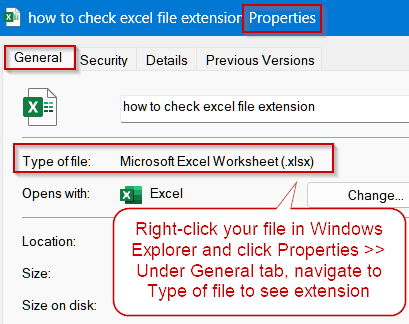
Check Excel File Extension Using File Explorer
If you have an Excel file saved on your computer and want to quickly verify its format without opening the application, File Explorer provides a straightforward way to check the file extension. This method is especially useful when handling multiple files, sharing workbooks with colleagues, or ensuring compatibility before converting or uploading a file. By viewing the file’s properties, you can easily confirm whether it’s a modern .xlsx, older .xls, macro-enabled .xlsm, or another supported format.
Steps:
➤ Open File Explorer and navigate to the folder containing the Excel file.
➤ Right-click on the Excel file.
➤ In the context menu, select Properties.

➤ A Properties window will appear. Under the General tab, find the Type of file line.
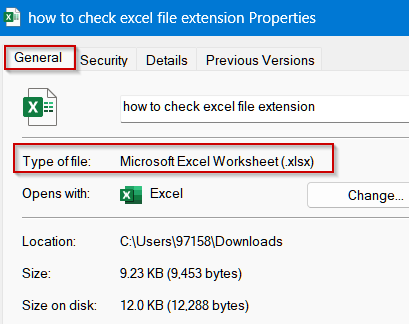
This will show the file type and its extension, like .xlsx.
Use Excel to Check Your File Extension
If you are already working in Excel or want to explore all supported file formats, you can check a workbook’s extension directly within the application. This approach not only confirms the current file type but also shows all available formats for saving, including modern .xlsx, older .xls, macro-enabled .xlsm, and other compatible options. Using this method ensures you choose the correct format when sharing, converting, or preparing a file for compatibility with other users or systems.
Steps:
➤ Open your Excel workbook.
➤ Click on the File tab in the top-left corner.
➤ Select Save As.
➤ In the Save As dialog box, look for the dropdown menu labeled Save as type or File format.
➤ Clicking this dropdown will reveal a list of all supported Excel file extensions, such as .xlsx (modern Excel) or .xls (older versions).

Downloadable Resources
Get our practice workbook or necessary files that we have worked with to prepare this article.
Check Excel File Extension.xlsx
Frequently Asked Questions
What is the difference between .xls and .xlsx extensions in Excel?
The .xls format is used by older versions of Excel (97–2003) and has fewer features, while .xlsx is the modern default format offering improved performance, compatibility, and support for advanced Excel functions.
Can I change an Excel file’s extension without converting it?
Simply renaming an extension (e.g., .xlsx to .xls) doesn’t convert the file and can cause errors. To safely change formats, open the file in Excel and use File >> Save As to convert properly.
Why does my Excel file not show its extension in File Explorer?
Windows may hide known file extensions by default. To display them, open File Explorer Options, go to the View tab, and uncheck Hide extensions for known file types, then click OK to apply.
Which extension should I use for macro-enabled workbooks?
For workbooks containing VBA macros, use .xlsm. The .xlsx format doesn’t support macros, so saving macros in .xlsm ensures they remain functional and secure while maintaining compatibility with modern Excel versions.
Does the file extension affect Excel’s feature availability?
Yes. Certain features, like macros, legacy sharing, or large datasets, require specific formats (.xlsm or .xlsx). Using an older format (.xls) can disable modern tools or reduce performance, so always pick the appropriate extension.
Wrapping Up
In this tutorial, you learned two straightforward ways to check an Excel file extension either through File Explorer for a saved file or directly inside Excel to view available formats. Confirming the extension ensures your workbook is compatible with the intended version or platform. Feel free to download the practice file and share your feedback.