Handling large Excel files can be a frustrating experience due to slow loading times, frequent freezes, or unexpected crashes that can hamper your productivity. Whether you’re analyzing sales data, managing complex reports, or collaborating on enterprise-level workbooks, large files can quickly overwhelm Excel and your computer’s resources. Understanding why these issues occur and learning effective strategies can save you time and prevent data loss.
In this article, we’ll walk through ten proven methods to open large Excel files without crashing. From disabling unnecessary add-ins and optimizing formatting to using efficient file formats like .xlsb and advanced tools like Power Query.
Steps to open large excel files without crashing:
➤ Go to File >> Options >> Advanced.
➤ Under the Display section, check Disable hardware graphics acceleration.
➤ Click OK and reopen your file.

Disable Problematic Add-ins to Reduce Crashes
Add-ins can greatly extend Excel’s functionality, but they can also be a hidden cause of performance problems, especially with large files. Some third-party or outdated add-ins consume excessive memory or conflict with Excel’s core processes, leading to sluggish performance or crashes when opening massive workbooks. By disabling unnecessary add-ins, you can minimize potential conflicts, free up system resources, and ensure Excel runs more smoothly. This method is particularly useful if your large files open correctly in Safe Mode but crash during normal startup.
Steps:
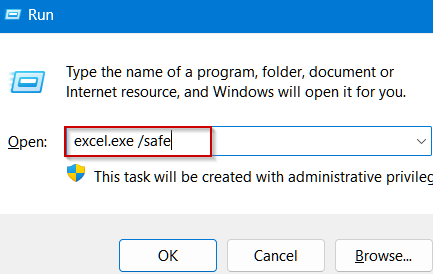
➤ Press Windows Key + R , type excel.exe /safe, and hit Enter to start Excel in Safe Mode.
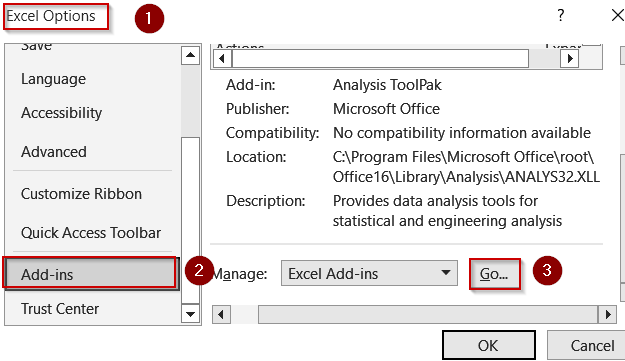
➤ Go to File >> Options >> Add-ins.
➤ At the bottom, choose Excel Add-ins in the Manage box and click Go.
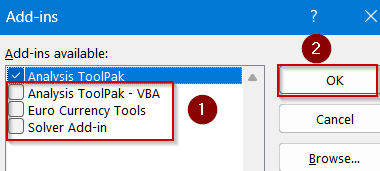
➤ Uncheck unnecessary add-ins and click OK. Then restart Excel normally.
Turn Off Hardware Graphics Acceleration for Stability
Modern Excel uses your computer’s graphics hardware to improve display performance, but with large or complex workbooks, this feature can sometimes backfire. Hardware graphics acceleration may cause screen flickering, slow rendering, or even crashes when opening heavy files. Disabling this option forces Excel to rely on software rendering instead, which can improve stability and reduce the risk of crashes, especially on older or mid-range computers.
Steps:
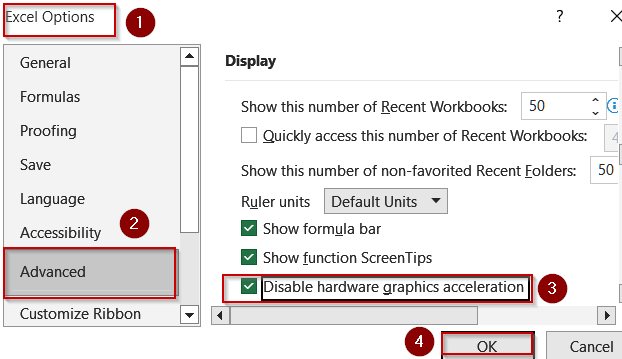
➤ Go to File >> Options >> Advanced.
➤ Under the Display section, check Disable hardware graphics acceleration.
➤ Click OK and reopen your file.
Simplify Complex Calculations Before Opening
Large Excel files often contain complex or volatile functions, such as OFFSET, RAND, TODAY, or array formulas, which recalculate automatically and can severely slow down performance. For massive workbooks, this constant recalculation may even cause crashes when opening or editing the file. By setting calculation mode to manual and reviewing formulas for simplification, you reduce unnecessary processing, improve stability, and make it easier to work with large datasets without overloading Excel’s resources.
Steps:
➤ Open Excel without loading the file, then go to File >> Options >> Formulas.
➤ Set Workbook Calculation to Manual.
➤ Open the large file and review complex formulas for simplification.

Save as an Excel Binary Workbook (.xlsb)
The standard .xlsx format stores data in XML, which can make very large files bulky and slow to open. Converting your workbook to the Excel Binary Workbook (.xlsb) format compresses the data, reduces file size, and allows Excel to load the file faster. This approach is especially useful for workbooks with thousands of rows, multiple sheets, or complex formulas, as it improves performance and reduces the likelihood of crashes while maintaining full Excel functionality.
Steps:
➤ Open the file (if possible) or a copy of it.
➤ Go to File >> Save As.
➤ Choose Excel Binary Workbook (*.xlsb) and save.

➤ Reopen the new .xlsb file to check performance.

Analyze File Details Before Opening
Before opening a massive Excel file, it’s helpful to understand its structure and size. Extremely large files with multiple sheets, hidden objects, or embedded images can overload Excel and cause crashes. By examining file details in advance, you can make informed decisions such as whether to optimize, split, or move the file to a faster drive so that opening the workbook becomes safer and more efficient.
Steps:
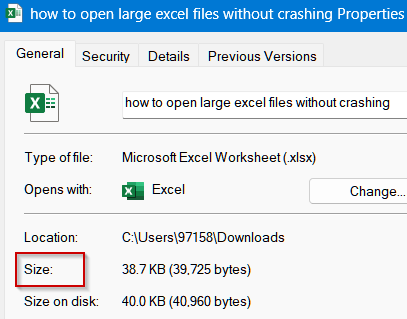
➤ Right-click the Excel file and choose Properties to check its size.

➤ If the file is extremely large (>100 MB), consider copying it to a local drive before opening.
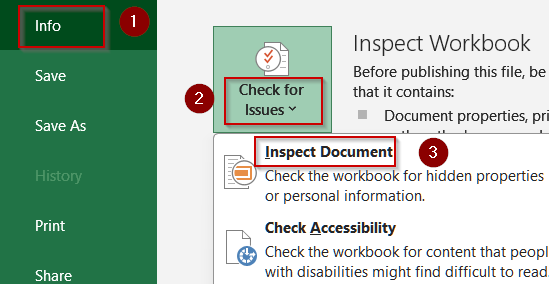
➤ If you suspect hidden sheets or excessive objects, open Excel first and use File >> Info >> Check for Issues >> Inspect Document to review its contents.
Remove Excess Cell Formatting
One common reason Excel files become slow or crash is excessive cell formatting. Even if many cells appear empty, leftover fonts, colors, borders, or styles in distant cells can drastically increase file size and memory usage. By identifying and clearing unnecessary formatting beyond your actual data range, you reduce workbook load, improve performance, and minimize the risk of crashes. This method is especially effective for older files or those that have been edited extensively over time.
Steps:
➤ Press Ctrl + End in the worksheet to see the last used cell.
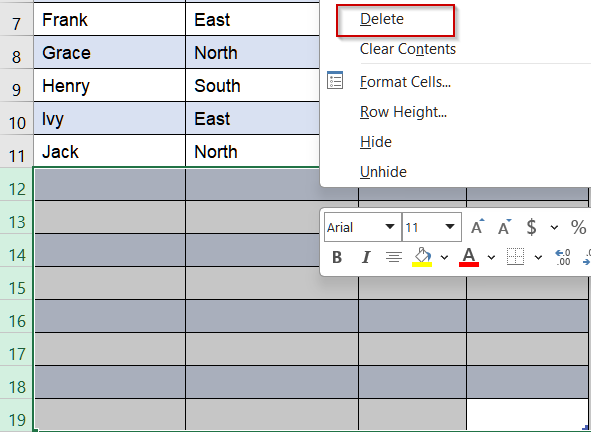
➤ Select rows and columns beyond your actual data and press Delete.
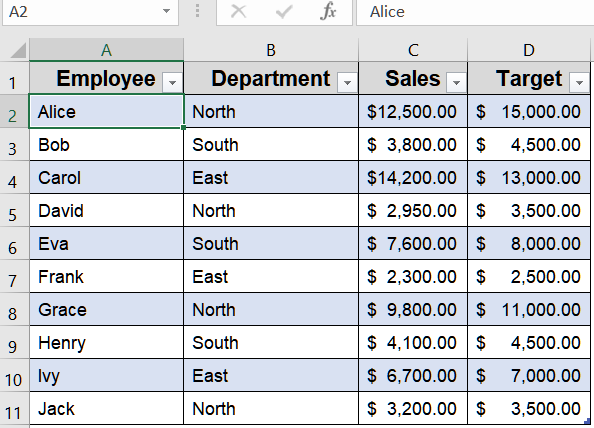
➤ Save and reopen the file.
Clear Unused Styles and Conditional Formatting
Excessive or duplicate cell styles and conditional formatting rules can significantly slow down large Excel workbooks. Even if only a few cells use these features, Excel still processes all defined styles and rules, consuming memory and potentially causing crashes. By cleaning up unused styles and removing unnecessary conditional formatting, you can simplify the workbook, reduce file size, and improve overall performance which makes it easier to open and work with large datasets efficiently.
Steps:
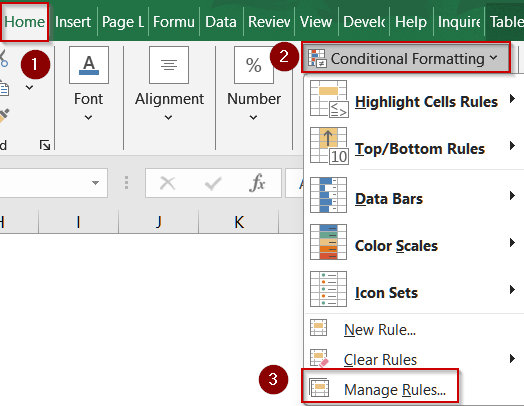
➤ Go to Home >> Conditional Formatting >> Manage Rules and delete unneeded rules.
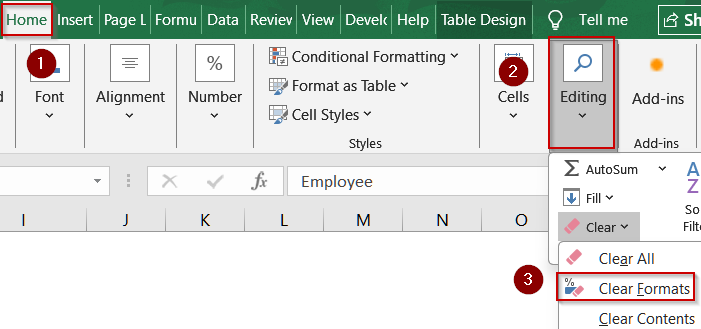
➤ Retain only essential formatting, such as headings or critical highlights. Go to the Home tab >> Editing >> Clear >> Clear Formats.
➤ Save the workbook by pressing Ctrl + S to ensure changes apply.
Split the Workbook into Smaller Parts
Very large workbooks can overwhelm Excel, causing slow performance or crashes. Splitting a file into smaller, more manageable segments allows Excel to handle each part efficiently. By dividing data logically such as by year, region, or category, you reduce memory usage and make editing, analysis, and printing faster. This approach is especially helpful for legacy files or datasets that have grown over time, ensuring smoother operation without losing any critical information.
Steps:
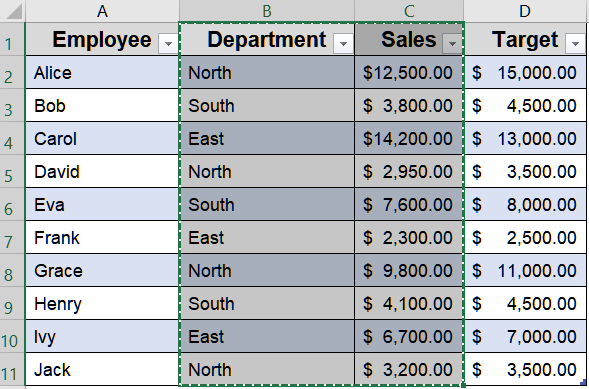
➤ Identify logical breakpoints (e.g., split by year, region, or category).
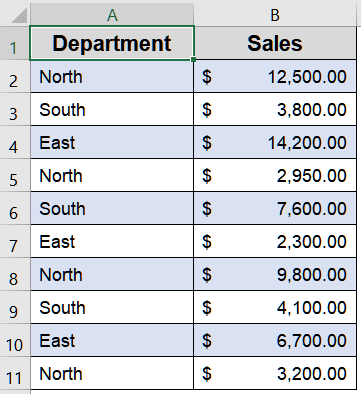
➤ Copy subsets of your data to new workbooks.
➤ Save each smaller file separately, then open them individually as needed.
Update Excel and Check for Conflicting Programs
Using an outdated version of Excel or running multiple memory-intensive programs in the background can cause crashes when opening large files. Software updates often include performance improvements and bug fixes that enhance stability. Additionally, other applications may compete for system resources, reducing Excel’s available memory. Ensuring Excel is up to date and minimizing conflicting programs helps large workbooks open more reliably, especially on systems with limited RAM or 32-bit Excel installations.
Steps:
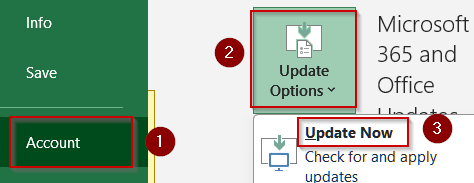
➤ Go to File >> Account >> Update Options >> Update Now to ensure Excel is up to date.
➤ Close memory-heavy programs (like browsers, design software, or virtual machines) before opening large files.

➤ If problems persist, try opening the file on a 64-bit version of Excel or a machine with more RAM.
Use Power Query to Handle Large Data
Extremely large Excel files can overwhelm your system and cause crashes when opened directly. Power Query allows you to import, filter, and transform only the data you need before loading it into the workbook. This approach reduces memory usage, improves performance, and ensures you can work with massive datasets efficiently without straining Excel.
Steps:
➤ Open Excel and go to Data >> Get Data >> From File >> From Workbook.

➤ Browse and select the large Excel file you want to load.
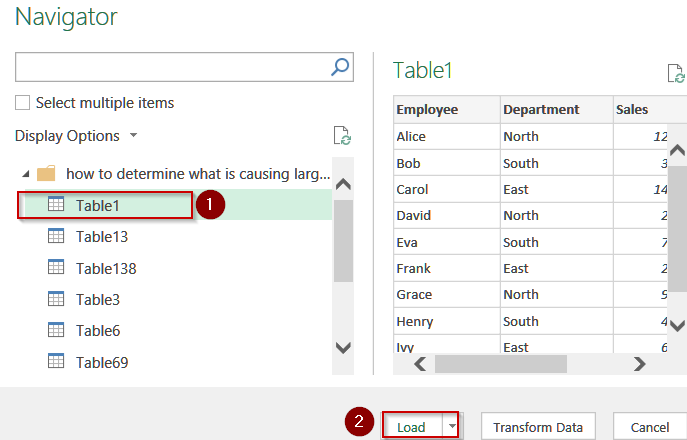
➤ In the Navigator window, select the sheet or table you want to import.
➤ Click Load to directly import your data. If required, you can also use Transform Data to clean your dataset inside PowerQuery Editor.
➤ Work with the imported subset without opening the entire large workbook.

Downloadable Resources
Get our practice workbook or necessary files that we have worked with to prepare this article.
Open Large Excel Files Without Crashing.xlsx
Frequently Asked Questions
Why does Excel crash when opening large files?
Excel may crash due to memory limits, complex formulas, excessive formatting, or conflicting add-ins. Large files overwhelm system resources, especially on 32-bit Excel or low-RAM machines, causing freezes or unexpected closures.
Does converting to .xlsb really improve performance?
Yes. Saving a workbook as an Excel Binary Workbook (.xlsb) compresses data, reduces file size, and loads faster. It’s especially effective for large spreadsheets with extensive formulas, improving performance and reducing crashes significantly.
What’s the maximum file size Excel can handle?
Excel’s practical limit depends on system memory and version. While worksheets can contain over a million rows, files beyond 100–200 MB may lag or crash, especially with volatile formulas or excessive formatting applied.
Can Power Query open huge files better than Excel directly?
Yes. Power Query processes data outside the worksheet, loading only necessary columns or rows. This reduces memory usage, making it far easier to handle massive datasets without crashing or freezing the entire workbook.
Is 64-bit Excel better for large workbooks?
Yes. 64-bit Excel can use more RAM than the 32-bit version, making it ideal for handling very large spreadsheets. It reduces the likelihood of crashes and improves performance with complex, data-heavy files.
Wrapping Up
In this tutorial, we explored ten proven methods to open large Excel files without crashing starting from disabling problematic add-ins and removing excess formatting to using .xlsb format, splitting files, and leveraging Power Query. Applying these tips will help you manage massive workbooks more smoothly, save time, and prevent data loss. Feel free to download the practice file and share your feedback.